
Setting Up the IRC Bridge
Matrix IRC Bridge
The Matrix IRC Bridge is an IRC bridge for Matrix that will pass all IRC messages through to Matrix, and all Matrix messages through to IRC. Please also refer to the bridges' specific documentation for additional guidance.
For usage of the IRC Bridge via it's bot user see Using the Matrix IRC Bridge documentation.
Installation and Configuration
From the Installer's Integrations page find the IRC Bridge entry, and click Install.This will setup the IRC Bridges' config directory, by default this will be located:
~/.element-enterprise-server/config/legacy/ircbridge
You will initially be taken to the bridges configuration page, for any subsequent edits, the Install button will be replaced with Configure, indicating the bridge is installed.
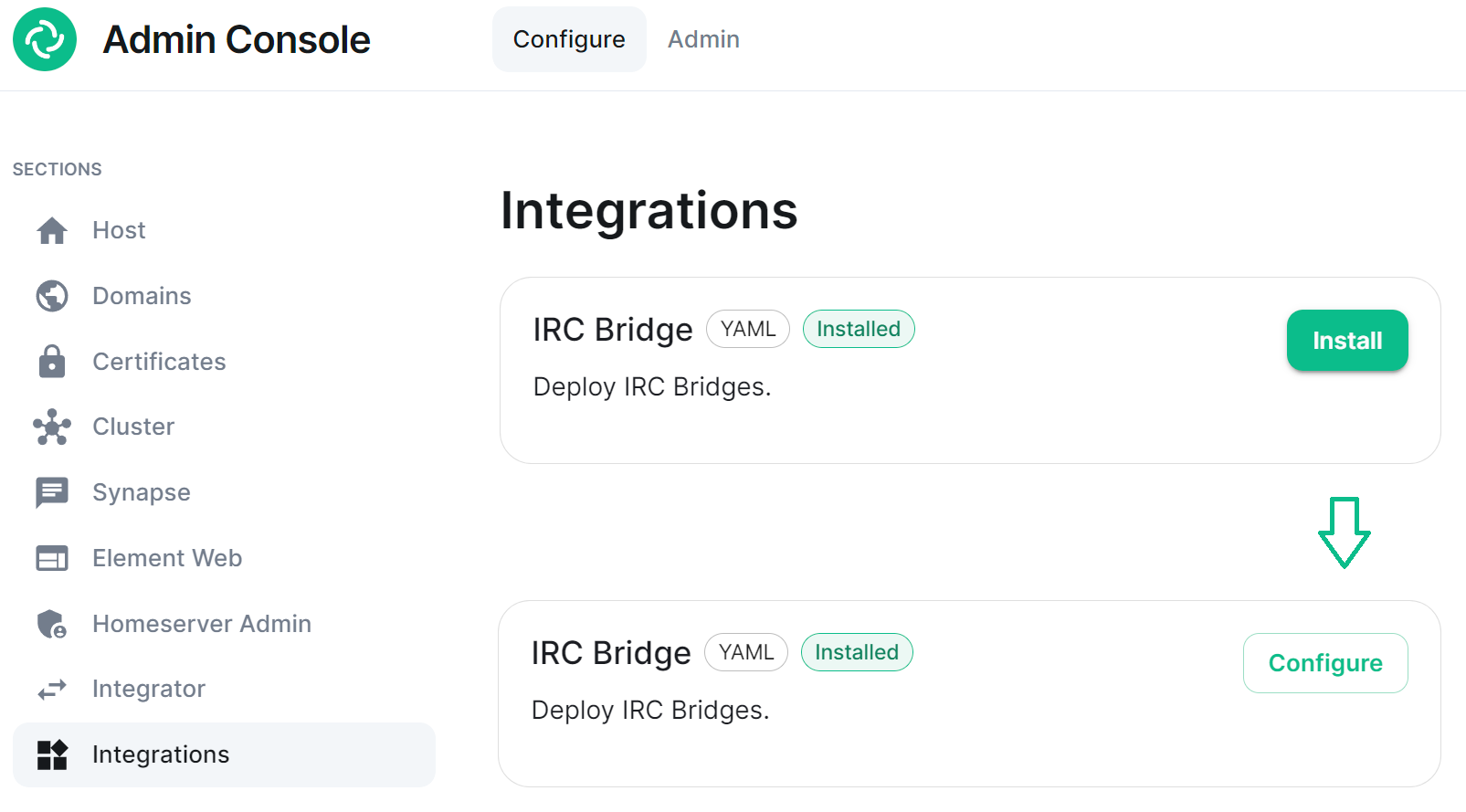
There are two sections of the Matrix IRC Bridge configuration page, the Bridge.yml section, and a section to Upload a Private Key. We'll start with the latter as it's the simplest of the two, and is referenced in the first.
Upload a Private Key
As the bridge needs to send plaintext passwords to the IRC server, it cannot send a password hash, so those passwords are stored encrypted in the bridge database. When a user specifies a password to use, using the admin room command !storepass server.name passw0rd, the password is encrypted using a RSA PEM-formatted private key. When a connection is made to IRC on behalf of the Matrix user, this password will be sent as the server password (PASS command).
Therefore you will need a Private Key file, by default called passkey.pem:
If you have a Private Key file already, simply upload the file using this sections Upload File button, supplying a RSA PEM-formatted private key.

If you don't already have one, per the instructions provided in the section itself, you should generate this file by running the following command from within the IRC Bridges' config directory:
penssl genpkey -out passkey.pem -outform PEM -algorithm RSA -pkeyopt rsa_keygen_bits:2048
The Bridge.yml Section
The Bridge.yml is the complete configuration of the Matrix IRC Bridge. It points to a private key file (Private Key Settings), and both configures the bridges' own settings and functionality (Bridge Settings), and the specific IRC services you want it to connect with (IRC Settings).
Private Key Settings
key_file: passkey.pem
By default this is the first line in the Bridge.yml config, it refers to the file either moved into the IRC Bridges' config directory, or generated in there using openssl. If moved into the directory ensure the file was correctly renamed to passkey.pem.
Bridge Settings
The rest of the configuration sits under the bridged_irc_servers: section:
bridged_irc_servers:
You'll notice all entries within are initially indented ( ) so all code blocks will include this indentation. Focusing on settings relating to the bridge itself (and not any specific IRC connection) covers everything except the address: and associated parameters: sections, by default found at the end of the Bridge.yml.
Postgres
If you are using postgres-create-in-cluster you can leave this section as-is, the default ircbridge-postgres / ircbridge / postgres_password values will ensure your setup works correctly.
- postgres_fqdn: ircbridge-postgres
  postgres_user: ircbridge
  postgres_db: ircbridge
  postgres_password: postgres_password
Otherwise you should edit as needed to connect to your existing Postgres setup:
postgres_fqdn: Provide the URL to your Postgres setup
postgres_user: Provide the user that will be used to connect to the database
postgres_db: Provide the database you will connect to
postgres_password: Provide the password of the user specified above
You can uncomment the following to use as needed, note if unspecified some of these will default to the advised values, you do not need to uncomment if you are happy with the defaults.
postgres_data_path: This can be used to specify the path to the postgres db on the host machine
postgres_port: This can be used to specify a non-standard port, this defaults to 5432.
postgres_sslmode: This can be used to specify the sslmode for the Postgres connection, this defaults to 'disable', however 'no-verify' and 'verify-full are available options
For example, your Postgres section might instead look like the below:
- postgres_fqdn: https://db.example.com
  postgres_user: example-user
  postgres_db: matrixircbridge
  postgres_password: example-password
  # postgres_data_path: "/mnt/data/<bridged>-postgres"
  postgres_port: 2345
  postgres_sslmode: 'verify-full'
IRC Bridge Admins
Within the admins: section you will need to list all the Matrix User ID's of your users who should be Admins of the IRC Bridge. You should list one Matrix User ID per line using the full Matrix User ID formatted like @USERNAME:HOMESERVER
  admins:
  - "@user-one:example.com"
  - "@user-two:example.com"
Provisioning
Provisioning allows you to set specified rules about existing room when bridging those rooms to IRC Channels.
enable_provisioning: Set this to true to enable the use of provisioning_rules:
provisioning_rules: -> userIds: Use Regex to specify which User IDs to check for in existing rooms that are trying to be bridged
exempt: List any User IDs you do not want to prevent the bridging of a room, that would otherwise meet the match in conflict:
conflict: Specify individual User IDs, or use Regex
provisioning_room_limit: Specify the number of channels allowed to be bridged
So the example bridge.yml config below will block the bridging of a room if it has any User IDs within it from the badguys.com homeserver except @doubleagent:badguys.com, and limit the number of bridged rooms to 50.
  enable_provisioning: true
  provisioning_rules:
    userIds:
      exempt:
        - "@doubleagent:badguys.com"
      conflict:
        - "@.*:badguys.com"
  provisioning_room_limit: 50
IRC Ident
If you are using the Ident protocol you can enable it usage with the following config:
enable_ident: Set this to true to enable the use of IRC Ident
ident_port_type: Specify either 'HostPort' or 'NodePort' depending on your setup
ident_port_number: Specify the port number that should be used
  enable_ident: false
  ident_port_type: 'HostPort'
  ident_port_number: 10230
Miscellaneous
Finally there are a few additional options to configure:
logging_level: This specifies how detailed the logs should be for the bridge, by default this is info, but error, warn and debug are available.
kubectl logs IRC_POD_NAME -n element-onprem
enable_presence: Set to true if presence is required.
false if presence is disabled on the homeserver to avoid excess traffic.
drop_matrix_messages_after_seconds: Specify after how many seconds the bridge should drop Matrix messages, by default this is 0 meaning no messages will be dropped.
bot_username: Specify the Matrix User ID of the the bridge bot that will facilitate the creation of rooms and can be messaged by admins to perform commands.
rmau_limit: Set this to the maximum number of remote monthly active users that you would like to allow in a bridged IRC room.
users_prefix: Specify the prefix to be used on the Matrix User IDs created for users who are communicating via IRC.
alias_prefix: Specify the prefix to be used on room aliases when created via the !join command.
The defaults are usually best left as-is unless a specific need requires changing these, however for troubleshooting purposes, switching logging_level to debug can help identify issues with the bridge.
  logging_level: debug
  enable_presence: false
  drop_matrix_messages_after_seconds: 0
  bot_username: "ircbridgebot"
  rmau_limit: 100
  users_prefix: "irc_"
  alias_prefix: "irc_"
Advanced Additional Configuration
You can find more advanced configuration options by checking the config.yaml sample provided on the Matrix IRC Bridge repository.
You can ignore the servers: block as config in that section should be added under the parameters: section associated with address: that will be setup per the below section. If you copy any config, ensure the indentation is correct, as above, all entries within are initially indented ( ), so they are under the bridged_irc_servers: section.
IRC Settings
The final section of Bridge.yml, here you specify the IRC network(s) you want the bridge to connect with, this is done using address: and parameter: formatted like so:
address: Specify your desired IRC Network
  address: irc.example.com
  parameters:
Aside from the address of the IRC Network, everything is configured within the parameters: section, and so is initially indented , all code blocks will include this indentation.
Basic IRC Network Configuration
At a minimum, you will need to specify the name: of your IRC Network, as well as some details for the bots configuration on the IRC side of the connection, you can use the below to get up and running.
name: The server name to show on the bridge.
botConfig:
enabled: Keep this set as true
nick: Specify the nickname of the bot user within IRC
username: Specify the username of the bot user within IRC
password: Optionally specify the password of the bot to give to NickServ or IRC Server for this nick. You can generate this by using the pwgen 32 1 command
    name: "Example IRC"
    botConfig:
      enabled: true
      nick: "MatrixBot"
      username: "matrixbot"
      password: "some_password"
Advanced IRC Network Configuration (Load Balancing, SSL, etc.)
For more fine-grained control of the IRC connection, there are some additional configuration lines you may wish to make use of. As these are not required, if unspecified some of these will default to the advised values, you do not need to include any of these if you are happy with the defaults. You can use the below config options, in addition to those in the section above, to get more complex setups up and running.
additionalAddresses: Specify any additional addresses to connect to that can be used for load balancing between IRCDs
[] as comma-separated values, for example:
[ "irc2.example.com", "irc3.example.com" ]
onlyAdditionalAddresses: Set to true to exclusively use additional addresses to connect to servers while reserving the main address for identification purposes, this defaults to false
port: Specify the exact port to use for the IRC connection
ssl: Set to true to require the use SSL, this defaults to false
sslselfsign: Set to true if the IRC network is using a self-signed certificate, this defaults to false
sasl: Set to true should the connection attempt to identify via SASL, this defaults to false
allowExpiredCerts: Set to true to allow expired certificates when connecting to the IRC server, this defaults to false
botConfig:
joinChannelsIfNoUsers: Set to false to prevent the bot from joining channels even if there are no Matrix users on the other side of the bridge, this defaults to true so doesn't need to be specified unless false is required.
If you end up needing any of these additional configuration options, your parameters: section may look like the below example:
    name: "Example IRC"
    additionalAddresses: [ "irc2.example.com" ]
    onlyAdditionalAddresses: false
    port: 6697
    ssl: true
    sslselfsign: false
    sasl: false
    allowExpiredCerts: false
    botConfig:
      enabled: true
      nick: "MatrixBot"
      username: "matrixbot"
      password: "some_password"
      joinChannelsIfNoUsers: true
Mapping IRC user modes to Matrix power levels
You can use the configuration below to map the conversion of IRC user modes to Matrix power levels. This enables bridging of IRC ops to Matrix power levels only, it does not enable the reverse. If a user has been given multiple modes, the one that maps to the highest power level will be used.
modePowerMap: Populate with a list of IRC user modes and there respective Matrix Power Level in the formate of IRC_USER_MODE: MATRIX_POWER_LEVEL
    modePowerMap:
      o: 50
      v: 1
Configuring DMs between users
By default private messaging is enabled via the bridge and Matrix Direct Message rooms can be federated. You can customise this behaviour using the privateMessages: config section.
enabled: Set to false to prevent private messages to be sent to/from IRC/Matrix, defaults to true
federate: Set to false so only users on the homeserver attached to the bridge to be able to use private message rooms, defaults to true
    privateMessages:
      enabled: true
      federate: true
Mapping IRC Channels to Matrix Rooms
Whilst a user can use the !join command (if Dynamic Channels are enabled) to manually connect to IRC Channels, you can specify mappings of IRC Channels to Matrix Rooms, 1 Channel can be mapped to multiple Matrix Rooms, up-front. The Matrix Room must already exist, and you will need to include it's Room ID within the configuration - you can get this ID by using the 3-dot menu next to the room, and opening Settings.
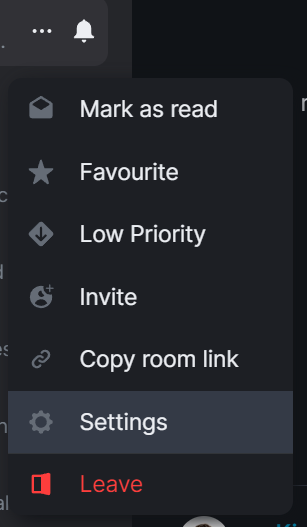
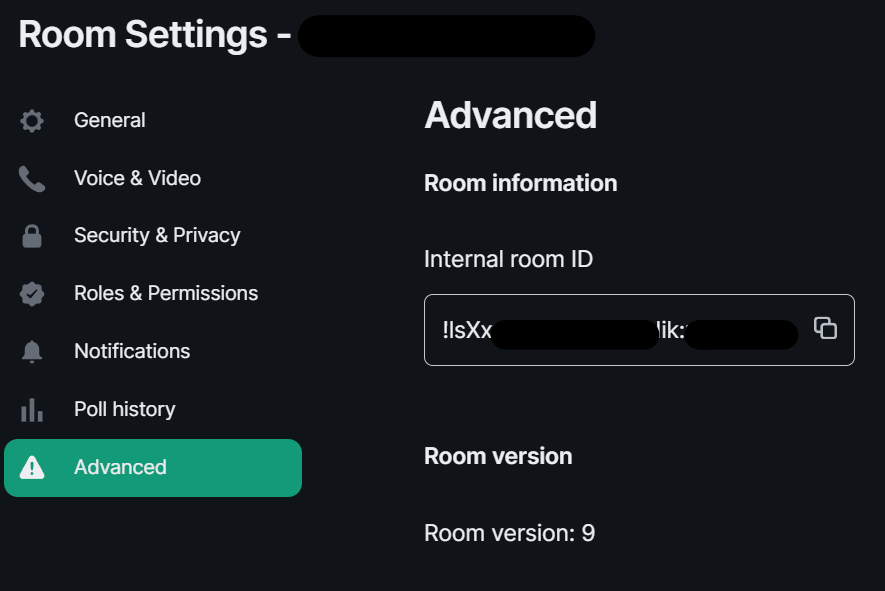
mappings: Under here you will need to specify an IRC Channel, then within that you will need to list out the required roomIds: in [] as a comma-separated list and provide a key: if there is a Channel key / password to us. If provided Matrix users do not need to know the channel key in order to join it.
    mappings:
      "#IRC_CHANNEL_NAME":
        roomIds: ["!ROOM_ID_THREE:HOMESERVER", "!ROOM_ID_TWO:HOMESERVER"]
        key: "secret"
See the below example configuration for mapping the #welcome IRC Channel:
    mappings:
      "#welcome":
        roomIds: ["!exampleroomidhere:example.com"]
Allowing !join with Dynamic Channels
If you would like for users to be able to use the !join command to join any allowed IRC Channel you will need to configure dynamicChannels:.
You may remember you set an alias prefix in the Miscellaneous section above. If you wish to fully customise the format of aliases of bridged rooms you should remove that `alias_prefix:` line. However the only benefit to this would be to add a suffix to the Matrix Room alias so is not recommended.
enabled: Set to true to allow users to use the !join command to join any allowed IRC Channel, defaults to false
createAlias: Set to false if you do not want an alias to be created for any new Matrix rooms created using !join, defaults to true
published: Set to false to prevent the created Matrix room via !join from being published to the public room list, defaults to true
useHomeserverDirectory: Set to true to publish room to your Homeservers' directory instead of one created for the IRC Bridge, defaults to false
joinRule: Set to "invite" so only users with an invite can join the created room, otherwise this defaults to "public", so anyone can join the room
whitelist: Only used if joinRule: is set to invite, populate with a list of Matrix User IDs that the IRC bot will send invites to in response to a !join
federate: Set to false so only users on the homeserver attached to the bridge to be able to use these rooms, defaults to true
aliasTemplate: Only used if createAlias: is set to true. Set to specify the alias for newly created rooms from the !join command, defaults to "#irc_$CHANNEL"
alias_prefix:, this will default to #PREFIX_CHANNEL_NAME:HOMESERVER
If you are specifying this line, you can use the following variables within the alias:
$SERVER => The IRC server address (e.g. "irc.example.com")
$CHANNEL => The IRC channel (e.g. "#python"), this must be used within the alias
exclude: Provide a comma-separated list of IRC Channels within [] that should be prevented from being mapped under any circumstances
In addition you could also specify the below, though it is unlikely you should need to specify the exact Matrix Room Version to use.
roomVersion: Set to specify the desired Matrix Room Version, if unspecified, no specific room version is requested.
    dynamicChannels:
      enabled: true
      createAlias: true
      published: true
      useHomeserverDirectory: true
      joinRule: invite
      federate: true
      aliasTemplate: "#irc_$CHANNEL"
      whitelist:
        - "@foo:example.com"
        - "@bar:example.com"
      exclude: ["#foo", "#bar"]
Exclude users from using the bridge
Using the excludedUsers: configuration you can specify Regex to identify users to be kicked from any IRC Bridged rooms.
regex: Set this to any Regex that should match on users' Matrix User IDs
kickReason: Set to specify the reason provided to users when kicked from IRC Bridged rooms
    excludedUsers:
      - regex: "@.*:evilcorp.com"
        kickReason: "We don't like Evilcorp"
Syncing Matrix and IRC Membership lists
To manage and control how Matrix and IRC membership lists are synced you will need to include membershipLists: within your config.
enabled: Set to true to enable the syncing of membership lists between IRC and Matrix, defaults to false
floodDelayMs: Syncing membership lists at startup can result in hundreds of members to process all at once. This timer drip feeds membership entries at the specified rate, defaults to 10000 (10 Seconds)
Within membershipLists: are the following sections, global:, rooms:, channels: and ignoreIdleUsersOnStartup:. For global:, rooms:, channels: you can specify initial:, incremental: and requireMatrixJoined: which all default to false. You can configure settings globally, using global:, or specific to Matrix Rooms with rooms: or IRC Channels via channels:.
initial: to true do?
ircToMatrix: this gets a snapshot of all real IRC users on a channel (via NAMES) and joins their virtual matrix clients to the room
For matrixToIrc: this gets a snapshot of all real Matrix users in the room and joins all of them to the mapped IRC channel on startup
What does setting
incremental: to true do?
ircToMatrix: this makes virtual matrix clients join and leave rooms as their real IRC counterparts join/part channels
For matrixToIrc: this makes virtual IRC clients join and leave channels as their real Matrix counterparts join/leave rooms
What does setting
requireMatrixJoined: to true do?
The last section is ignoreIdleUsersOnStartup: which determines if the bridge should ignore users which are not considered active on the bridge during startup.
enabled: Set to true to allow ignoring of idle users during startup
idleForHours: Set to configure how many hours a user has to be idle for before they can be ignored
exclude: Provide Regex matching on Matrix User IDs that should be excluded from being marked as ignorable
    membershipLists:
      enabled: false
      floodDelayMs: 10000

      global:
        ircToMatrix:
          initial: false
          incremental: false
          requireMatrixJoined: false

        matrixToIrc:
          initial: false
          incremental: false

      rooms:
        - room: "!fuasirouddJoxtwfge:localhost"
          matrixToIrc:
            initial: false
            incremental: false

      channels:
        - channel: "#foo"
          ircToMatrix:
            initial: false
            incremental: false
            requireMatrixJoined: false

      ignoreIdleUsersOnStartup:
        enabled: true
        idleForHours: 720
        exclude: "foobar"
Configuring how IRC users appear in Matrix
As part of the bridge IRC users and their messages will appear in Matrix as Matrix users, you will be able to click on their profiles perform actions just like any other user. You can configure how they are display using matrixClients:.
You may remember you set a user name prefix in the Miscellaneous section above. If you wish to fully customise the format of your IRC users' Matrix User IDs you should remove that `users_prefix:` line. However the only benefit to this would be to add a suffix to the Matrix User ID so is not recommended.
userTemplate: Specify the template Matrix User ID that IRC users will appear as, it must start with an @ and feature $NICK within, $SERVER is usable
users_prefix:, this will default to @PREFIX_NICKNAME:HOMESERVER
displayName: Specify the Display Name of IRC Users that appear within Matrix, it must contain $NICK within, $SERVER is usable
joinAttempts: Specify the number of tries a client can attempt to join a room before the request is discarded. Set to -1 to never retry or 0 to never give up, defaults to -1
    matrixClients:
      userTemplate: "@irc_$NICK"
      displayName: "$NICK"
      joinAttempts: -1
Configuring how Matrix users appear in IRC
As part of the bridge Matrix users and their messages will appear in IRC as IRC users, you will be able to perform IRC actions on them like any other user. You can configure how this functions using ircClients:.
nickTemplate: Set this to the template how Matrix users' IRC client nick name is set, defaults to "$DISPLAY[m]"
"alice" in @alice:localhost)
$USERID => The user ID (e.g. @alice:localhost)
$DISPLAY => The display name of this user, with excluded characters (e.g. space) removed.
allowNickChanges: Set to true to allow users to use the !nick command to change their nick on the server
maxClients: Set the max number of IRC clients that will connect
30
idleTimeout: Set the maximum amount of time in seconds that a client can exist without sending another message before being disconnected.
0 to not apply an idle timeout, defaults to 172800 (48 hours)
This value is ignored if this IRC server is mirroring matrix membership lists to IRC.
reconnectIntervalMs: Set the number of millseconds to wait between consecutive reconnections if a client gets disconnected.
0 to disable scheduling i.e. it will be scheduled immediately, defaults to 5000 (5 seconds)
concurrentReconnectLimit: Set the number of concurrent reconnects if a user has been disconnected unexpectedly
50
lineLimit: Set the number of lines of text to allow being sent as from matrix to IRC, defaults to 3
realnameFormat: Set to either "mxid" or "reverse-mxid" to define the format used for the IRC realname.
kickOn:
channelJoinFailure: Set to true to kick a Matrix user from a bridged room if they fail to join the IRC channel
ircConnectionFailure: Set to true to kick a Matrix user from ALL rooms if they are unable to get connected to IRC
userQuit: Set to true to kick a Matrix user from ALL rooms if they choose to QUIT the IRC network
You can also optionally configure the following, they do not need to be included in your config if you are not changing their default values.
ipv6:
only: Set to true to force IPv6 for outgoing connections, defaults to false
userModes: Specify the required IRC User Mode to set when connecting, e.g. "RiG" to set +R, +i and +G, defaults to "" (No User Modes)
pingTimeoutMs: Set the minimum time to wait between connection attempts if the bridge is disconnected due to throttling.
pingRateMs: Set the rate at which to send pings to the IRCd if the client is being quiet for a while.
    ircClients:
      nickTemplate: "$DISPLAY[m]"
      allowNickChanges: true
      maxClients: 30
      # ipv6:
      #   only: false
      idleTimeout: 10800
      reconnectIntervalMs: 5000
      concurrentReconnectLimit: 50
      lineLimit: 3
      realnameFormat: "mxid"
      # pingTimeoutMs: 600000
      # pingRateMs: 60000
      kickOn:
        channelJoinFailure: true
        ircConnectionFailure: true
        userQuit: true
Deploying the IRC Bridge
Once you have make the required changes to your Bridge.yml configuration, make sure you find and click the Save button at the bottom of the IRC Bridge configuration page to ensure your changes are updated.

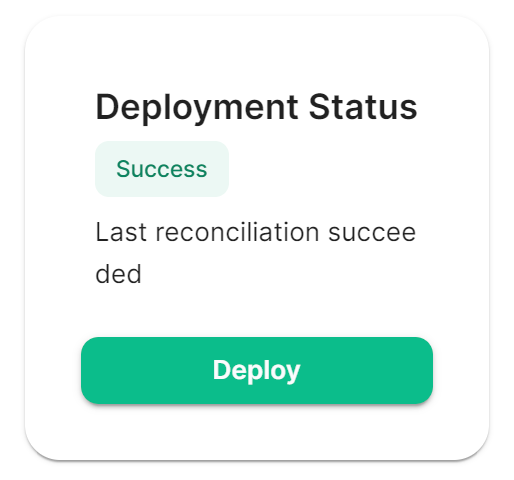
You will then need to re-Deploy for any changes to take effect, as above ensure all changes made are saved then click Deploy.
Using the Bridge
For usage of the IRC Bridge via it's bot user see Using the Matrix IRC Bridge documentation, or for end user focused documentation see Using the Matrix IRC Bridge as an End User.
If you have setup mapping of rooms in your Bridge.yml, some rooms will already be connected IRC, users need only join the bridged room and start messaging. IRC users should see Matrix users in the Channel and be able to communicate with them like any other IRC user.