
Customise Containers used by ESS
How to change an image used by a container deployed by ESS.
In specific use cases you might want to change the image used for a specific pod, for example, to add additional contents, change web clients features, etc. In general the steps to do this involve:
- Creating a new ConfigMap definition with the overrides you need to configure, then injecting it into the cluster.
- Configuring the installer to use the new Images Digests Config Map.
- Generating a secret for the registry (if it requires authentication) and adding it to ESS.
We strongly advise against customising any pods. Customised containers are not supported and may break your setup so we encourage you to first raise your requirements to Support where we can best advise on them.
Non-Airgapped Environments
Creating the new Images Digests Config Map
In order to override images used by ESS during the install, you will need to inject a new ConfigMap which specifies the image to use for each component. To do that, you will need to inject a ConfigMap. It's structure maps the components of the ESS, all of them can be overridden :
Config Example
data:
  images_digests: |# Copyright 2023 New Vector Ltd
    adminbot:
      access_element_web:
      haproxy:
      pipe:
    auditbot:
      access_element_web:
      haproxy:
      pipe:
    element_call:
      element_call:
      sfu:
      jwt:
      redis:
    element_web:
      element_web:
    groupsync:
      groupsync:
    hookshot:
      hookshot:
    hydrogen:
      hydrogen:
    integrator:
      integrator:
      modular_widgets:
      appstore:
    irc_bridges:
      irc_bridges:
    jitsi:
      jicofo:
      jvb:
      prosody:
      web:
      sysctl:
      prometheus_exporter:
      haproxy:
      user_verification_service:
    matrix_authentication_service:
      init:
      matrix_authentication_service:
    secure_border_gateway:
      secure_border_gateway:
    sip_bridge:
      sip_bridge:
    skype_for_business_bridge:
      skype_for_business_bridge:
    sliding_sync:
      api:
      poller:
    sydent:
      sydent:
    sygnal:
      sygnal:
    synapse:
      haproxy:
      redis:
      synapse:
    synapse_admin:
      synapse_admin:
    telegram_bridge:
      telegram_bridge:
    well_known_delegation:
      well_known_delegation:
    xmpp_bridge:
      xmpp_bridge:
Each container on this tree needs at least the following properties to override the source of download :
image_repository_path: elementdeployment/vectorim/element-web
image_repository_server: localregistry.local
You can also override the image tag and the image digest if you want to enforce using digests in your deployment :
image_digest: sha256:ee01604ac0ec8ed4b56d96589976bd84b6eaca52e7a506de0444b15a363a6967
image_tag: v0.2.2
For example, the required ConfigMap manifest (e.g. images_digest_configmap.yml) format would be, to override the element_web/element_web container source path :
Config Example
apiVersion: v1
kind: ConfigMap
metadata:
  name: config_map_name
  namespace: namespace_of_your_deployment
data:
  images_digests: |
    element_web:
      element_web:
        image_repository_path: mycompany/custom-element-web
        image_repository_server: docker.io
        image_tag: v2.1.1-patched
Notes:
- the
image_digest:may need to be regenerated, or it can be removed. - The
image_repository_pathneeds to reflect the path in your local repository. - The
image_repository_servershould be replaced with your local repository URL
The new ConfigMap can then be injected into the cluster with:
kubectl apply -f images_digest_configmap.yml -n <namespace of your deployment>
Configuring the installer
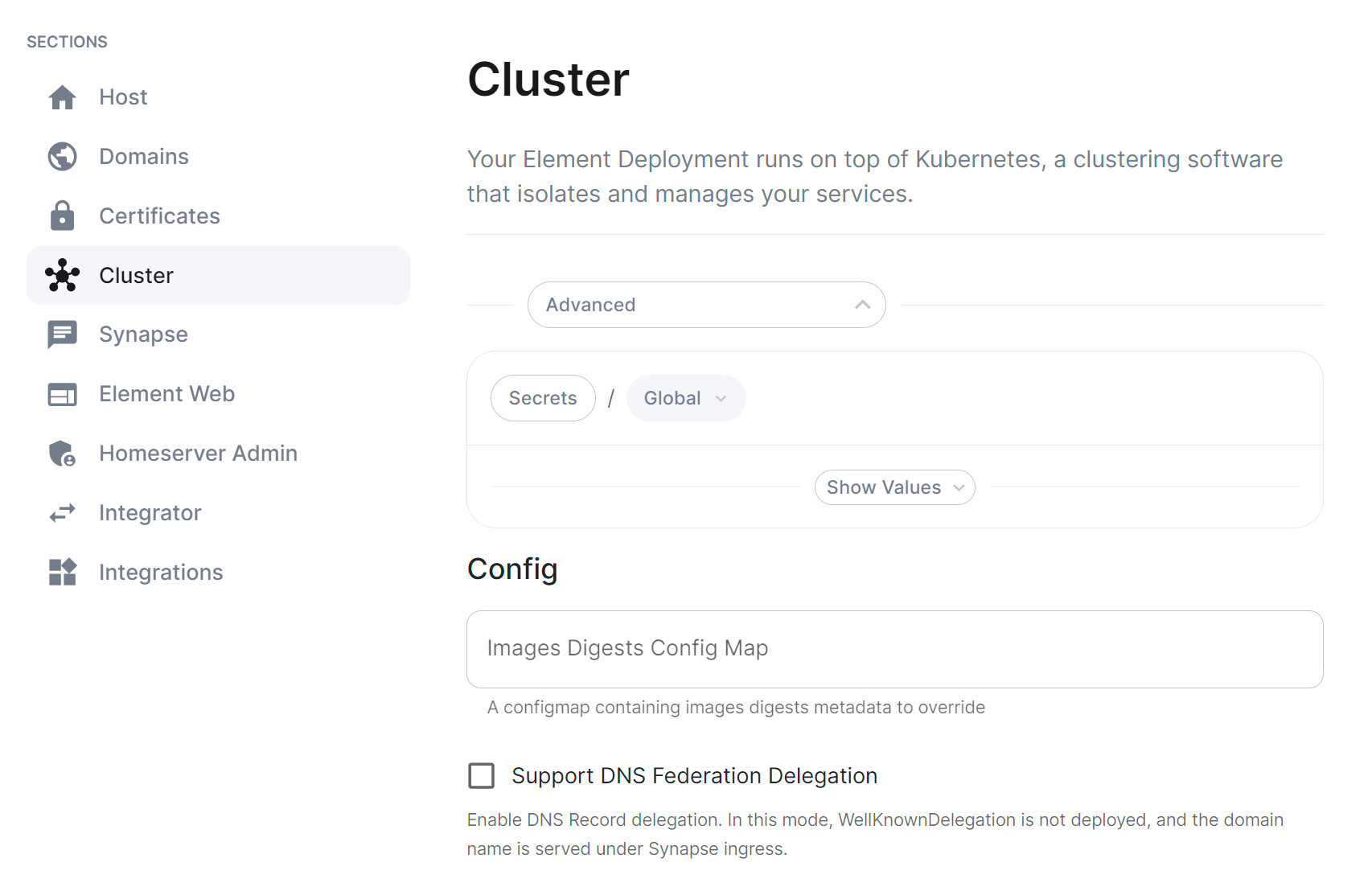
You will also need to configure the ESS Installer to use the new Images Digests Config Map by adding the <config map name> into the Cluster advanced section.
Supplying registry credentials
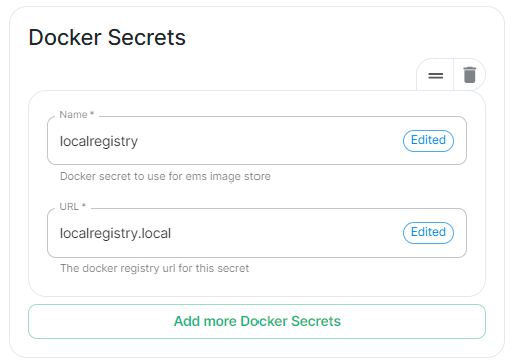
If your registry requires authentication, you will need to create a new secret. So for example, if your registry is called myregistry and the URL of the registry is myregistry.tld, the command would be:
kubectl create secret docker-registry myregistry --docker-username=<registry user> --docker-password=<registry password> --docker-server=myregistry.tld -n <your namespace>
The new secret can then be added into the ESS Installer GUI advanced cluster Docker Secrets:
Airgapped Environments
To perform these actions, you will need the airgapped archive extracted onto a host with an internet connection:
-
Open a terminal, you will be using the
cranebinary found within the airgapped directory extracted. Firstly make sure to authenticate with any of the registries you will be downloading from using:airgapped/utils/crane auth login REGISTRY.DOMAIN -u EMS_USERNAME -p EMS_TOKENYou will need to do this for both
gchr.ioandgitlab-registry:airgapped/utils/crane auth login gitlab-registry.matrix.org -u EMS_USERNAME -p EMS_TOKEN airgapped/utils/crane auth login ghcr.io -u EMS_USERNAME -p EMS_TOKEN -
Use the following to download the required image:
airgapped/utils/crane pull --format tarball <imagenanme> image.tarNote:
<imagename>should be formatted like soregistry/organisation/repo:version, for example, to download the Element Call Version 0.5.12 image, the<imagename>would beghcr.io/vector-im/element-call:v0.5.12airgapped/utils/crane pull --format tarball ghcr.io/vector-im/element-call:v0.5.12 image.tar- For
registry.element.ioyou will need to useskopeoinstead i.e.:skopeo copy docker://registry.element.io/group-sync:v0.13.7-dbg docker-archive://$(pwd)/gsync-dbg.tar
- For
-
The generate the image digest (used in the next step). Continuing the Element Call Version 0.5.12 example, use the below command to return the image digest string:
airgapped/utils/crane --platform amd64 digest --tarball image.tarReturns:
sha256:f16c6ef5954135fb4e4e0af6b3cb174e641cd2cbee901b1262b2fdf05ddcedfc -
Copy
image.tarinto theairgapped/imagesfolder, renaming it to the digest string generated in step 3,<digest>.tarexcluding thesha256:prefix. For our Element Call Version 0.5.12 example, the filename would be:f16c6ef5954135fb4e4e0af6b3cb174e641cd2cbee901b1262b2fdf05ddcedfc.tar -
Edit the
images_digests.ymlfile also found in theairgapped/imagesfolder, like so:<component_name>: <component_image>: image_digest: sha256:<digest> image_repository_path: <organisation>/<repo> image_repository_server: <registry> image_tag: <new version>For our Element Call Version 0.5.12 example, you would update like so:
  element_call:
    element_call:
      image_digest: sha256:f16c6ef5954135fb4e4e0af6b3cb174e641cd2cbee901b1262b2fdf05ddcedfc
      image_repository_path: vector-im/element-call
      image_repository_server: ghcr.io
      image_tag: v0.5.12
Handling new releases of ESS
If you are overriding image, you will need to make sure that your images are compatible with the new releases of ESS. You can use a staging environment to tests the upgrades for example.