# Testing Dehydrated Devices
### Enabling Dehydrated Devices Support
To enable the dehydrated devices feature Element Server Suite, follow these steps.
#### Access the Admin Console
1. **Run the ESS Installer:**
- `./element-enterprise-graphical-installer-YYYY-MM.VERSION-gui.bin`
- Access the installer GUI from the link outputted by the installer to the console.
#### Enable the Experimental Feature in Synapse
1. **Navigate to the `Additional` config from the Synapse Section:**
- In the installer GUI, access the Synapse section, expand `Advanced` and find the `Additional` config section.
2. **Enable the Experimental Feature:**
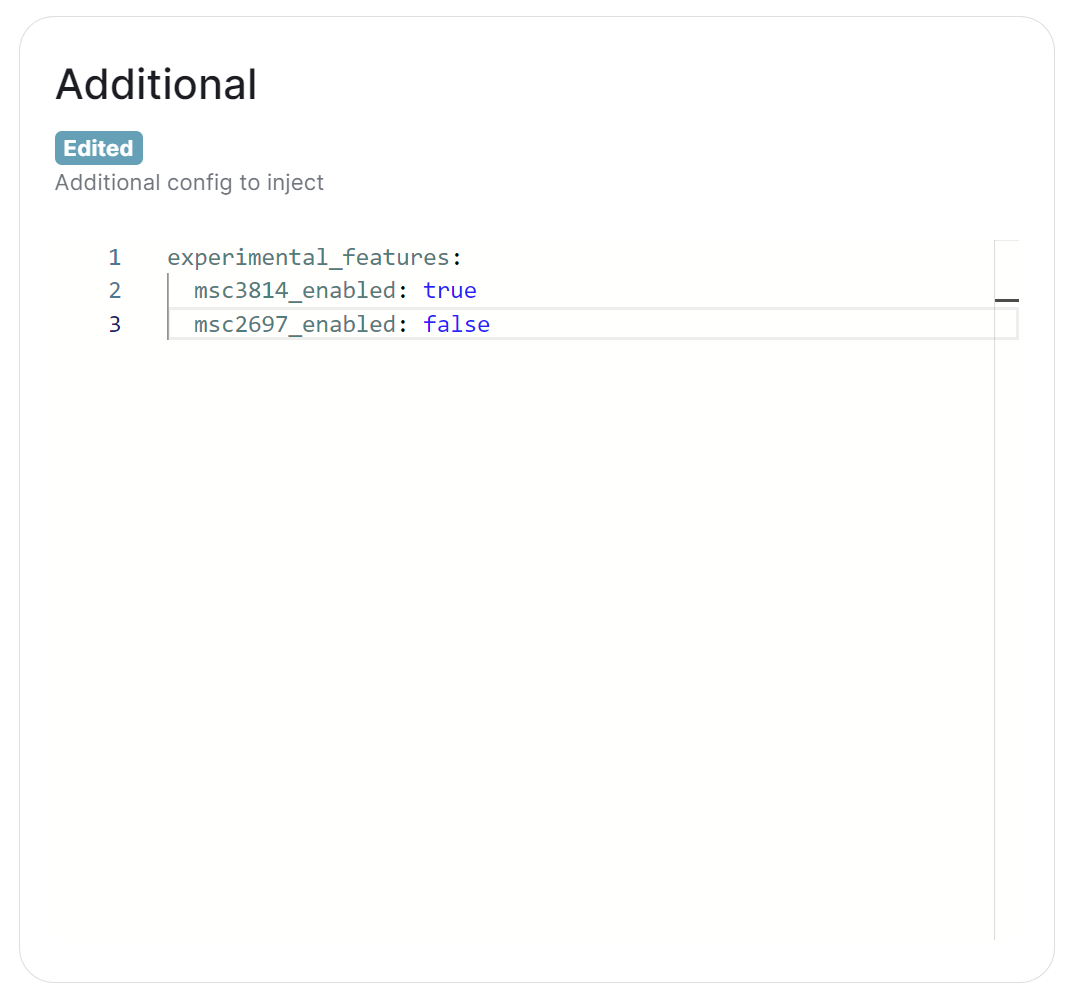
- Add or modify the configuration to include:
```yaml
experimental_features:
msc3814_enabled: true
msc2697_enabled: false
```
[](https://ems-docs.element.io/uploads/images/gallery/2024-06/image-1719562207591.png)
3. **Save your changes:**
- Save the changes in the installer GUI.
#### Configure the .well-known Endpoint
1. **Navigate to the `Additional Client Configuration` config from the .Well-Known Section:**
- In the installer GUI, access the Well-Known section of the installer from the Integrations section.
[](https://ems-docs.element.io/uploads/images/gallery/2024-06/image-1719312817513.png)
2. **Add the .well-known Key:**
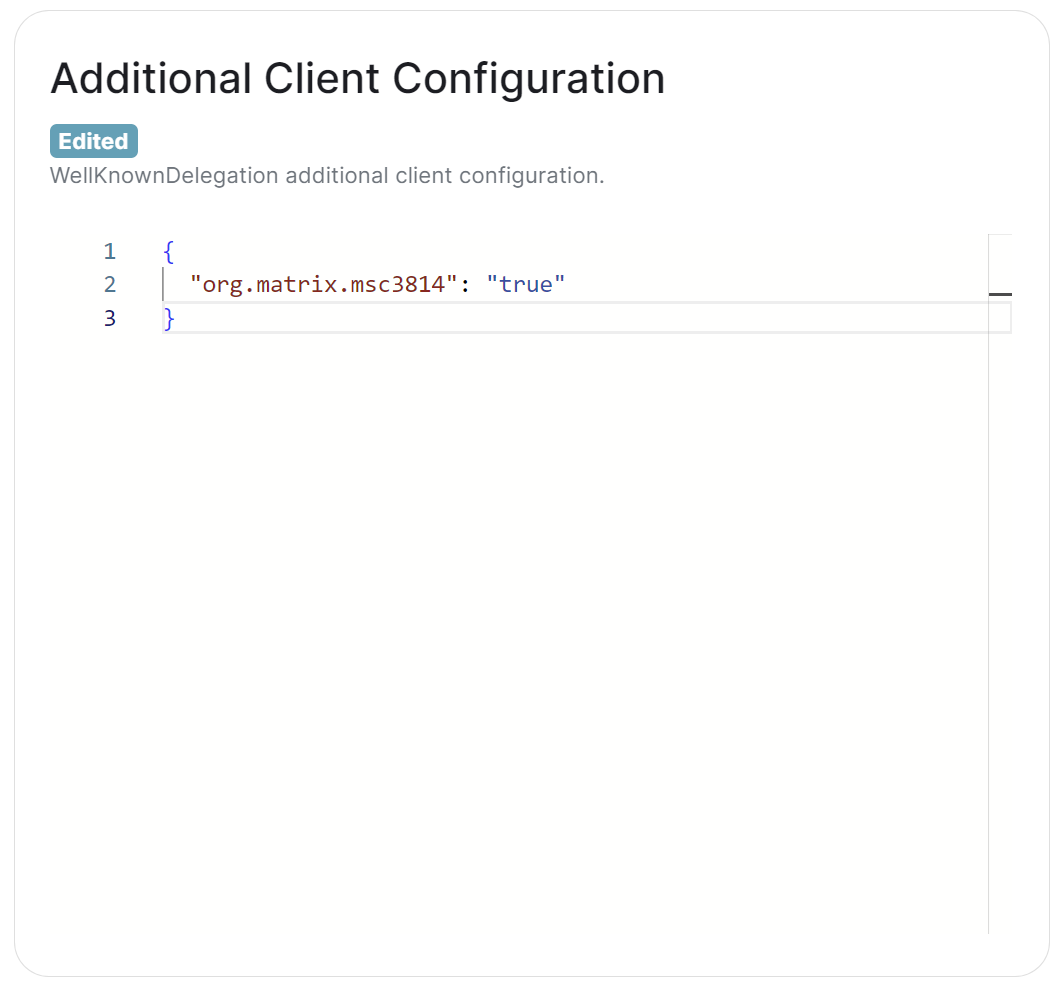
- Add the following key-value pair:
```json
{
"org.matrix.msc3814": "true"
}
```
[](https://ems-docs.element.io/uploads/images/gallery/2024-06/image-1719312926013.png)
3. **Save and Apply Changes:**
- Save the changes in the installer GUI.
#### Deploy your ESS changes
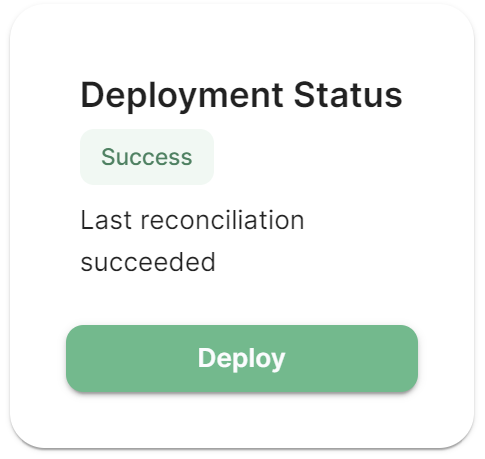
1. **Click Deploy and wait for reconcilliation to complete:**
- Your Synapse and Well-Known pods should be recreated with the updated configuration.
[](https://ems-docs.element.io/uploads/images/gallery/2024-06/image-1719314333698.png)
### Testing Dehydrated Devices
#### Enable the Feature via Element Web (per User)
1. **Navigate to Element Web and sign-in:**
- Go to the Element Web client and sign-in as the user you wish to test dehydrated devices on.
2. **Enable Dehydrated Devices:**
- Go to `Settings` then `Security & Privacy`, then enable dehydrated devices for your account.
#### Test the Configuration
1. **Log in to Account A:**
- Ensure Account A has only one active web session.
- Ensure you have enabled device dehydration.
- Log out of Account A.
2. **Send a Message from Account B to Account A:**
- Using Account B, send a message to Account A.
3. **Log Back into Account A and Verify:**
- Log in to Account A again.
- Verify the account using the recovery key.
Account A should be able to read the message sent by Account B, despite having no logged-in sessions when the message was sent.
### Additional Notes
- **Web Client and iOS Only:**
- The dehydrated devices feature works only on Element Web and iOS. Ensure you are using one of these clients to test the feature.