# Recovering a Matrix Account

<!---
Actions needed:
- [ ] 

# Recovering a Matrix Account
--->

<!---<p class="callout info">Remember to check our <a href="https://ems-docs.element.io/books/kieranml-test-book/page/have-you-tried-httpselementiohelp">Looking for help?</a> page for answers to Frequently Asked Questions and our User Guide!</p>--->

<p class="callout warning"><b>Disclaimer:</b> This guide refers to using the Element Matrix clients, <a href="https://app.element.io/" target="_blank" rel="noopener noreferrer">Element Web</a> or <a href="https://element.io/download" target="_blank" rel="noopener noreferrer">Element Desktop</a> apps</p>

Resetting the account password will log out all your sessions, before doing this, make sure that
- All your sessions are connected to Secure Backup
- All sessions have backed up all their keys ([Check Cross Signing Status](https://ems-docs.element.io/books/element-support/page/check-status))
- You have your correct key backup passphrase available

### Recovering your Matrix Account

<p class="callout info">This will only work if you have an email address attached to your Matrix account. If you do not have an email address attached, contact the administrators of your homeserver.</p>

<p class="callout warning">Reminder: <a href="mailto:support@matrix.org" target="_blank" rel="noopener noreferrer">support@matrix.org</a> does not reset passwords under any circumstances</p>

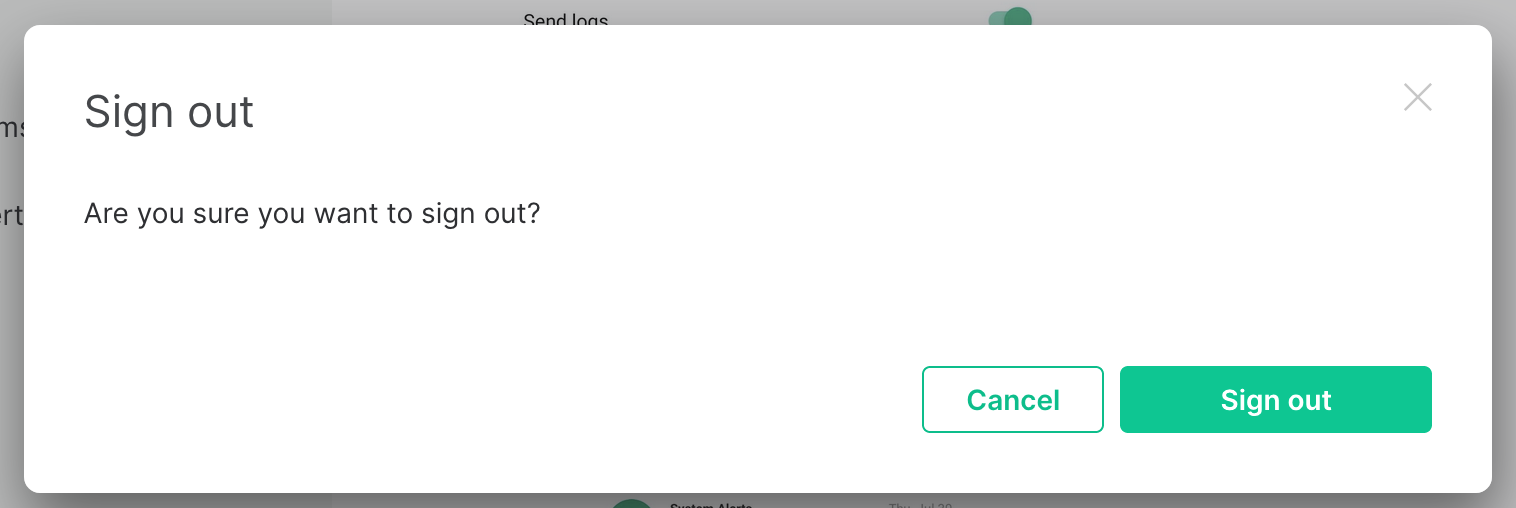
1. Sign out of Element
[![](https://ems-docs.element.io/uploads/images/gallery/2024-07/scaled-1680-/image-1721651991898-32-36-pm.png)](https://ems-docs.element.io/uploads/images/gallery/2024-07/image-1721651991898-32-36-pm.png)

2. Click `Sign out`
	[![](https://ems-docs.element.io/uploads/images/gallery/2024-07/scaled-1680-/image-1721652013530-15-05-pm.png)](https://ems-docs.element.io/uploads/images/gallery/2024-07/image-1721652013530-15-05-pm.png)

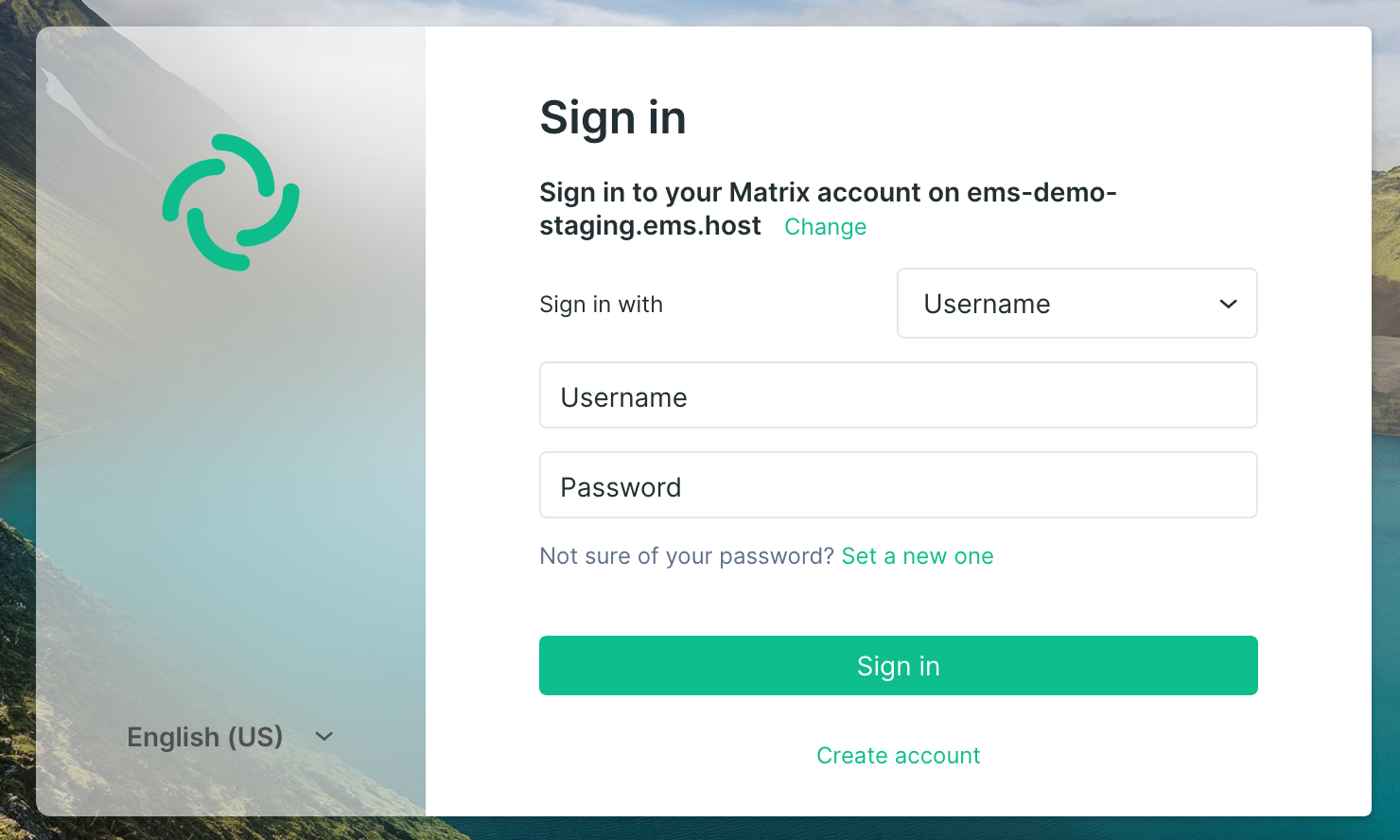
3. Click "Not sure of your password? `Set a new one`"
	[![](https://ems-docs.element.io/uploads/images/gallery/2024-07/scaled-1680-/image-1721652041660-15-56-pm.png)](https://ems-docs.element.io/uploads/images/gallery/2024-07/image-1721652041660-15-56-pm.png)

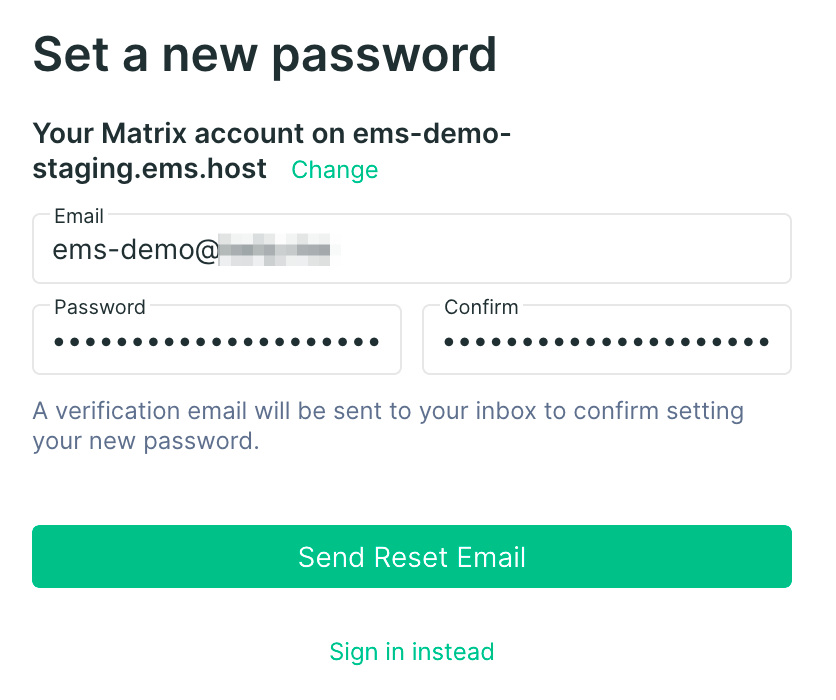
4. Enter your email address, and a new password. Then click `Send Reset Email`
	[![](https://ems-docs.element.io/uploads/images/gallery/2024-07/scaled-1680-/image-1721652072517-20-13-pm.png)](https://ems-docs.element.io/uploads/images/gallery/2024-07/image-1721652072517-20-13-pm.png)

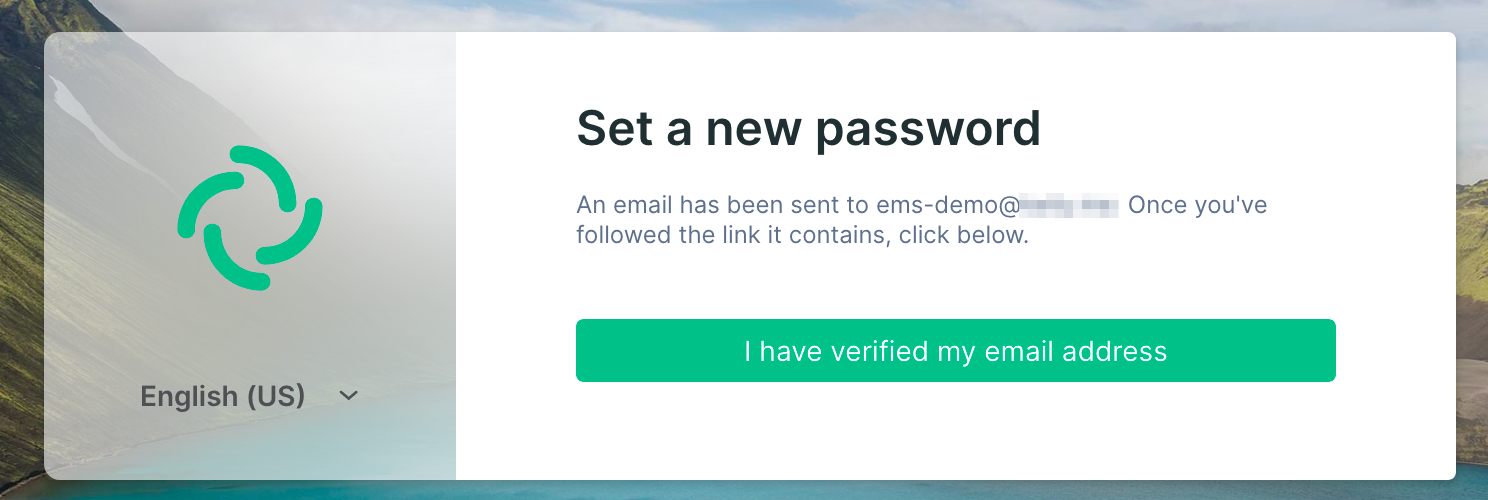
5. When you get this message, check your email
	[![](https://ems-docs.element.io/uploads/images/gallery/2024-07/scaled-1680-/image-1721652099747-22-21-pm.png)](https://ems-docs.element.io/uploads/images/gallery/2024-07/image-1721652099747-22-21-pm.png)

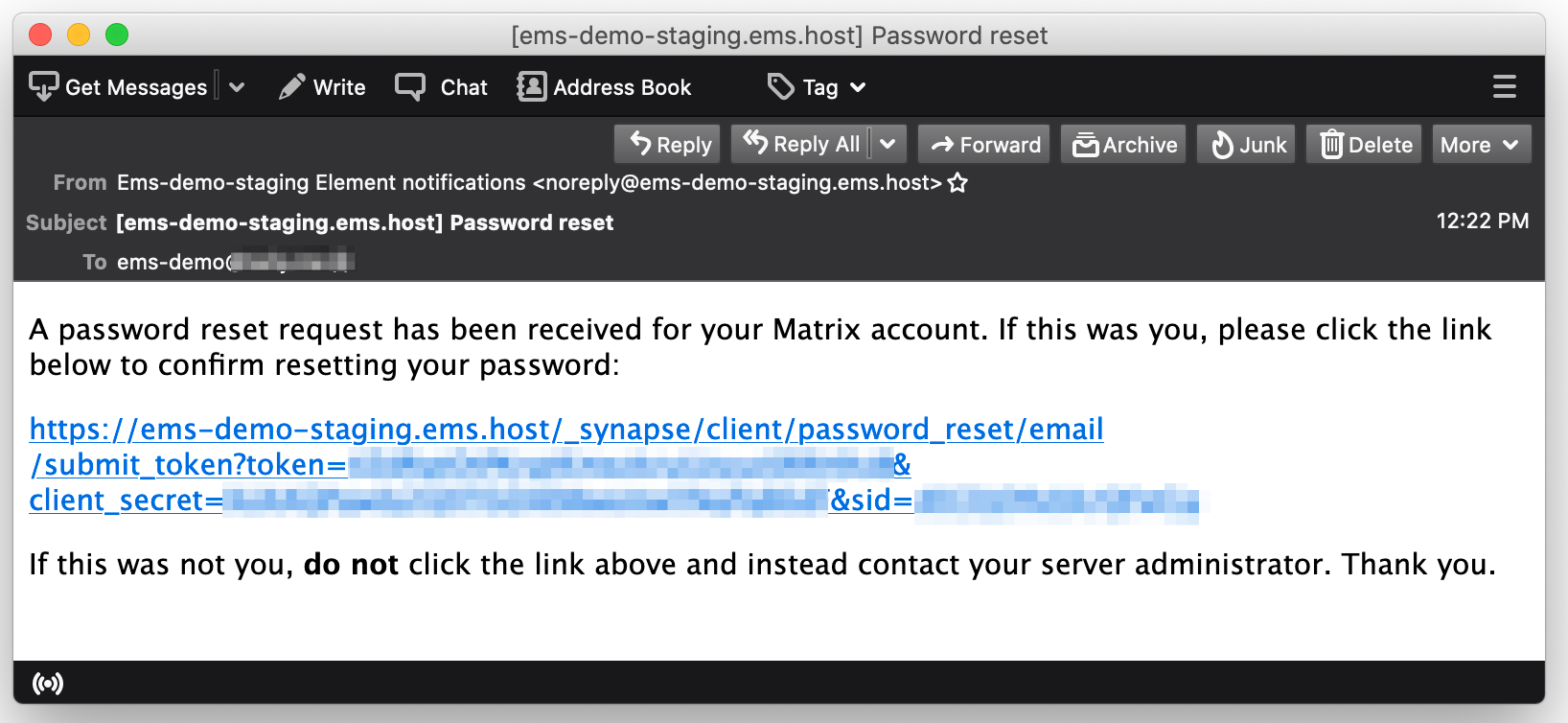
6. Click the link in the email. Make sure it opens in  new browser tab, leaving your Element client open
	[![](https://ems-docs.element.io/uploads/images/gallery/2024-07/scaled-1680-/image-1721652128382-23-42-pm.png)](https://ems-docs.element.io/uploads/images/gallery/2024-07/image-1721652128382-23-42-pm.png)

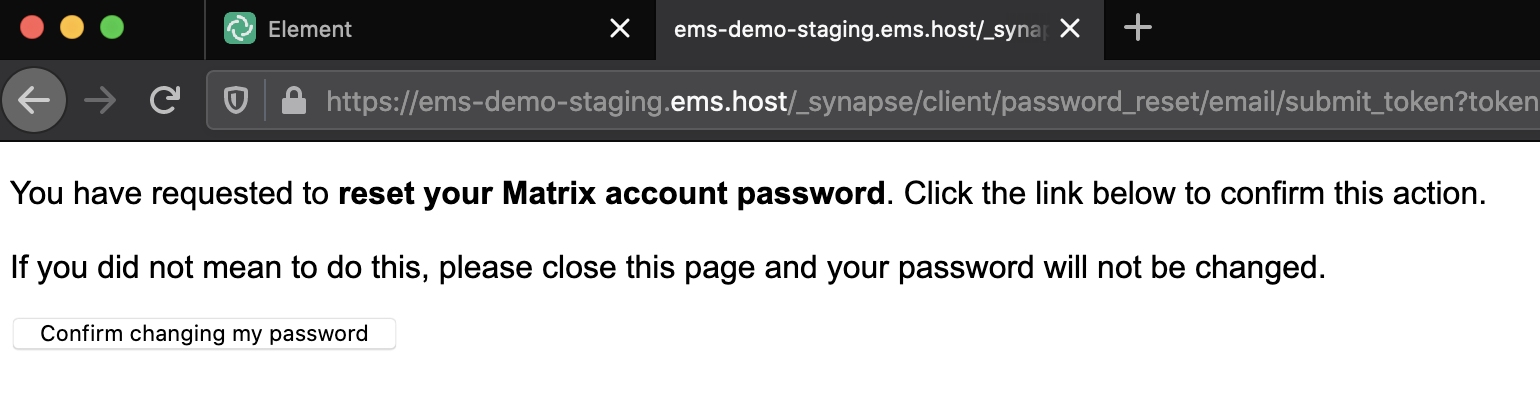
7. Click `Confirm changing my password`
	[![](https://ems-docs.element.io/uploads/images/gallery/2024-07/scaled-1680-/image-1721652188389-26-36-pm.png)](https://ems-docs.element.io/uploads/images/gallery/2024-07/image-1721652188389-26-36-pm.png)

8. You can now close this tab and return to Element
	[![](https://ems-docs.element.io/uploads/images/gallery/2024-07/scaled-1680-/image-1721652219082-27-21-pm.png)](https://ems-docs.element.io/uploads/images/gallery/2024-07/image-1721652219082-27-21-pm.png)


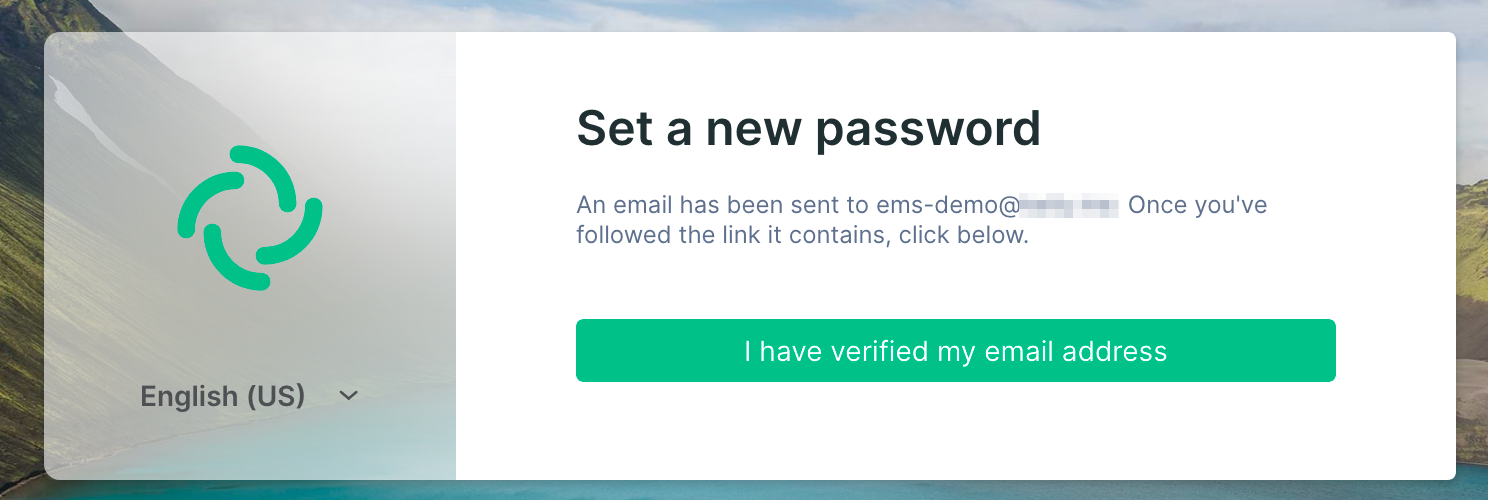
9. Click `I have verified my email address`
	[![](https://ems-docs.element.io/uploads/images/gallery/2024-07/scaled-1680-/image-1721652254888-22-21-pm.png)](https://ems-docs.element.io/uploads/images/gallery/2024-07/image-1721652254888-22-21-pm.png)

10. Click `Return to login screen`
	[![](https://ems-docs.element.io/uploads/images/gallery/2024-07/scaled-1680-/image-1721652295124-28-38-pm.png)](https://ems-docs.element.io/uploads/images/gallery/2024-07/image-1721652295124-28-38-pm.png)
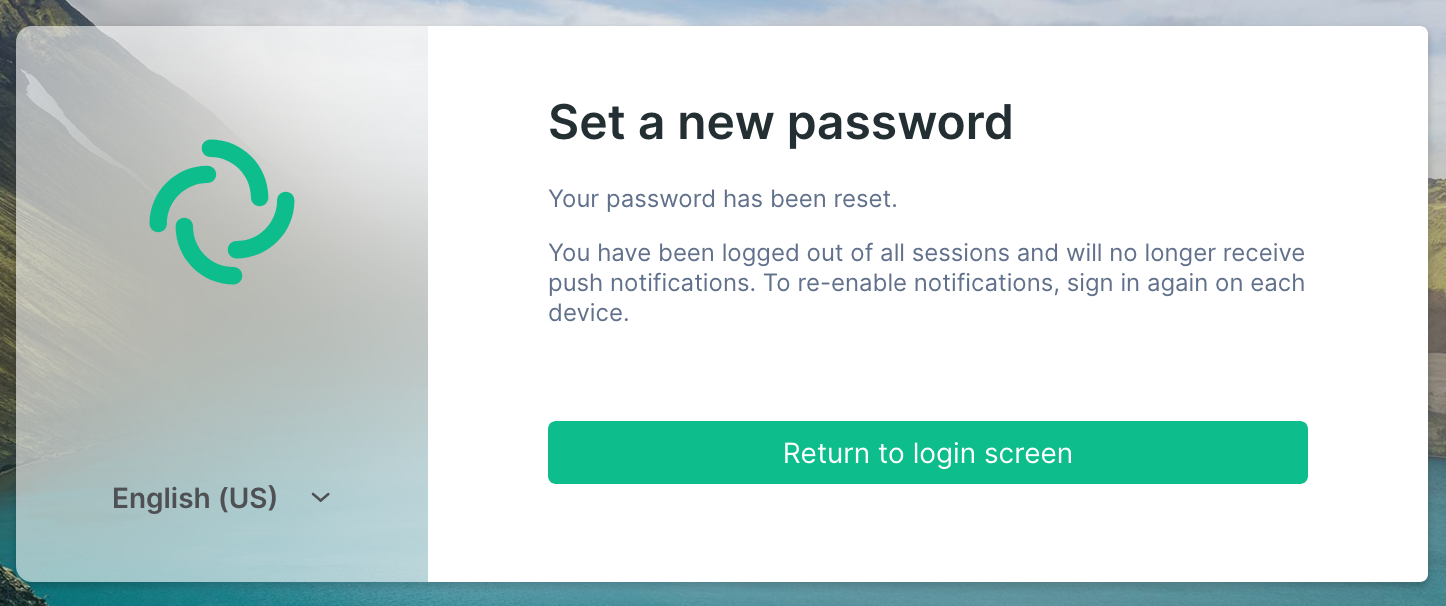

11. Sign in like normal with your new password. Note that all your other sessions have been signed out and you need to sign in again.

### Recovering a Matrix Account on your Homeserver

If you're an EMS customer, you can create your users via the <a href="https://ems.element.io/user/hosting#/admin" target="_blank" rel="noopener noreferrer">Server Admin</a> tab of the <a href="https://ems.element.io/user/hosting" target="_blank" rel="noopener noreferrer">EMS Control Panel</a>.
<!---Check out the [Server Admin]() section of the [EMS Control Panel]() doc for more guidance.--->

Alternatively you can make use of the <a href="https://matrix-org.github.io/synapse/latest/usage/administration/admin_api/" target="_blank" rel="noopener noreferrer">Synapse Admin API</a> to manage a Matrix Account on a homeserver you hold an Admin account on. To do so, you will need to use the <a href="https://matrix-org.github.io/synapse/latest/admin_api/user_admin_api.html#user-admin-api" target="_blank" rel="noopener noreferrer">User Admin API</a>.
<!---For more information on using the <a href="https://matrix-org.github.io/synapse/latest/usage/administration/admin_api/" target="_blank" rel="noopener noreferrer">Synapse Admin API</a> check our [Getting Started using the Admin API]() documentation.--->