Disclaimer: This guide refers to using the Element Matrix clients, Element Web or Element Desktop apps
### Deactivating your Matrix Account If you wish to deactivate your account, you can do so by following the below steps: - Log in to your Matrix Client - Click on your Avatar / Username in the top left corner - Open `Settings` - From the bottom of the `General` tab, click `Deactivate` - Check any additional options, if applicable, then enter your password or confirm via SSO to deactivate your account [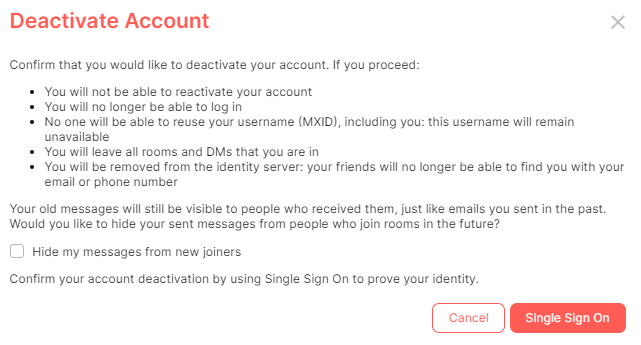](https://ems-docs.element.io/uploads/images/gallery/2023-03/image-1679492386786.png) Please note once the account has been deactivated, it is impossible to reactivate it again or reuse the username. Your user is stored indefinitely to avoid account recycling, as such you may also wish to remove any Third-Party ID's from your account **before** deactivation, as this may cause issues if you ever attempt to create a new account. #### Erasing your Matrix Account You can also GDPR erase your account, this means messages sent by the user will still be visible by anyone that was in the room when these messages were sent, but hidden from users joining the room afterwards. You can do this by checking the `Hide my messages from new joiners` checkbox on the `Deactivate Account` confirmation prompt. ### Deactivating a Matrix Account on your Homeserver If you're an EMS customer, you can create your users via the Server Admin tab of the EMS Control Panel. Alternatively you can make use of the Synapse Admin API to deactivate a Matrix Account on a homeserver you hold an Admin account on. To do so, you will need to use Deactivate Account from the User Admin API. ``` https://HOMESERVER_URL/_synapse/admin/v1/deactivate/FULL_USERNAME ``` ```json { "erase": true } ```