This document is currently work-in-progress and might not be accurate. Please speak with your Element contact if you have any questions.
## Preparation This section outlines what you should do ahead of the migration in order to ensure the migration goes as quickly as possible and without issues. - At the latest 48 hours before your migration is scheduled, set the TTL on any DNS records that need to be updated to the lowest allowed value. - Check the size of your database: - PostgreSQL: Connect to your database and issue the command `\l+` - Check the size of your media - Synapse Media Store: `du -hs /path/to/synapse/media_store/` - If you are using SQLite instead of PostgreSQL, you should port your database to PostgreSQL by following [this](https://element-hq.github.io/synapse/latest/postgres.html) guide before dumping your database Note that the database and media may be duplicated/stored twice on your ESS host during the import process depending on how you do things. ## Setup your new ESS server Follow the ESS docs for first-time installation, configuring to match your existing homeserver before proceeding with the below. The `Domain Name` on the Domains page during the ESS initial setup wizard must be the same as you have on your current setup. The other domains can be changed if you wish. To make the import later easier, we recommend you select the following Synapse Profile. You can change this as required after the import. - Monthly Active Users: 500 - Federation Type: closed After the ESS installation, you can check your ESS Synapse version on the `Admin` -> `Server Info` page: [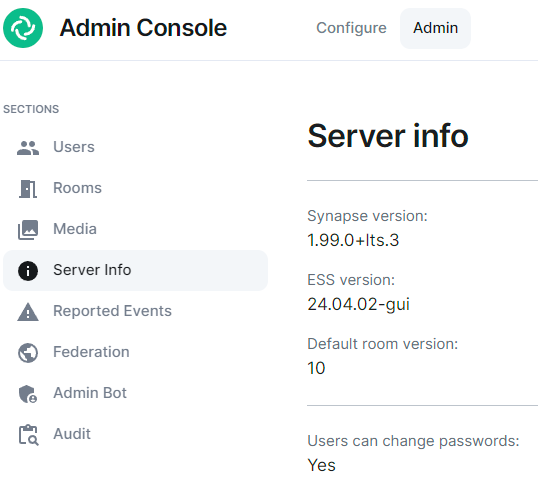](https://ems-docs.element.io/uploads/images/gallery/2024-05/image-1715171819276.png) ## Export your old Matrix server ### SSH to your old Matrix server You might want to run everything in a `tmux` or a `screen` session to avoid disruption in case of a lost SSH connection. ### Upgrade your old Synapse to the same version EES is running FollowOnce Synapse is stopped, do not start it again after this
Doing so can cause issues with federation and inconsistent data for your users. While you wait for the database to export or files to transfer, you should edit or create the well-known files and DNS records to point to your new EES host. This can take a while to update so should be done as soon as possible in order to ensure your server will function properly when the migration is complete. ### Database export Dump your database: ```bash pg_dump -Fc -O -hThe following command will erase the existing Synapse Database without warning or confirmation. Please ensure that is is the correct database and there is no production data on it.
```sql DO $$ DECLARE r RECORD; BEGIN FOR r IN (SELECT tablename FROM pg_tables WHERE schemaname = current_schema()) LOOP EXECUTE 'DROP TABLE ' || quote_ident(r.tablename) || ' CASCADE'; END LOOP; END $$; DROP sequence cache_invalidation_stream_seq; DROP sequence state_group_id_seq; DROP sequence user_id_seq; DROP sequence account_data_sequence; DROP sequence application_services_txn_id_seq; DROP sequence device_inbox_sequence; DROP sequence event_auth_chain_id; DROP sequence events_backfill_stream_seq; DROP sequence events_stream_seq; DROP sequence presence_stream_sequence; DROP sequence receipts_sequence; DROP sequence un_partial_stated_event_stream_sequence; DROP sequence un_partial_stated_room_stream_sequence; ``` Use `\q` to quit, then back on the host run: ```bash gzip -d synapse_export.sql.gz sudo cp synapse_export.sql /data/postgres/synapse/ # or kibectl --namespace element-onprem cp synapse_export.sql element-onprem synapse-postgres-0:/tmp ``` Finally on the pod: ```bash cd /var/lib/postgresql/data # or cd /tmo pg_restore