The Synapse configuration options for your Matrix Homeserver incl. registration & encryption.
Synapse is the Matrix homeserver that powers ESS, in this section you will be customising settings relating to your homeserver, analogous with settings you'd set in the `homeserver.yml` if configuring Synapse manually.
All settings configured via the UI in this section will be saved to your deployment.yml, with the contents of secrets being saved to secrets.yml. You will find specific configuration examples in each section.
By default, if you do not change any settings on this page, defaults will be added to your configuration file/s (see example below).
Config Example
- `deployment.yml`
```yml
metadata:
annotations:
ui.element.io/layer: |
components:
synapse:
config:
_value: defaulted
k8s:
haproxy:
_value: defaulted
redis:
https://ems-docs.element.io/books/element-server-suite-classic-documentation-lts-2504
_value: defaulted
https://ems-docs.element.io/books/element-server-suite-classic-documentation-lts-2504
synapse:
_value: defaulted
spec:
components:
synapse:
config:
maxMauUsers: 250
media:
volume:
size: 50Gi
urlPreview:
config:
acceptLanguage:
- en
k8s:
haproxy:
workloads:
resources:
limits:
memory: 200Mi
requests:
cpu: 100m
https://ems-docs.element.io/books/element-server-suite-classic-documentation-lts-2504
memory: 100Mi
redis:
workloads:
resources:
limits:
memory: 50Mi
requests:
cpu: 50m
memory: 50Mi
synapse:
workloads:
resources:
limits:
memory: 4Gi
requests:
cpu: 100m
memory: 100Mi
```
- `secrets.yml`
```yml
apiVersion: v1
kind: Secret
metadata:
name: synapse
namespace: element-onprem
data:
adminPassword: exampleAdminPassword
macaroon: exampleMacaroon
registrationSharedSecret: exampleRegistrationSharedSecret
signingKey: >-
exampleBase64EncodedSigningKey
```
### Profile
The profile section automatically configures [Synapse Workers](https://ems-docs.element.io/books/element-server-suite-classic-documentation-lts-2410/page/synapse-section-workers) so you don't have to, optimising your deployment to align with the settings you define based on our recommendations.
https://ems-docs.element.io/books/element-server-suite-classic-documentation-lts-2504
https://ems-docs.element.io/books/element-server-suite-classic-documentation-lts-2504
The options you set here do not have to align with what you configure for your homeserver.
For example, you may wish for your server to be able to handle greater than 500 Monthly Active Users, so you select 2500 users. When you later define the [`Max MAU Users`](https://ems-docs.element.io/books/element-server-suite-classic-documentation-lts-2410/page/synapse-section#bkmrk-max-mau-users) in the Config section below, you can choose any number you wish.
The same applies with Federation, you can optimise your deployment to suit Open Federation but opt to close it in the dedicated Federation section.
#### Monthly Active Users
[](https://ems-docs.element.io/uploads/images/gallery/2024-08/image-1724313947283.png)
Config Example
```yml
metadata:
annotations:
ui.element.io/profile: |
components:
synapse:
_subvalues:
mau: 500
# mau: 2500
# mau: 10000
```
Here you should select the option that covers how many [Monthly Active Users](https://element-hq.github.io/synapse/latest/usage/administration/monthly_active_users.html) i.e. if you think you'll have ~800 users, you should select 2500 to optimise your setup to handle those users.
#### Federation Type
[](https://ems-docs.element.io/uploads/images/gallery/2024-08/image-1724313960170.png)
Config Example
```yml
metadata:
annotations:
ui.element.io/profile: |
components:
synapse:
_subvalues:
fed: closed
# fed: limited
# fed: open
```
It is recommended to align with how you plan to configure [Federation](https://ems-docs.element.io/books/element-server-suite-classic-documentation-lts-2410/page/synapse-section-federation) to ensure you're Synapse Workers are setup to handle the associated federation.
### Config
#### Accept Invites
[](https://ems-docs.element.io/uploads/images/gallery/2024-02/image-1707395805101.png)
Config Example
```yml
spec:
components:
synapse:
config:
acceptInvites: manual
# acceptInvites: auto
# acceptInvites: auto_dm_only
```
This enables a Synapse module called [Auto-Accept Invite](https://github.com/matrix-org/synapse-auto-accept-invite) which is used to automatically accept invites.
**Manual** retains the original behaviour, requiring users to accept invites to rooms, including Direct Messages.
**Auto** will automatically accept all invites to rooms, including Direct Messages.
**Auto DM Only** will only automatically accept invites to Direct Messages.
#### Max MAU Users
[`max_mau_value`](https://element-hq.github.io/synapse/latest/usage/configuration/config_documentation.html#max_mau_value)
[`limit_usage_by_mau`](https://element-hq.github.io/synapse/latest/usage/configuration/config_documentation.html#limit_usage_by_mau)
[](https://ems-docs.element.io/uploads/images/gallery/2024-02/image-1707395820549.png)
Config Example
```yml
spec:
components:
synapse:
config:
maxMauUsers: 250
```
Synapse can be configured to record the number of [Monthly Active Users](https://element-hq.github.io/synapse/latest/usage/administration/monthly_active_users.html) (also referred to as MAU) on a given homeserver, MAU only tracks local users. This option sets the hard limit of monthly active users above which the server will start blocking users. See [Monthly Active Users](https://element-hq.github.io/synapse/latest/usage/administration/monthly_active_users.html) from the Synapse documentation, including [`max_mau_value`](https://element-hq.github.io/synapse/latest/usage/configuration/config_documentation.html#max_mau_value) and [`limit_usage_by_mau`](https://element-hq.github.io/synapse/latest/usage/configuration/config_documentation.html#limit_usage_by_mau) to learn more.
#### Registration
[`enable_registration`](https://element-hq.github.io/synapse/latest/usage/configuration/config_documentation.html#enable_registration)
[](https://ems-docs.element.io/uploads/images/gallery/2024-02/image-1707395832675.png)
Config Example
```yml
spec:
components:
synapse:
config:
registration: open
# registration: custom
# registration: closed
```
**Open** enables registration for new users, users will be able create an account via Matrix clients that support it, i.e. Element Web. Specifically, setting this option is the equivalent to setting both [`enable_registration`](https://element-hq.github.io/synapse/latest/usage/configuration/config_documentation.html#enable_registration) and [`enable_registration_without_verification`](https://element-hq.github.io/synapse/latest/usage/configuration/config_documentation.html#enable_registration_without_verification) to `true`.
**Closed** disables registration for new users, users will only be presented the option to login to the homeserver. You will need to either manually setup users via the Admin Console / Admin API or be using something like [Delegated Authentication](https://ems-docs.element.io/books/element-server-suite-classic-documentation-lts-2410/page/authentication-section).
**Custom**, allows you to completely customise your configuration of [Registration](https://element-hq.github.io/synapse/latest/usage/configuration/config_documentation.html#registration) via the [Additional Config section](https://ems-docs.element.io/books/element-server-suite-classic-documentation-lts-2410/page/synapse-section-additional-config) found under `Advanced`, you could then use it to enable verification by setting [`enable_registration_without_verification`](https://element-hq.github.io/synapse/latest/usage/configuration/config_documentation.html#enable_registration_without_verification) to `false` or other similar settings, i.e. [`registrations_require_3pid`](https://element-hq.github.io/synapse/latest/usage/configuration/config_documentation.html#registrations_require_3pid).
Open or Closed registration will not affect the creation of new Matrix Accounts via Delegated Authentication. New users via Delegated Authentication i.e. LDAP, SAML or OIDC, who have yet to login to the homeserver and technically do not yet have a created Matrix ID, will still have one created when they successfully authenticate regardless of if registration is Closed.
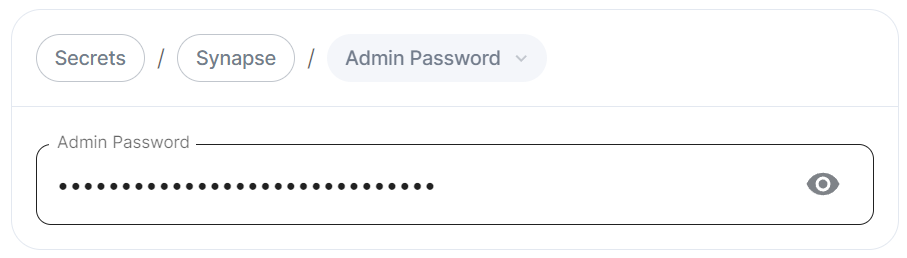
#### Admin Password
[](https://ems-docs.element.io/uploads/images/gallery/2024-02/image-1707395849132.png)
Config Example
- `deployment.yml`
```yml
spec:
components:
synapse:
config:
adminPasswordSecretKey: adminPassword
```
- `secrets.yml`
```yml
data:
adminPassword: ExampleAdminPasswordBase64EncodedString
```
Password for the `@onprem-admin-donotdelete` user, a Synapse Admin user automatically created to allow you to use the Admin Console. You should use this account to promote Matrix accounts you setup to Synapse Admins. When using the Admin Console via the Installer (`:8443`), you should auto-login as this account, no password required.
If you are experiencing issues with accessing the Admin Console following a wipe and reinstall, ensure you do not have the previous install credentials cached. You can clear them via your browsers' settings, then refresh the page (you will be provided with a new link via the Installer CLI) to resolve.
### Log
Unlike with most other sections, logging values set here are analogous to creating a `.log.config` instead of the `homeserver.yml`. See the [Logging Sample Config File](https://element-hq.github.io/synapse/latest/usage/configuration/logging_sample_config.html) for further reference.
#### Root Level
[](https://ems-docs.element.io/uploads/images/gallery/2024-02/image-1707395984727.png)
Config Example
```yml
spec:
components:
synapse:
config:
log:
rootLevel: Info
# rootLevel: Debug
# rootLevel: Warning
# rootLevel: Error
# rootLevel: Critical
```
As defined under the [Configuration file format](https://docs.python.org/3/library/logging.config.html#configuration-file-format) section of the Python docs, the available options presented by the Installer are `DEBUG`, `INFO`, `WARNING`, `ERROR` and `CRITICAL`. These represent different severity levels for log messages and help control the verbosity of log output which help to filter messages based on their importance.
- `DEBUG`: Detailed information, typically used for debugging purposes. Messages at this level provide the most fine-grained and detailed logging.
- `INFO`: General information about the program's operation. This level is used to confirm that things are working as expected.
- `WARNING`: Indicates a potential issue or something that might cause problems in the future. It doesn't necessarily mean an error has occurred, but it's a warning about a possible concern.
- `ERROR`: Indicates a more serious issue or error in the program. When an error occurs, it might impact the functionality of the application.
- `CRITICAL`: Indicates a very severe error that may lead to the program's termination. Critical messages suggest a problem that should be addressed immediately.
When troubleshooting, increasing the log level and redeploying can help narrow down where you're experiencing issues. By default, `DEBUG` is a good option to include everything allowing you to identify a problem.
It is not advised to leave your Logging Level at anything other than the default, as more verbose logging may expose information that should otherwise not be accessible. When sharing logs, remember to redact any sensitive information you do not wish to share.
#### Sentry DSN
[](https://ems-docs.element.io/uploads/images/gallery/2024-02/image-1707396003419.png)
Config Example
```yml
spec:
components:
synapse:
config:
log:
sentryDsn: https://publickey:secretkey@sentry.io/projectid
```
Here you can specify a Sentry Data Source Name (DSN) to connect Synapse logging to a specific project within your Sentry account. A typical Sentry DSN looks like:
```php
https://:@sentry.io/
```
#### Level Overrides
[](https://ems-docs.element.io/uploads/images/gallery/2024-02/image-1707396036220.png)
Config Example
```yml
spec:
components:
synapse:
config:
log:
levelOverrides:
synapse.storage.SQL: Info
# synapse.storage.SQL: Debug
# synapse.storage.SQL: Error
# synapse.storage.SQL: Warning
# synapse.storage.SQL: Critical
```
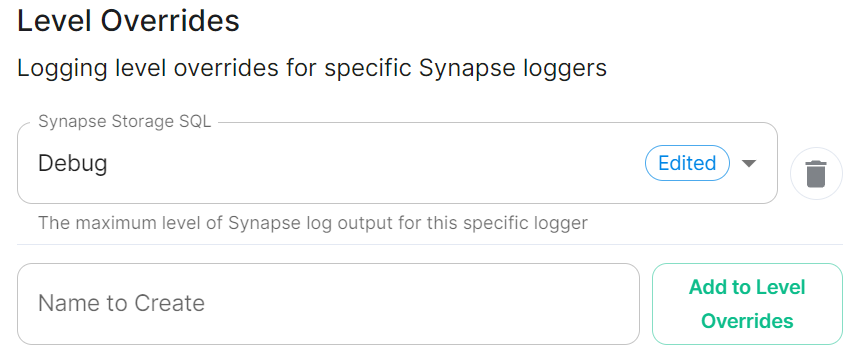
Here you can configure custom logging levels for specific Synapse loggers, i.e. `synapse.storage.SQL`. Simply add the Synapse logger and click `Add to Level Overrides`. You will then be able to select the desired logging level for that logger:
[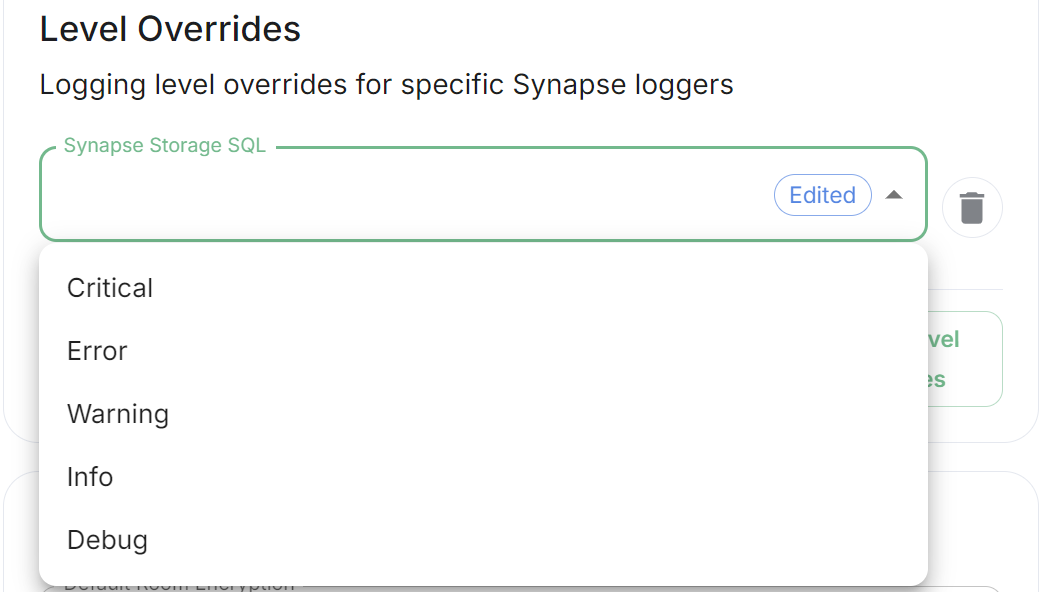](https://ems-docs.element.io/uploads/images/gallery/2024-08/image-1724340852522.png)
You can read up more on Structured Logging from the [Structured Logging](https://element-hq.github.io/synapse/latest/structured_logging.html#structured-logging) Synapse doc for more detailed guidance.
### Security
#### Default Room Encryption
[`encryption_enabled_by_default_for_room_type`](https://element-hq.github.io/synapse/latest/usage/configuration/config_documentation.html#encryption_enabled_by_default_for_room_type)
[](https://ems-docs.element.io/uploads/images/gallery/2024-02/image-1707396080091.png)
Config Example
```yml
spec:
components:
synapse:
config:
security:
defaultRoomEncryption: auto_all
# defaultRoomEncryption: auto_invite
# defaultRoomEncryption: forced_all
# defaultRoomEncryption: forced_invite
# defaultRoomEncryption: not_set
```
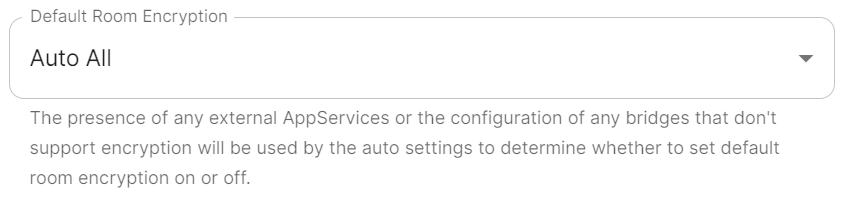
Controls whether locally-created rooms should be end-to-end encrypted by default.
This option will only affect rooms created after it is set and will not affect rooms created by other servers.
- `auto_all`
- Automatically enables encryption for all rooms created on the local server if all present integrations support it.
- `auto_invite`
- Automatically enables encryption for private rooms and private messages if all present integrations support it.
- `forced_all`
- Enforces encryption for all rooms created on the local server, regardless of the integrations supporting encryption.
- `forced_invite`
- Enforces encryption for private rooms and private messages, regardless of the integrations supporting encryption.
- `not_set`
- Does not enforce encryption, leaving room encryption configuration choice to room admins.
#### Password Policy
[`password_config`](https://element-hq.github.io/synapse/latest/usage/configuration/config_documentation.html#password_config)
[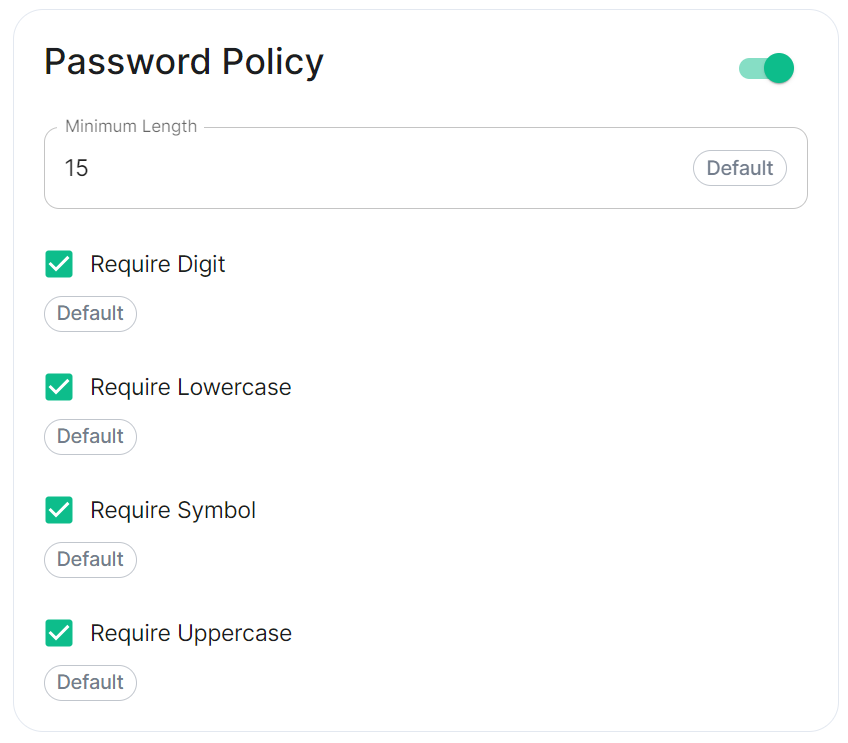](https://ems-docs.element.io/uploads/images/gallery/2024-02/image-1707243135026.png)
Config Example
```yml
spec:
components:
synapse:
config:
security:
# Not present when disabled
# passwordPolicy: # {} When enabled with default settings
passwordPolicy: # Only configured like so when values changed from thier defaults
minimumLength: 20 # Default: 15
requireDigit: false # Default: true
requireLowercase: false # Default: true
requireSymbol: false # Default: true
requireUppercase: false # Default: true
```
Turning on Password Policy will allow you to define and enforce a password policy for users' accounts on your homeserver.
You may notice that despite this not being enabled, users are required when registering to set secure passwords when doing do via the Element Web client. This is because the client itself enforces secure passwords, this setting is required should you wish to ensure all accounts have enforces password requirements, as other Matrix clients may not themselves enforce secure passwords.
### Telemetry
[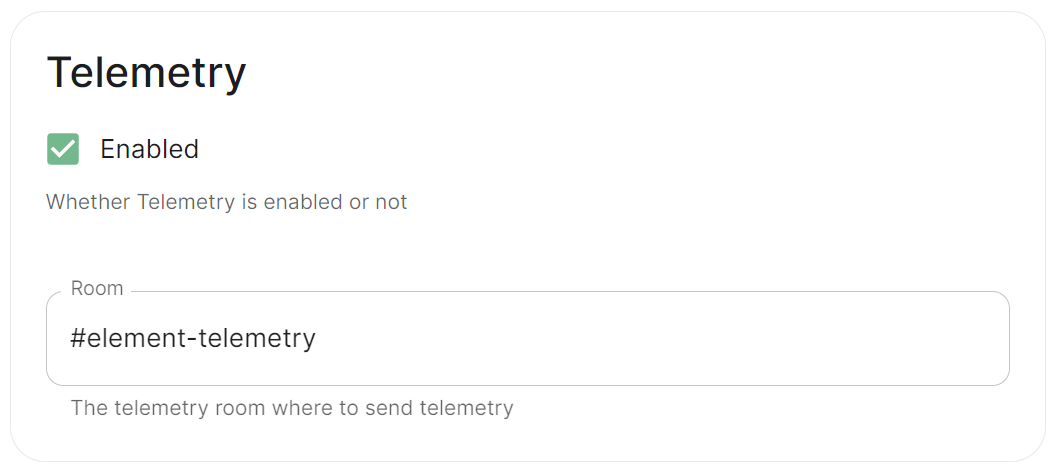](https://ems-docs.element.io/uploads/images/gallery/2024-01/image-1706547000728.png)
Config Example
```yml
spec:
components:
synapse:
config:
telemetry:
enabled: true
passwordSecretKey: telemetryPassword
room: '#element-telemetry'
```
Element collects telemetry data to understand whether or not customers are in compliance with what they've purchased, so should be left enabled unless automatic sending of telemetry is not possible (i.e. Airgapped setups). By default, ESS servers connected to the internet will automatically send telemetry to Element. Please allow this to happen by making sure you have not blocked `ems.element.io` on port `443` from your homeserver.
#### What Telemetry Data is Collected by Element?
The following is a sample telemetry packet generated by Element On-Premise:
Config Example
```
{
"_id" : ObjectId("6363bdd7d51c84d1f10a8126"),
"onPremiseSubscription" : ObjectId("62f14dd303c67b542efddc4f"),
"payload" : {
https://ems-docs.element.io/books/element-server-suite-classic-documentation-lts-2504
"data" : {
"activeUsers" : {
https://ems-docs.element.io/books/element-server-suite-classic-documentation-lts-2504
"count" : 1,
"identifiers" : {
"native" : [
"5d3510fc361b95a5d67a464a188dc3686f5eaf14f0e72733591ef6b8da478a18"
https://ems-docs.element.io/books/element-server-suite-classic-documentation-lts-2504
]
},
"period" : {
https://ems-docs.element.io/books/element-server-suite-classic-documentation-lts-2504
"end" : 1667481013777,
"start" : 1666970260518
}
}
},
"generationTime" : 1667481013777,
"hostname" : "element.demo",
"instanceId" : "bd3bbf92-ac8c-472e-abb5-74b659a04eec",
"type" : "synapse",
"version" : 1
},
"request" : {
"clientIp" : "71.70.145.71",
"userAgent" : "Synapse/1.65.0"
},
"schemaVersion" : 1,
"creationTimestamp" : ISODate("2022-11-03T13:10:47.476Z")
}
```
#### Submitting Telemetry Data to Element
If you are unable to allow Element's telemetry upload to take place, either because you are airgapped or need to block `ems.element.io` then you will need to manually submit telemetry data to Element.
In order to gather telemetry data, you will need to use the element-telemetry-export.py script, which comes with the installer.
To do this, run:
```bash
cd ~/.element-enterprise-server/installer/lib
/usr/bin/env python3 ./element-telemetry-export.py
```
You will be prompted for an access token:
```bash
Matrix user access token not specified in the "MATRIX_USER_ACCESS_TOKEN" environment variable. Please provide the access token and hit enter:
```
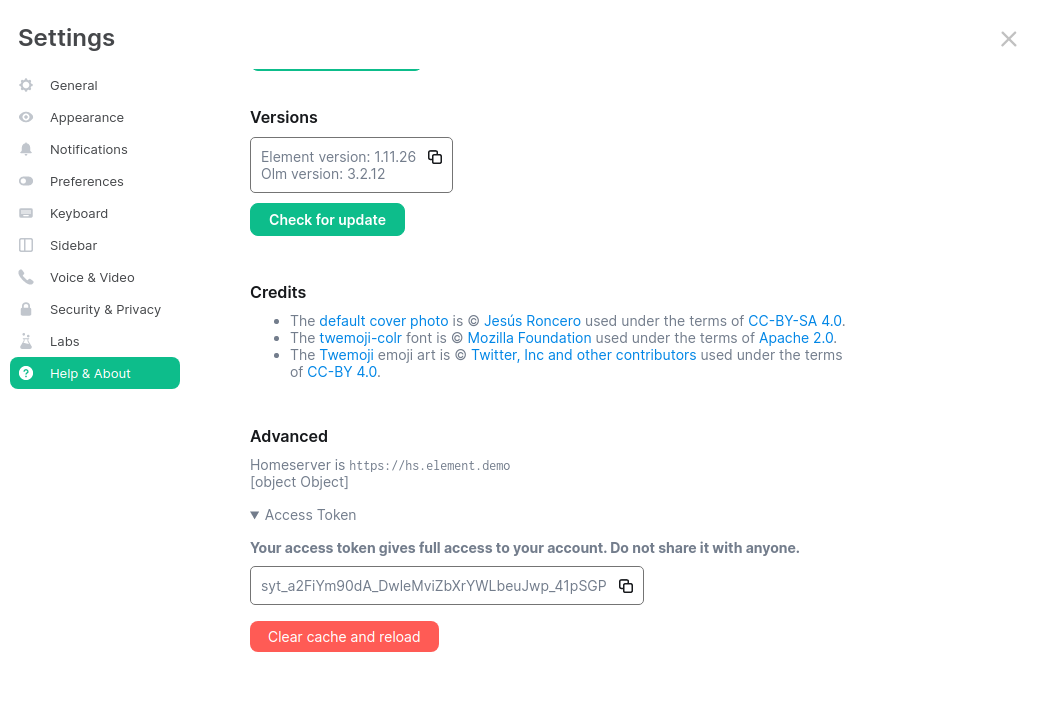
You will need to provide a valid access token for a user who has access to the telemetry room. This can be found by logging in to Element Web as this user, going to "All Settings", then clicking "Help & About" and finally expanding the section for "Access Token".
[](https://ems-docs.element.io/uploads/images/gallery/2023-04/accesstoken.png)
Provide the access token to the prompt and hit enter.
```
2023-04-18 15:36:41,580:INFO:Parsing configuration file (/home/karl1/.element-enterprise-server/config/telemetry-config.json)
2023-04-18 15:36:41,581:INFO:Performing Matrix sync with homeserver (https://hs.element.demo)
2023-04-18 15:36:41,643:INFO:Scanning page 1
2023-04-18 15:36:41,716:INFO:Scanning page 2
2023-04-18 15:36:41,782:INFO:Writing 19 telemetry events to ZIP file (/home/karl1/.element-enterprise-server/installer/lib/telemetry_2023-04-18.zip)
2023-04-18 15:36:41,783:INFO:Saving some internal state (for next time)
```
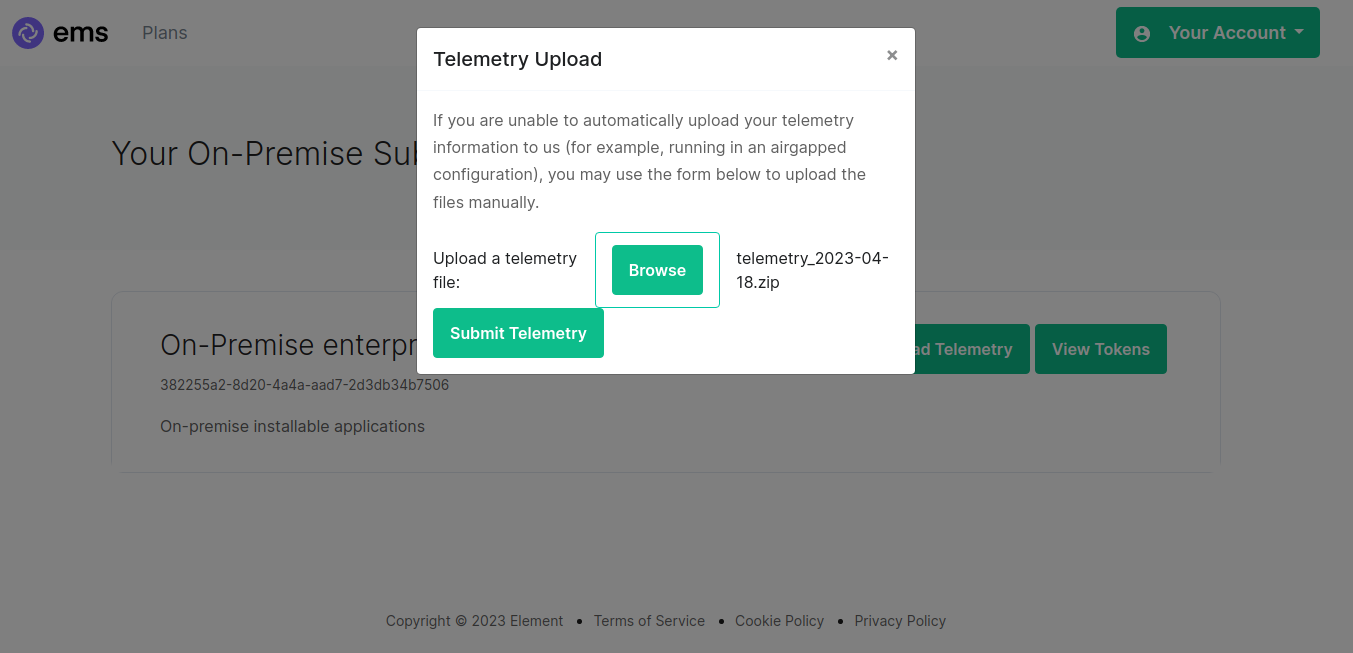
Once you have done this, you will have some messages that look similar to the above and you will have a new zip file in this directory with a date stamp in the format `telemetry_YYYY-MM-DD.zip`. In my case, I have `telemetry_2023-04-18.zip`.
If you are having SSL connectivity issues with the exporter, you may wish to either disable TLS verification or provide a CA certificate to the exporter with these optional command line parameters:
```
--disable-tls-verification
Do not check SSL certificate validity when querying the Matrix server
--ca-cert-path CA_CERT_PATH
Specify the path to the CA file (or a directory) to use when verifying Matrix server's
SSL certificate. Consult README.md for more details
```
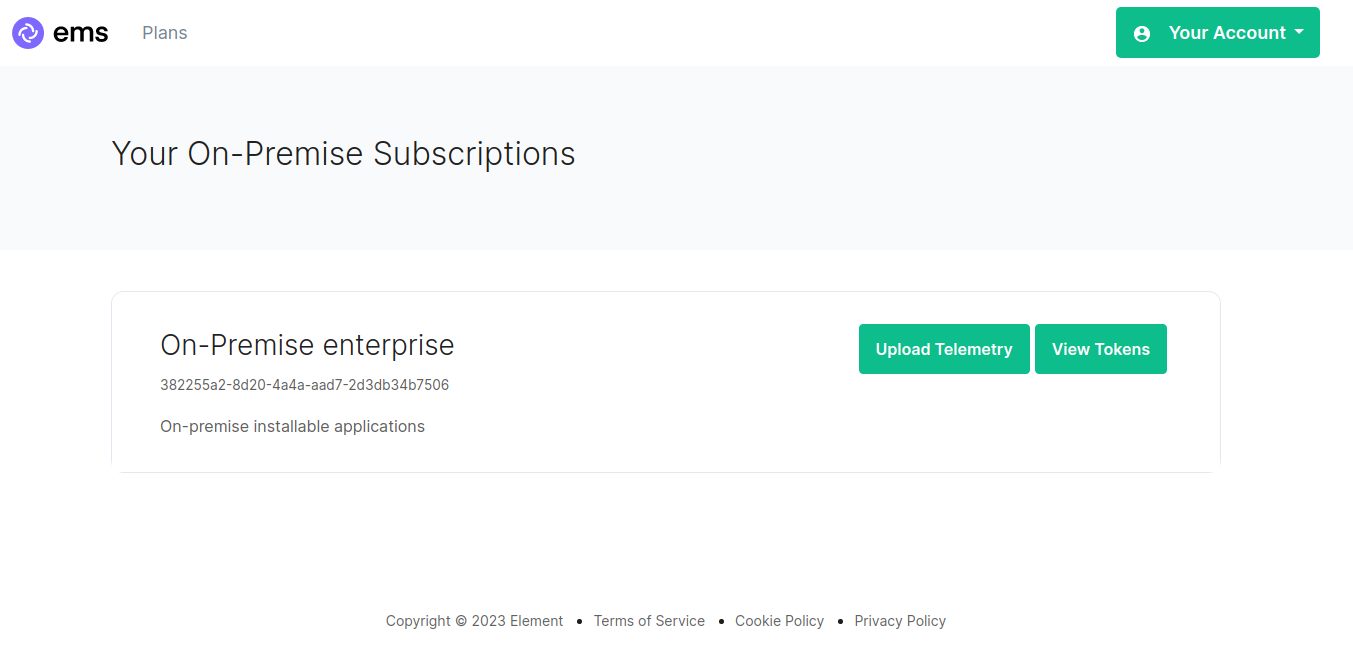
Then browse to and click "Upload Telemetry" next to the subscription you are uploading the data for:
[](https://ems-docs.element.io/uploads/images/gallery/2023-04/ems-subs.png)
Click browse, find the telemetry file then click "Submit Telemetry":
[](https://ems-docs.element.io/uploads/images/gallery/2023-04/browse-telemetry.png)
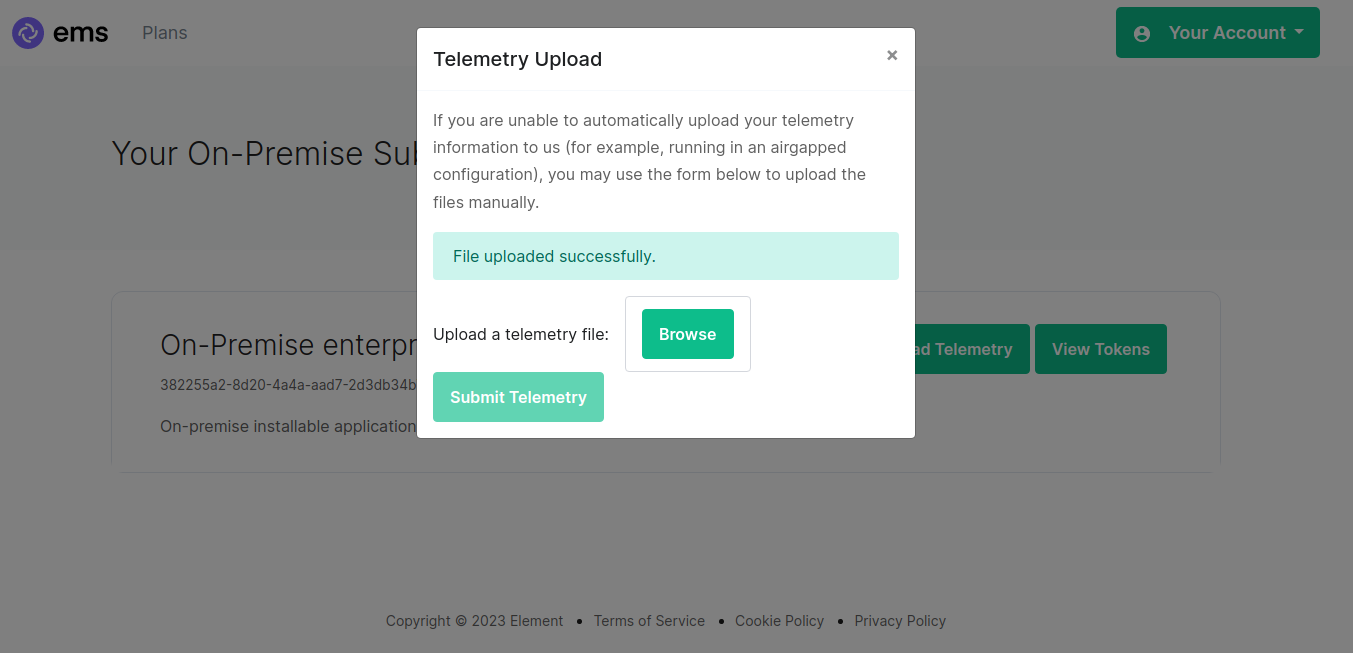
Once successful, you will see this screen:
[](https://ems-docs.element.io/uploads/images/gallery/2023-04/success.png)
You can then close the upload window.
#### Matrix Network Stats
[](https://ems-docs.element.io/uploads/images/gallery/2024-08/image-1724325098306.png)
Config Example
```yml
spec:
components:
synapse:
config:
telemetry:
matrixNetworkStats:
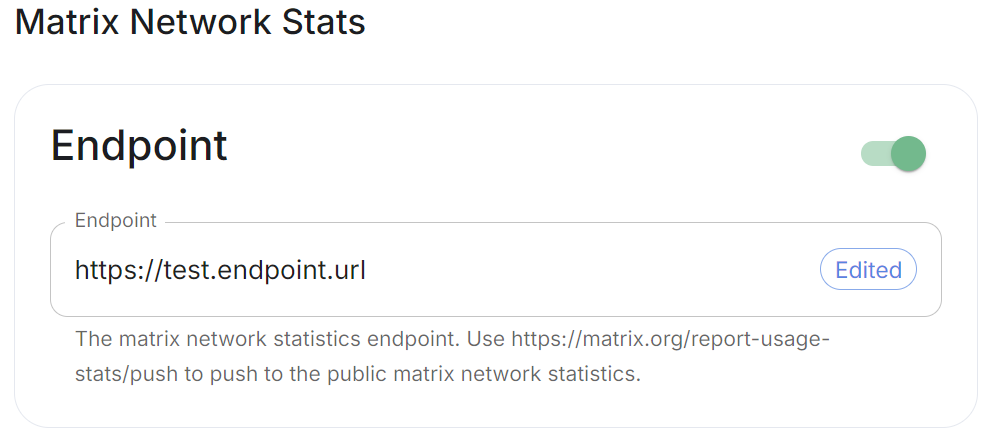
endpoint: https://test.endpoint.url
```
Enable Matrix Network Stats if you'd like to report your homeserver usage statistics to a statistics collection server. Per the tooltip, you can enter `https://matrix.org/report-usage-stats/push` to contribute to the public Matrix network statistics collection or enter your own endpoint.
See [Reporting Homeserver Usage Statistics](https://element-hq.github.io/synapse/latest/usage/administration/monitoring/reporting_homeserver_usage_statistics.html#reporting-homeserver-usage-statistics) for more information on the statistics available and [Using a Custom Statistics Collection Server](https://element-hq.github.io/synapse/latest/usage/administration/monitoring/reporting_homeserver_usage_statistics.html#reporting-homeserver-usage-statistics) to see how-to setup your own statistics endpoint.
### URL Preview
[`url_preview_enabled`](https://element-hq.github.io/synapse/latest/usage/configuration/config_documentation.html#url_preview_enabled)
[](https://ems-docs.element.io/uploads/images/gallery/2024-02/image-1707396190187.png)
Config Example
```yml
spec:
components:
synapse:
config:
urlPreview: {} # {} When disabled, otherwise enabled with config as detailed in sections below.
```
URL previews involve fetching information from a URL (e.g., a website link) and displaying a preview of the content, such as a title, description, and an image. This feature can be useful for enhancing the user experience by providing more context about shared URLs in chat messages.
Enabling or disabling URL previews can impact the amount of information displayed in the chat interface, and it can also have privacy implications as fetching URL previews involves making requests to external servers to retrieve metadata.
#### Default Blacklist
When enabling URL Preview, a default blacklist using [`url_preview_ip_range_blacklist`](https://element-hq.github.io/synapse/latest/usage/configuration/config_documentation.html#url_preview_ip_range_blacklist) is configured for all private networks (see ranged below) to avoid leaking information by asking for preview of links pointing to private paths of the infrastructure. While this blacklist cannot be changed, you can whitelist specific ranges using [IP Range Allowed](#bkmrk-ip-range-allowed).
Config Example
```yml
url_preview_ip_range_blacklist:
- '192.168.0.0/16'
- '100.64.0.0/10'
- '192.0.0.0/24'
- '169.254.0.0/16'
- '192.88.99.0/24'
- '198.18.0.0/15'
- '192.0.2.0/24'
- '198.51.100.0/24'
- '203.0.113.0/24'
- '224.0.0.0/4'
- '::1/128'
- 'fe80::/10'
- 'fc00::/7'
- '2001:db8::/32'
- 'ff00::/8'
- 'fec0::/10'
```
#### Config
##### Accept Language
[`url_preview_accept_language`](https://matrix-org.github.io/synapse/latest/usage/configuration/config_documentation.html#url_preview_accept_language)
[](https://ems-docs.element.io/uploads/images/gallery/2024-02/image-1707396225509.png)
Config Example
```yml
spec:
components:
synapse:
config:
urlPreview:
config:
acceptLanguage:
- en
```
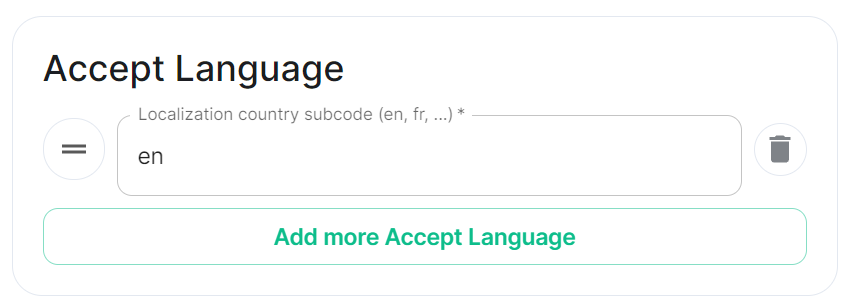
By setting this configuration option, you can control the language preference that Matrix Synapse communicates to external servers when fetching URL previews. This can be useful if you want to influence the language of the content retrieved for URL previews based on the preferred language of your users.
To do so, specify the Localisation country sub-code (e.g., `en`) that should be used as the Accept-Language header value that the server should send when fetching URL previews from external websites. The Accept-Language header is an HTTP header used by web browsers and other clients to indicate the preferred language(s) for the response.
Each value is a IETF language tag; a 2-3 letter identifier for a language, optionally followed by sub-tags separated by '-', specifying a country or region variant. Multiple values can be provided by clicking `Add more Accept Language`, and a weight can be added to each by using quality value syntax (;q=). '*' translates to any language.
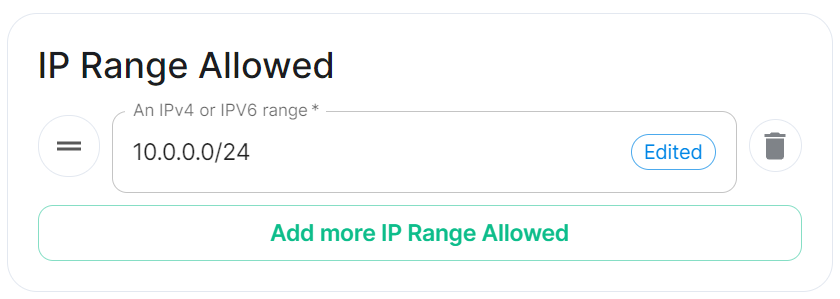
##### IP Range Allowed
[`url_preview_ip_range_whitelist`](https://element-hq.github.io/synapse/latest/usage/configuration/config_documentation.html#url_preview_ip_range_whitelist)
[](https://ems-docs.element.io/uploads/images/gallery/2024-02/image-1707396247379.png)
Config Example
```yml
spec:
components:
synapse:
config:
urlPreview:
config:
ipRangeAllowed:
- 10.0.0.0/24
```
This option allows you to provide a list of IP address CIDR ranges that URL Preview is allowed to access even if they are specified in the [Default Blacklist](#bkmrk-default-blacklist).
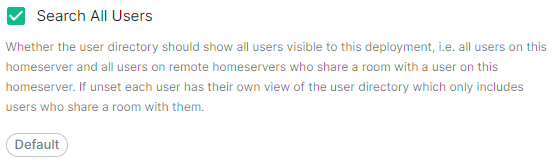
### User Directory
[`user_directory`](https://element-hq.github.io/synapse/latest/usage/configuration/config_documentation.html#user_directory)
[](https://ems-docs.element.io/uploads/images/gallery/2024-05/image-1716373343850.png)
Config Example
```yml
spec:
components:
synapse:
config:
userDirectory: # Not present when left as default, `true`
# searchAllUsers: true
searchAllUsers: false
```
This option defines whether to search all users visible to your homeserver at the time the search is performed. If set to `true`, Synapse will return all users on the homeserver who match the search. If `false`, search results will only contain users visible in public rooms and users sharing a room with the requester.
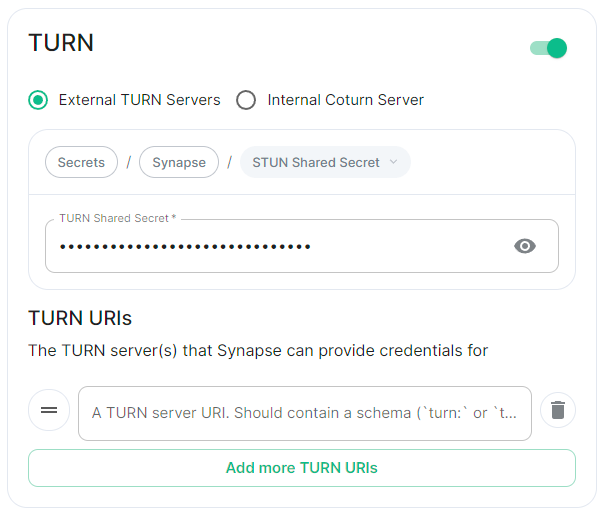
### TURN
[](https://ems-docs.element.io/uploads/images/gallery/2024-05/image-1716373885795.png)
Config Example
- `deployment.yml`
```yml
spec:
components:
synapse:
config:
# Not present if disabled
# stun: {} # If `Internal Coturn Server` selected
stun:
sharedSecretSecretKey: stunSharedSecret
turnUris:
- turn:turn.example.com
- turns:turns.example.com
```
- `secrets.yml`
```yml
data:
stunSharedSecret: ExampleSTUNSharedSecretBase64EncodedString
```
Any provided TURN server URI should contain a schema (`turn:` or `turns:`), a hostname, optionally a port and optionally a transport parameter (`?transport=udp` or `?transport=tcp`).
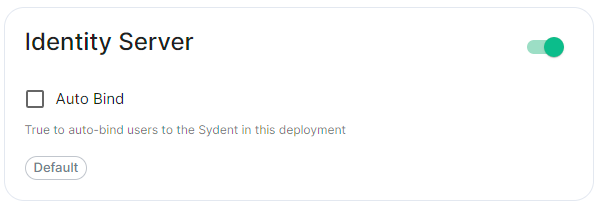
### Identity Server
[`default_identity_server`](https://element-hq.github.io/synapse/latest/usage/configuration/config_documentation.html#default_identity_server)
[](https://ems-docs.element.io/uploads/images/gallery/2024-05/image-1716373906396.png)
Config Example
```yml
spec:
components:
synapse:
config:
# Not present if disabled
# identityServer: {} # If enabled but `autoBind` not selected
identityServer:
autoBind: true
```
### HTTP Proxy
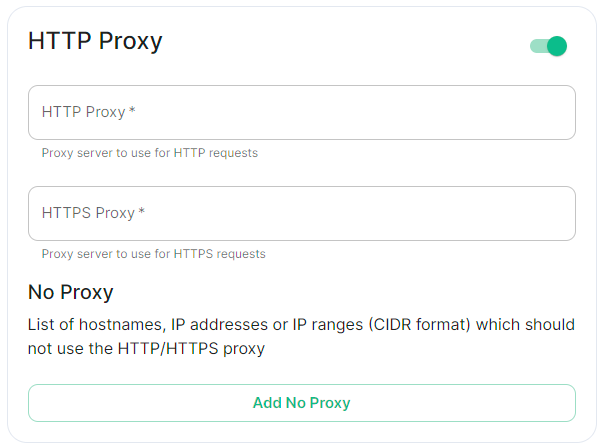
[`http_proxy`, `https_proxy`, `no_proxy`](https://element-hq.github.io/synapse/latest/setup/forward_proxy.html)
[](https://ems-docs.element.io/uploads/images/gallery/2024-05/image-1716373952714.png)
Config Example
```yml
spec:
components:
synapse:
config:
httpProxy:
httpProxy: http_proxy.example.com
httpsProxy: https_proxy.example.com
```
You can use Synapse with a forward or outbound proxy. An example of when this is necessary is in corporate environments behind a DMZ (demilitarized zone). Synapse supports routing outbound HTTP(S) requests via a proxy - Note: Only HTTP(S) proxy is supported, SOCKS / alternatives are no supported.
- **HTTP Proxy****.**
- Proxy server to use for HTTP requests.
- **HTTPS Proxy****.**
- Proxy server to use for HTTPS requests.
#### No Proxy
[](https://ems-docs.element.io/uploads/images/gallery/2024-05/image-1716375119783.png)
Config Example
```yml
spec:
components:
synapse:
config:
httpProxy:
noProxy:
- no_proxy.example.com # Hostname example
- 192.168.0.123 # IP example
- 192.168.1.1/24 # IP range example
```
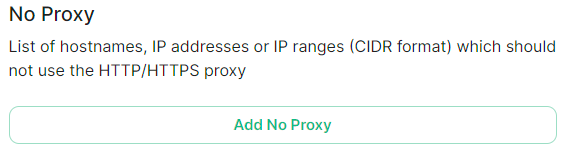
Here you can specify a list of hostnames, IP addresses or IP ranges (CIDR format) which should not use the HTTP/HTTPS proxy
### Data Retention
[`retention`](https://element-hq.github.io/synapse/latest/usage/configuration/config_documentation.html#retention)
[](https://ems-docs.element.io/uploads/images/gallery/2024-05/image-1716373996786.png)
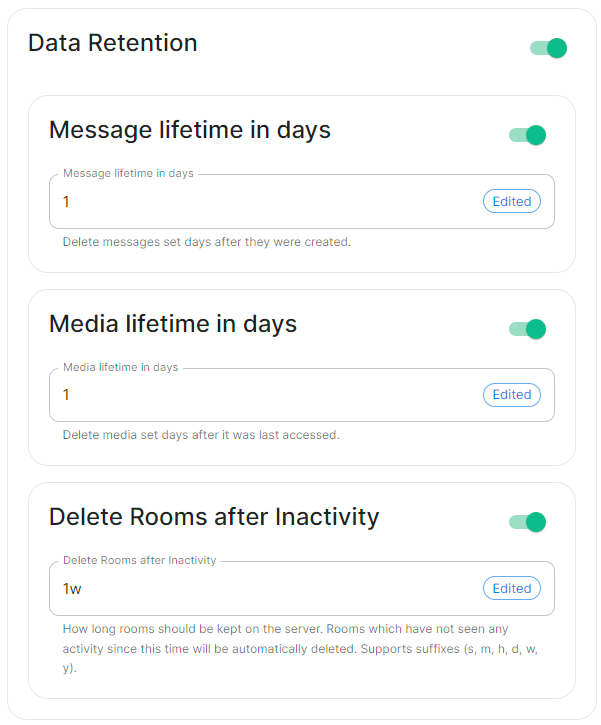
If this feature is enabled, Synapse will regularly look for and purge events which are older than the below specified lifetimes.
#### Message Lifetime in Days
Config Example
```yml
spec:
components:
synapse:
config:
dataRetention:
messageLifetime: 1
```
Used to specify the number of days after a message is created that it should be deleted.
#### Media Lifetime in Days
Config Example
```yml
spec:
components:
synapse:
config:
dataRetention:
mediaLifetime: 1
```
Used to specify the number of days after media is uploaded that it should be deleted.
#### Delete Rooms After Inactivity
Config Example
```yml
spec:
components:
synapse:
config:
dataRetention:
deleteRoomsAfterInactivity: 1w
```
Used to specifiy how long rooms, which have not seen any activity, should be kept on the server. Rooms inactive after the specified time will be automatically deleted. Supports suffixes:
- `s` : Seconds
- `m` : Minutes
- `h` : Hours
- `d` : Days
- `w` : Weeks
- `y` : Years
### Advanced
#### Config
##### Macaroon
[`macaroon_secret_key`](https://element-hq.github.io/synapse/latest/usage/configuration/config_documentation.html#macaroon_secret_key)
[](https://ems-docs.element.io/uploads/images/gallery/2024-05/image-1716545532340.png)
Config Example
- `secrets.yml`
```yml
data:
macaroon: ExampleMacaroonBase64EncodedString
```
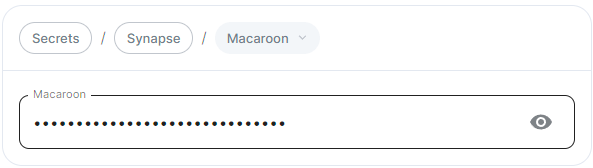
A secret which is used to sign the:
- Access token for guest users
- Short-term login token used during SSO logins (OIDC or SAML2)
- Token used for unsubscribing from email notifications.
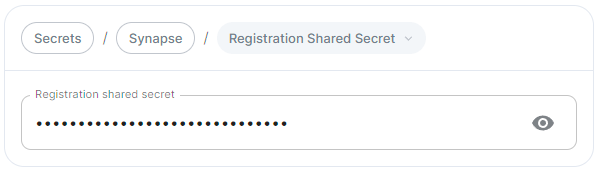
##### Registration Shared Secret
[`registration_shared_secret`](https://element-hq.github.io/synapse/latest/usage/configuration/config_documentation.html#registration_shared_secret)
[](https://ems-docs.element.io/uploads/images/gallery/2024-05/image-1716545551340.png)
Config Example
- `secrets.yml`
```yml
data:
registrationSharedSecret: ExampleRegistrationSharedSecretBase64EncodedString
```
Allows registration of standard or admin accounts by anyone who has the shared secret, even if [`enable_registration`](https://element-hq.github.io/synapse/latest/usage/configuration/config_documentation.html#enable_registration) is not Open, see [Registration](#bkmrk-registration).
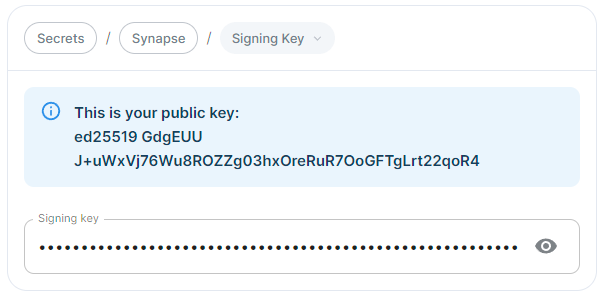
##### Signing Key
[`signing-keys`](https://element-hq.github.io/synapse/latest/usage/configuration/config_documentation.html?highlight=signing#signing-keys)
[](https://ems-docs.element.io/uploads/images/gallery/2024-05/image-1716545569029.png)
Config Example
- `secrets.yml`
```yml
data:
signingKey: >-
ExampleSigningKeyBase64EncodedString
```
See the dedicated page on Synapse Federation configuration, [Synapse Section: Federation](https://ems-docs.element.io/books/element-server-suite-classic-documentation-lts-2410/page/synapse-section-federation) for more details on how the Signing Key is used.
#### Additional
See the dedicated page on additional Synapse configuration, [Synapse Section: Additional Config](https://ems-docs.element.io/books/element-server-suite-classic-documentation-lts-2410/page/synapse-section-additional-config)
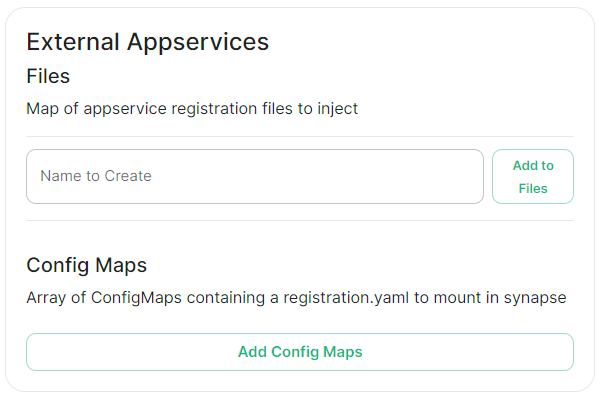
#### External Appservices
[](https://ems-docs.element.io/uploads/images/gallery/2024-05/image-1716546127943.png)
#### Federation
See the dedicated page on Synapse Federation configuration, [Synapse Section: Federation](https://ems-docs.element.io/books/element-server-suite-classic-documentation-lts-2410/page/synapse-section-federation)
### Synapse configuration options not available within the UI
We strongly advise against including any config not configurable via the UI as it will most likely interfere with settings automatically computed by the updater. Additional configuration options are not supported so we encourage you to first raise your requirements to Support where we can best advise on them.
An `Additional Config` section, which allows including config not currently configurable via the UI from the [Configuration Manual](https://element-hq.github.io/synapse/latest/usage/configuration/config_documentation.html), is available under the 'Advanced' section of this page. See the dedicated page on additional Synapse configuration, [Synapse Section: Additional Config](https://ems-docs.element.io/books/element-server-suite-classic-documentation-lts-2410/page/synapse-section-additional-config)