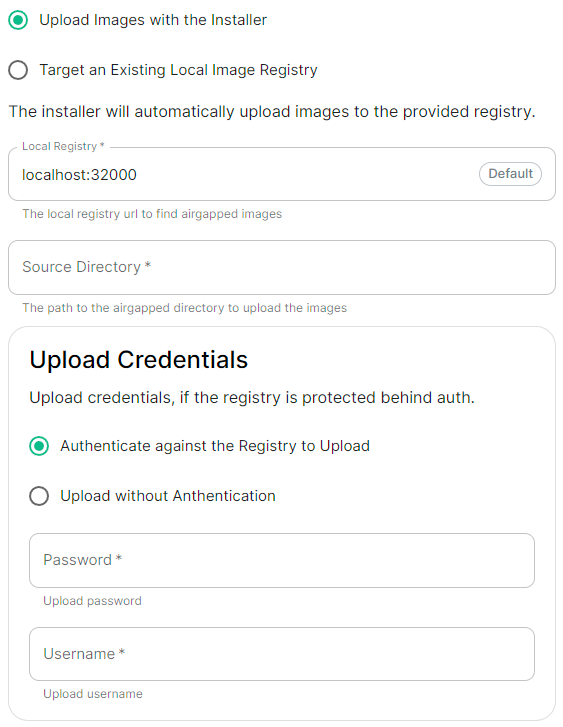
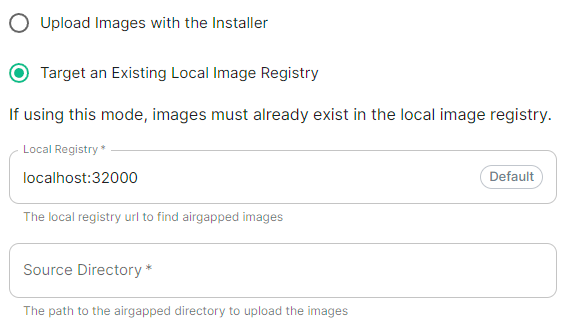
Initial configuration options specific to the installer, including how ESS should be deployed.
The first section of the ESS installer GUI is the Host section, here you will configure essential details of how ESS will be installed including; deployment type; subscription credentials; PostgreSQL to use; and whether or not your setup is airgapped.
Settings configured via the UI in this section will mainly be saved to your `cluster.yml`. If performing a Kubernetes deployment, you will also be able to config Host Admin settings which will save configuration into both `internal.yml` and `deployment.yml`.
Depending on your environment you will need to select either `Standalone` or `Kubernetes Application`. `Standalone` will install `microk8s` locally on your machine, and deploy to it so all pods are running locally on the host machine. `Kubernetes Application` will deploy to your Kubernetes infrastructure in a context you will need to have already setup via your kube config.
### Deployment (Standalone)
#### Install
[](https://ems-docs.element.io/uploads/images/gallery/2024-02/image-1708075153739.png)
Config Example
```ymlhttps://ems-docs.element.io/books/element-server-suite-classic-documentation-lts-2504https://ems-docs.element.io/books/element-server-suite-classic-documentation-lts-2504
spec:
connectivity:
dockerhub:
password: example
username: example
install:
emsImageStore:
password: example
username: example
webhooks:
caPassphrase: example
# Options unique to selecting Standalone
certManager:
adminEmail: example@Dexample.com
microk8s:
dnsResolvers:
- 8.8.8.8
- 8.8.4.4
postgresInCluster:
hostPath: /data/postgres
passwordsSeed: example
operatorUpdaterDebugLogs: false
useLegacyAuth: false
```
An example of the cluster.yml config generated when selecting Standalone, note that no specific flag is used within the config to specify selecting between Standalone or Kubernetes. If you choose to manually configure ESS bypassing the GUI, ensure only config options specific to how you wish to deploy are provided.
Select your deployment type here, if you've jumped ahead you should first read our [Introduction to Element Server Suite](https://ems-docs.element.io/books/element-server-suite-classic-documentation-lts-2410/page/introduction-to-element-server-suite) and then see our [Requirements and Recommendations](https://ems-docs.element.io/books/element-server-suite-classic-documentation-lts-2410/page/requirements-and-recommendations) which details the environment specifics needed for each deployment type.
##### Debug Logging
[](https://ems-docs.element.io/uploads/images/gallery/2024-11/image-1731068925323.png)
Config Example
```yml
spec:
install:
operatorUpdaterDebugLogs: false
```
Enabling this option will run the operator and updator with debug logging. You should leave this disabled by default unless you are experiencing issues.
##### Legacy Auth
[https://ems-docs.element.io/books/element-server-suite-classic-documentation-lts-2504
Config Example
```yml
spec:
install:
useLegacyAuth: false
```
Disabled by default, unless upgrading from a previous LTS version lacking MAS support. Migrating to MAS from legacy authenication is not currently supported.
New to LTS 24.10, authentication by defualt uses the [Matrix Authentication Service](https://github.com/element-hq/matrix-authentication-service). This configurable option allows you to disable the use of MAS and revert back to the legacy authentication offered in previous versions of ESS.
Once you have deployed for the first time, you cannot enable / disable Legacy Auth. Ensure if you require SAML delegated authentication, or wish to use the GroupSync integration, you enable Legacy Authentication prior to deployment.
#### Cert Manager
[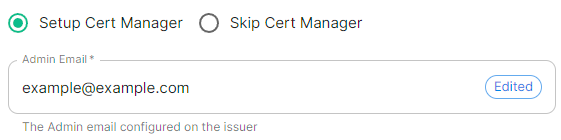](https://ems-docs.element.io/uploads/images/gallery/2024-04/image-1714496045157.png)
Config Example
```yml
spec:
install:
# certManager: {} # When 'Skip Cert Manager' selected
certManager:
adminEmail: example@example.com
```
You should keep this enabled if you will be using Let's Encrypt to verify your domain and generate your certificates, simply provide the username where due to expire certificate notices will be sent.
If you plan to upload your own certificates, or they will be Externally Managed, you should select `Skip Cert Manager`.
https://ems-docs.element.io/books/element-server-suite-classic-documentation-lts-2504https://ems-docs.element.io/books/element-server-suite-classic-documentation-lts-2504
#### EMS Image Store
[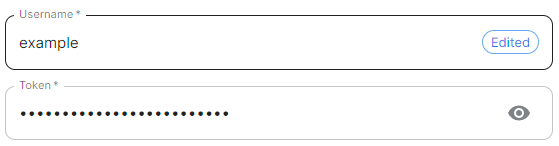](https://ems-docs.element.io/uploads/images/gallery/2024-04/image-1714496065638.png)
Config Example
```yml
spec:
install:
emsImageStore:
password: token
username: test
```
Here you will need to provide your EMS Image Store Username and Token associated with your subscription, which you can find at .
If you forget your token and hit 'Refresh' in the EMS Control Panel, you will need to ensure you redeploy your instance with the new token - otherwise subsequent deployments will fail.
https://ems-docs.element.io/books/element-server-suite-classic-documentation-lts-2504https://ems-docs.element.io/books/element-server-suite-classic-documentation-lts-2504
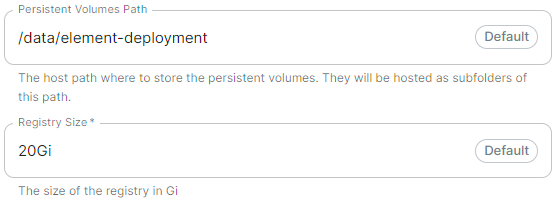
#### MicroK8s
[](https://ems-docs.element.io/uploads/images/gallery/2024-04/image-1714496085591.png)
Config Example
```yml
spec:
install:
microk8s:
persistentVolumesPath: /data/element-deployment
registrySize: 25Gi
```
It is unlikely you should need to adjust these values and it is highly recommended to leave this as their defaults.
If you encounter a requirement to clean up your images cache, see the [Cleaning up images cache](https://ems-docs.element.io/books/element-server-suite-classic-documentation-lts-2410/page/post-installation-essentials#bkmrk-cleaning-up-images-c) section from the [Post-Installation Essentials](https://ems-docs.element.io/books/element-server-suite-classic-documentation-lts-2410/page/post-installation-essentials) page.
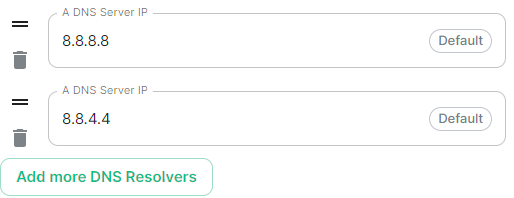
#### DNS Resolvers
[](https://ems-docs.element.io/uploads/images/gallery/2024-04/image-1714496102751.png)
Config Example
```yml
spec:
install:
microk8s:
dnsResolvers:
- 8.8.8.8
- 8.8.4.4
```
Defaulting to `8.8.8.8` and `8.8.4.4`, the DNS server IPs set here will be used by all deployed pods. Click `Add more DNS Resolvers` to add additional entries as required.
#### Nginx Extra Configuration
[](https://ems-docs.element.io/uploads/images/gallery/2024-04/image-1714496120331.png)
Config Example
```yml
spec:
install:
microk8s:
# Not present when disabled
nginxExtraConfiguration:
custom-http-errors: '"404"'
server-snippet: >-
error_page 404 /404.html; location = /404.html { internal; return 200
"
Hello World!
"; }
```
As linked via the ESS installer GUI, see the [Ingress-Nginx Controller ConfigMaps](https://kubernetes.github.io/ingress-nginx/user-guide/nginx-configuration/configmap/#configuration-options) documentation for the options that can be configured.
##### Example
The below example is for demonstration purposes only, you should follow the linked guidance before adding extra configuration.
For example, if you wanted to replace the standard 404 error page, you could do this using both [`custom-http-errors`](https://kubernetes.github.io/ingress-nginx/user-guide/nginx-configuration/configmap/#custom-http-errors) and [`server-snippet`](https://kubernetes.github.io/ingress-nginx/user-guide/nginx-configuration/configmap/#server-snippet). To configure via the installer, simply add the specify `custom-http-errors` as the `Name` and click `Add to Nginx Extra Configuration`, then provide the required value in the newly created field:
[](https://ems-docs.element.io/uploads/images/gallery/2024-02/image-1708078830743.png)
Repeat for `server-snippet`:
[](https://ems-docs.element.io/uploads/images/gallery/2024-02/image-1708078877553.png)
The above example is used to explain how to configure the Nginx Extra Configuration, and so is for demonstration purposes only, it is not recommended to use this example config. Ideally your web server should manage traffic that would otherwise hit a 404 being served by ESS.
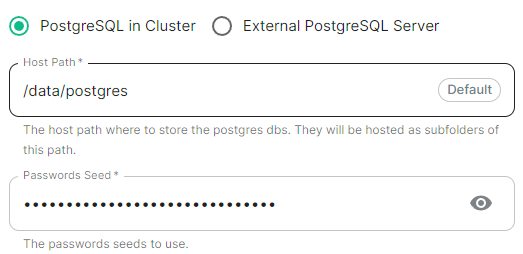
#### PostgreSQL in Cluster
[](https://ems-docs.element.io/uploads/images/gallery/2024-04/image-1714496148674.png)
Config Example
```yml
spec:
install:
microk8s:
# postgresInCluster: {} # If 'External PostgreSQL Server' selected
postgresInCluster:
hostPath: /data/postgres
passwordsSeed: example
```
Only available in Standalone deployments you can have the installer deploy PostgreSQL for you, this will remove the requirement to configure PostgreSQL connection and authentication credentials in later parts of the installer. It is highly recommended to keep the default settings if you opt for this approach.
If you already have an external PostgreSQL server you wish to use, make sure you have followed the [PostgreSQL Standalone Environment Prerequisites](https://ems-docs.element.io/books/element-server-suite-classic-documentation-lts-2410/page/requirements-and-recommendations#bkmrk-postgresql) detailed on the [Requirements and Recommendations](https://ems-docs.element.io/books/element-server-suite-classic-documentation-lts-2410/page/requirements-and-recommendations#bkmrk-postgresql) page. Selecting this option will present an additional `Database` section in the installer process.
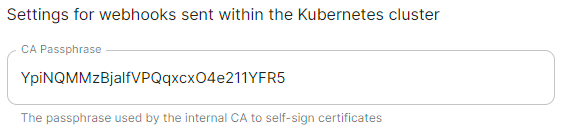
#### Internal Webhooks
[](https://ems-docs.element.io/uploads/images/gallery/2024-05/image-1716365980592.png)
Config Example
```yml
spec:
install:
webhooks:
caPassphrase: YpiNQMMzBjalfVPQqxcxO4e211YFR5
```
You should not need to change this, a unique CA passphrase will b generated on first run of the installer and is used by the interal CA to self-sign certificates.
### Deployment (Kubernetes Application)
#### Install
[](https://ems-docs.element.io/uploads/images/gallery/2024-04/image-1714488149825.png)
Config Example
```yml
spec:
connectivity:
dockerhub:
password: example
username: example
install:
emsImageStore:
password: example
username: example
webhooks:
caPassphrase: example
# Options unique to selecting Standalone
clusterDeployment: true
kubeContextName: example
namespaces: {}
skipElementCrdsSetup: false
skipOperatorSetup: false
skipUpdaterSetup: false
operatorUpdaterDebugLogs: false
useLegacyAuth: false
```
An example of the cluster.yml config generated when selecting Kubernetes, note that no specific flag is used within the config to specify selecting between Standalone or Kubernetes. If you choose to manually configure ESS bypassing the GUI, ensure only config options specific to how you wish to deploy are provided.
Select your deployment type here, if you've jumped ahead you should first read our [Introduction to Element Server Suite](https://ems-docs.element.io/books/element-server-suite-classic-documentation-lts-2410/page/introduction-to-element-server-suite) and then see our [Requirements and Recommendations](https://ems-docs.element.io/books/element-server-suite-classic-documentation-lts-2410/page/requirements-and-recommendations) which details the environment specifics needed for each deployment type.
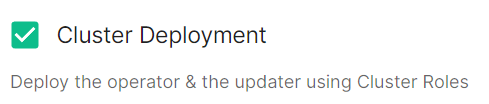
##### Cluster Deployment
[](https://ems-docs.element.io/uploads/images/gallery/2024-02/image-1708075404378.png)
Config Example
```yml
spec:
install:
clusterDeployment: true
```
Deploy the operator & the updater using Cluster Roles.
##### Kube Context Name
[](https://ems-docs.element.io/uploads/images/gallery/2024-04/image-1714488225063.png)
Config Example
```yml
spec:
install:
kubeContextName: example
```
The name of the Kubernetes context you have already setup that ESS should be deployed into.
{{@684#bkmrk-debug-logging-section}}
{{@684#bkmrk-legacy-auth-section}}
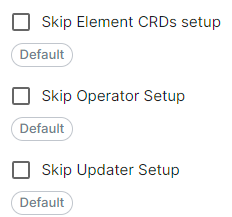
##### Skip Setup Options
[](https://ems-docs.element.io/uploads/images/gallery/2024-04/image-1714488379545.png)
Config Example
```yml
spec:
install:
skipElementCrdsSetup: false
skipOperatorSetup: false
skipUpdaterSetup: false
```
Selecting these will allow you to skip the setup of the Element CRDs, Operator and Updater as required.
{{@684#bkmrk-ems-image-store-section}}
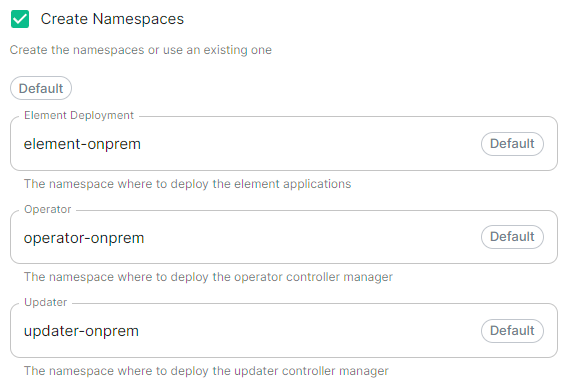
#### Namespaces
[](https://ems-docs.element.io/uploads/images/gallery/2024-04/image-1714488532648.png)
Config Example
```yml
spec:
install:
# namespaces: {} # When left as default namespaces
# namespaces: # When `Create Namespaces` is disabled
# createNamespaces: false
namespaces: # When custom namespaces are provided
elementDeployment: element-example # Omit any that should remain as default
operator: operator-example
updater: updater-example
```
Allows you to specify the namespaces you wish to deploy into, with the additional option to create them if they don't exist.
#### Namespace-scoped Deployments
Namespace-scoped deployments in Kubernetes offer a way to organize and manage resources within specific namespaces rather than globally across the entire cluster.
Preparing the Cluster
**Installing the Helm Chart Repositories**
The first step is to start on a machine with helm v3 installed and configured with your kubernetes cluster and pull down the two charts that you will need.
First, let's add the element-updater repository to helm:
```
helm repo add element-updater https://registry.element.io/helm/element-updater --username
ems_image_store_username --password 'ems_image_store_token'
```
Replace `ems_image_store_username` and `ems_image_store_token` with the values provided to you by Element.
Secondly, let's add the element-operator repository to helm:
```
helm repo add element-operator https://registry.element.io/helm/element-operator --username ems_image_store_username --password 'ems_image_store_token'
```
Replace `ems_image_store_username` and `ems_image_store_token` with the values provided to you by Element.
Now that we have the repositories configured, we can verify this by:
```
helm repo list
```
and should see the following in that output:
```
NAME URL
element-operator https://registry.element.io/helm/element-operator
element-updater https://registry.element.io/helm/element-updater
```
**Deploy the CRDs**
Write the following `values.yaml` file:
```
clusterDeployment: true
deployCrds: true
deployCrdRoles: true
deployManager: false
```
To install the CRDs with the helm charts, simply run:
```
helm install element-updater element-updater/element-updater -f values.yaml
helm install element-operator element-operator/element-operator -f values.yaml
```
Now at this point, you should have the following two CRDs available:
```
[user@helm ~]$ kubectl get crds | grep element.io
elementwebs.matrix.element.io 2023-10-11T13:23:14Z
wellknowndelegations.matrix.element.io 2023-10-11T13:23:14Z
elementcalls.matrix.element.io 2023-10-11T13:23:14Z
hydrogens.matrix.element.io 2023-10-11T13:23:14Z
mautrixtelegrams.matrix.element.io 2023-10-11T13:23:14Z
sydents.matrix.element.io 2023-10-11T13:23:14Z
synapseusers.matrix.element.io 2023-10-11T13:23:14Z
bifrosts.matrix.element.io 2023-10-11T13:23:14Z
lowbandwidths.matrix.element.io 2023-10-11T13:23:14Z
synapsemoduleconfigs.matrix.element.io 2023-10-11T13:23:14Z
matrixauthenticationservices.matrix.element.io 2023-10-11T13:23:14Z
ircbridges.matrix.element.io 2023-10-11T13:23:14Z
slidingsyncs.matrix.element.io 2023-10-11T13:23:14Z
securebordergateways.matrix.element.io 2023-10-11T13:23:14Z
hookshots.matrix.element.io 2023-10-11T13:23:14Z
matrixcontentscanners.matrix.element.io 2023-10-11T13:23:14Z
sygnals.matrix.element.io 2023-10-11T13:23:14Z
sipbridges.matrix.element.io 2023-10-11T13:23:14Z
livekits.matrix.element.io 2023-10-11T13:23:14Z
integrators.matrix.element.io 2023-10-11T13:23:14Z
jitsis.matrix.element.io 2023-10-11T13:23:14Z
mautrixwhatsapps.matrix.element.io 2023-11-15T09:03:48Z
synapseadminuis.matrix.element.io 2023-10-11T13:23:14Z
synapses.matrix.element.io 2023-10-11T13:23:14Z
groupsyncs.matrix.element.io 2023-10-11T13:23:14Z
pipes.matrix.element.io 2023-10-11T13:23:14Z
elementdeployments.matrix.element.io 2023-10-11T13:34:25Z
chatterboxes.matrix.element.io 2023-11-21T15:55:59Z
```
**Namespace-scoped role**
In the namespace where the ESS deployment will happen, to give a user permissions to deploy ESS, please create the following role and roles bindings:
- User role:
```
apiVersion: rbac.authorization.k8s.io/v1
kind: Role
metadata:
name: ess-additional
rules:
- apiGroups:
- apiextensions.k8s.io
resources:
- customresourcedefinitions
verbs:
- list
- watch
- get
- apiGroups:
- project.openshift.io
resources:
- projects
verbs:
- get
- list
- watch
```
- User roles bindings:
```
apiVersion: rbac.authorization.k8s.io/v1
kind: RoleBinding
metadata:
name: ess-additional
roleRef:
apiGroup: rbac.authorization.k8s.io
kind: Role
name: ess-additional
subjects:
# role subjects which maps to the user or its groups
```
```
apiVersion: rbac.authorization.k8s.io/v1
kind: RoleBinding
metadata:
name: ess
roleRef:
apiGroup: rbac.authorization.k8s.io
kind: ClusterRole
name: edit
subjects:
# role subjects which maps to the user or its groups
```
Once your cluster is prepared, you can setup your namespace-scoped deployment by configuring these settings:
- **Skip Operator Setup****.** Unchecked
- **Skip Updater Setup****.** Unchecked
- **Skip Element CRDs Setup****.** Checked
- **Cluster Deployment****.** Unchecked
- **Kube Context Name****.** Set to `user_kube_context_name`
- **Namespaces****.**
- **Create Namespaces****.** Unchecked
- **Operator****.** Set to `namespace_to_deploy_ess`
- **Updater****.** Set to same as Operator, `namespace_to_deploy_ess`
- **Element Deployment****.** Set to same as Operator, `namespace_to_deploy_ess`
#### Internal Webhooks
[](https://ems-docs.element.io/uploads/images/gallery/2024-05/image-1716365980592.png)
Config Example
```yml
spec:
install:
webhooks:
caPassphrase: YpiNQMMzBjalfVPQqxcxO4e211YFR5
```
### Connectivity
[](https://ems-docs.element.io/uploads/images/gallery/2024-02/image-1708076541524.png)
Config Example
```yml
spec:
connectivity:
```
#### Connected
[](https://ems-docs.element.io/uploads/images/gallery/2024-02/image-1708076586708.png)
Config Example
```yml
spec:
connectivity:
# dockerhub: {} # When Username & Password is disabled per default
dockerhub:
password: password
username: test
```
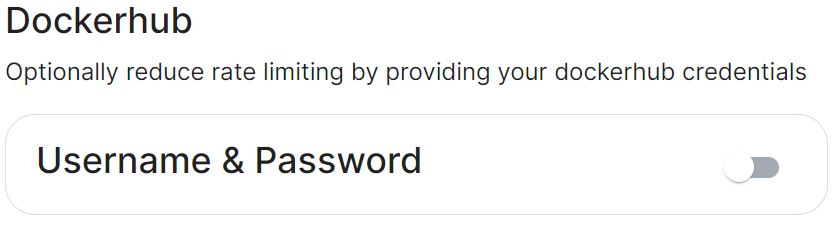
Connected means the installer will use the previously provided [EMS Image Store](#bkmrk-ems-image-store) credentials to pull the required pod images as part of deployment, optionally, you can specify DockerHub credentials to reduce potential rate limiting.
#### Airgapped
Config Example
```yml
spec:
connectivity:
airgapped:
localRegistry: localhost:32000
sourceDirectory: /home/ubuntu/airgapped/
# uploadCredentials not present if `Target an Existing Local Image Registry` selected
# uploadCredentials: {} # If 'Upload without Authentication'
uploadCredentials:
password: example
username: example
```
An airgapped environment is any environment in which the running hosts will not have access to the greater internet. This proposes a situation in which these hosts are unable to get access to various needed bits of software from Element and also are unable to share telemetry data back with Element.
Selecting Airgapped means the installer will rely on images stored in a registry local to your environment, by default the installer will host this registry uploading images found within the specified `Source Directory`, however you can alternatively specify one already present in your environment instead.
##### Getting setup within an Airgapped environment
Alongside each Installer binary available for download, for those customers with airgapped permissions, is an equivalent airgapped package `element-enterprise-installer-airgapped--gui.tar.gz`. Download and copy this archive to the machine running the installer, then use `tar -xzvf element-enterprise-installer-airgapped--gui.tar.gz` to extract out its contents, you should see a folder `airgapped` with the following directories within:
- `pip`
- `galaxy`
- `snaps`
- `containerd`
- `images`
Copy the full path of the root `airgapped` folder, for instance, `/home/ubuntu/airgapped` and paste that into the `Source Directory` field. Should you ever update the ESS installer binary, you will need to ensure you delete and replace this `airgapped` folder, with its updated equivalent.
Your airgapped machine will still require access to airgapped linux repositories depending on your OS. If using Red Hat Enterprise Linux, you will also need access to the EPEL repository in your airgapped environment.
### Host Admin
[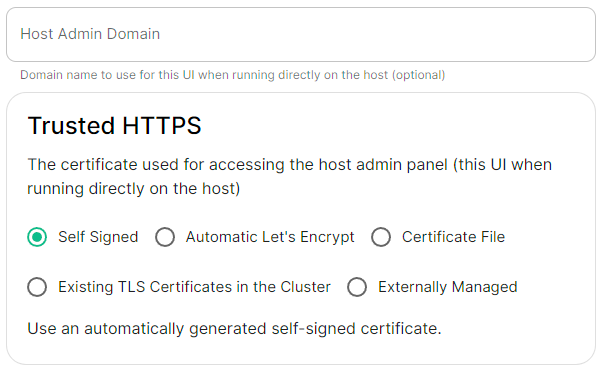](https://ems-docs.element.io/uploads/images/gallery/2024-04/image-1714496264422.png)
Config Example
- `internal.yml`
```yml
spec:
fqdn: admin.example.com
tls:
# When selecting `Self Signed`
# mode: self-signed
# When selecting `Automatic Let's Encrypt`
mode: automatic
automatic:
adminEmail: example@example.com
# When selecting `Certificate File`
# mode: certfile
# certificate:
# certFile: "example" # Base64 encoded string from certificate
# privateKey: "example" # Base64 encoded string from certificate key
# When selecting `Exsiting TLS Certificates in the Cluster`
# mode: existing
# secretName: example
# When selecting `Externally Managed`
# mode: external
```
- `deployment.yml`
```yml
spec:
components:
synapseAdmin:
config:
hostOrigin: >-
https://admin.example.com,https://admin.example.com:8443
```
The Host Admin section allows you to configure the domain name and certificates to use when serving the ESS installer GUI, when running directly on the host - changes here will take affect the next time you run the installer.
# Domains Section
Configure the domains ESS should use for the main components deployed by ESS.
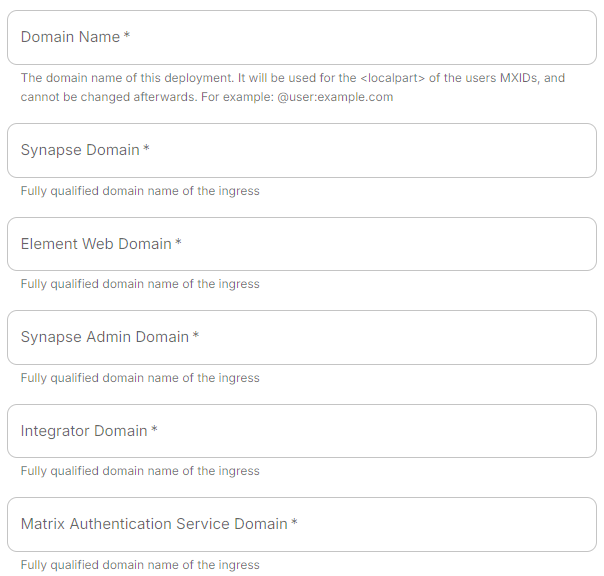
The second section of the ESS installer GUI is the Domains section, here you will configure the fully-qualified domain names for each of the main components that will be deployed by ESS.
The domain names configured via the UI in this section will be saved to your deployment.yml under each of the components' k8s: ingress: configuration.
This section covers all domain names used by the main components present in the installer, additional domains may be required when enabling specific integrations - you will specify integration specific domain names on each respective integrations' page.
[](https://ems-docs.element.io/uploads/images/gallery/2024-11/image-1731070042294.png)
Config Example
```yml
spec:
components:
elementWeb:
k8s:
ingress:
fqdn: element.example.com
integrator:
k8s:
ingress:
fqdn: integrator.example.com
matrixAuthenticationService:
k8s:
ingress:
fqdn: mas.example.com
synapse:
k8s:
ingress:
fqdn: synapse.example.com
synapseAdmin:
k8s:
ingress:
fqdn: admin.example.com
global:
config:
domainName: example.com
```
Simply provide the base domain name for your deployment, then you need to provide the sub-domains to use for Synapse (Matrix Homeserver), Element Web (Hosted Matrix Client), Synapse Admin (Hosted Admin Console) and Integrator.
##### Changing your base Domain Name
If you have already deployed your server, it is not possible to change your base domain name. To do so, you will need to wipe all data and start anew.
# Certificates Section
Configure and/or provide the certificates that should be used for each domain served by ESS.
The third section of the ESS installer GUI is the Domains section, here you will configure the certificates to use for each previously specified domain name.
Certificate details configured via the UI in this section will be saved to your deployment.yml under each of the components' k8s: ingress: configuration with the cert contents (if manually uploaded) being saved to a secrets.yml in Base64.
This section covers all certificates to be used by the main components deployed by the installer, additional certificates may be required when enabling specific integrations - you will specify integration specific certificates on each respective integrations' page.
Config Example
- `deployment.yml`
```yml
spec:
components:
elementWeb:
k8s:
ingress:
tls: # Selecting `Certmanager Let's Encrypt`
certmanager:
issuer: letsencrypt
mode: certmanager
secretName: element-web
integrator:
k8s:
ingress:
tls: # Selecting `Certificate File`
certificate:
certFileSecretKey: integratorCertificate
privateKeySecretKey: integratorPrivateKey
mode: certfile
secretName: integrator
matrixAuthenticationService:
k8s:
ingress:
fqdn: mas.example.com
tls:
certmanager:
issuer: letsencrypt
mode: certmanager
secretName: matrix-authentication-service
synapse:
k8s:
ingress:
tls: # Selecting `Existing TLS Certificates in the Cluster`
mode: existing
secretName: example
secretName: synapse
synapseAdmin:
k8s:
ingress:
tls: # Selecting `Externally Managed`
mode: external
secretName: synapse-admin
wellKnownDelegation:
k8s:
ingress:
tls:
mode: external
secretName: well-known-delegation
```
- `secrets.yml`
```yml
apiVersion: v1
kind: Secret
metadata:
name: element-web
namespace: element-onprem
data:
elementWebCertificate: >-
exampleBase64EncodedString
elementWebPrivateKey: >-
exampleBase64EncodedString
---
apiVersion: v1
kind: Secret
metadata:
name: integrator
namespace: element-onprem
data:
certificate: >-
exampleBase64EncodedString
privateKey: >-
exampleBase64EncodedString
---
apiVersion: v1
kind: Secret
metadata:
name: matrix-authentication-service
namespace: element-onprem
data:
certificate: >-
exampleBase64EncodedString
privateKey: >-
exampleBase64EncodedString
---
apiVersion: v1
kind: Secret
metadata:
name: synapse
namespace: element-onprem
data:
synapseCertificate: >-
exampleBase64EncodedString
synapsePrivateKey: >-
exampleBase64EncodedString
---
apiVersion: v1
kind: Secret
metadata:
name: synapse-admin
namespace: element-onprem
data:
synapseAdminUICertificate: >-
exampleBase64EncodedString
synapseAdminUIPrivateKey: >-
exampleBase64EncodedString
---
apiVersion: v1
kind: Secret
metadata:
name: well-known-delegation
namespace: element-onprem
data:
wellKnownDelegationCertificate: >-
exampleBase64EncodedString
wellKnownDelegationPrivateKey: >-
exampleBase64EncodedString
```
You will need to configure certificates for the following components:
- Well-Known Delegation
- Well-Known files are served on the base domain, i.e. `https://example.com/.well-known/matrix/client` and `https://example.com/.well-known/matrix/server`.
- Synapse
- Please note, if you opt to turn on DNS SRV (via the Cluster Section), the Synapse certificate MUST include the base domain as an additional name.
- Element Web
- Synapse Admin
- Integrator
- Matrix Authenication Service
For each component, you will be presented with 4 options on how to configure the certificate.
#### Certmanager Let's Encrypt
[](https://ems-docs.element.io/uploads/images/gallery/2024-04/image-1714491991843.png)
Config Example
```yml
spec:
components:
componentName: # `elementWeb`, `integrator`, `synapse`, `synapseAdmin`, `wellKnownDelegation`
k8s:
ingress:
tls:
certmanager:
issuer: letsencrypt
mode: certmanager
secretName: component # Not used with 'Certmanager Let's Encrypt'
```
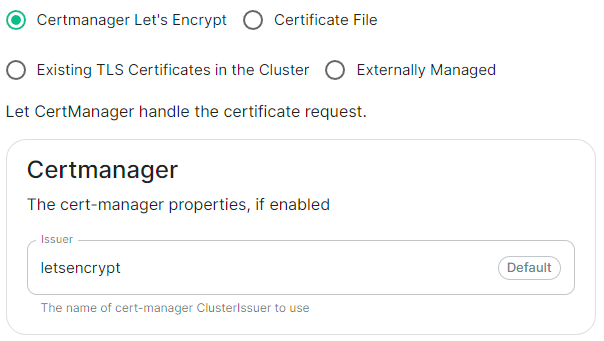
Select this to use Let's Encrypt to generate the certificates used, do not edit the Issuer field as no other options are available at this time.
#### Certificate File
[](https://ems-docs.element.io/uploads/images/gallery/2024-04/image-1714492004288.png)
Config Example
- `deployment.yml`
```yml
spec:
components:
componentName: # `elementWeb`, `integrator`, `synapse`, `synapseAdmin`, `wellKnownDelegation`
k8s:
ingress:
tls:
mode: certfile
certificate:
certFileSecretKey: componentCertificate
privateKeySecretKey: componentPrivateKey
secretName: component
```
- `secrets.yml`
```yml
apiVersion: v1
kind: Secret
metadata:
name: component
namespace: element-onprem
data:
componentCertificate: >-
exampleBase64EncodedString
componentPrivateKey: >-
exampleBase64EncodedString
---
```
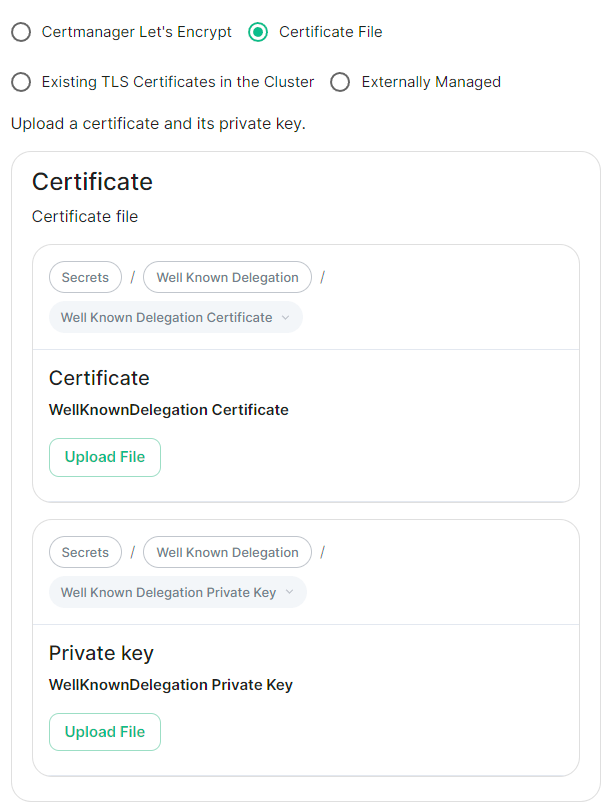
Select this option to be able to manually upload the certificates that should be used to serve the specified domain. Make sure you certificate files are in the PEM encoded format and it is strongly advised to include the full certificate chain within the file to reduce likelihood of certificate-based issues post deployment.
#### Existing TLS Certificates in the Cluster
[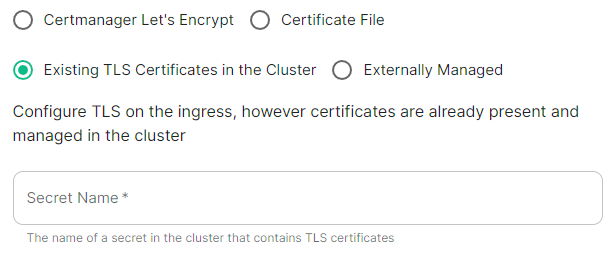](https://ems-docs.element.io/uploads/images/gallery/2024-04/image-1714492016084.png)
Config Example
```yml
spec:
components:
componentName: # `elementWeb`, `integrator`, `synapse`, `synapseAdmin`, `wellKnownDelegation`
k8s:
ingress:
tls:
mode: existing
secretName: example
secretName: component # Not used with 'Existing TLS Certificates in the Cluster'
```
This option is most applicable to Kubernetes deployments, however can be used with Standalone. Select this option when secrets containing the certificates are already present and managed within the cluster, provide the secret name that contains the TLS certificates for ESS to use them.
#### Externally Managed
[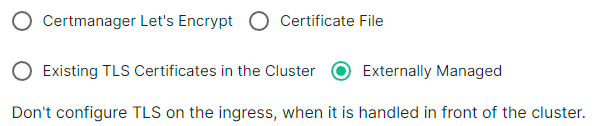](https://ems-docs.element.io/uploads/images/gallery/2024-04/image-1714492026549.png)
Config Example
```yml
spec:
components:
componentName: # `elementWeb`, `integrator`, `synapse`, `synapseAdmin`, `wellKnownDelegation`
k8s:
ingress:
tls:
mode: external
secretName: component # Not used with 'Externally Managed'
```
Select this option is certificates are handled in front of the cluster, TLS will not be configured on the ingress for each component.
##### Well-Known Delegation
If you already host a site on your base domain, i.e. `example.com`, then you should either ensure your web server defers to the Well-Known Delegation component to serve the `.well-known` files or you should set Well-Known Delegation to `Externally Managed` and manually serve those files.
This is because Matrix clients and servers need to be able to request `https://example.com/.well-known/matrix/client` and `https://example.com/.well-known/matrix/server` respectively to work properly.
The web server hosting the base domain should either forward requests for `/.well-known/matrix/client` and `/.well-known/matrix/server` to the Well-Known Delegation component for it to serve, or a copy of the `.well-known` files will need to be added directly on the` example.com` web server.
If you don't already host a base domain `example.com`, then the Well-Known Delegation component hosts the `.well-known` files and serves the base domain i.e. `example.com`
###### Getting the contents of the `.well-known` files
1. Run `kubectl get cm/first-element-deployment-well-known -n element-onprem -o yaml` on your ESS host, it will output something similar to the below:
Config Example
```yaml
apiVersion: v1
data:
client: |-
{
"m.homeserver": {
"base_url": "https://synapse.example.com"
}
}
server: |-
{
"m.server": "synapse.example.com:443"
}
kind: ConfigMap
metadata:
creationTimestamp: "2024-06-13T09:32:52Z"
labels:
app.kubernetes.io/component: matrix-delegation
app.kubernetes.io/instance: first-element-deployment-well-known
app.kubernetes.io/managed-by: element-operator
app.kubernetes.io/name: well-known
app.kubernetes.io/part-of: matrix-stack
app.kubernetes.io/version: 1.24-alpine-slim
k8s.element.io/crdhash: 9091d9610bf403eada3eb086ed2a64ab70cc90a8
name: first-element-deployment-well-known
namespace: element-onprem
ownerReferences:
- apiVersion: matrix.element.io/v1alpha1
kind: WellKnownDelegation
name: first-element-deployment
uid: 24659493-cda0-40f0-b4db-bae7e15d8f3f
resourceVersion: "3629"
uid: 7b0082a9-6773-4a28-a2a9-588a4a7f7602
```
2. Copy the contents of the two supplied files (client and server) from the output into their own files:
- **Filename:** `client`
```json
{
"m.homeserver": {
"base_url": "https://synapse.example.com"
}
}
```
- **Filename:** `server`
```json
{
"m.server": "synapse.example.com:443"
}
```
3. Configure your webserver such that each file is served correctly at, i.e for a base domain of `example.com`:
- `https://example.com/.well-known/matrix/client`
- `https://example.com/.well-known/matrix/server`
# Database Section
Configuration options for how ESS can communicate with your PostgreSQL database.
This section of the ESS installer GUI will only be present if you are using the Kubernetes deployment option or you have opted to use your own PostgreSQL for a Standalone deployment.
If you have not yet set up your PostgreSQL, you should ensure you have done so before proceeding, see the relevant PostgreSQL section from the [Requirements and Recommendations](https://ems-docs.element.io/books/element-server-suite-classic-documentation-lts-2410/page/requirements-and-recommendations) page:
- [Standalone Deployment PostgreSQL Prerequisites](https://ems-docs.element.io/books/element-server-suite-classic-documentation-lts-2410/page/requirements-and-recommendations#bkmrk-postgresql)
- [Kubernetes Deployment PostgreSQL Prerequisites](https://ems-docs.element.io/books/element-server-suite-classic-documentation-lts-2410/page/requirements-and-recommendations#bkmrk-postgresql-1)
All settings configured via the UI in this section will be saved to your deployment.yml, with the contents of secrets being saved to secrets.yml. You will find specific configuration examples in each section.
By default, if you do not change any settings on this page, defaults will be added to your configuration file/s (see example below).
Config Example
```yml
https://ems-docs.element.io/books/element-server-suite-classic-documentation-lts-2504
spec:
components:
synapse:
config:
postgresql:
database: synapse
host: db.example.com
passwordSecretKey: postgresPassword
user: test-username
```
https://ems-docs.element.io/books/element-server-suite-classic-documentation-lts-2504
### PostgreSQL
#### Database
[](https://ems-docs.element.io/uploads/images/gallery/2024-08/image-1724150284621.png)
Config Example
```yml
spec:
components:
synapse:
config:
postgresql:
database: synapse
```
Enter the name of the PostgreSQL Database you configured per the previously mentioned [Requirements and Recommendations](https://ems-docs.element.io/books/element-server-suite-classic-documentation-lts-2410/page/requirements-and-recommendations) to use for Synapse.
#### Host
[](https://ems-docs.element.io/uploads/images/gallery/2024-08/image-1724150463007.png)
https://ems-docs.element.io/books/element-server-suite-classic-documentation-lts-2504
Config Example
```yml
spec:
components:
synapse:
config:
postgresql:
host: db.example.com
https://ems-docs.element.io/books/element-server-suite-classic-documentation-lts-2504
```
Enter the fully qualified domain name of the PostgreSQL Database you configured per the previously mentioned [Requirements and Recommendations](https://ems-docs.element.io/books/element-server-suite-classic-documentation-lts-2410/page/requirements-and-recommendations) to use for Synapse.
#### Port
[](https://ems-docs.element.io/uploads/images/gallery/2024-08/image-1724150637542.png)
Config Example
```yml
spec:
components:
synapse:
config:
postgresql:
# port not present when left as default 5432
port: 5432
```
Defaults to `5432`, either keep if correct or provide the required port of the PostgreSQL Database you configured per the previously mentioned [Requirements and Recommendations](https://ems-docs.element.io/books/element-server-suite-classic-documentation-lts-2410/page/requirements-and-recommendations) to use for Synapse.
#### SSL Mode
[](https://ems-docs.element.io/uploads/images/gallery/2024-08/image-1724150860317.png)
Config Example
```yml
spec:
components:
synapse:
config:
postgresql:
# sslMode not present when left as default `require`
sslMode: require
# sslMode: disable
# sslMode: allow
# sslMode: prefer
# sslMode: verify-ca
# sslMode: verify-full
```
Defaults to `Require` - it is not recommended to disable SSL, so for most setups, this setting should be left as default.
You should adjust to accommodate your environment as required, the options available are:
- Disable
- Allow
- Prefer
- Require
- Verify CA
- Verify Full
#### User
[](https://ems-docs.element.io/uploads/images/gallery/2024-08/image-1724151253559.png)
Config Example
```yml
spec:
components:
synapse:
config:
postgresql:
user: test-username
```
Enter the username of a user who can access the PostgreSQL Database you configured per the previously mentioned [Requirements and Recommendations](https://ems-docs.element.io/books/element-server-suite-classic-documentation-lts-2410/page/requirements-and-recommendations) to use for Synapse.
#### PostgreSQL Password
[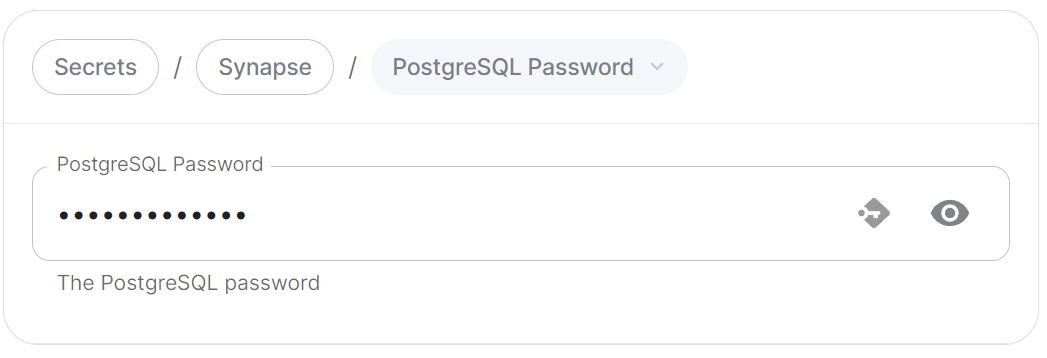](https://ems-docs.element.io/uploads/images/gallery/2024-08/image-1724151325375.png)
Config Example
- `secrets.yml`
```yml
apiVersion: v1
kind: Secret
metadata:
name: synapse
namespace: element-onprem
data:
postgresPassword: dGVzdC1wYXNzd29yZA==
```
Enter the password for the specified user who can access the PostgreSQL Database you configured per the previously mentioned [Requirements and Recommendations](https://ems-docs.element.io/books/element-server-suite-classic-documentation-lts-2410/page/requirements-and-recommendations) to use for Synapse.
### Advanced
#### Connection Pool
##### Max / Min Connections
[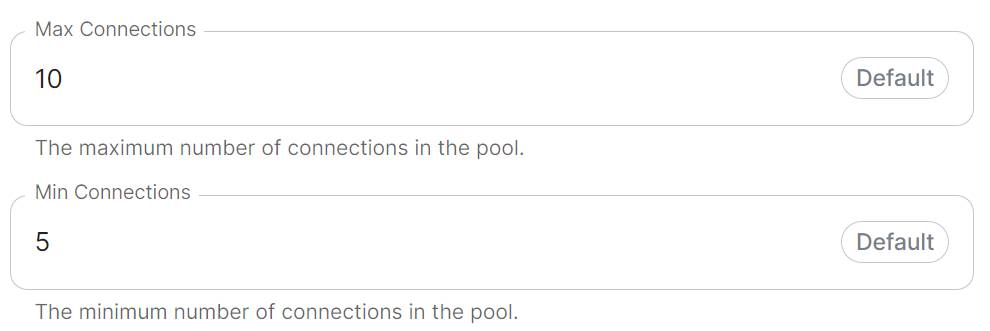](https://ems-docs.element.io/uploads/images/gallery/2024-08/image-1724151480786.png)
Config Example
```yml
spec:
components:
synapse:
config:
postgresql:
# connectionPool not present when left as default
connectionPool:
maxConnections: 10
minConnections: 5
```
In most deployments you should not need to configure these settings, however if required, you can adjust both the minimum and maximum connections in the Synapse connection pool.
# Media Section
Configuration options relating to how Media uploaded to your homeserver is handled by ESS.
The Media section allows you to customise where media uploaded to your homeserver should be stored and the maximum upload size. By default this is to a Persistent Volume Claim (PVC) however you can also configure options for using S3.
All settings configured via the UI in this section will be saved to your deployment.yml, with the contents of secrets being saved to secrets.yml. You will find specific configuration examples in each section.
By default, if you do not change any settings on this page, defaults will be added to your configuration file/s (see example below).
Config Example
- `deployment.yml`
```yml
spec:
components:
synapse:
config:
media:
maxUploadSize: 100M
volume:
size: 50Gi
```
### Config
#### Media
[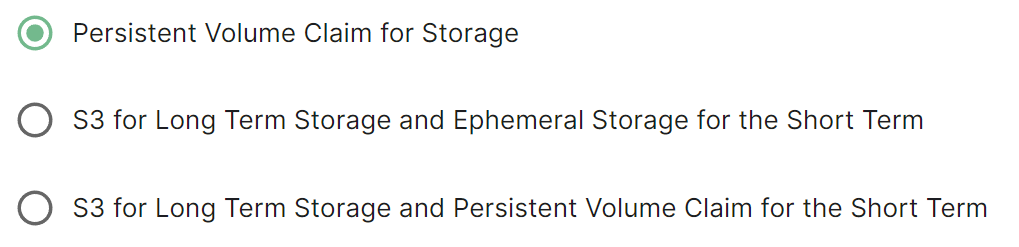](https://ems-docs.element.io/uploads/images/gallery/2024-08/image-1724316136629.png)
Config Example
```yml
spec:
components:
synapse:
config:
media:
volume: # Present if you select either Persistent Volume Claim option
size: 50Gi
```
Selecting either Persistent Volume Claim configuration option will default to using a `50Gi` volume for media.
##### S3
[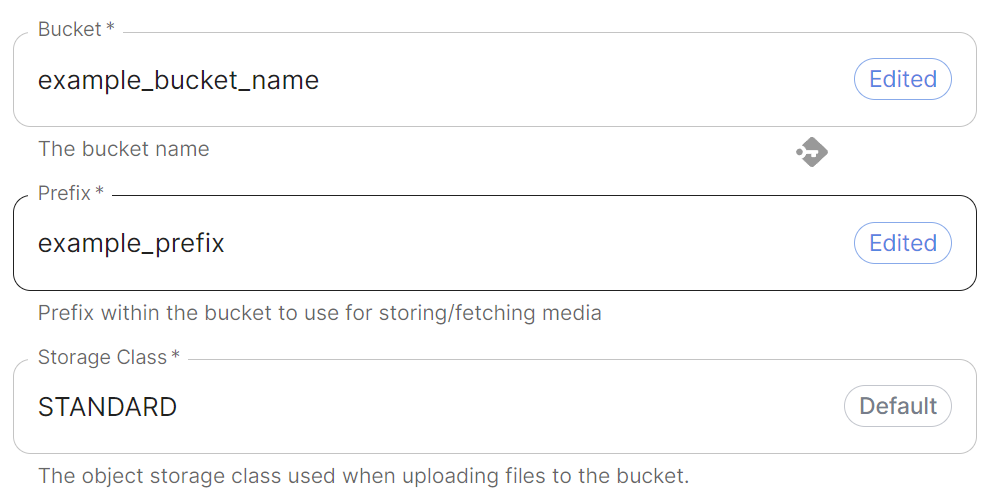](https://ems-docs.element.io/uploads/images/gallery/2024-08/image-1724317207274.png)
Config Example
```yml
spec:
components:
synapse:
config:
media:
s3:
bucket: example_bucket_name
prefix: example_prefix
storageClass: STANDARD # Not present if left as default
```
Provide your bucket name and a prefix within the bucket to use. You can also adjust the storage class however it is recommended to leave it as `STANDARD` unless you have a specific requirement to change.
##### Authentication
[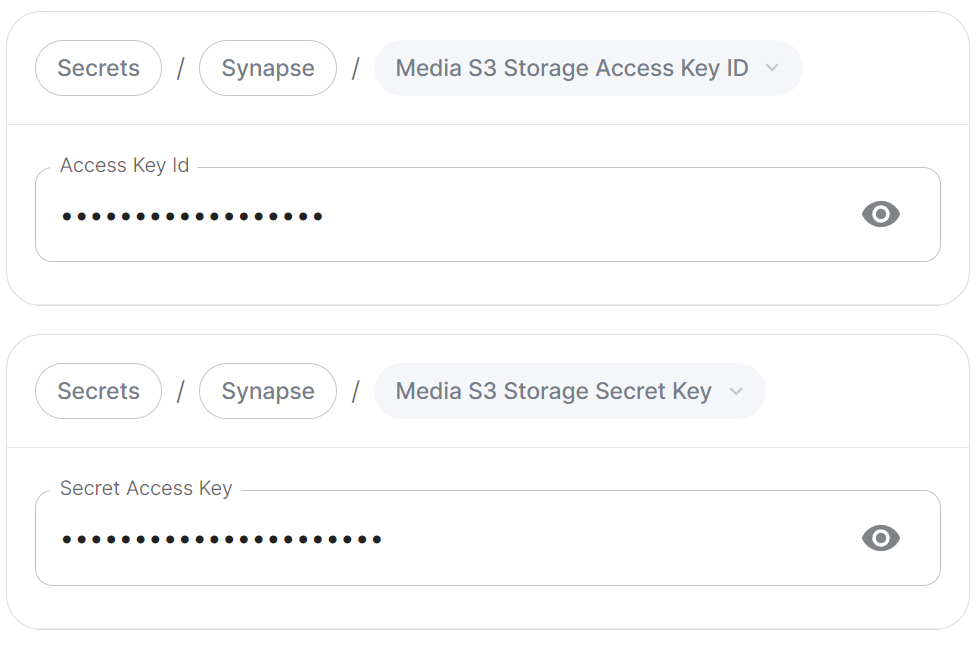](https://ems-docs.element.io/uploads/images/gallery/2024-08/image-1724317470948.png)
Config Example
- `secrets.yml`
```yml
apiVersion: v1
kind: Secret
metadata:
name: synapse
namespace: element-onprem
data:
mediaS3StorageAccessKeyId: ZXhhbXBsZWFjY2Vzc2tleWlk
mediaS3StorageSecretKey: ZXhhbXBsZXNlY3JldGFjY2Vzc2tleQ==
```
Provide any credentials (`Access Key` ID and `Secret Access Key`) required to authenticate access to the specified S3 bucket.
##### Region
[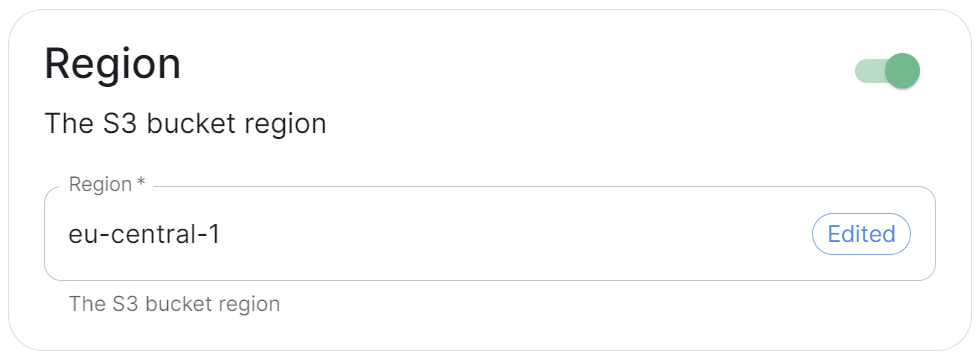](https://ems-docs.element.io/uploads/images/gallery/2024-08/image-1724317725103.png)
Config Example
```yml
spec:
components:
synapse:
config:
media:
s3:
region: eu-central-1 # Not present if disabled
```
Toggle on this section to be able to specify the S3 bucket region you wish to use.
##### Endpoint URL
[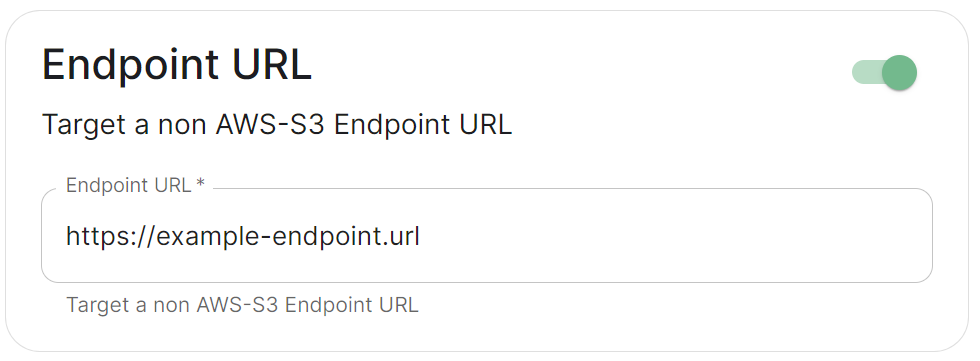](https://ems-docs.element.io/uploads/images/gallery/2024-08/image-1724318298780.png)
Config Example
```yml
spec:
components:
synapse:
config:
media:
s3:
endpointUrl: https://example-endpoint.url # Not present if disabled
```
Toggle on this section to be able to specify a non-AWS S3 endpoint URL.
##### Local Cleanup
[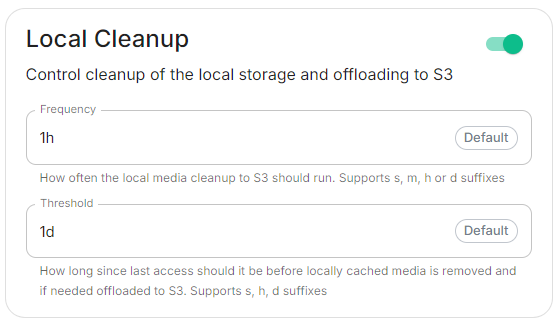](https://ems-docs.element.io/uploads/images/gallery/2024-11/image-1731070698098.png)
Config Example
```yml
spec:
components:
synapse:
config:
media:
s3:
# Not present if disabled
# localCleanup: {} # If defaults left as-is
localCleanup:
frequency: 2h # Only present if changed from default
threshold: 2d # Only present if changed from default
```
Toggle on this section to control the frequency of local storage cleanup and the threshold since media was last accessed before it should be offloaded to S3.
#### Max Upload Size
[](https://ems-docs.element.io/uploads/images/gallery/2024-08/image-1724316586345.png)
Config Example
```yml
spec:
components:
synapse:
config:
media:
maxUploadSize: 100M
```
By default the Max Upload size is `100M`, here you can adjust this value to allow for larger or smaller uploads on your homeserver. The desired file size should be specified in bytes ending with `M` or `K`.
# Authentication Section
A detailed look at Delegated Authentication options available and setup examples.
In the Authentication section you will find options to configure settings specific to Authentication. Regardless of if you are using the Matrix Authentication Server, or have enabled Legacy Auth, the settings on this page will remain the same.
However please note, MAS does not support delegated authentication with SAML or GroupSync - if you wish to enable either of these you will need to return to the Host section and enable [Legacy Auth](https://ems-docs.element.io/books/element-server-suite-classic-documentation-lts-2410/page/host-section#bkmrk-legacy-auth).
All settings configured via the UI in this section will be saved to your deployment.yml, with the contents of secrets being saved to secrets.yml. You will find specific configuration examples in each section.
By default, if you do not change any settings on this page, defaults will be added to your configuration file/s (see example below).
Config Example
- `deployment.yml`
```yml
metadata:
annotations:
ui.element.io/layer: |
components:
spec:
synapse:
config:
delegatedAuth:
localPasswordDatabase:
enableRegistration: false # Note, if you deploy without any authentication methods enabled, the installer will default to Local Accounts.
```
- `secrets.yml`
```yml
apiVersion: v1
kind: Secret
metadata:
data:
ldapBindPassword: examplePassword
```
### User Profiles
[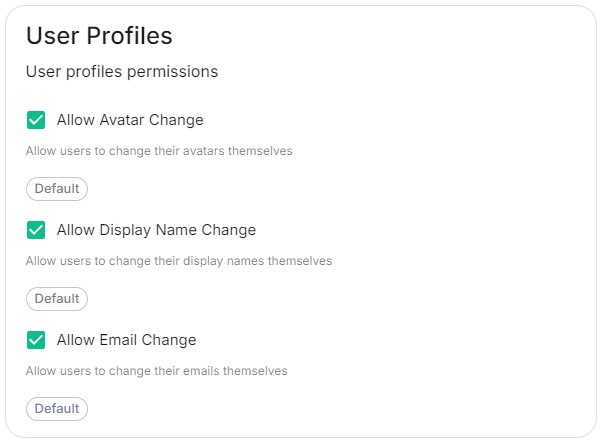](https://ems-docs.element.io/uploads/images/gallery/2024-11/image-1731079161328.png)
Config Example
```yml
spec:
components:
synapse:
config:
delegatedAuth:
userProfiles:
allowAvatarChange: true # Not present if left as default
allowDisplayNameChange: true # Not present if left as default
allowEmailChange: true # Not present if left as default
```
The User Profiles section provides some self-explanatory config options to adjust what changes users are allowed to make to their User Profile, such as changing their Display Name. You may wish to restrict this if you'd prefer to delegate the setting of these values to the associated Identity Provider.
### OIDC
You can add and configure one, or multiple, OIDC providers - to do so you will need to click the `Add OIDC` / `Add more OIDC` button found after toggling on the ODIC section:
[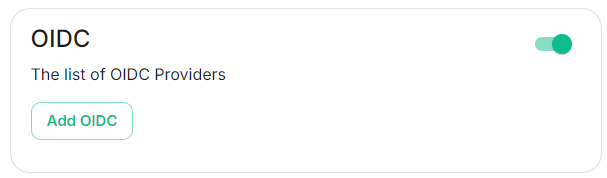](https://ems-docs.element.io/uploads/images/gallery/2024-12/image-1733393799171.png)
Once an OIDC provider is added, you can remove any providers by clicking the rubbish bin icon found to the left of the provider.
Config Example
```yml
spec:
components:
synapse:
config:
delegatedAuth:
oidc:
-
```
#### IdP Name
[](https://ems-docs.element.io/uploads/images/gallery/2024-12/image-1733394158337.png)
Config Example
```yml
spec:
components:
synapse:
config:
delegatedAuth:
oidc:
idpName: example_name # Required
```
#### IdP ID
[](https://ems-docs.element.io/uploads/images/gallery/2024-12/image-1733394178680.png)
Config Example
```yml
spec:
components:
synapse:
config:
delegatedAuth:
oidc:
idpId: 01JDS2WKNYTQS21GFAKM9AKD9R # Required
```
#### IdP Brand
[](https://ems-docs.element.io/uploads/images/gallery/2024-12/image-1733394191621.png)
Config Example
```yml
spec:
components:
synapse:
config:
delegatedAuth:
oidc:
idpBrand: example_brand
```
#### Issuer
[](https://ems-docs.element.io/uploads/images/gallery/2024-12/image-1733394204150.png)
Config Example
```yml
spec:
components:
synapse:
config:
delegatedAuth:
oidc:
issuer: https://issuer.example.com/ # Required
```
#### Client Auth Method
[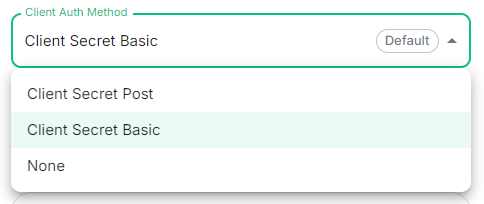](https://ems-docs.element.io/uploads/images/gallery/2024-12/image-1733394220401.png)
Config Example
```yml
spec:
components:
synapse:
config:
delegatedAuth:
oidc:
clientAuthMethod: client_secret_basic # If no `clientAuthMethod` defined, will default to `client_secret_basic`
# clientAuthMethod: client_secret_post
# clientAuthMethod: none
```
#### Client ID
[](https://ems-docs.element.io/uploads/images/gallery/2024-12/image-1733394233906.png)
Config Example
```yml
spec:
components:
synapse:
config:
delegatedAuth:
oidc:
clientId: example_client_id
```
#### Client Secret
[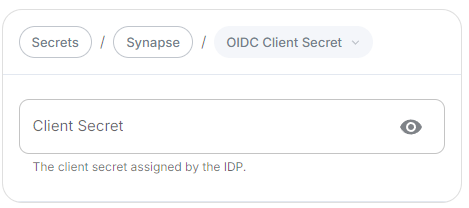](https://ems-docs.element.io/uploads/images/gallery/2024-12/image-1733394248503.png)
Config Example
- `deployment.yml`
```yml
spec:
components:
synapse:
config:
delegatedAuth:
oidc:
clientSecretSecretKey: oidcClientSecret
```
- `secrets.yml`
```yml
apiVersion: v1
kind: Secret
metadata:
name: synapse
namespace: element-onprem
data:
oidcClientSecret: U2VjdXJlT0lEQ0NsaWVudFNlY3JldA==
```
#### Allow Existing Users
[](https://ems-docs.element.io/uploads/images/gallery/2024-12/image-1733394259592.png)
Config Example
```yml
spec:
components:
synapse:
config:
delegatedAuth:
oidc:
```
#### Scopes
[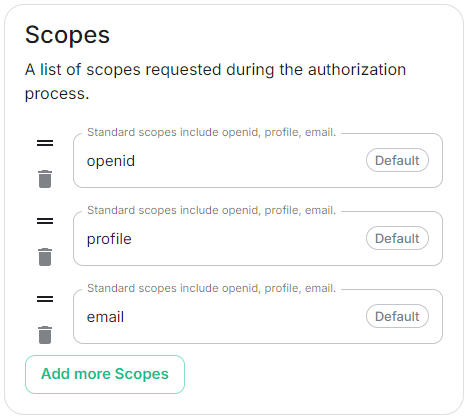](https://ems-docs.element.io/uploads/images/gallery/2024-12/image-1733394434255.png)
Config Example
```yml
spec:
components:
synapse:
config:
delegatedAuth:
oidc:
scopes:
- openid
- profile
- email
```
#### User Mapping Provider
Config Example
```yml
spec:
components:
synapse:
config:
delegatedAuth:
oidc:
userMappingProvider:
```
##### Subject Template
[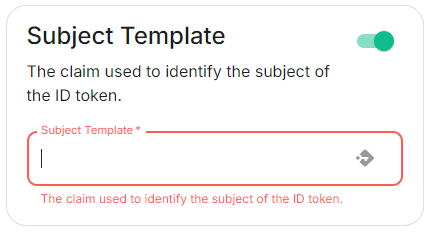](https://ems-docs.element.io/uploads/images/gallery/2024-12/image-1733394507814.png)
Config Example
```yml
spec:
components:
synapse:
config:
delegatedAuth:
oidc:
userMappingProvider:
subjectTemplate: '{{ user.subject }}'
```
##### Localpart Template
[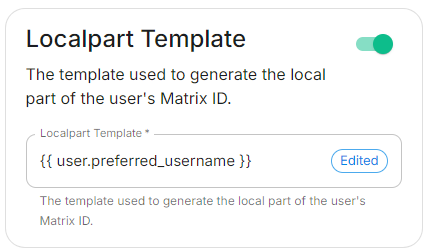](https://ems-docs.element.io/uploads/images/gallery/2024-12/image-1733394516417.png)
Config Example
```yml
spec:
components:
synapse:
config:
delegatedAuth:
oidc:
userMappingProvider:
localpartTemplate: '{{ user.preferred_username }}'
```
If using legacy auth, you should use jinja python to format your template; if using MAS, you should use jinja rust formatting instead. For example, to get the a valid localpart from an email, you would use `{{ user.preferred_username.split('@')[0] }}` if using Legacy Auth, or `{{ (user.preferred_username | split('@'))[0] }}` if using MAS.
##### Display Name Template
[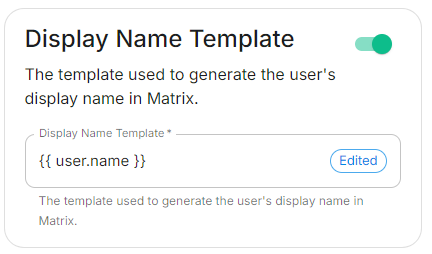](https://ems-docs.element.io/uploads/images/gallery/2024-12/image-1733394524368.png)
Config Example
```yml
spec:
components:
synapse:
config:
delegatedAuth:
oidc:
userMappingProvider:
displayNameTemplate: '{{ user.name }}'
```
##### Email Template
[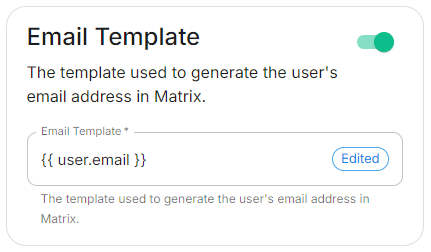](https://ems-docs.element.io/uploads/images/gallery/2024-12/image-1733394535189.png)
Config Example
```yml
spec:
components:
synapse:
config:
delegatedAuth:
oidc:
userMappingProvider:
emailTemplate: '{{ user.email }}'
```
#### Endpoints Discovery
##### Auto Discovery
[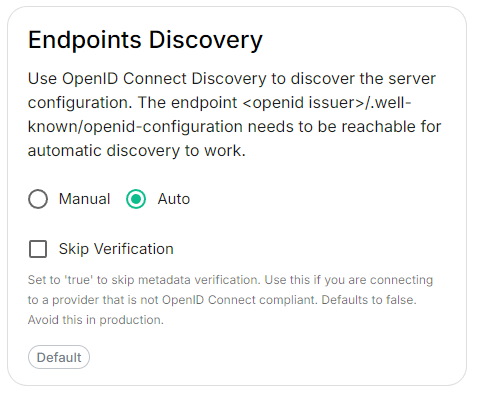](https://ems-docs.element.io/uploads/images/gallery/2024-12/image-1733394564362.png)
Config Example
```yml
spec:
components:
synapse:
config:
delegatedAuth:
oidc:
- clientId: synapsekieranml
clientSecretSecretKey: oidcClientSecret
endpointsDiscovery:
skipVerification: false
idpId: 01JDS2WKNYTQS21GFAKM9AKD9R
idpName: Keycloak
issuer: https://keycloak.ems-support.element.dev/realms/matrix
scopes:
- openid
- profile
- email
userMappingProvider:
displayNameTemplate: '{{ user.name }}'
emailTemplate: '{{ user.email }}'
```
###### Skip Verification
Config Example
```yml
spec:
components:
synapse:
config:
delegatedAuth:
oidc:
- clientId: synapsekieranml
clientSecretSecretKey: oidcClientSecret
endpointsDiscovery:
skipVerification: false
idpId: 01JDS2WKNYTQS21GFAKM9AKD9R
idpName: Keycloak
issuer: https://keycloak.ems-support.element.dev/realms/matrix
scopes:
- openid
- profile
- email
userMappingProvider:
displayNameTemplate: '{{ user.name }}'
emailTemplate: '{{ user.email }}'
```
#### Backchannel Logout Enabled
The Matrix Authentication Service does not support configuring Backchannel Logout. You can only configure Backchannel logout if you have enabled Legacy Auth from the Host Section.
The Matrix Authentication Service does not support SAML and it is recommended to switch to OIDC. You can only enable SAML authentication if you have enabled Legacy Auth from the Host Section.
### LDAP
### Local Accounts
# Cluster Section
Settings specific to the environment which you are deploying ESS into such as CA.
In the Cluster section you will find options to configure settings specific to the cluster which Element Deployment will run on top of. Initially only one option is presented, however some additional options are presented under 'Advanced'. By default, it is unlikely you should need to configure anything on this page.
All settings configured via the UI in this section will be saved to your deployment.yml, with the contents of secrets being saved to secrets.yml. You will find specific configuration examples in each section.
Config Example
```yml
metadata:
annotations:
ui.element.io/layer: |
global:
config:
adminAllowIps:
_value: defaulted
k8s:
ingresses:
tls:
certmanager:
_value: defaulted
spec:
components:
synapseAdmin:
config:
hostOrigin: >-
https://admin.example.com,https://admin.example.com:8443
global:
config:
adminAllowIps:
- 0.0.0.0/0
- '::/0'
k8s:
ingresses:
tls:
certmanager:
issuer: letsencrypt
mode: certmanager
```
https://ems-docs.element.io/books/element-server-suite-classic-documentation-lts-2504
### Config
#### Certificate Authority
[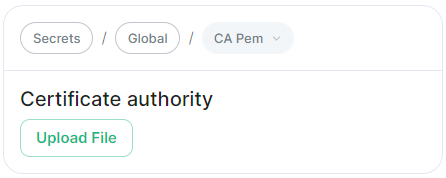](https://ems-docs.element.io/uploads/images/gallery/2024-05/image-1716367827040.png)
Config Example
- `secrets.yml`
```yml
apiVersion: v1
kind: Secret
metadata:
name: global
namespace: element-onprem
data: # Added to the `global`, `element-onprem` secret as `ca.pem` under the `data` section. Other values may also be present here.
ca.pem: >-
base64encodedCAinPEMformatString
```
If you are using self-signed certificates, you will need to provide the certificate of the Certificate Authority in PEM encoded format. Just like with any certificate file uploaded to the Certificates section (and those yet to be uploaded for specific integrations), it is strongly advised to include the full certificate chain to reduce the liklihood of certificate-based issues post deployment.
### Advanced
#### Config
##### Images Digests Config Map
[](https://ems-docs.element.io/uploads/images/gallery/2024-05/image-1716369839915.png)
Config Example
- `deployment.yml`
```yml
metadata:
annotations:
ui.element.io/layer: |
global:
config:
imagesDigestsConfigMap: {} # Remove if no longer defined in `spec`, `global`, `config`
spec:
global:
config:
imagesDigestsConfigMap: example # Remove if no longer required
```
Used when you want to [Customise container images used by ESS](https://ems-docs.element.io/books/element-server-suite-classic-documentation-lts-2410/page/customise-containers-used-by-ess), see that guide for a detailed breakdown of using this option.
##### DNS Delegation
[](https://ems-docs.element.io/uploads/images/gallery/2024-05/image-1716371648843.png)
Config Example
- `deployment.yml`
```yml
metadata:
annotations:
ui.element.io/layer: |
global:
config:
supportDnsFederationDelegation: {} # Remove if no longer defined in `spec`, `global`, `config`
spec:
global:
config:
# supportDnsFederationDelegation: false # Default value when not defined
supportDnsFederationDelegation: true
```
It is highly discouraged from enabling support for DNS Federation Delegation, a significant number of features across ESS components are configured via .well-known files deployed by WellKnownDelegation. Enabling this will prevent those features from working so you may have a degraded experience.
This option should be used to allow Federation Delegation via a DNS SRV record instead of the standard `.well-known` method. You will need to enable this option if you wish to deploy a homeserver to a base domain where you cannot direct requests to `/.well-known/matrix/client` and `/.well-known/matrix/server` to the WellKnown pod (or host the files at those URLs manually).
You can read more about [SRV DNS Record Delegation](https://element-hq.github.io/synapse/latest/delegate.html#srv-dns-record-delegation) and the [Matrix Server Spec Resolving Server Names](https://spec.matrix.org/latest/server-server-api/#resolving-server-names) for more information, but once enabled you should ensure you have configured a DNS SRV record in the below format which points to your specified Synapse domain:
```
_matrix-fed._tcp.
```
##### TLS Verification
[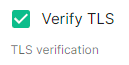](https://ems-docs.element.io/uploads/images/gallery/2024-05/image-1716371659046.png)
Config Example
- `deployment.yml`
```yml
metadata:
annotations:
ui.element.io/layer: |
global:
config:
verifyTls: {} # Remove if no longer defined in `spec`, `global`, `config`
spec:
global:
config:
# verifyTls: true # Default value when not defined
verifyTls: false
```
You can toggle TLS verification off via this option, however, it is strongly advised to keep this enabled unless you have a specific requirement.
##### Generic Shared Secret
[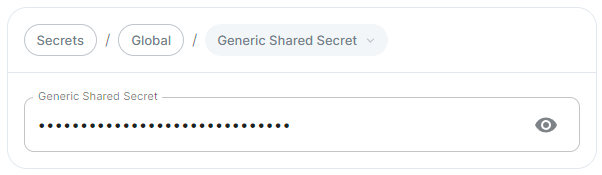](https://ems-docs.element.io/uploads/images/gallery/2024-05/image-1716371679873.png)
Config Example
- `secrets.yml`
```yml
apiVersion: v1
kind: Secret
metadata:
name: global
namespace: element-onprem
data: # Added to the `global`, `element-onprem` secret as `genericSharedSecret` under the `data` section. Other values may also be present here.
genericSharedSecret: QmdrWkVzRE5aVFJSOTNKWVJGNXROTG10UTFMVWF2
```
A random Generic Shared Secret will be generated and set when you run the installer for the first time, you shouldn't need to change this unless specifically advised.
##### Admin Allow IPs
[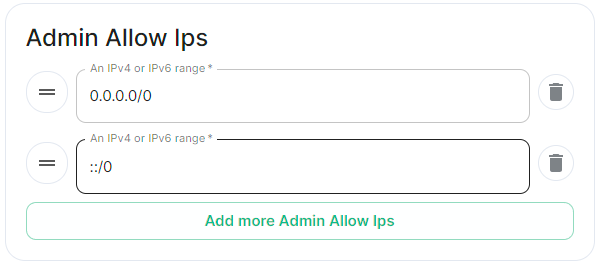](https://ems-docs.element.io/uploads/images/gallery/2024-05/image-1716371743386.png)
Config Example
- `deployment.yml`
```yml
metadata:
annotations:
ui.element.io/layer: |
global:
config:
adminAllowIps:
# _value: defaulted # Default value
'0': {}
'1': {}
spec:
global:
config:
# adminAllowIps: # Default values
# - 0.0.0.0/0
# - '::/0'
adminAllowIps:
- 192.168.0.1/24
- 127.0.0.1/24
```
This option allows you to configure the IP addresses (specifically or range/s) allowed to access the deployed Synapse Admin, in most cases, you shouldn't need to configure this as access to any administration requires logging in with a Matrix ID designated as a Synapse Admin.
# Synapse Section
The Synapse configuration options for your Matrix Homeserver incl. registration & encryption.
Synapse is the Matrix homeserver that powers ESS, in this section you will be customising settings relating to your homeserver, analogous with settings you'd set in the `homeserver.yml` if configuring Synapse manually.
All settings configured via the UI in this section will be saved to your deployment.yml, with the contents of secrets being saved to secrets.yml. You will find specific configuration examples in each section.
By default, if you do not change any settings on this page, defaults will be added to your configuration file/s (see example below).
Config Example
- `deployment.yml`
```yml
metadata:
annotations:
ui.element.io/layer: |
components:
synapse:
config:
_value: defaulted
k8s:
haproxy:
_value: defaulted
redis:
https://ems-docs.element.io/books/element-server-suite-classic-documentation-lts-2504
_value: defaulted
https://ems-docs.element.io/books/element-server-suite-classic-documentation-lts-2504
synapse:
_value: defaulted
spec:
components:
synapse:
config:
maxMauUsers: 250
media:
volume:
size: 50Gi
urlPreview:
config:
acceptLanguage:
- en
k8s:
haproxy:
workloads:
resources:
limits:
memory: 200Mi
requests:
cpu: 100m
https://ems-docs.element.io/books/element-server-suite-classic-documentation-lts-2504
memory: 100Mi
redis:
workloads:
resources:
limits:
memory: 50Mi
requests:
cpu: 50m
memory: 50Mi
synapse:
workloads:
resources:
limits:
memory: 4Gi
requests:
cpu: 100m
memory: 100Mi
```
- `secrets.yml`
```yml
apiVersion: v1
kind: Secret
metadata:
name: synapse
namespace: element-onprem
data:
adminPassword: exampleAdminPassword
macaroon: exampleMacaroon
registrationSharedSecret: exampleRegistrationSharedSecret
signingKey: >-
exampleBase64EncodedSigningKey
```
### Profile
The profile section automatically configures [Synapse Workers](https://ems-docs.element.io/books/element-server-suite-classic-documentation-lts-2410/page/synapse-section-workers) so you don't have to, optimising your deployment to align with the settings you define based on our recommendations.
https://ems-docs.element.io/books/element-server-suite-classic-documentation-lts-2504
https://ems-docs.element.io/books/element-server-suite-classic-documentation-lts-2504
The options you set here do not have to align with what you configure for your homeserver.
For example, you may wish for your server to be able to handle greater than 500 Monthly Active Users, so you select 2500 users. When you later define the [`Max MAU Users`](https://ems-docs.element.io/books/element-server-suite-classic-documentation-lts-2410/page/synapse-section#bkmrk-max-mau-users) in the Config section below, you can choose any number you wish.
The same applies with Federation, you can optimise your deployment to suit Open Federation but opt to close it in the dedicated Federation section.
#### Monthly Active Users
[](https://ems-docs.element.io/uploads/images/gallery/2024-08/image-1724313947283.png)
Config Example
```yml
metadata:
annotations:
ui.element.io/profile: |
components:
synapse:
_subvalues:
mau: 500
# mau: 2500
# mau: 10000
```
Here you should select the option that covers how many [Monthly Active Users](https://element-hq.github.io/synapse/latest/usage/administration/monthly_active_users.html) i.e. if you think you'll have ~800 users, you should select 2500 to optimise your setup to handle those users.
#### Federation Type
[](https://ems-docs.element.io/uploads/images/gallery/2024-08/image-1724313960170.png)
Config Example
```yml
metadata:
annotations:
ui.element.io/profile: |
components:
synapse:
_subvalues:
fed: closed
# fed: limited
# fed: open
```
It is recommended to align with how you plan to configure [Federation](https://ems-docs.element.io/books/element-server-suite-classic-documentation-lts-2410/page/synapse-section-federation) to ensure you're Synapse Workers are setup to handle the associated federation.
### Config
#### Accept Invites
[](https://ems-docs.element.io/uploads/images/gallery/2024-02/image-1707395805101.png)
Config Example
```yml
spec:
components:
synapse:
config:
acceptInvites: manual
# acceptInvites: auto
# acceptInvites: auto_dm_only
```
This enables a Synapse module called [Auto-Accept Invite](https://github.com/matrix-org/synapse-auto-accept-invite) which is used to automatically accept invites.
**Manual** retains the original behaviour, requiring users to accept invites to rooms, including Direct Messages.
**Auto** will automatically accept all invites to rooms, including Direct Messages.
**Auto DM Only** will only automatically accept invites to Direct Messages.
#### Max MAU Users
[`max_mau_value`](https://element-hq.github.io/synapse/latest/usage/configuration/config_documentation.html#max_mau_value)
[`limit_usage_by_mau`](https://element-hq.github.io/synapse/latest/usage/configuration/config_documentation.html#limit_usage_by_mau)
[](https://ems-docs.element.io/uploads/images/gallery/2024-02/image-1707395820549.png)
Config Example
```yml
spec:
components:
synapse:
config:
maxMauUsers: 250
```
Synapse can be configured to record the number of [Monthly Active Users](https://element-hq.github.io/synapse/latest/usage/administration/monthly_active_users.html) (also referred to as MAU) on a given homeserver, MAU only tracks local users. This option sets the hard limit of monthly active users above which the server will start blocking users. See [Monthly Active Users](https://element-hq.github.io/synapse/latest/usage/administration/monthly_active_users.html) from the Synapse documentation, including [`max_mau_value`](https://element-hq.github.io/synapse/latest/usage/configuration/config_documentation.html#max_mau_value) and [`limit_usage_by_mau`](https://element-hq.github.io/synapse/latest/usage/configuration/config_documentation.html#limit_usage_by_mau) to learn more.
#### Registration
[`enable_registration`](https://element-hq.github.io/synapse/latest/usage/configuration/config_documentation.html#enable_registration)
[](https://ems-docs.element.io/uploads/images/gallery/2024-02/image-1707395832675.png)
Config Example
```yml
spec:
components:
synapse:
config:
registration: open
# registration: custom
# registration: closed
```
**Open** enables registration for new users, users will be able create an account via Matrix clients that support it, i.e. Element Web. Specifically, setting this option is the equivalent to setting both [`enable_registration`](https://element-hq.github.io/synapse/latest/usage/configuration/config_documentation.html#enable_registration) and [`enable_registration_without_verification`](https://element-hq.github.io/synapse/latest/usage/configuration/config_documentation.html#enable_registration_without_verification) to `true`.
**Closed** disables registration for new users, users will only be presented the option to login to the homeserver. You will need to either manually setup users via the Admin Console / Admin API or be using something like [Delegated Authentication](https://ems-docs.element.io/books/element-server-suite-classic-documentation-lts-2410/page/authentication-section).
**Custom**, allows you to completely customise your configuration of [Registration](https://element-hq.github.io/synapse/latest/usage/configuration/config_documentation.html#registration) via the [Additional Config section](https://ems-docs.element.io/books/element-server-suite-classic-documentation-lts-2410/page/synapse-section-additional-config) found under `Advanced`, you could then use it to enable verification by setting [`enable_registration_without_verification`](https://element-hq.github.io/synapse/latest/usage/configuration/config_documentation.html#enable_registration_without_verification) to `false` or other similar settings, i.e. [`registrations_require_3pid`](https://element-hq.github.io/synapse/latest/usage/configuration/config_documentation.html#registrations_require_3pid).
Open or Closed registration will not affect the creation of new Matrix Accounts via Delegated Authentication. New users via Delegated Authentication i.e. LDAP, SAML or OIDC, who have yet to login to the homeserver and technically do not yet have a created Matrix ID, will still have one created when they successfully authenticate regardless of if registration is Closed.
#### Admin Password
[](https://ems-docs.element.io/uploads/images/gallery/2024-02/image-1707395849132.png)
Config Example
- `deployment.yml`
```yml
spec:
components:
synapse:
config:
adminPasswordSecretKey: adminPassword
```
- `secrets.yml`
```yml
data:
adminPassword: ExampleAdminPasswordBase64EncodedString
```
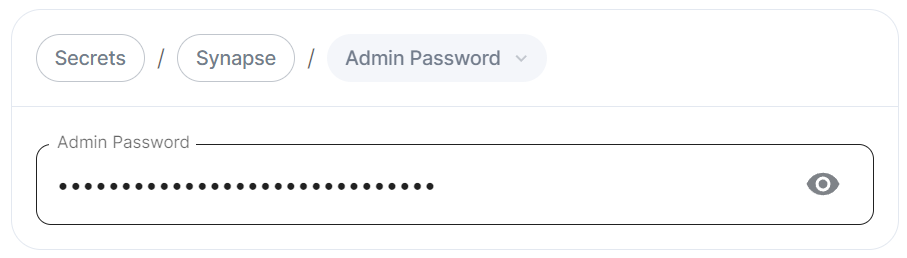
Password for the `@onprem-admin-donotdelete` user, a Synapse Admin user automatically created to allow you to use the Admin Console. You should use this account to promote Matrix accounts you setup to Synapse Admins. When using the Admin Console via the Installer (`:8443`), you should auto-login as this account, no password required.
If you are experiencing issues with accessing the Admin Console following a wipe and reinstall, ensure you do not have the previous install credentials cached. You can clear them via your browsers' settings, then refresh the page (you will be provided with a new link via the Installer CLI) to resolve.
### Log
Unlike with most other sections, logging values set here are analogous to creating a `.log.config` instead of the `homeserver.yml`. See the [Logging Sample Config File](https://element-hq.github.io/synapse/latest/usage/configuration/logging_sample_config.html) for further reference.
#### Root Level
[](https://ems-docs.element.io/uploads/images/gallery/2024-02/image-1707395984727.png)
Config Example
```yml
spec:
components:
synapse:
config:
log:
rootLevel: Info
# rootLevel: Debug
# rootLevel: Warning
# rootLevel: Error
# rootLevel: Critical
```
As defined under the [Configuration file format](https://docs.python.org/3/library/logging.config.html#configuration-file-format) section of the Python docs, the available options presented by the Installer are `DEBUG`, `INFO`, `WARNING`, `ERROR` and `CRITICAL`. These represent different severity levels for log messages and help control the verbosity of log output which help to filter messages based on their importance.
- `DEBUG`: Detailed information, typically used for debugging purposes. Messages at this level provide the most fine-grained and detailed logging.
- `INFO`: General information about the program's operation. This level is used to confirm that things are working as expected.
- `WARNING`: Indicates a potential issue or something that might cause problems in the future. It doesn't necessarily mean an error has occurred, but it's a warning about a possible concern.
- `ERROR`: Indicates a more serious issue or error in the program. When an error occurs, it might impact the functionality of the application.
- `CRITICAL`: Indicates a very severe error that may lead to the program's termination. Critical messages suggest a problem that should be addressed immediately.
When troubleshooting, increasing the log level and redeploying can help narrow down where you're experiencing issues. By default, `DEBUG` is a good option to include everything allowing you to identify a problem.
It is not advised to leave your Logging Level at anything other than the default, as more verbose logging may expose information that should otherwise not be accessible. When sharing logs, remember to redact any sensitive information you do not wish to share.
#### Sentry DSN
[](https://ems-docs.element.io/uploads/images/gallery/2024-02/image-1707396003419.png)
Config Example
```yml
spec:
components:
synapse:
config:
log:
sentryDsn: https://publickey:secretkey@sentry.io/projectid
```
Here you can specify a Sentry Data Source Name (DSN) to connect Synapse logging to a specific project within your Sentry account. A typical Sentry DSN looks like:
```php
https://:@sentry.io/
```
#### Level Overrides
[](https://ems-docs.element.io/uploads/images/gallery/2024-02/image-1707396036220.png)
Config Example
```yml
spec:
components:
synapse:
config:
log:
levelOverrides:
synapse.storage.SQL: Info
# synapse.storage.SQL: Debug
# synapse.storage.SQL: Error
# synapse.storage.SQL: Warning
# synapse.storage.SQL: Critical
```
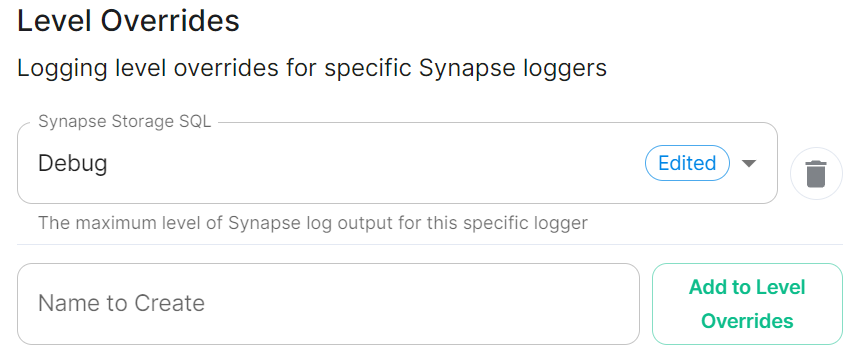
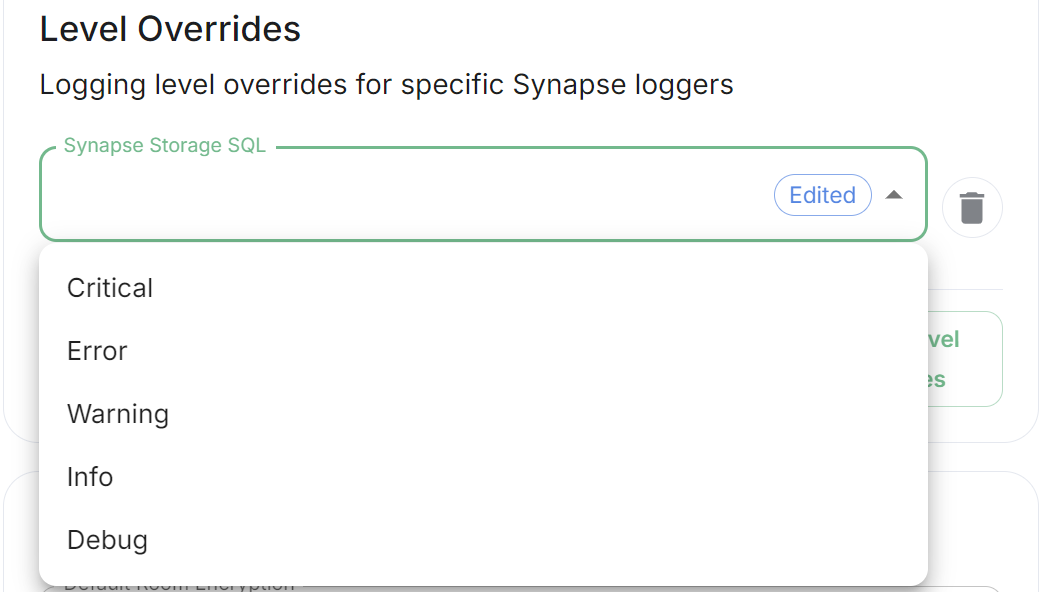
Here you can configure custom logging levels for specific Synapse loggers, i.e. `synapse.storage.SQL`. Simply add the Synapse logger and click `Add to Level Overrides`. You will then be able to select the desired logging level for that logger:
[](https://ems-docs.element.io/uploads/images/gallery/2024-08/image-1724340852522.png)
You can read up more on Structured Logging from the [Structured Logging](https://element-hq.github.io/synapse/latest/structured_logging.html#structured-logging) Synapse doc for more detailed guidance.
### Security
#### Default Room Encryption
[`encryption_enabled_by_default_for_room_type`](https://element-hq.github.io/synapse/latest/usage/configuration/config_documentation.html#encryption_enabled_by_default_for_room_type)
[](https://ems-docs.element.io/uploads/images/gallery/2024-02/image-1707396080091.png)
Config Example
```yml
spec:
components:
synapse:
config:
security:
defaultRoomEncryption: auto_all
# defaultRoomEncryption: auto_invite
# defaultRoomEncryption: forced_all
# defaultRoomEncryption: forced_invite
# defaultRoomEncryption: not_set
```
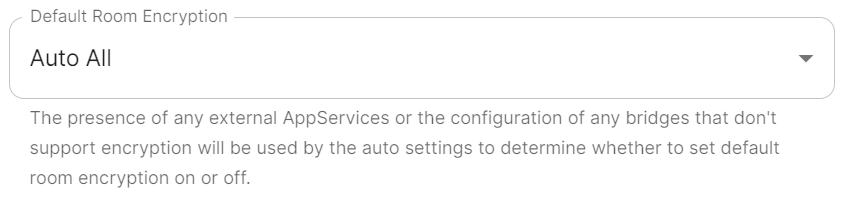
Controls whether locally-created rooms should be end-to-end encrypted by default.
This option will only affect rooms created after it is set and will not affect rooms created by other servers.
- `auto_all`
- Automatically enables encryption for all rooms created on the local server if all present integrations support it.
- `auto_invite`
- Automatically enables encryption for private rooms and private messages if all present integrations support it.
- `forced_all`
- Enforces encryption for all rooms created on the local server, regardless of the integrations supporting encryption.
- `forced_invite`
- Enforces encryption for private rooms and private messages, regardless of the integrations supporting encryption.
- `not_set`
- Does not enforce encryption, leaving room encryption configuration choice to room admins.
#### Password Policy
[`password_config`](https://element-hq.github.io/synapse/latest/usage/configuration/config_documentation.html#password_config)
[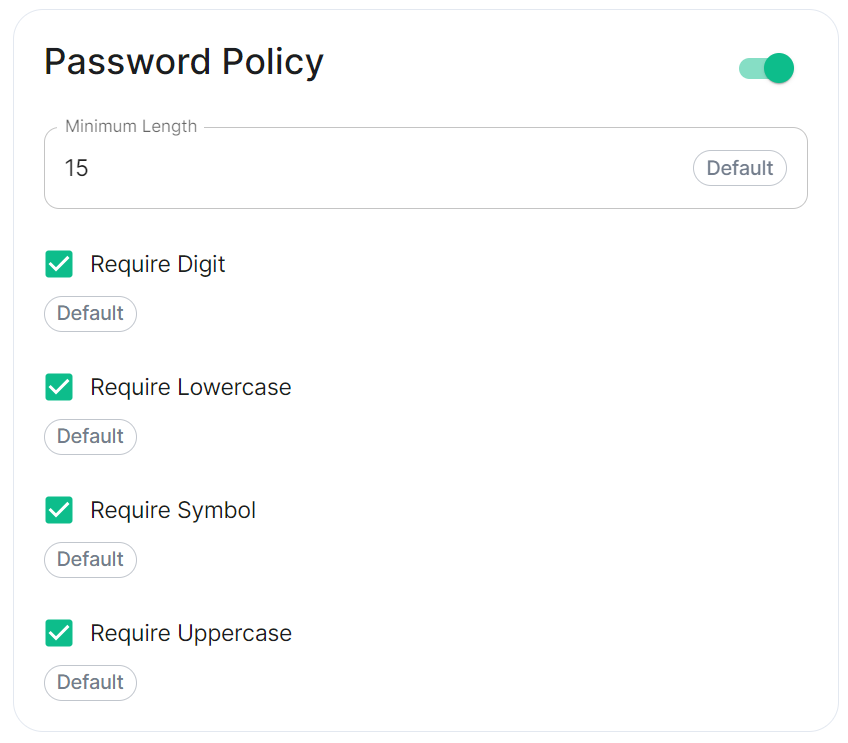](https://ems-docs.element.io/uploads/images/gallery/2024-02/image-1707243135026.png)
Config Example
```yml
spec:
components:
synapse:
config:
security:
# Not present when disabled
# passwordPolicy: # {} When enabled with default settings
passwordPolicy: # Only configured like so when values changed from thier defaults
minimumLength: 20 # Default: 15
requireDigit: false # Default: true
requireLowercase: false # Default: true
requireSymbol: false # Default: true
requireUppercase: false # Default: true
```
Turning on Password Policy will allow you to define and enforce a password policy for users' accounts on your homeserver.
You may notice that despite this not being enabled, users are required when registering to set secure passwords when doing do via the Element Web client. This is because the client itself enforces secure passwords, this setting is required should you wish to ensure all accounts have enforces password requirements, as other Matrix clients may not themselves enforce secure passwords.
### Telemetry
[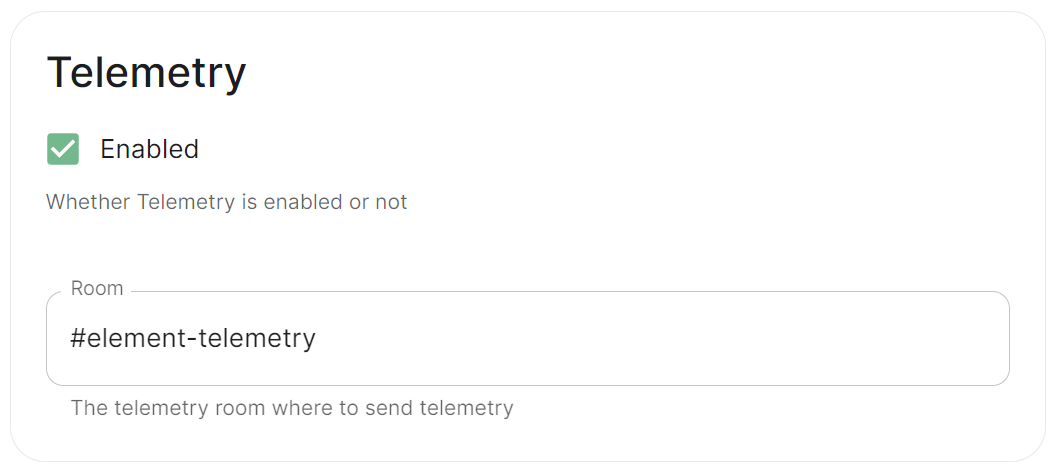](https://ems-docs.element.io/uploads/images/gallery/2024-01/image-1706547000728.png)
Config Example
```yml
spec:
components:
synapse:
config:
telemetry:
enabled: true
passwordSecretKey: telemetryPassword
room: '#element-telemetry'
```
Element collects telemetry data to understand whether or not customers are in compliance with what they've purchased, so should be left enabled unless automatic sending of telemetry is not possible (i.e. Airgapped setups). By default, ESS servers connected to the internet will automatically send telemetry to Element. Please allow this to happen by making sure you have not blocked `ems.element.io` on port `443` from your homeserver.
#### What Telemetry Data is Collected by Element?
The following is a sample telemetry packet generated by Element On-Premise:
Config Example
```
{
"_id" : ObjectId("6363bdd7d51c84d1f10a8126"),
"onPremiseSubscription" : ObjectId("62f14dd303c67b542efddc4f"),
"payload" : {
https://ems-docs.element.io/books/element-server-suite-classic-documentation-lts-2504
"data" : {
"activeUsers" : {
https://ems-docs.element.io/books/element-server-suite-classic-documentation-lts-2504
"count" : 1,
"identifiers" : {
"native" : [
"5d3510fc361b95a5d67a464a188dc3686f5eaf14f0e72733591ef6b8da478a18"
https://ems-docs.element.io/books/element-server-suite-classic-documentation-lts-2504
]
},
"period" : {
https://ems-docs.element.io/books/element-server-suite-classic-documentation-lts-2504
"end" : 1667481013777,
"start" : 1666970260518
}
}
},
"generationTime" : 1667481013777,
"hostname" : "element.demo",
"instanceId" : "bd3bbf92-ac8c-472e-abb5-74b659a04eec",
"type" : "synapse",
"version" : 1
},
"request" : {
"clientIp" : "71.70.145.71",
"userAgent" : "Synapse/1.65.0"
},
"schemaVersion" : 1,
"creationTimestamp" : ISODate("2022-11-03T13:10:47.476Z")
}
```
#### Submitting Telemetry Data to Element
If you are unable to allow Element's telemetry upload to take place, either because you are airgapped or need to block `ems.element.io` then you will need to manually submit telemetry data to Element.
In order to gather telemetry data, you will need to use the element-telemetry-export.py script, which comes with the installer.
To do this, run:
```bash
cd ~/.element-enterprise-server/installer/lib
/usr/bin/env python3 ./element-telemetry-export.py
```
You will be prompted for an access token:
```bash
Matrix user access token not specified in the "MATRIX_USER_ACCESS_TOKEN" environment variable. Please provide the access token and hit enter:
```
You will need to provide a valid access token for a user who has access to the telemetry room. This can be found by logging in to Element Web as this user, going to "All Settings", then clicking "Help & About" and finally expanding the section for "Access Token".
[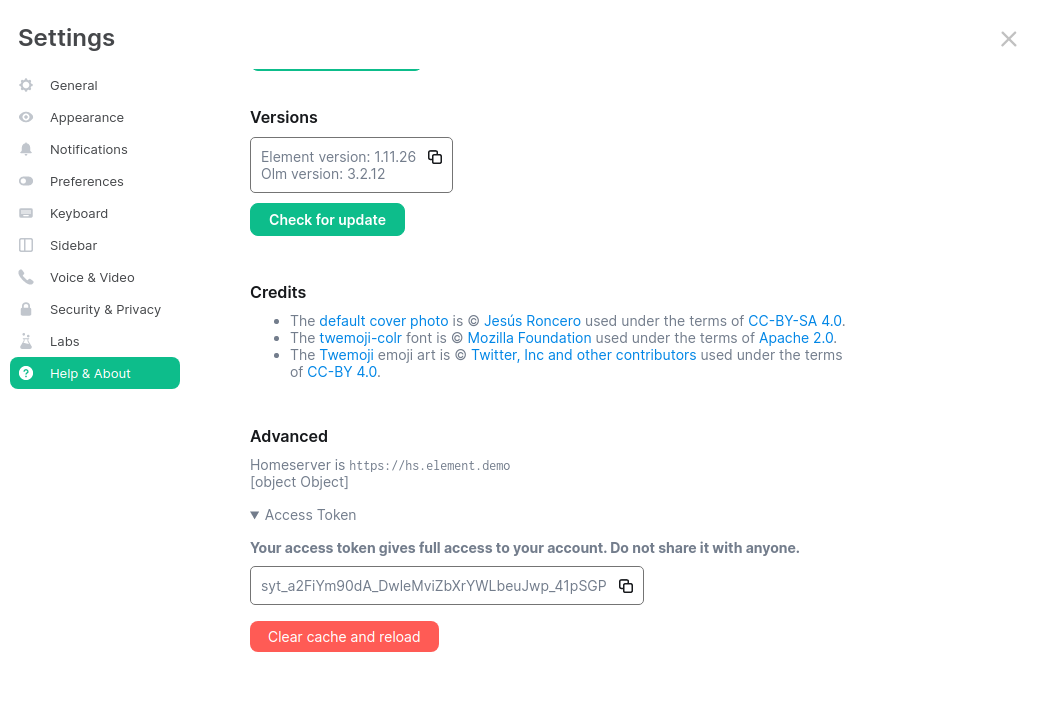](https://ems-docs.element.io/uploads/images/gallery/2023-04/accesstoken.png)
Provide the access token to the prompt and hit enter.
```
2023-04-18 15:36:41,580:INFO:Parsing configuration file (/home/karl1/.element-enterprise-server/config/telemetry-config.json)
2023-04-18 15:36:41,581:INFO:Performing Matrix sync with homeserver (https://hs.element.demo)
2023-04-18 15:36:41,643:INFO:Scanning page 1
2023-04-18 15:36:41,716:INFO:Scanning page 2
2023-04-18 15:36:41,782:INFO:Writing 19 telemetry events to ZIP file (/home/karl1/.element-enterprise-server/installer/lib/telemetry_2023-04-18.zip)
2023-04-18 15:36:41,783:INFO:Saving some internal state (for next time)
```
Once you have done this, you will have some messages that look similar to the above and you will have a new zip file in this directory with a date stamp in the format `telemetry_YYYY-MM-DD.zip`. In my case, I have `telemetry_2023-04-18.zip`.
If you are having SSL connectivity issues with the exporter, you may wish to either disable TLS verification or provide a CA certificate to the exporter with these optional command line parameters:
```
--disable-tls-verification
Do not check SSL certificate validity when querying the Matrix server
--ca-cert-path CA_CERT_PATH
Specify the path to the CA file (or a directory) to use when verifying Matrix server's
SSL certificate. Consult README.md for more details
```
Then browse to and click "Upload Telemetry" next to the subscription you are uploading the data for:
[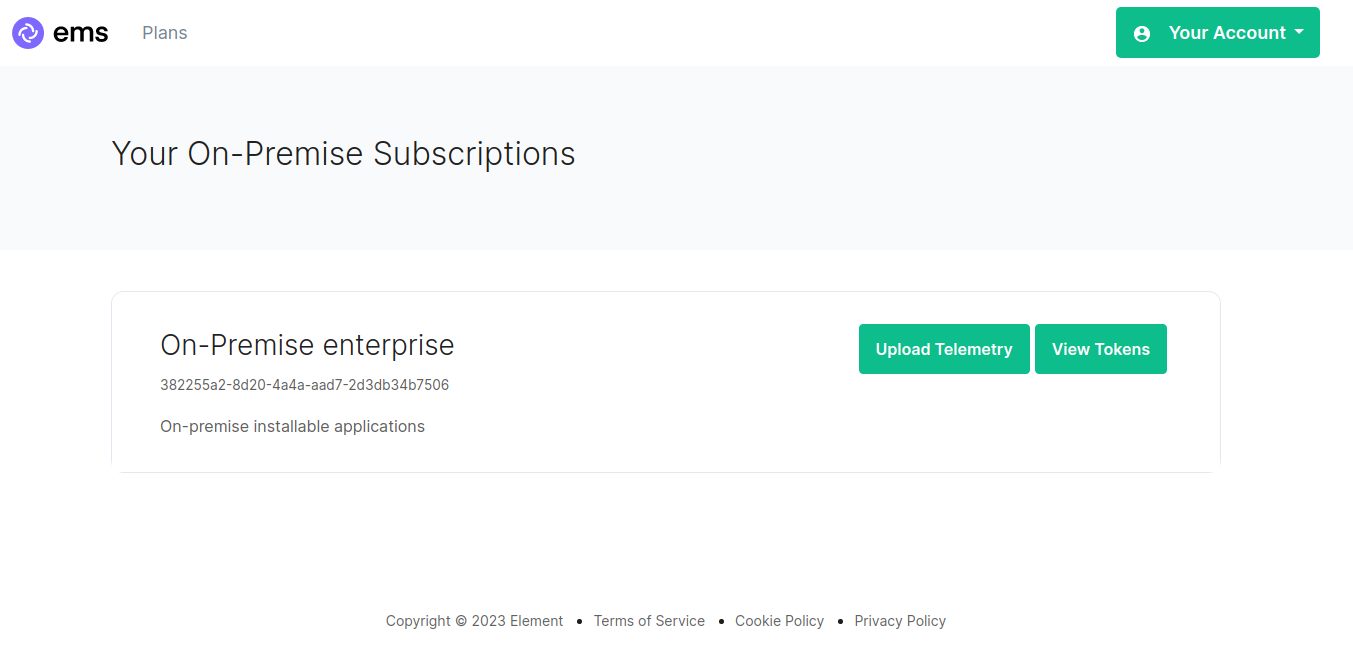](https://ems-docs.element.io/uploads/images/gallery/2023-04/ems-subs.png)
Click browse, find the telemetry file then click "Submit Telemetry":
[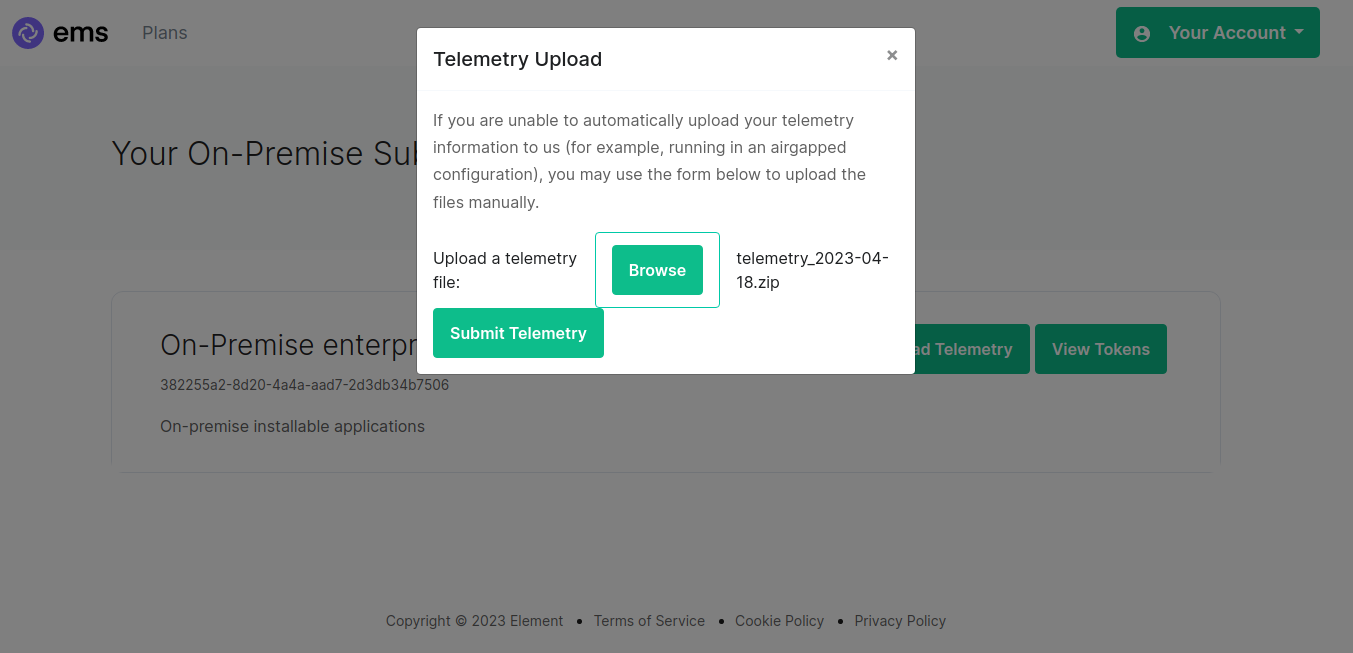](https://ems-docs.element.io/uploads/images/gallery/2023-04/browse-telemetry.png)
Once successful, you will see this screen:
[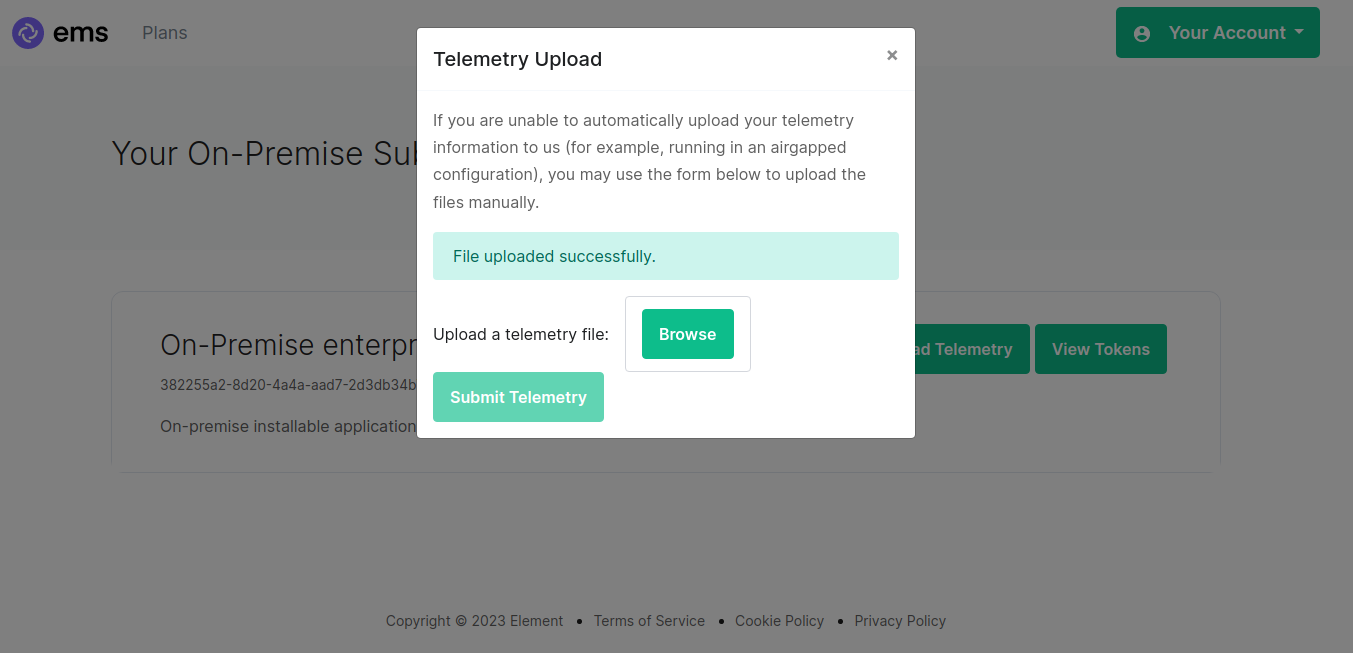](https://ems-docs.element.io/uploads/images/gallery/2023-04/success.png)
You can then close the upload window.
#### Matrix Network Stats
[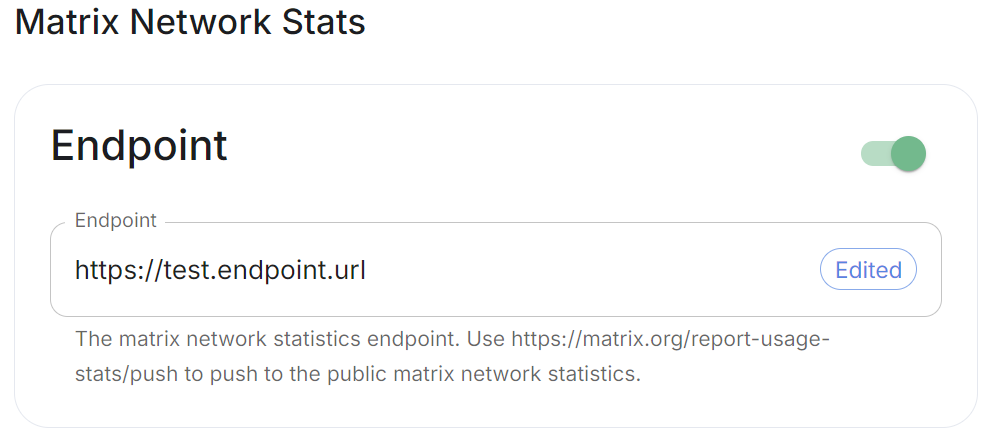](https://ems-docs.element.io/uploads/images/gallery/2024-08/image-1724325098306.png)
Config Example
```yml
spec:
components:
synapse:
config:
telemetry:
matrixNetworkStats:
endpoint: https://test.endpoint.url
```
Enable Matrix Network Stats if you'd like to report your homeserver usage statistics to a statistics collection server. Per the tooltip, you can enter `https://matrix.org/report-usage-stats/push` to contribute to the public Matrix network statistics collection or enter your own endpoint.
See [Reporting Homeserver Usage Statistics](https://element-hq.github.io/synapse/latest/usage/administration/monitoring/reporting_homeserver_usage_statistics.html#reporting-homeserver-usage-statistics) for more information on the statistics available and [Using a Custom Statistics Collection Server](https://element-hq.github.io/synapse/latest/usage/administration/monitoring/reporting_homeserver_usage_statistics.html#reporting-homeserver-usage-statistics) to see how-to setup your own statistics endpoint.
### URL Preview
[`url_preview_enabled`](https://element-hq.github.io/synapse/latest/usage/configuration/config_documentation.html#url_preview_enabled)
[](https://ems-docs.element.io/uploads/images/gallery/2024-02/image-1707396190187.png)
Config Example
```yml
spec:
components:
synapse:
config:
urlPreview: {} # {} When disabled, otherwise enabled with config as detailed in sections below.
```
URL previews involve fetching information from a URL (e.g., a website link) and displaying a preview of the content, such as a title, description, and an image. This feature can be useful for enhancing the user experience by providing more context about shared URLs in chat messages.
Enabling or disabling URL previews can impact the amount of information displayed in the chat interface, and it can also have privacy implications as fetching URL previews involves making requests to external servers to retrieve metadata.
#### Default Blacklist
When enabling URL Preview, a default blacklist using [`url_preview_ip_range_blacklist`](https://element-hq.github.io/synapse/latest/usage/configuration/config_documentation.html#url_preview_ip_range_blacklist) is configured for all private networks (see ranged below) to avoid leaking information by asking for preview of links pointing to private paths of the infrastructure. While this blacklist cannot be changed, you can whitelist specific ranges using [IP Range Allowed](#bkmrk-ip-range-allowed).
Config Example
```yml
url_preview_ip_range_blacklist:
- '192.168.0.0/16'
- '100.64.0.0/10'
- '192.0.0.0/24'
- '169.254.0.0/16'
- '192.88.99.0/24'
- '198.18.0.0/15'
- '192.0.2.0/24'
- '198.51.100.0/24'
- '203.0.113.0/24'
- '224.0.0.0/4'
- '::1/128'
- 'fe80::/10'
- 'fc00::/7'
- '2001:db8::/32'
- 'ff00::/8'
- 'fec0::/10'
```
#### Config
##### Accept Language
[`url_preview_accept_language`](https://matrix-org.github.io/synapse/latest/usage/configuration/config_documentation.html#url_preview_accept_language)
[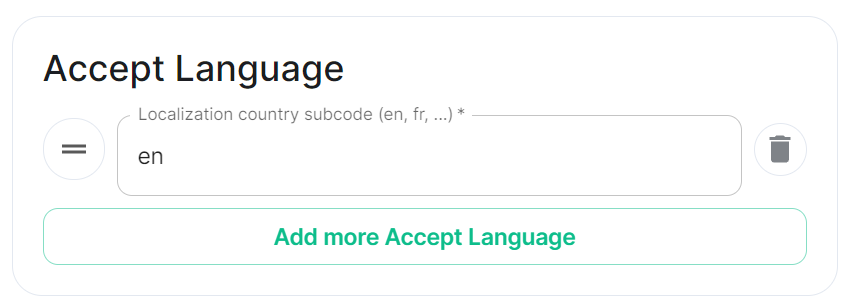](https://ems-docs.element.io/uploads/images/gallery/2024-02/image-1707396225509.png)
Config Example
```yml
spec:
components:
synapse:
config:
urlPreview:
config:
acceptLanguage:
- en
```
By setting this configuration option, you can control the language preference that Matrix Synapse communicates to external servers when fetching URL previews. This can be useful if you want to influence the language of the content retrieved for URL previews based on the preferred language of your users.
To do so, specify the Localisation country sub-code (e.g., `en`) that should be used as the Accept-Language header value that the server should send when fetching URL previews from external websites. The Accept-Language header is an HTTP header used by web browsers and other clients to indicate the preferred language(s) for the response.
Each value is a IETF language tag; a 2-3 letter identifier for a language, optionally followed by sub-tags separated by '-', specifying a country or region variant. Multiple values can be provided by clicking `Add more Accept Language`, and a weight can be added to each by using quality value syntax (;q=). '*' translates to any language.
##### IP Range Allowed
[`url_preview_ip_range_whitelist`](https://element-hq.github.io/synapse/latest/usage/configuration/config_documentation.html#url_preview_ip_range_whitelist)
[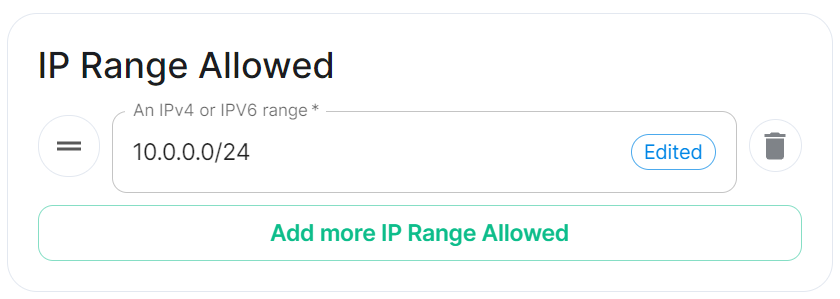](https://ems-docs.element.io/uploads/images/gallery/2024-02/image-1707396247379.png)
Config Example
```yml
spec:
components:
synapse:
config:
urlPreview:
config:
ipRangeAllowed:
- 10.0.0.0/24
```
This option allows you to provide a list of IP address CIDR ranges that URL Preview is allowed to access even if they are specified in the [Default Blacklist](#bkmrk-default-blacklist).
### User Directory
[`user_directory`](https://element-hq.github.io/synapse/latest/usage/configuration/config_documentation.html#user_directory)
[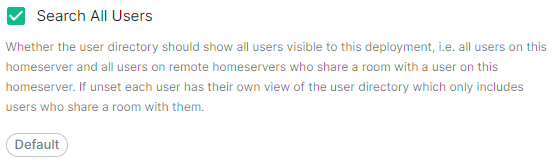](https://ems-docs.element.io/uploads/images/gallery/2024-05/image-1716373343850.png)
Config Example
```yml
spec:
components:
synapse:
config:
userDirectory: # Not present when left as default, `true`
# searchAllUsers: true
searchAllUsers: false
```
This option defines whether to search all users visible to your homeserver at the time the search is performed. If set to `true`, Synapse will return all users on the homeserver who match the search. If `false`, search results will only contain users visible in public rooms and users sharing a room with the requester.
### TURN
[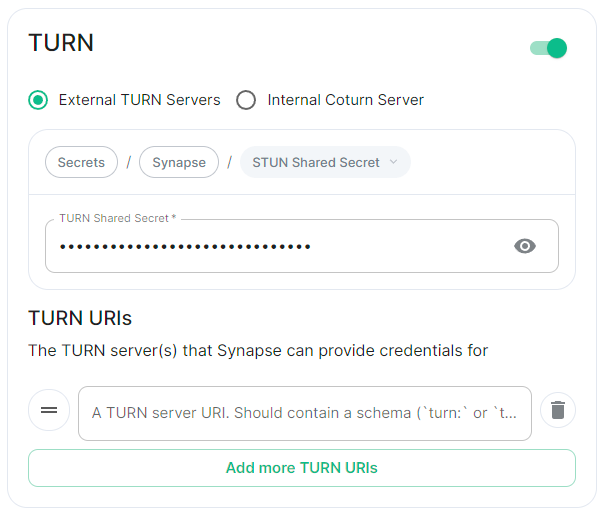](https://ems-docs.element.io/uploads/images/gallery/2024-05/image-1716373885795.png)
Config Example
- `deployment.yml`
```yml
spec:
components:
synapse:
config:
# Not present if disabled
# stun: {} # If `Internal Coturn Server` selected
stun:
sharedSecretSecretKey: stunSharedSecret
turnUris:
- turn:turn.example.com
- turns:turns.example.com
```
- `secrets.yml`
```yml
data:
stunSharedSecret: ExampleSTUNSharedSecretBase64EncodedString
```
Any provided TURN server URI should contain a schema (`turn:` or `turns:`), a hostname, optionally a port and optionally a transport parameter (`?transport=udp` or `?transport=tcp`).
### Identity Server
[`default_identity_server`](https://element-hq.github.io/synapse/latest/usage/configuration/config_documentation.html#default_identity_server)
[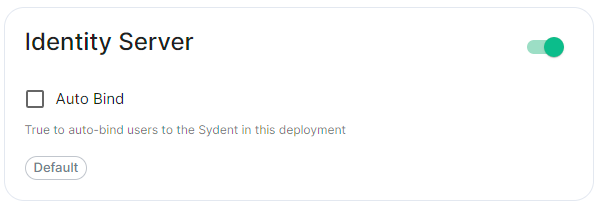](https://ems-docs.element.io/uploads/images/gallery/2024-05/image-1716373906396.png)
Config Example
```yml
spec:
components:
synapse:
config:
# Not present if disabled
# identityServer: {} # If enabled but `autoBind` not selected
identityServer:
autoBind: true
```
### HTTP Proxy
[`http_proxy`, `https_proxy`, `no_proxy`](https://element-hq.github.io/synapse/latest/setup/forward_proxy.html)
[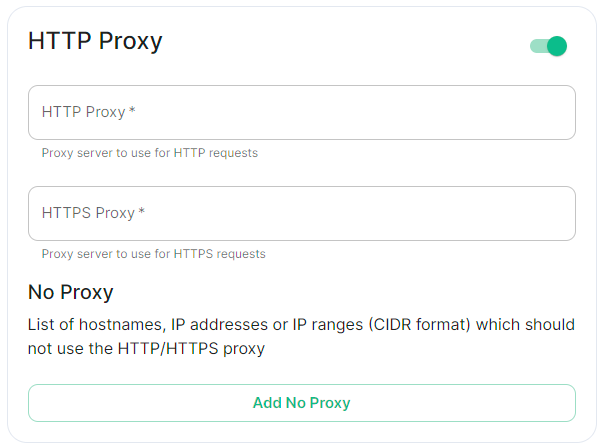](https://ems-docs.element.io/uploads/images/gallery/2024-05/image-1716373952714.png)
Config Example
```yml
spec:
components:
synapse:
config:
httpProxy:
httpProxy: http_proxy.example.com
httpsProxy: https_proxy.example.com
```
You can use Synapse with a forward or outbound proxy. An example of when this is necessary is in corporate environments behind a DMZ (demilitarized zone). Synapse supports routing outbound HTTP(S) requests via a proxy - Note: Only HTTP(S) proxy is supported, SOCKS / alternatives are no supported.
- **HTTP Proxy****.**
- Proxy server to use for HTTP requests.
- **HTTPS Proxy****.**
- Proxy server to use for HTTPS requests.
#### No Proxy
[](https://ems-docs.element.io/uploads/images/gallery/2024-05/image-1716375119783.png)
Config Example
```yml
spec:
components:
synapse:
config:
httpProxy:
noProxy:
- no_proxy.example.com # Hostname example
- 192.168.0.123 # IP example
- 192.168.1.1/24 # IP range example
```
Here you can specify a list of hostnames, IP addresses or IP ranges (CIDR format) which should not use the HTTP/HTTPS proxy
### Data Retention
[`retention`](https://element-hq.github.io/synapse/latest/usage/configuration/config_documentation.html#retention)
[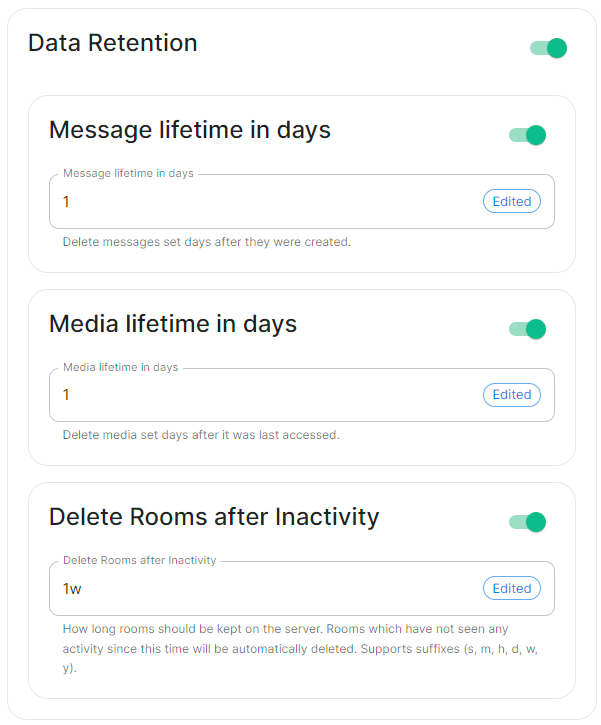](https://ems-docs.element.io/uploads/images/gallery/2024-05/image-1716373996786.png)
If this feature is enabled, Synapse will regularly look for and purge events which are older than the below specified lifetimes.
#### Message Lifetime in Days
Config Example
```yml
spec:
components:
synapse:
config:
dataRetention:
messageLifetime: 1
```
Used to specify the number of days after a message is created that it should be deleted.
#### Media Lifetime in Days
Config Example
```yml
spec:
components:
synapse:
config:
dataRetention:
mediaLifetime: 1
```
Used to specify the number of days after media is uploaded that it should be deleted.
#### Delete Rooms After Inactivity
Config Example
```yml
spec:
components:
synapse:
config:
dataRetention:
deleteRoomsAfterInactivity: 1w
```
Used to specifiy how long rooms, which have not seen any activity, should be kept on the server. Rooms inactive after the specified time will be automatically deleted. Supports suffixes:
- `s` : Seconds
- `m` : Minutes
- `h` : Hours
- `d` : Days
- `w` : Weeks
- `y` : Years
### Advanced
#### Config
##### Macaroon
[`macaroon_secret_key`](https://element-hq.github.io/synapse/latest/usage/configuration/config_documentation.html#macaroon_secret_key)
[](https://ems-docs.element.io/uploads/images/gallery/2024-05/image-1716545532340.png)
Config Example
- `secrets.yml`
```yml
data:
macaroon: ExampleMacaroonBase64EncodedString
```
A secret which is used to sign the:
- Access token for guest users
- Short-term login token used during SSO logins (OIDC or SAML2)
- Token used for unsubscribing from email notifications.
##### Registration Shared Secret
[`registration_shared_secret`](https://element-hq.github.io/synapse/latest/usage/configuration/config_documentation.html#registration_shared_secret)
[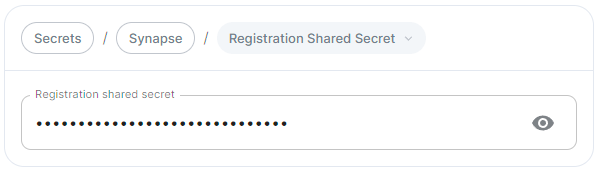](https://ems-docs.element.io/uploads/images/gallery/2024-05/image-1716545551340.png)
Config Example
- `secrets.yml`
```yml
data:
registrationSharedSecret: ExampleRegistrationSharedSecretBase64EncodedString
```
Allows registration of standard or admin accounts by anyone who has the shared secret, even if [`enable_registration`](https://element-hq.github.io/synapse/latest/usage/configuration/config_documentation.html#enable_registration) is not Open, see [Registration](#bkmrk-registration).
##### Signing Key
[`signing-keys`](https://element-hq.github.io/synapse/latest/usage/configuration/config_documentation.html?highlight=signing#signing-keys)
[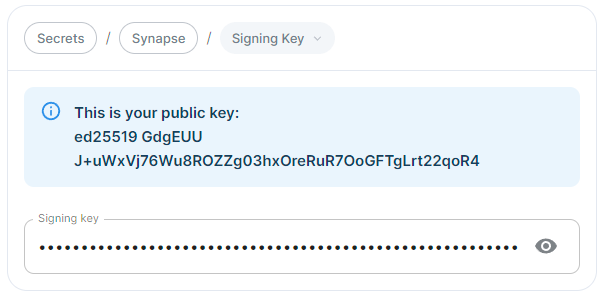](https://ems-docs.element.io/uploads/images/gallery/2024-05/image-1716545569029.png)
Config Example
- `secrets.yml`
```yml
data:
signingKey: >-
ExampleSigningKeyBase64EncodedString
```
See the dedicated page on Synapse Federation configuration, [Synapse Section: Federation](https://ems-docs.element.io/books/element-server-suite-classic-documentation-lts-2410/page/synapse-section-federation) for more details on how the Signing Key is used.
#### Additional
See the dedicated page on additional Synapse configuration, [Synapse Section: Additional Config](https://ems-docs.element.io/books/element-server-suite-classic-documentation-lts-2410/page/synapse-section-additional-config)
#### External Appservices
[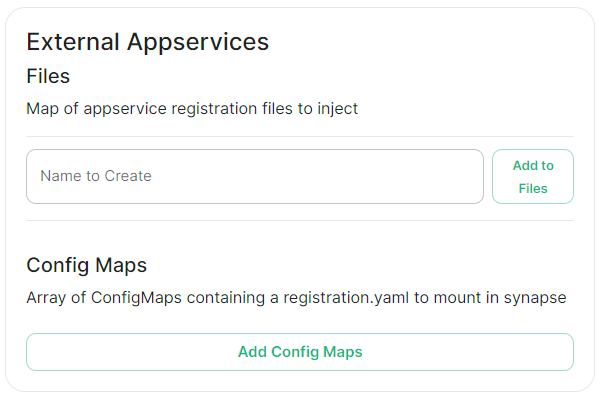](https://ems-docs.element.io/uploads/images/gallery/2024-05/image-1716546127943.png)
#### Federation
See the dedicated page on Synapse Federation configuration, [Synapse Section: Federation](https://ems-docs.element.io/books/element-server-suite-classic-documentation-lts-2410/page/synapse-section-federation)
### Synapse configuration options not available within the UI
We strongly advise against including any config not configurable via the UI as it will most likely interfere with settings automatically computed by the updater. Additional configuration options are not supported so we encourage you to first raise your requirements to Support where we can best advise on them.
An `Additional Config` section, which allows including config not currently configurable via the UI from the [Configuration Manual](https://element-hq.github.io/synapse/latest/usage/configuration/config_documentation.html), is available under the 'Advanced' section of this page. See the dedicated page on additional Synapse configuration, [Synapse Section: Additional Config](https://ems-docs.element.io/books/element-server-suite-classic-documentation-lts-2410/page/synapse-section-additional-config)
# Synapse Section: Federation
Detailed information on configuring homeserver Federation including Trusted Key Servers.
Federation is the process by which users on different servers can participate in the same room. For this to work, all servers participating in a room must be able to talk to each other.
When Federation is `Open`, you will not need to configure anything further, however to privately federate you will need to make use of the `Federation` section found under `Advanced`.
[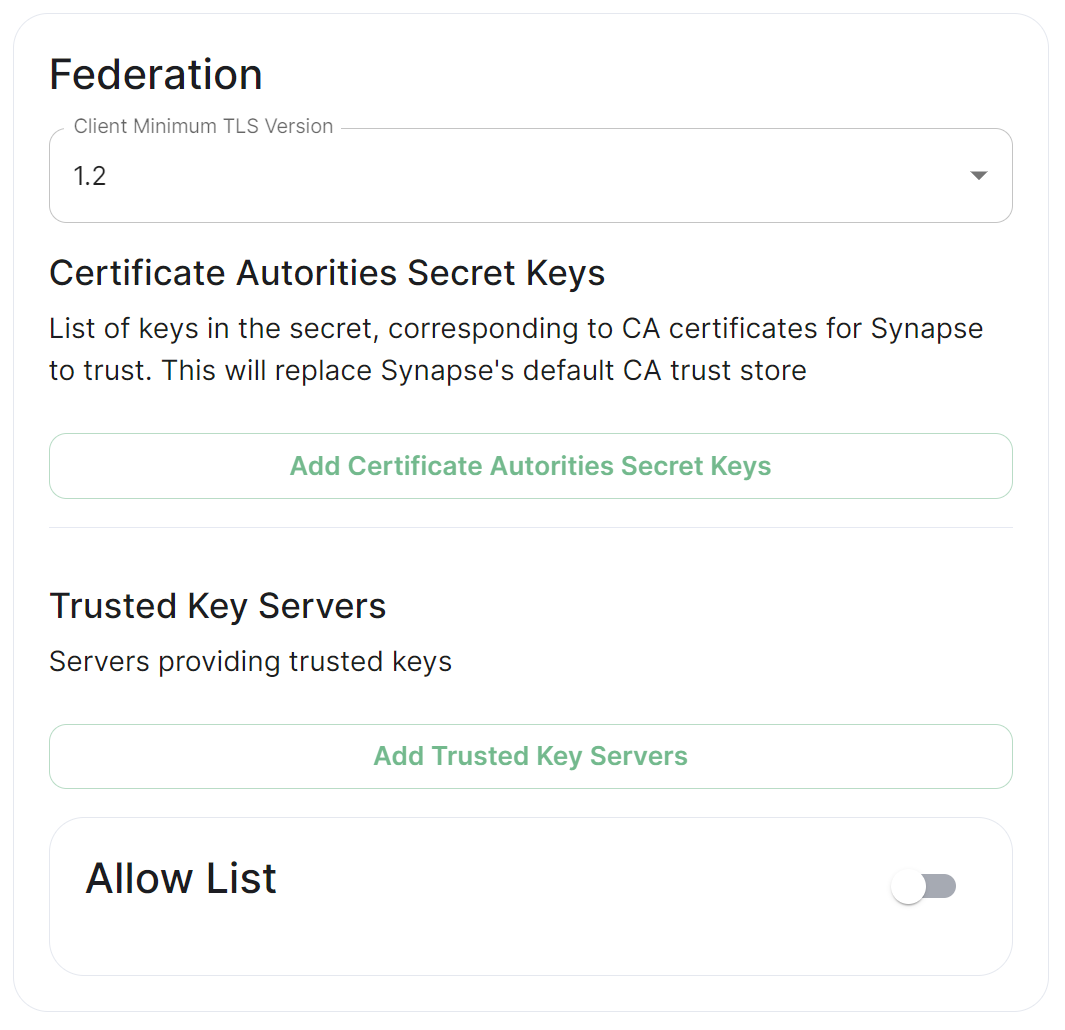](https://ems-docs.element.io/uploads/images/gallery/2024-01/image-1706542780463.png)
https://ems-docs.element.io/books/element-server-suite-classic-documentation-lts-2504
https://ems-docs.element.io/books/element-server-suite-classic-documentation-lts-2504
## How do I turn Federation On / Off?
How Federation is enabled is automatic based on how you configure it within this Federation section.
By default Federation is enabled, to close Federation simply enable the Allow List without adding any allowed servers.
### Federation Profile
At the top of the [Synapse Section](https://ems-docs.element.io/books/element-server-suite-classic-documentation-lts-2410/page/synapse-section#bkmrk-federation-type) you can configure a Federation Type. This Profile section specifically configures the performance profile of your deployed homeserver.
As such, setting this to `Open` will automatically configure [Synapse Workers](https://ems-docs.element.io/books/element-server-suite-classic-documentation-lts-2410/page/synapse-section-workers) for Federation Endpoints to better support an openly federating server.
This should not be confused with the Federation section detailed in this document.
[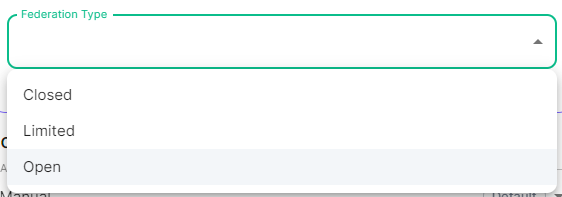](https://ems-docs.element.io/uploads/images/gallery/2024-05/image-1715244469299.png)
Previous setups may have used the Synapse Additional config. Configuration of Federation settings via Additional Config, that are in conflict with any set via the UI, will not override the UI set values. As such, we do not advise including them or any related settings within the Additional Config as they are of increased risk to causing issues with your deployment and are not supported.
## Client Minimum TLS Version
[`federation_client_minimum_tls_version`](https://element-hq.github.io/synapse/latest/usage/configuration/config_documentation.html#federation_client_minimum_tls_version)
[](https://ems-docs.element.io/uploads/images/gallery/2024-01/image-1706544124637.png)
Allows you to choose the minimum TLS version that will be used for outbound federation requests. Defaults to "1.2". Configurable to "1.2" or "1.3".
Setting this value higher than "1.2" will prevent federation to most of the public Matrix network: only configure it to "1.3" if you have an entirely private federation setup and you can ensure TLS 1.3 support.
## Certificate Autorities Secret Keys
[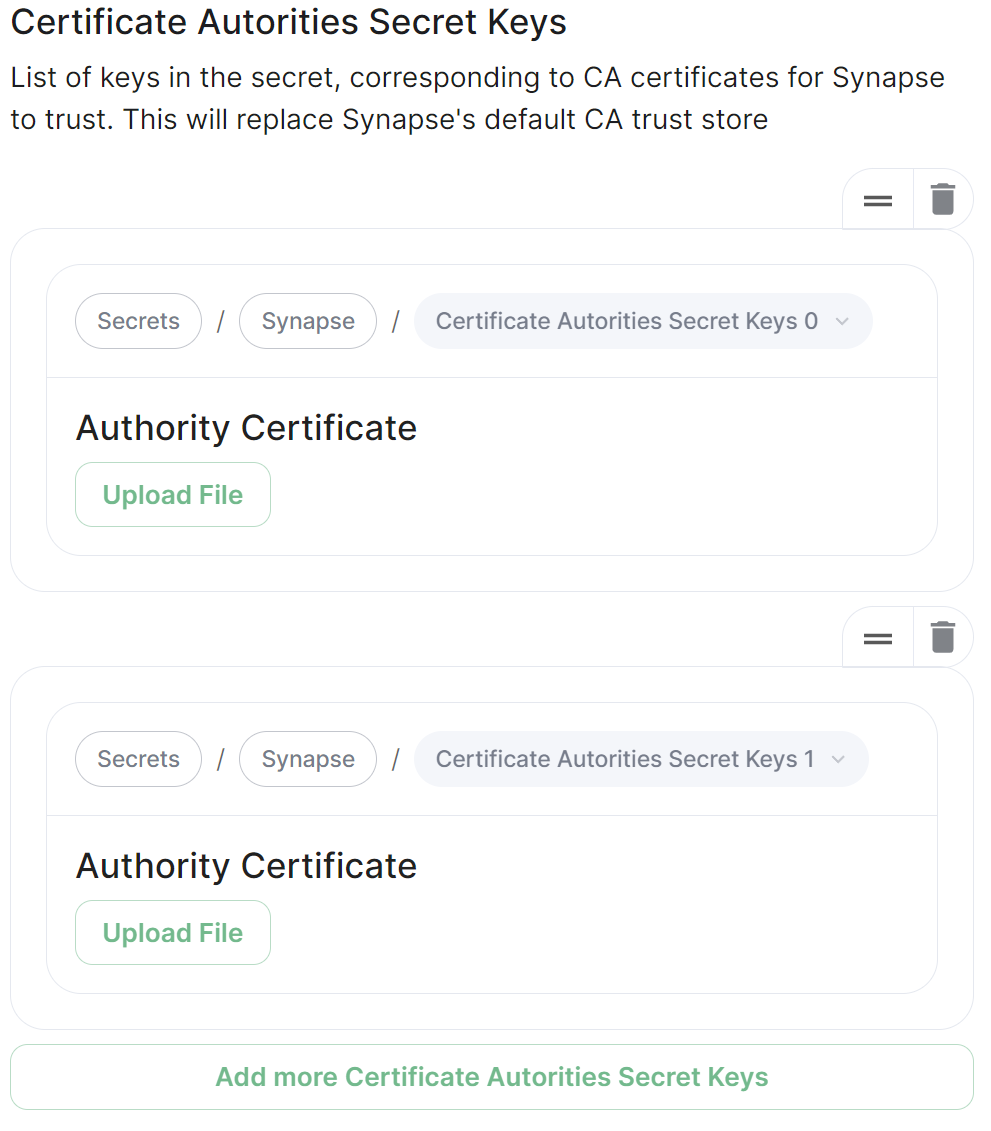](https://ems-docs.element.io/uploads/images/gallery/2024-01/image-1706543999452.png)
Configure when you are federating between homeservers' whose certificates are signed by different Certificate Authorities, click the `Add Certificate Authorities Secret Keys` / `Add More Certificate Authorities Secret Keys` button to reveal the option to upload your CA certificate.
Uploaded certificates should be PEM encoded and include the full chain of intermediate CAs and the root CA. You can simply concatenate these files prior to uploading.
## Trusted Key Servers
[`trusted_key_servers`](https://element-hq.github.io/synapse/latest/usage/configuration/config_documentation.html#trusted_key_servers)
[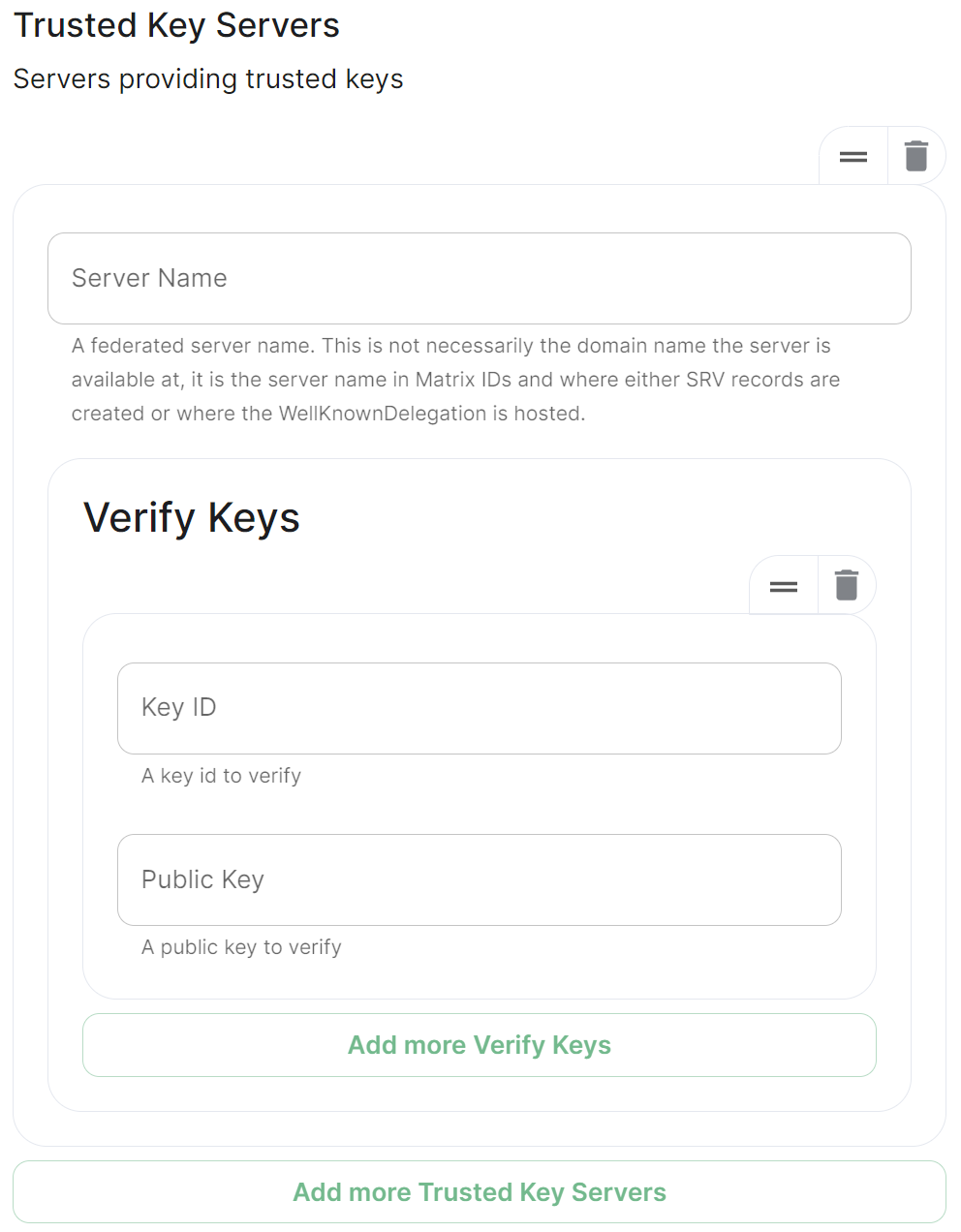](https://ems-docs.element.io/uploads/images/gallery/2024-01/image-1706544582026.png)
Used to specify the trusted servers to download signing keys from. When synapse needs to fetch a signing key, each server is tried in parallel. Normally, the connection to the key server is validated via TLS certificates. Verify keys provide additional security by making synapse check that the response is signed by that key.
https://ems-docs.element.io/books/element-server-suite-classic-documentation-lts-2504
Click `Add Trusted Key Servers` / `Add More Trusted Key Servers` to add a new key server, then provide the homeservers' federated server name, i.e. the base domain of the homeserver you with to federate with. Under `Verify Keys` for the server, you will need to provide it's `Key ID` and `Public Key`.
### Getting a Homeservers' `Key ID` and `Public Key` from your browser
Simply access the Synapse endpoint `GET /_matrix/key/v2/server`. You must use the domain where your Synapse is exposed, this might be different than the domain you have in your Matrix IDs. For example `https://matrix.yourcomapany.com/_matrix/key/v2/server`.
For the element.io homeserver, returns
```json
{
"old_verify_keys": {},
"server_name": "element.io",
"signatures": {
"element.io": {
"ed25519:DnK8xk": "oOgEpir32XvnuMXQs+GvB6nOuIWgYathJ8kbzDhh9TT/BVSEH116Kk9NYUVPeXHJO0HhzBeTjmAiuUTVFS8nCg"
}
},
"valid_until_ts": 1715307962481,
"verify_keys": {
"ed25519:DnK8xk": {
"key": "EgdGx+0oy/9IX5k7tCobr0JoiwMvmmQ8sDOVlZODh/o"
}
}
}
```
Under `verify_keys`, `ed25519:DnK8xk` is the Key ID and `EgdGx+0oy/9IX5k7tCobr0JoiwMvmmQ8sDOVlZODh/o` is the Public Key.
### Getting an On-Premise Homeservers' `Key ID` and `Public Key` via the Installer
You can retrieve the `Public Key` of an On-Premise Homeserver by re-running the installer on the host, then navigating to the `Synapse` section. Under `Advanced`, `Config` you will be presented with the homeservers' Public Key in a blue box.
[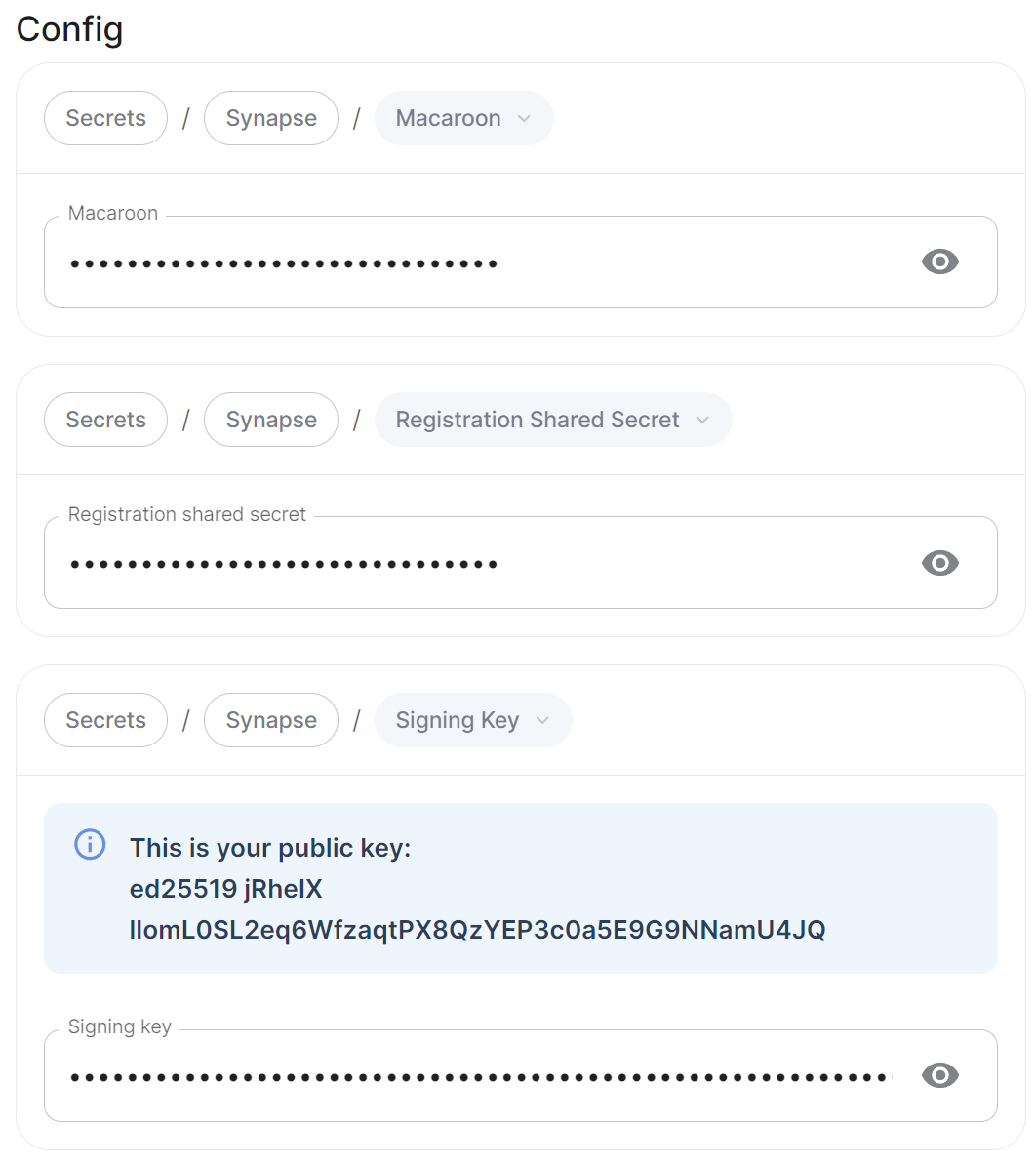](https://ems-docs.element.io/uploads/images/gallery/2024-01/image-1706544854045.png)
Copy the entire string, taking the example above, it would be `ed25519 jRheIX llomL0SL2eq6WfzaqtPX8QzYEP3c0a5E9G9NNamU4JQ`. From this string, you can derive the `Key ID` and `Public Key` required when you wish to add this homeserver to another homeservers' Federation Trusted Key Servers.
1. The `Key ID` is the first two sections joined with a `:`, so `ed25519:jRheIX`
2. The `Public Key` is the remainder of the string, so `llomL0SL2eq6WfzaqtPX8QzYEP3c0a5E9G9NNamU4JQ`
[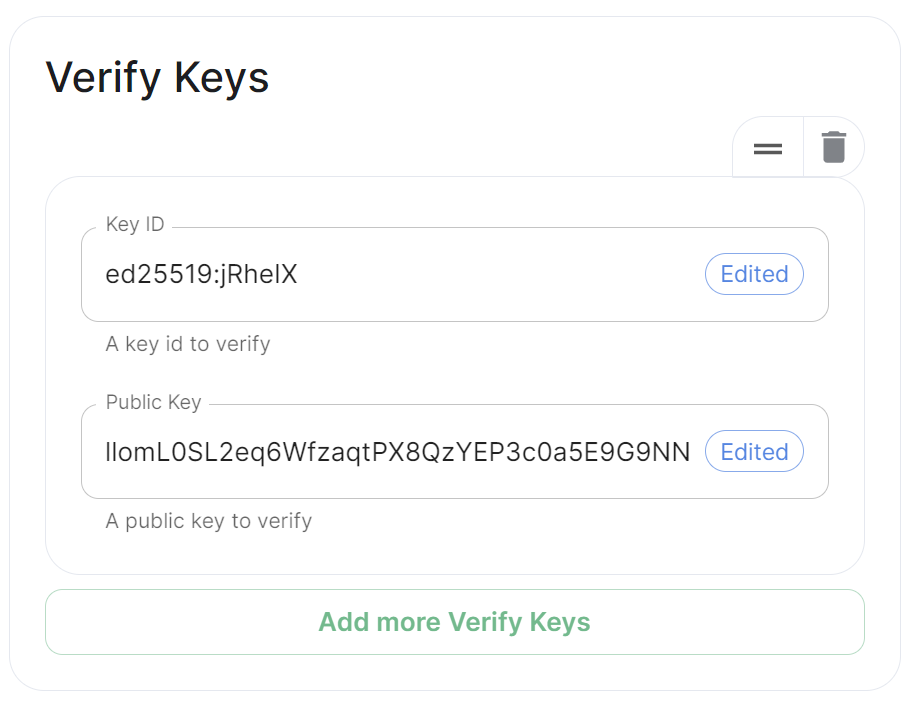](https://ems-docs.element.io/uploads/images/gallery/2024-01/image-1706546009350.png)
## Allow List
[`federation_domain_whitelist`](https://element-hq.github.io/synapse/latest/usage/configuration/config_documentation.html#federation_domain_whitelist)
[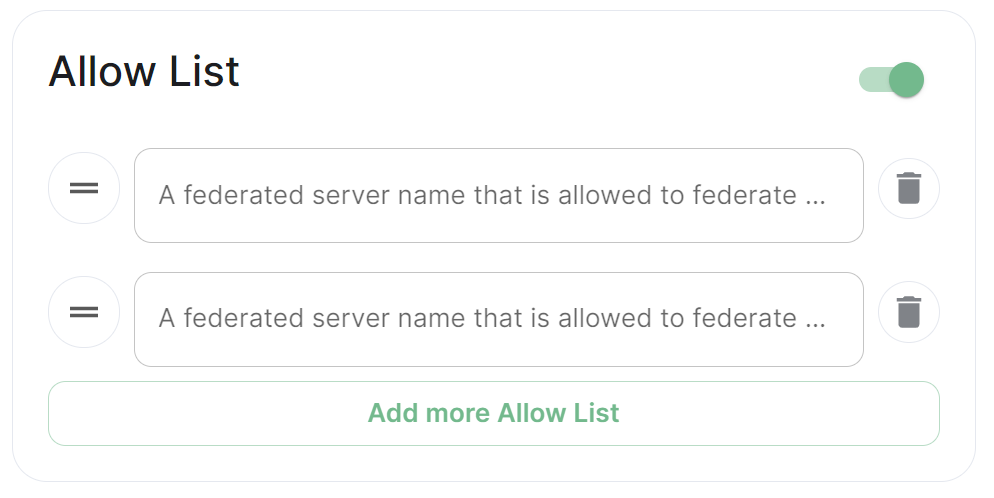](https://ems-docs.element.io/uploads/images/gallery/2024-01/image-1706545151897.png)
Use the Allow List to restrict federation to the given whitelist of domains, if not specified, the default is to whitelist everything. Simply provide the homeservers' federated server name, i.e. the base domain of the homeservers' you with to federate with.
We recommend also firewalling your federation listener to limit inbound federation traffic as early as possible, rather than relying purely on this application-layer restriction.
This does not stop a server from joining rooms that servers not on the whitelist are in. As such, this option is really only useful to establish a "private federation", where a group of servers all whitelist each other and have the same whitelist.
Please also note that by default an [`ip_range_blacklist`](https://element-hq.github.io/synapse/latest/usage/configuration/config_documentation.html#ip_range_blacklist) is configured to block all private IP address ranges. If your servers require communicating on any of the below ranges, you will need to configure [`ip_range_whitelist`](https://element-hq.github.io/synapse/latest/usage/configuration/config_documentation.html#ip_range_whitelist). See [Allowing Private Federation via `ip_range_whitelist`](https://ems-docs.element.io/books/element-server-suite-classic-documentation-lts-2410/page/synapse-section-additional-config) for information on configuring this.
# Element Web Section
Configuration options relating to the deployed Element Web instance provided by ESS.
Element Web is the web-based client for the Matrix communication protocol. Element Web serves as a user interface for accessing Matrix homeservers, allowing users to send messages, join rooms, share files, and participate in group chats.
All settings configured via the UI in this section will be saved to your deployment.yml, with the contents of secrets being saved to secrets.yml. You will find specific configuration examples in each section.
Config Example
```yml
spec:
components:
elementWeb:
```
By default, if you do not change any settings on this page, default Element Web pod CPU and Memory requirements will be added to your configuration file/s (see example below).
Config Example
```yml
spec:
components:
elementWeb:
k8s:
workloads:
resources:
limits:
memory: 200Mi
requests:
cpu: 50m
memory: 50Mi
```
### Advanced
#### Use Own URL for Sharing Links
[`permalink_prefix`](https://web-docs.element.dev/Element%20Web/config.html?highlight=permalink_prefix#customisation--branding)
[](https://ems-docs.element.io/uploads/images/gallery/2024-05/image-1716547007689.png)
Config Example
```yml
spec:
components:
elementWeb:
config:
# Not present if disabled
useOwnUrlForSharingLinks: true
```
Whether the sharing links generated by this Element Web instance should use the URL of this Element Web. If turned off the sharing links use unless a custom permalink prefix is set in the Additional Config section. If turned on, mobile clients will not detect links using the URL of this Element Web (or any other custom permalink prefix) unless they've been explicitly configured by Mobile Device Management (MDM).
#### Additional Configuration
There are no Element Web specific UI options available to configure, however you can inject custom config within the `Additional Configuration` section found under `Advanced`. Config added here is analogous with what you would add to the `config.json` when manually self-hosting Element Web (or when using Element Desktop), you can read more on this and see config examples via the [Element Web Configuration Doc](https://web-docs.element.dev/Element%20Web/config.html#configuration).
[](https://ems-docs.element.io/uploads/images/gallery/2024-02/image-1707244011153.png)
Config Example
```yml
spec:
components:
elementWeb:
config:
additionalConfig: |-
"setting_defaults": {
"custom_themes": [
{
"name": "Electric Blue",
"is_dark": false,
"fonts": {
"faces": [
{
"font-family": "Inter",
"src": [{"url": "/fonts/Inter.ttf", "format": "ttf"}]
}
],
"general": "Inter, sans",
"monospace": "'Courier New'"
},
"colors": {
"accent-color": "#3596fc",
"primary-color": "#368bd6",
"warning-color": "#ff4b55",
"sidebar-color": "#27303a",
"roomlist-background-color": "#f3f8fd",
"roomlist-text-color": "#2e2f32",
"roomlist-text-secondary-color": "#61708b",
"roomlist-highlights-color": "#ffffff",
"roomlist-separator-color": "#e3e8f0",
"timeline-background-color": "#ffffff",
"timeline-text-color": "#2e2f32",
"timeline-text-secondary-color": "#61708b",
"timeline-highlights-color": "#f3f8fd",
"username-colors": ["#ff0000", ...]
"avatar-background-colors": ["#cc0000", ...]
}
}
]
}
```
##### Common Configurations
###### Permalinks
If you would like to override the default permalink `matrix.to` for your homeserver, you can do so by adding the following entry to your `Additional Configuration`
```json
"permalinkPrefix": "https://"
```
###### Theming
Refer to the [Element Web Theming Documentation](https://web-docs.element.dev/Element%20Web/theming.html) for more information, see an example below where a custom theme has been applied to change the look and feel of the deployed Element Client. For some public examples of customised login screens see [Mozilla](https://chat.mozilla.org/#/welcome) and [Fedora](https://chat.fedoraproject.org/#/welcome)'s customised clients.
```json
"setting_defaults": {
"custom_themes": [
{
"name": "Electric Blue",
"is_dark": false,
"fonts": {
"faces": [
{
"font-family": "Inter",
"src": [{"url": "/fonts/Inter.ttf", "format": "ttf"}]
}
],
"general": "Inter, sans",
"monospace": "'Courier New'"
},
"colors": {
"accent-color": "#3596fc",
"primary-color": "#368bd6",
"warning-color": "#ff4b55",
"sidebar-color": "#27303a",
"roomlist-background-color": "#f3f8fd",
"roomlist-text-color": "#2e2f32",
"roomlist-text-secondary-color": "#61708b",
"roomlist-highlights-color": "#ffffff",
"roomlist-separator-color": "#e3e8f0",
"timeline-background-color": "#ffffff",
"timeline-text-color": "#2e2f32",
"timeline-text-secondary-color": "#61708b",
"timeline-highlights-color": "#f3f8fd",
"username-colors": ["#ff0000", ...]
"avatar-background-colors": ["#cc0000", ...]
}
}
]
}
```
You can also modify the homepage for the Element Web client, to do so requires modification to your Well-Known Delegations' `Additional Configuration`, see [Element Web Custom Home](https://web-docs.element.dev/Element%20Web/custom-home.html) for more information and specifically the Well-Known Delegation documentation page under the Integrations chapter.
# Homeserver Admin Section
Configuration options relating to the deployed Homeserver Admin instance provided by ESS.
Homeserver Admin is the web-based client for the Synapse Admin API. Homeserver Admin serves as a user interface for administering Synapse homeservers, allowing management of users, rooms, federation and more.
All settings configured via the UI in this section will be saved to your deployment.yml, with the contents of secrets being saved to secrets.yml. You will find specific configuration examples in each section.
Config Example
```yml
spec:
components:
synapseAdmin:
```
By default, if you do not change any settings on this page, default Homeserver Admin pod CPU and Memory requirements will be added to your configuration file/s (see example below).
Config Example
```yml
spec:
components:
synapseAdmin:
k8s:
workloads:
resources:
limits:
memory: 500Mi
requests:
cpu: 50m
memory: 50Mi
```
### Advanced
#### Verify TLS
[](https://ems-docs.element.io/uploads/images/gallery/2024-05/image-1716547797875.png)
Config Example
```yml
spec:
components:
synapseAdmin:
# Not present if 'Use Global Setting' selected
config:
# verifyTls: useGlobalSetting
# verifyTls: force
verifyTls: disable
```
Configures TLS verification, options include:
- `Use Global Setting`
- `Force`
- `Disable`
It is not recommended to change this setting.
### Delegated Authentication
If you are using delegated authentication and have kept `Allow Local Users Login` as `Auto` or set have directly set to `Disabled` then the built-in defualt Synapse Admin user `onprem-admin-donotdelete` will not be able to login.
Once deployed, to promote a user from your identity provider to Synapse Admin i.e. Bob:
1. Ensure they have logged in once. so that their Matrix ID has been created, i.e. @bob:example.com
2. Use the following to promote them to Synapse Admin:
```bash
kubectl exec -n element-onprem -it pods/synapse-postgres-0 -- /usr/bin/psql -d synapse -U synapse_user -c "update users set admin = 1 where name = '@bob:example.com';"
```
# Integrator Section
Configuration options relating to the Integrator provided by ESS.
In the Integrator section you will find options to configure settings specific to the integrator which is used to send messages to external services. By default, it is unlikely you should need to configure anything on this page, unless you wish to enable the use of Custom Widgets.
All settings configured via the UI in this section will be saved to your deployment.yml, with the contents of secrets being saved to secrets.yml. You will find specific configuration examples in each section.
By default, if you do not change any settings on this page, defaults will be added to your configuration file/s (see example below).
Config Example
```yml
apiVersion: matrix.element.io/v1alpha2
kind: ElementDeployment
metadata:
annotations:
ui.element.io/layer: |
integrator:
k8s:
workloads:
_value: defaulted
spec:
components:
integrator:
k8s:
workloads:
resources:
appstore:
limits:
memory: 400Mi
requests:
cpu: 50m
memory: 100Mi
integrator:
limits:
memory: 350Mi
requests:
cpu: 100m
memory: 100Mi
modularWidgets:
limits:
memory: 200Mi
requests:
cpu: 50m
memory: 50Mi
scalarWeb:
limits:
memory: 200Mi
requests:
cpu: 50m
memory: 50Mi
```
### Config
#### Custom Widgets
[](https://ems-docs.element.io/uploads/images/gallery/2024-06/image-1718016387622.png)
Config Example
```yml
spec:
components:
integrator:
config:
# Not present if 'false' is selected
# enableCustomWidgets: false
enableCustomWidgets: true
```
Gives users the ability to add Custom Widgets to their rooms which can display an embedded a web page.
[](https://ems-docs.element.io/uploads/images/gallery/2024-06/image-1718017391299.png)
https://ems-docs.element.io/books/element-server-suite-classic-documentation-lts-2504
#### Verify TLS
[](https://ems-docs.element.io/uploads/images/gallery/2024-05/image-1716547797875.png)
Config Example
```yml
spec:
components:https://ems-docs.element.io/books/element-server-suite-classic-documentation-lts-2504
integrator:
# Not present if 'Use Global Setting' selected
config:
# verifyTls: useGlobalSetting
# verifyTls: force
verifyTls: disable
```
Configures TLS verification, options include:https://ems-docs.element.io/books/element-server-suite-classic-documentation-lts-2504
- `Use Global Setting`
- `Force`
- `Disable`
It is not recommended to change this setting.
### Log
#### Root Level
[](https://ems-docs.element.io/uploads/images/gallery/2024-06/image-1718017894395.png)
Config Example
```yml
spec:
components:
integrator:
config:
log:
# Not present if left at default 'info'
level: info
# level: debughttps://ems-docs.element.io/books/element-server-suite-classic-documentation-lts-2504
# level: warning
# level: error
```
As defined under the [Configuration file format](https://docs.python.org/3/library/logging.config.html#configuration-file-format) section of the Python docs, the available options presented by the Installer are `DEBUG`, `INFO`, `WARNING`, `ERROR` and `CRITICAL`. These represent different severity levels for log messages and help control the verbosity of log output which help to filter messages based on their importance.
- `DEBUG`: Detailed information, typically used for debugging purposes. Messages at this level provide the most fine-grained and detailed logging.
- `INFO`: General information about the program's operation. This level is used to confirm that things are working as expected.
- `WARNING`: Indicates a potential issue or something that might cause problems in the future. It doesn't necessarily mean an error has occurred, but it's a warning about a possible concern.
https://ems-docs.element.io/books/element-server-suite-classic-documentation-lts-2504
- `ERROR`: Indicates a more serious issue or error in the program. When an error occurs, it might impact the functionality of the application.
When troubleshooting, increasing the log level and redeploying can help narrow down where you're experiencing issues. By default, `DEBUG` is a good option to include everything allowing you to identify a problem.
It is not advised to leave your Logging Level at anything other than the default, as more verbose logging may expose information that should otherwise not be accessible. When sharing logs, remember to redact any sensitive information you do not wish to share.
#### Structured
[](https://ems-docs.element.io/uploads/images/gallery/2024-06/image-1718018012799.png)
Config Example
```yml
spec:
components:
integrator:
config:
log:
# Not present if left at default 'false'
# structured: false
structured: true
```
Disabled by default, turn on to output logs in logstash format. Otherwise, logs are output in a console friendly format.
### Postgres
If you are performing a Standalone deployment and letting the installer deploy Postgres for you, you will not need to configure any options here:
[](https://ems-docs.element.io/uploads/images/gallery/2024-06/image-1718018164390.png)
For all other deployments, you will need to configure your PostgreSQL database connection details.
#### Database
[](https://ems-docs.element.io/uploads/images/gallery/2024-08/image-1724338606653.png)
Config Example
```yml
spec:
components:
integrator:
config:
postgresql:
database: integrator
```
Enter the name of the PostgreSQL Database you configured per the previously mentioned [Requirements and Recommendations](https://ems-docs.element.io/books/element-server-suite-classic-documentation-lts-2410/page/requirements-and-recommendations) to use for Integrator.
#### Host
[](https://ems-docs.element.io/uploads/images/gallery/2024-08/image-1724150463007.png)
Config Example
```yml
spec:
components:
integrator:
config:
postgresql:
host: db.example.com
```
Enter the fully qualified domain name of the PostgreSQL Database you configured per the previously mentioned [Requirements and Recommendations](https://ems-docs.element.io/books/element-server-suite-classic-documentation-lts-2410/page/requirements-and-recommendations) to use for Integrator.
#### Port
[](https://ems-docs.element.io/uploads/images/gallery/2024-08/image-1724150637542.png)
Config Example
```yml
spec:
components:
integrator:
config:
postgresql:
# port not present when left as default 5432
port: 5432
```
Defaults to `5432`, either keep if correct or provide the required port of the PostgreSQL Database you configured per the previously mentioned [Requirements and Recommendations](https://ems-docs.element.io/books/element-server-suite-classic-documentation-lts-2410/page/requirements-and-recommendations) to use for Integrator.
#### SSL Mode
[](https://ems-docs.element.io/uploads/images/gallery/2024-08/image-1724150860317.png)
Config Example
```yml
spec:
components:
integrator:
config:
postgresql:
# sslMode not present when left as default `require`
sslMode: require
# sslMode: disable
# sslMode: no-verify
# sslMode: verify-full
```
Defaults to `No Verify` - it is not recommended to disable SSL, so for most setups, this setting should be left as default.
You should adjust to accommodate your environment as required, the options available are:
- Disable
- No Verify
- Verify Full
#### User
[](https://ems-docs.element.io/uploads/images/gallery/2024-08/image-1724151253559.png)
Config Example
```yml
spec:
components:
integrator:
config:
postgresql:
user: test-username
```
Enter the username of a user who can access the PostgreSQL Database you configured per the previously mentioned [Requirements and Recommendations](https://ems-docs.element.io/books/element-server-suite-classic-documentation-lts-2410/page/requirements-and-recommendations) to use for Synapse.
#### PostgreSQL Password
[](https://ems-docs.element.io/uploads/images/gallery/2024-08/image-1724151325375.png)
Config Example
- `secrets.yml`
```yml
apiVersion: v1
kind: Secret
metadata:
name: integrator
namespace: element-onprem
data:
postgresPassword: dGVzdC1wYXNzd29yZA==
```
Enter the password for the specified user who can access the PostgreSQL Database you configured per the previously mentioned [Requirements and Recommendations](https://ems-docs.element.io/books/element-server-suite-classic-documentation-lts-2410/page/requirements-and-recommendations) to use for Synapse.
### Jitsi Domain
[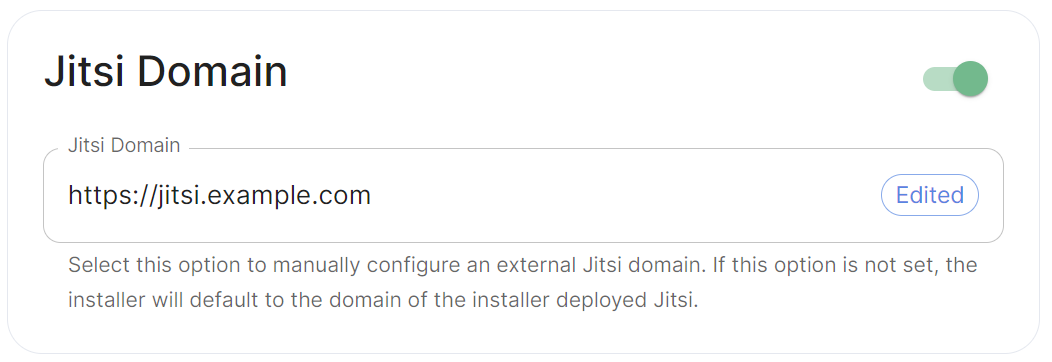](https://ems-docs.element.io/uploads/images/gallery/2024-06/image-1718018184784.png)
Config Example
```yml
spec:
components:
integrator:
config:
jitsiDomain: https://jitsi.example.com
```
Enable this option to manually configure an external Jitsi domain. If this option is not set, the installer will default to the domain of the installer deployed Jitsi (if applicable).