Detailed information on configuring homeserver Federation including Trusted Key Servers.
Federation is the process by which users on different servers can participate in the same room. For this to work, all servers participating in a room must be able to talk to each other. When Federation is `Open`, you will not need to configure anything further, however to privately federate you will need to make use of the `Federation` section found under `Advanced`. [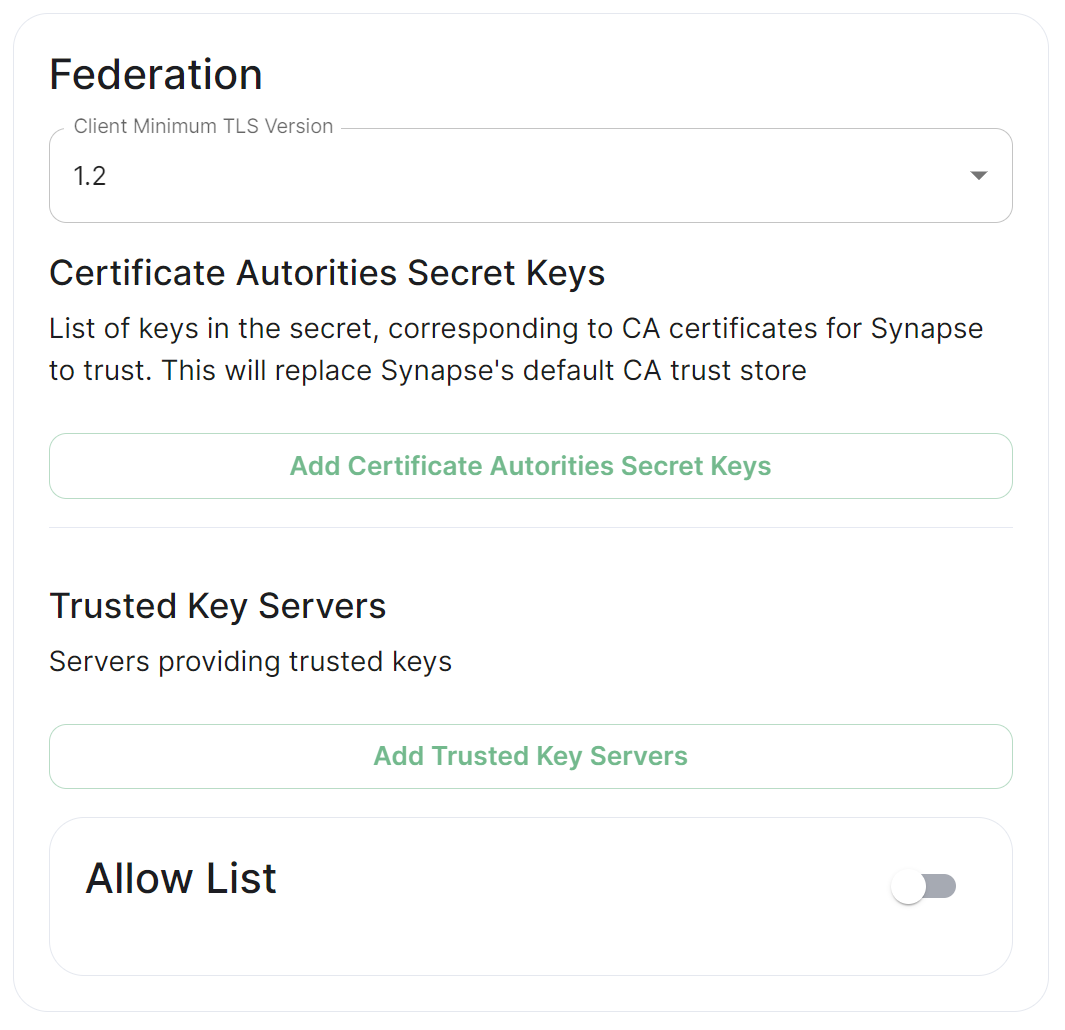](https://ems-docs.element.io/uploads/images/gallery/2024-01/image-1706542780463.png) ## How do I turn Federation On / Off? How Federation is enabled is automatic based on how you configure it within this Federation section. By default Federation is enabled, to close Federation simply enable the Allow List without adding any allowed servers. ### Federation Profile At the top of the [Synapse Section](https://ems-docs.element.io/books/element-server-suite-classic-documentation-lts-2410/page/synapse-section#bkmrk-federation-type) you can configure a Federation Type. This Profile section specifically configures the performance profile of your deployed homeserver. As such, setting this to `Open` will automatically configure [Synapse Workers](https://ems-docs.element.io/books/element-server-suite-classic-documentation-lts-2410/page/synapse-section-workers) for Federation Endpoints to better support an openly federating server. This should not be confused with the Federation section detailed in this document. [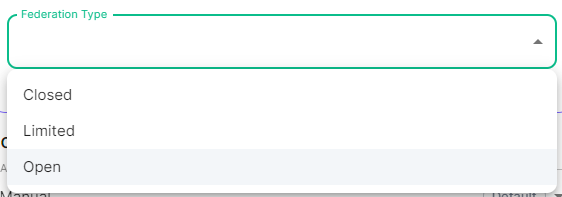](https://ems-docs.element.io/uploads/images/gallery/2024-05/image-1715244469299.png)
Previous setups may have used the Synapse Additional config. Configuration of Federation settings via Additional Config, that are in conflict with any set via the UI, will not override the UI set values. As such, we do not advise including them or any related settings within the Additional Config as they are of increased risk to causing issues with your deployment and are not supported.
## Client Minimum TLS Version [`federation_client_minimum_tls_version`](https://element-hq.github.io/synapse/latest/usage/configuration/config_documentation.html#federation_client_minimum_tls_version) [](https://ems-docs.element.io/uploads/images/gallery/2024-01/image-1706544124637.png) Allows you to choose the minimum TLS version that will be used for outbound federation requests. Defaults to "1.2". Configurable to "1.2" or "1.3".Setting this value higher than "1.2" will prevent federation to most of the public Matrix network: only configure it to "1.3" if you have an entirely private federation setup and you can ensure TLS 1.3 support.
## Certificate Autorities Secret Keys [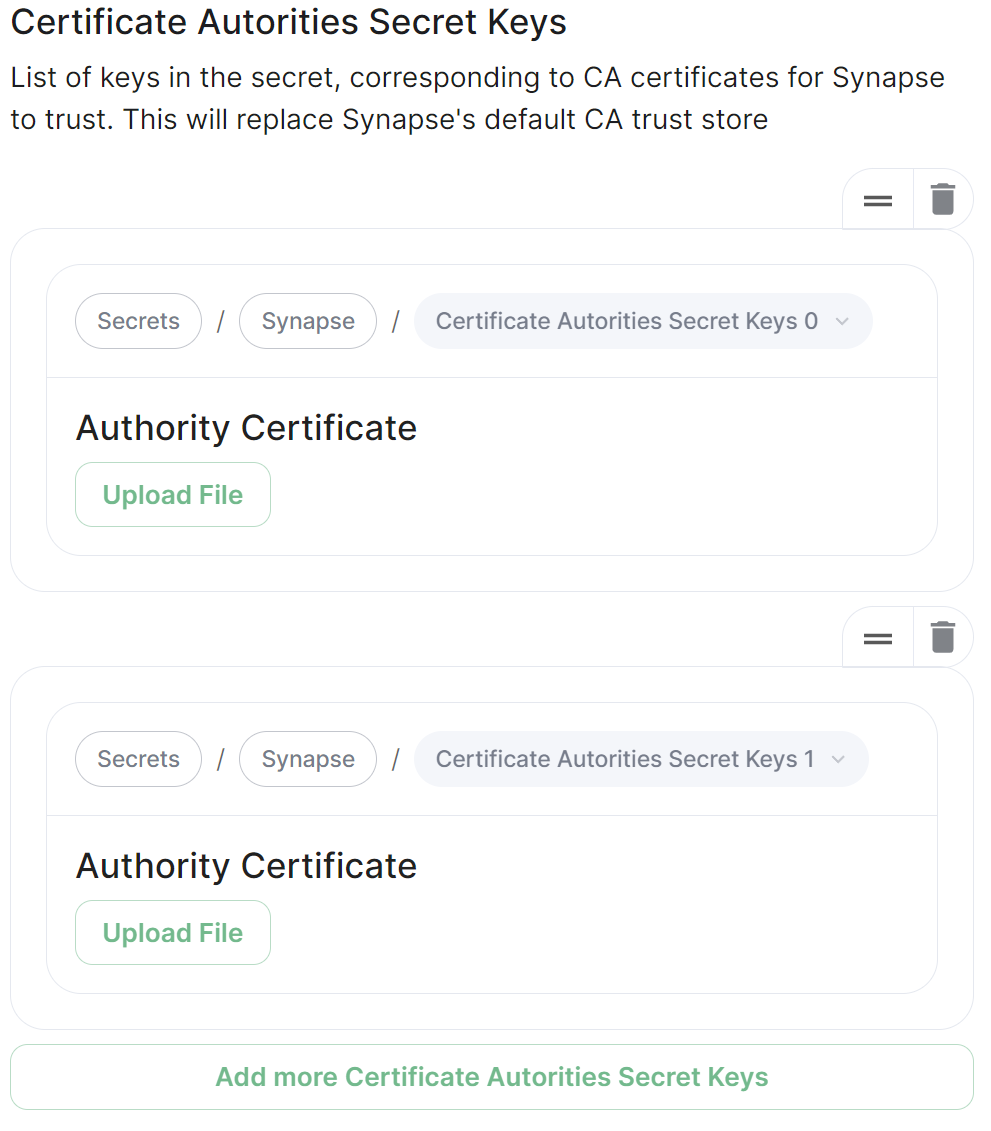](https://ems-docs.element.io/uploads/images/gallery/2024-01/image-1706543999452.png) Configure when you are federating between homeservers' whose certificates are signed by different Certificate Authorities, click the `Add Certificate Authorities Secret Keys` / `Add More Certificate Authorities Secret Keys` button to reveal the option to upload your CA certificate.Uploaded certificates should be PEM encoded and include the full chain of intermediate CAs and the root CA. You can simply concatenate these files prior to uploading.
## Trusted Key Servers [`trusted_key_servers`](https://element-hq.github.io/synapse/latest/usage/configuration/config_documentation.html#trusted_key_servers) [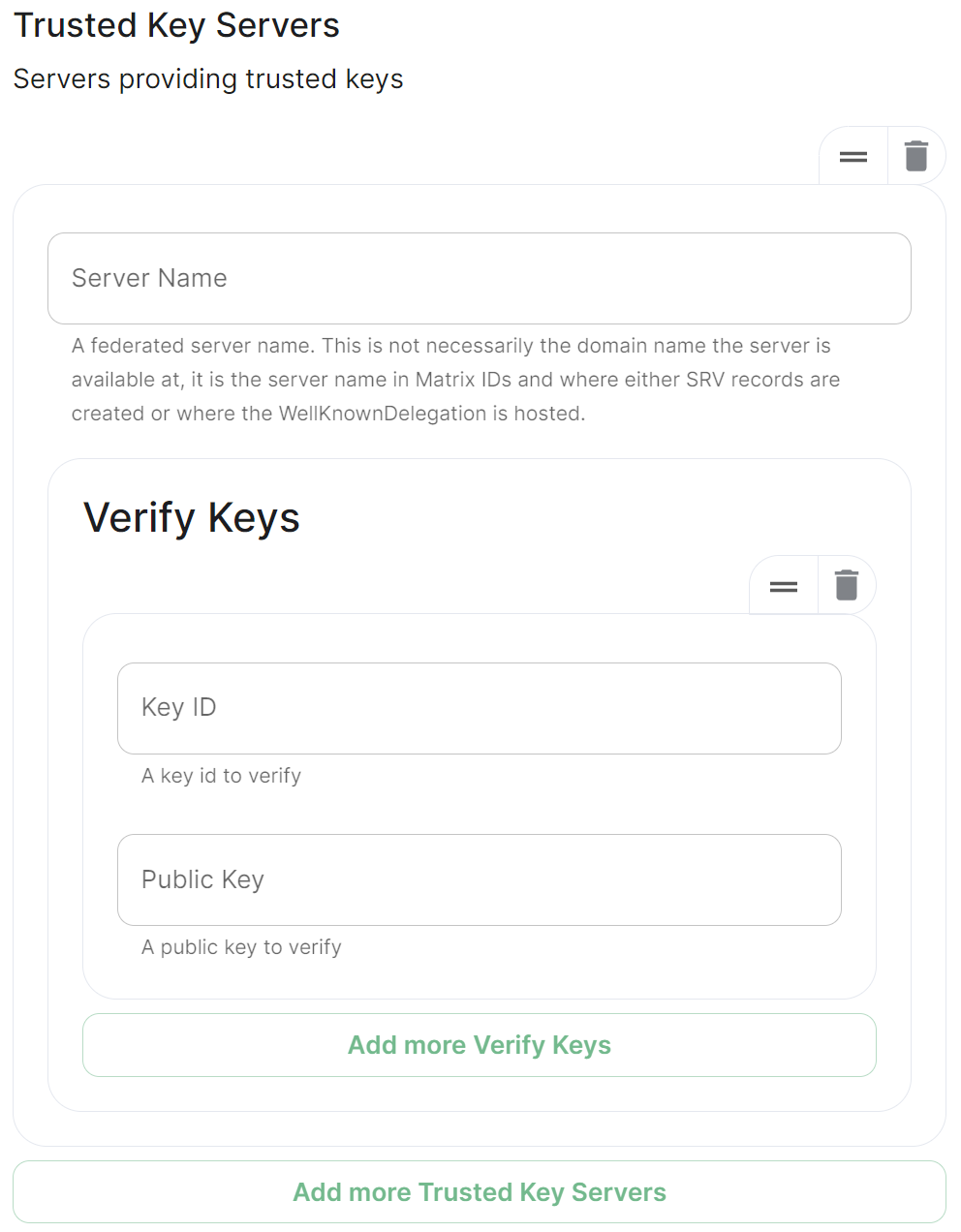](https://ems-docs.element.io/uploads/images/gallery/2024-01/image-1706544582026.png) Used to specify the trusted servers to download signing keys from. When synapse needs to fetch a signing key, each server is tried in parallel. Normally, the connection to the key server is validated via TLS certificates. Verify keys provide additional security by making synapse check that the response is signed by that key. Click `Add Trusted Key Servers` / `Add More Trusted Key Servers` to add a new key server, then provide the homeservers' federated server name, i.e. the base domain of the homeserver you with to federate with. Under `Verify Keys` for the server, you will need to provide it's `Key ID` and `Public Key`. ### Getting a Homeservers' `Key ID` and `Public Key` from your browser Simply access the Synapse endpoint `GET /_matrix/key/v2/server`. You must use the domain where your Synapse is exposed, this might be different than the domain you have in your Matrix IDs. For example `https://matrix.yourcomapany.com/_matrix/key/v2/server`. For the element.io homeserver,We recommend also firewalling your federation listener to limit inbound federation traffic as early as possible, rather than relying purely on this application-layer restriction.
This does not stop a server from joining rooms that servers not on the whitelist are in. As such, this option is really only useful to establish a "private federation", where a group of servers all whitelist each other and have the same whitelist.
Please also note that by default an [`ip_range_blacklist`](https://element-hq.github.io/synapse/latest/usage/configuration/config_documentation.html#ip_range_blacklist) is configured to block all private IP address ranges. If your servers require communicating on any of the below ranges, you will need to configure [`ip_range_whitelist`](https://element-hq.github.io/synapse/latest/usage/configuration/config_documentation.html#ip_range_whitelist). See [Allowing Private Federation via `ip_range_whitelist`](https://ems-docs.element.io/books/element-server-suite-classic-documentation-lts-2410/page/synapse-section-additional-config) for information on configuring this.