Configuration options relating to the Integrator provided by ESS.
In the Integrator section you will find options to configure settings specific to the integrator which is used to send messages to external services. By default, it is unlikely you should need to configure anything on this page, unless you wish to enable the use of Custom Widgets.
All settings configured via the UI in this section will be saved to your deployment.yml, with the contents of secrets being saved to secrets.yml. You will find specific configuration examples in each section.
By default, if you do not change any settings on this page, defaults will be added to your configuration file/s (see example below).
Config Example
```yml
apiVersion: matrix.element.io/v1alpha2
kind: ElementDeployment
metadata:
annotations:
ui.element.io/layer: |
integrator:
k8s:
workloads:
_value: defaulted
spec:
components:
integrator:
k8s:
workloads:
resources:
appstore:
limits:
memory: 400Mi
requests:
cpu: 50m
memory: 100Mi
integrator:
limits:
memory: 350Mi
requests:
cpu: 100m
memory: 100Mi
modularWidgets:
limits:
memory: 200Mi
requests:
cpu: 50m
memory: 50Mi
scalarWeb:
limits:
memory: 200Mi
requests:
cpu: 50m
memory: 50Mi
```
### Config
#### Custom Widgets
[](https://ems-docs.element.io/uploads/images/gallery/2024-06/image-1718016387622.png)
Config Example
```yml
spec:
components:
integrator:
config:
# Not present if 'false' is selected
# enableCustomWidgets: false
enableCustomWidgets: true
```
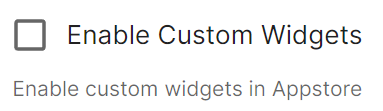
Gives users the ability to add Custom Widgets to their rooms which can display an embedded a web page.
[](https://ems-docs.element.io/uploads/images/gallery/2024-06/image-1718017391299.png)
#### Verify TLS
[](https://ems-docs.element.io/uploads/images/gallery/2024-05/image-1716547797875.png)
Config Example
```yml
spec:
components:
integrator:
# Not present if 'Use Global Setting' selected
config:
# verifyTls: useGlobalSetting
# verifyTls: force
verifyTls: disable
```
Configures TLS verification, options include:
- `Use Global Setting`
- `Force`
- `Disable`
It is not recommended to change this setting.
### Log
#### Root Level
[](https://ems-docs.element.io/uploads/images/gallery/2024-06/image-1718017894395.png)
Config Example
```yml
spec:
components:
integrator:
config:
log:
# Not present if left at default 'info'
level: info
# level: debug
# level: warning
# level: error
```
As defined under the [Configuration file format](https://docs.python.org/3/library/logging.config.html#configuration-file-format) section of the Python docs, the available options presented by the Installer are `DEBUG`, `INFO`, `WARNING`, `ERROR` and `CRITICAL`. These represent different severity levels for log messages and help control the verbosity of log output which help to filter messages based on their importance.
- `DEBUG`: Detailed information, typically used for debugging purposes. Messages at this level provide the most fine-grained and detailed logging.
- `INFO`: General information about the program's operation. This level is used to confirm that things are working as expected.
- `WARNING`: Indicates a potential issue or something that might cause problems in the future. It doesn't necessarily mean an error has occurred, but it's a warning about a possible concern.
- `ERROR`: Indicates a more serious issue or error in the program. When an error occurs, it might impact the functionality of the application.
When troubleshooting, increasing the log level and redeploying can help narrow down where you're experiencing issues. By default, `DEBUG` is a good option to include everything allowing you to identify a problem.
It is not advised to leave your Logging Level at anything other than the default, as more verbose logging may expose information that should otherwise not be accessible. When sharing logs, remember to redact any sensitive information you do not wish to share.
#### Structured
[](https://ems-docs.element.io/uploads/images/gallery/2024-06/image-1718018012799.png)
Config Example
```yml
spec:
components:
integrator:
config:
log:
# Not present if left at default 'false'
# structured: false
structured: true
```
Disabled by default, turn on to output logs in logstash format. Otherwise, logs are output in a console friendly format.
### Postgres
If you are performing a Standalone deployment and letting the installer deploy Postgres for you, you will not need to configure any options here:
[](https://ems-docs.element.io/uploads/images/gallery/2024-06/image-1718018164390.png)
For all other deployments, you will need to configure your PostgreSQL database connection details.
#### Database
[](https://ems-docs.element.io/uploads/images/gallery/2024-08/image-1724338606653.png)
Config Example
```yml
spec:
components:
integrator:
config:
postgresql:
database: integrator
```
Enter the name of the PostgreSQL Database you configured per the previously mentioned [Requirements and Recommendations](https://ems-docs.element.io/books/element-server-suite-classic-documentation-lts-2410/page/requirements-and-recommendations) to use for Integrator.
#### Host
[](https://ems-docs.element.io/uploads/images/gallery/2024-08/image-1724150463007.png)
Config Example
```yml
spec:
components:
integrator:
config:
postgresql:
host: db.example.com
```
Enter the fully qualified domain name of the PostgreSQL Database you configured per the previously mentioned [Requirements and Recommendations](https://ems-docs.element.io/books/element-server-suite-classic-documentation-lts-2410/page/requirements-and-recommendations) to use for Integrator.
#### Port
[](https://ems-docs.element.io/uploads/images/gallery/2024-08/image-1724150637542.png)
Config Example
```yml
spec:
components:
integrator:
config:
postgresql:
# port not present when left as default 5432
port: 5432
```
Defaults to `5432`, either keep if correct or provide the required port of the PostgreSQL Database you configured per the previously mentioned [Requirements and Recommendations](https://ems-docs.element.io/books/element-server-suite-classic-documentation-lts-2410/page/requirements-and-recommendations) to use for Integrator.
#### SSL Mode
[](https://ems-docs.element.io/uploads/images/gallery/2024-08/image-1724150860317.png)
Config Example
```yml
spec:
components:
integrator:
config:
postgresql:
# sslMode not present when left as default `require`
sslMode: require
# sslMode: disable
# sslMode: no-verify
# sslMode: verify-full
```
Defaults to `No Verify` - it is not recommended to disable SSL, so for most setups, this setting should be left as default.
You should adjust to accommodate your environment as required, the options available are:
- Disable
- No Verify
- Verify Full
#### User
[](https://ems-docs.element.io/uploads/images/gallery/2024-08/image-1724151253559.png)
Config Example
```yml
spec:
components:
integrator:
config:
postgresql:
user: test-username
```
Enter the username of a user who can access the PostgreSQL Database you configured per the previously mentioned [Requirements and Recommendations](https://ems-docs.element.io/books/element-server-suite-classic-documentation-lts-2410/page/requirements-and-recommendations) to use for Synapse.
#### PostgreSQL Password
[](https://ems-docs.element.io/uploads/images/gallery/2024-08/image-1724151325375.png)
Config Example
- `secrets.yml`
```yml
apiVersion: v1
kind: Secret
metadata:
name: integrator
namespace: element-onprem
data:
postgresPassword: dGVzdC1wYXNzd29yZA==
```
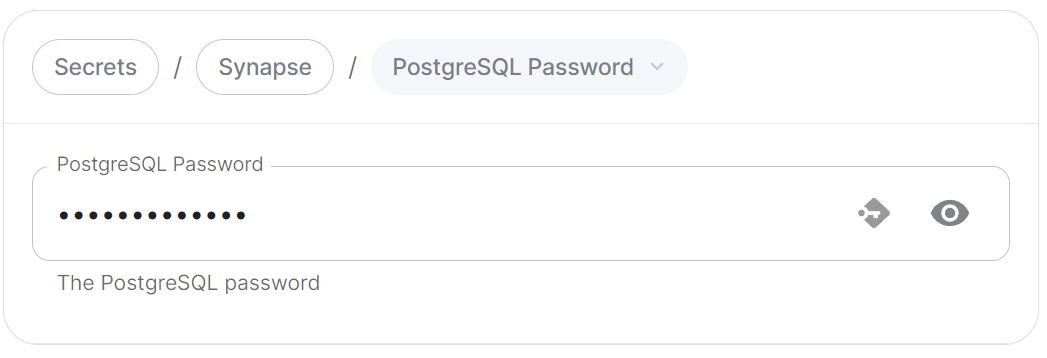
Enter the password for the specified user who can access the PostgreSQL Database you configured per the previously mentioned [Requirements and Recommendations](https://ems-docs.element.io/books/element-server-suite-classic-documentation-lts-2410/page/requirements-and-recommendations) to use for Synapse.
### Jitsi Domain
[](https://ems-docs.element.io/uploads/images/gallery/2024-06/image-1718018184784.png)
Config Example
```yml
spec:
components:
integrator:
config:
jitsiDomain: https://jitsi.example.com
```
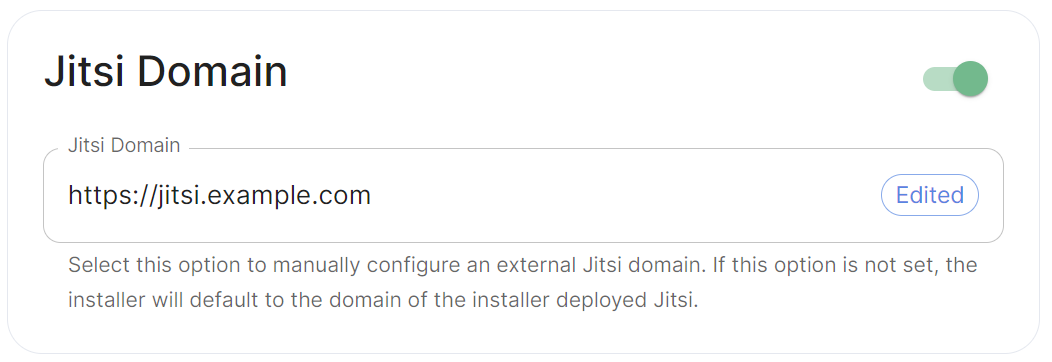
Enable this option to manually configure an external Jitsi domain. If this option is not set, the installer will default to the domain of the installer deployed Jitsi (if applicable).