Settings specific to the environment which you are deploying ESS into such as CA.
In the Cluster section you will find options to configure settings specific to the cluster which Element Deployment will run on top of. Initially only one option is presented, however some additional options are presented under 'Advanced'. By default, it is unlikely you should need to configure anything on this page.
All settings configured via the UI in this section will be saved to your deployment.yml, with the contents of secrets being saved to secrets.yml. You will find specific configuration examples in each section.
Config Example
```yml
metadata:
annotations:
ui.element.io/layer: |
global:
config:
adminAllowIps:
_value: defaulted
k8s:
ingresses:
tls:
certmanager:
_value: defaulted
spec:
components:
synapseAdmin:
config:
hostOrigin: >-
https://admin.example.com,https://admin.example.com:8443
global:
config:
adminAllowIps:
- 0.0.0.0/0
- '::/0'
k8s:
ingresses:
tls:
certmanager:
issuer: letsencrypt
mode: certmanager
```
### Config
#### Certificate Authority
[](https://ems-docs.element.io/uploads/images/gallery/2024-05/image-1716367827040.png)
Config Example
- `secrets.yml`
```yml
apiVersion: v1
kind: Secret
metadata:
name: global
namespace: element-onprem
data: # Added to the `global`, `element-onprem` secret as `ca.pem` under the `data` section. Other values may also be present here.
ca.pem: >-
base64encodedCAinPEMformatString
```
If you are using self-signed certificates, you will need to provide the certificate of the Certificate Authority in PEM encoded format. Just like with any certificate file uploaded to the Certificates section (and those yet to be uploaded for specific integrations), it is strongly advised to include the full certificate chain to reduce the liklihood of certificate-based issues post deployment.
### Advanced
#### Config
##### Images Digests Config Map
[](https://ems-docs.element.io/uploads/images/gallery/2024-05/image-1716369839915.png)
Config Example
- `deployment.yml`
```yml
metadata:
annotations:
ui.element.io/layer: |
global:
config:
imagesDigestsConfigMap: {} # Remove if no longer defined in `spec`, `global`, `config`
spec:
global:
config:
imagesDigestsConfigMap: example # Remove if no longer required
```
Used when you want to [Customise container images used by ESS](https://ems-docs.element.io/books/element-server-suite-classic-documentation-lts-2410/page/customise-containers-used-by-ess), see that guide for a detailed breakdown of using this option.
##### DNS Delegation
[](https://ems-docs.element.io/uploads/images/gallery/2024-05/image-1716371648843.png)
Config Example
- `deployment.yml`
```yml
metadata:
annotations:
ui.element.io/layer: |
global:
config:
supportDnsFederationDelegation: {} # Remove if no longer defined in `spec`, `global`, `config`
spec:
global:
config:
# supportDnsFederationDelegation: false # Default value when not defined
supportDnsFederationDelegation: true
```
It is highly discouraged from enabling support for DNS Federation Delegation, a significant number of features across ESS components are configured via .well-known files deployed by WellKnownDelegation. Enabling this will prevent those features from working so you may have a degraded experience.
This option should be used to allow Federation Delegation via a DNS SRV record instead of the standard `.well-known` method. You will need to enable this option if you wish to deploy a homeserver to a base domain where you cannot direct requests to `/.well-known/matrix/client` and `/.well-known/matrix/server` to the WellKnown pod (or host the files at those URLs manually).
You can read more about [SRV DNS Record Delegation](https://element-hq.github.io/synapse/latest/delegate.html#srv-dns-record-delegation) and the [Matrix Server Spec Resolving Server Names](https://spec.matrix.org/latest/server-server-api/#resolving-server-names) for more information, but once enabled you should ensure you have configured a DNS SRV record in the below format which points to your specified Synapse domain:
```
_matrix-fed._tcp.
```
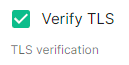
##### TLS Verification
[](https://ems-docs.element.io/uploads/images/gallery/2024-05/image-1716371659046.png)
Config Example
- `deployment.yml`
```yml
metadata:
annotations:
ui.element.io/layer: |
global:
config:
verifyTls: {} # Remove if no longer defined in `spec`, `global`, `config`
spec:
global:
config:
# verifyTls: true # Default value when not defined
verifyTls: false
```
You can toggle TLS verification off via this option, however, it is strongly advised to keep this enabled unless you have a specific requirement.
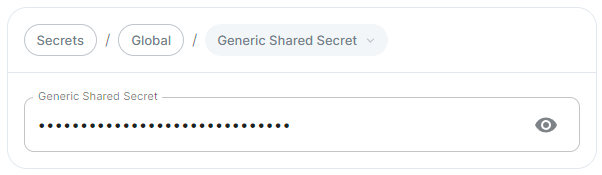
##### Generic Shared Secret
[](https://ems-docs.element.io/uploads/images/gallery/2024-05/image-1716371679873.png)
Config Example
- `secrets.yml`
```yml
apiVersion: v1
kind: Secret
metadata:
name: global
namespace: element-onprem
data: # Added to the `global`, `element-onprem` secret as `genericSharedSecret` under the `data` section. Other values may also be present here.
genericSharedSecret: QmdrWkVzRE5aVFJSOTNKWVJGNXROTG10UTFMVWF2
```
A random Generic Shared Secret will be generated and set when you run the installer for the first time, you shouldn't need to change this unless specifically advised.
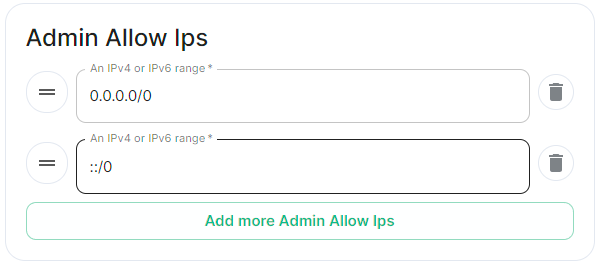
##### Admin Allow IPs
[](https://ems-docs.element.io/uploads/images/gallery/2024-05/image-1716371743386.png)
Config Example
- `deployment.yml`
```yml
metadata:
annotations:
ui.element.io/layer: |
global:
config:
adminAllowIps:
# _value: defaulted # Default value
'0': {}
'1': {}
spec:
global:
config:
# adminAllowIps: # Default values
# - 0.0.0.0/0
# - '::/0'
adminAllowIps:
- 192.168.0.1/24
- 127.0.0.1/24
```
This option allows you to configure the IP addresses (specifically or range/s) allowed to access the deployed Synapse Admin, in most cases, you shouldn't need to configure this as access to any administration requires logging in with a Matrix ID designated as a Synapse Admin.