# Authentication Configuration Examples

<!-- Page description found under page header in Chapter View -->
<p hidden>Authentication configuration examples for LDAP, OpenID on Azure and SAML.</p>
<p hidden>&nbsp;&nbsp;&nbsp;&nbsp;&nbsp;&nbsp;&nbsp;&nbsp;&nbsp;&nbsp;&nbsp;&nbsp;&nbsp;&nbsp;&nbsp;&nbsp;&nbsp;</p>
<!-- `&nbsp;` used to prevent following text appearing in view -->

Provided below are some configuration examples covering how you can set up various types of Delegated Authentication. For a more detailed look at what each configuration option does, please refer to the [Authentication Section](https://ems-docs.element.io/books/element-server-suite-classic-documentation-lts-2410/page/authentication-section) detailed document.

### LDAP on Windows AD

  <center>
  <table>
    <tr>
      <td><a href="https://ems-docs.element.io/uploads/images/gallery/2023-05/screenshot-2023-05-04-at-17-31-24.png"><img src="https://ems-docs.element.io/uploads/images/gallery/2023-05/screenshot-2023-05-04-at-17-31-24.png"></a></td>
      <td><a href="https://ems-docs.element.io/uploads/images/gallery/2023-05/screencapture-3-76-146-148-8443-synapse-2023-05-04-17-33-17-copy.png"><img src="https://ems-docs.element.io/uploads/images/gallery/2023-05/screencapture-3-76-146-148-8443-synapse-2023-05-04-17-33-17-copy.png"></a></td>
    </tr>
  </table>
</center>

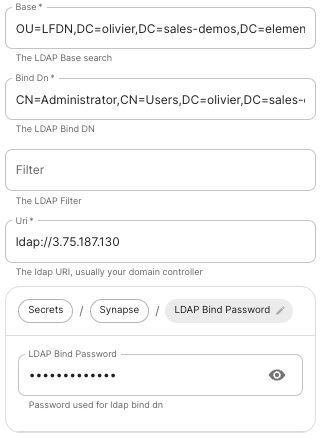
- <font color='0bbd8b'>**Base**</font>**.**<br />The distinguished name of the root level Org Unit in your LDAP directory.
  - The distinguished name can be displayed  by selecting `View` / `Advanced Features` in the Active Directory console and then, right-clicking on the object, selecting `Properties` / `Attributes Editor`.
- <font color='0bbd8b'>**Bind DN**</font>**.**<br />The distinguished name of the LDAP account with read access.
- <font color='0bbd8b'>**Filter**</font>**.**<br />A [LDAP filter](https://ldap.com/ldap-filters/) to filter out objects under the LDAP Base DN.
- <font color='0bbd8b'>**URI**</font>**.**<br />The URI of your LDAP server `ldap://dc.example.com`.
  - This is often your Domain Controller, can also pass in `ldaps://` for SSL connectivity.
  - The following are the typical ports for Windows AD LDAP servers:
    - `ldap://ServerName:389`
    - `ldaps://ServerName:636`
- <font color='0bbd8b'>**LDAP Bind Password**</font>**.**<br />The password of the AD account with read access.
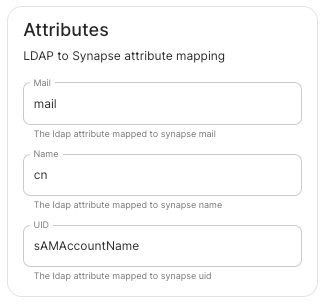
- <font color='0bbd8b'>**LDAP Attributes**</font>**.**<br />
  - <font color='0bbd8b'>**Mail**</font>**.**<br />`mail`
  - <font color='0bbd8b'>**Name**</font>**.**<br />`cn`
  - <font color='0bbd8b'>**UID**</font>**.**<br />`sAMAccountName`

### OpenID on Microsoft Azure

Before configuring within the installer, you have to configure Microsoft Azure Active Directory.

#### Set up Microsoft Azure Active Directory

- You need to create an `App registration`.
- You have to select `Redirect URI (optional)` and set it to the following, where `matrix` is the subdomain of Synapse and `example.com` is your base domain as configured on the Domains section:
  ```
  https://matrix.example.com/_synapse/client/oidc/callback
  ```

[![Screenshot 2023-05-03 at 16.30.06.png](https://ems-docs.element.io/uploads/images/gallery/2023-05/scaled-1680-/screenshot-2023-05-03-at-16-30-06.png)](https://ems-docs.element.io/uploads/images/gallery/2023-05/screenshot-2023-05-03-at-16-30-06.png)

For the bridge to be able to operate correctly, navigate to API permissions, add Microsoft Graph APIs, choose Delegated Permissions and add:
- `openid`
- `profile`
- `email`

Remember to grant the admin consent for those.

To setup the installer, you'll need:
- The `Application (client) ID`
- The `Directory (tenant) ID`
- A secret generated from `Certificates & Secrets` on the app.

#### Configure the installer

<center>
  <table>
    <tr>
      <td style="border: 0px solid #ddd;"><a href="https://ems-docs.element.io/uploads/images/gallery/2024-05/image-1715183635194.png"><img src="https://ems-docs.element.io/uploads/images/gallery/2024-05/image-1715183635194.png"></a></td>
      <td style="border: 0px solid #ddd;"><a href="https://ems-docs.element.io/uploads/images/gallery/2024-05/image-1715183663530.png"><img src="https://ems-docs.element.io/uploads/images/gallery/2024-05/image-1715183663530.png"></a></td>
      <td style="border: 0px solid #ddd;"><a href="https://ems-docs.element.io/uploads/images/gallery/2024-05/image-1715183677555.png"><img src="https://ems-docs.element.io/uploads/images/gallery/2024-05/image-1715183677555.png"></a></td>
    </tr>
  </table>
</center>

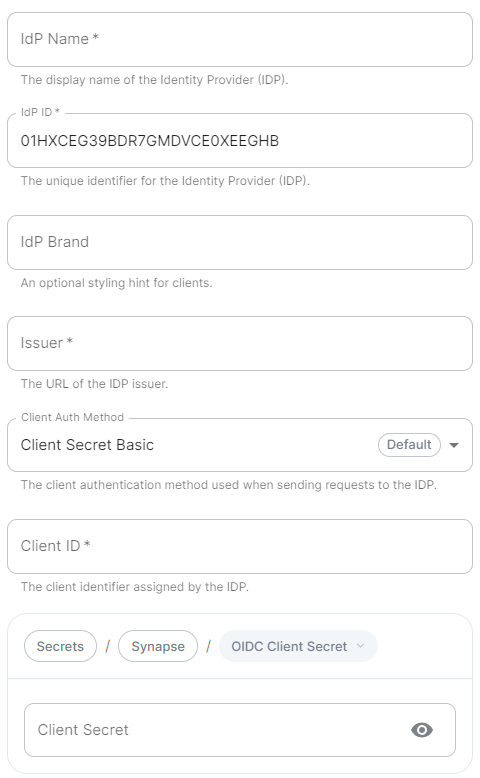
- <font color='0bbd8b'>**IdP Name**</font>**.**<br />A user-facing name for this identity provider, which is used to offer the user a choice of login mechanisms in the Element UI.
- <font color='0bbd8b'>**IdP ID**</font>**.**<br />A string identifying your identity provider in your configuration, this will be auto-generated for you (but can be changed).
- <font color='0bbd8b'>**IdP Brand**</font>**.**<br />An optional brand for this identity provider, allowing clients to style the login flow according to the identity provider in question.
- <font color='0bbd8b'>**Issuer**</font>**.**<br />The OIDC issuer. Used to validate tokens and (if discovery is enabled) to discover the provider's endpoints. Use `https://login.microsoftonline.com/DIRECTORY_TENNANT_ID/v2.0` replacing `DIRECTORY_TENNANT_ID`.
- <font color='0bbd8b'>**Client Auth Method**</font>**.**<br />Auth method to use when exchanging the token. Set it to `Client Secret Post` or any method supported by your IdP.
- <font color='0bbd8b'>**Client ID**</font>**.**<br />Set this to your `Application (client) ID`.
- <font color='0bbd8b'>**Client Secret**</font>**.**<br />Set this to the secret value defined under "Certificates and secrets".
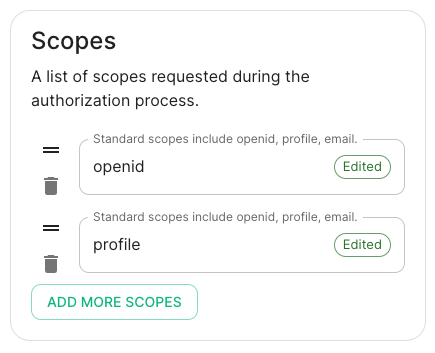
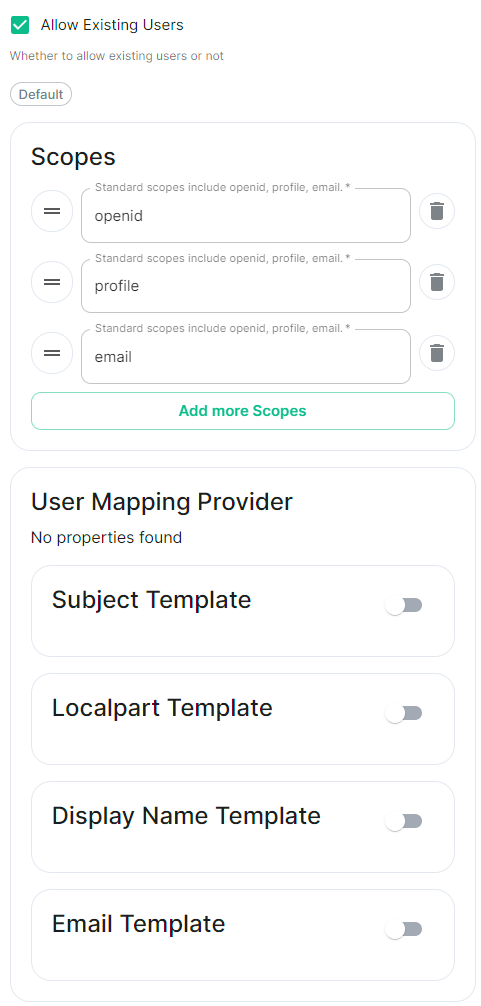
- <font color='0bbd8b'>**Scopes**</font>**.**<br />By default `openid`, `profile` and `email` are added, you shouldn't need to modify these.
- <font color='0bbd8b'>**User Mapping Provider**</font>**.**<br />Configuration for how attributes returned from a OIDC provider are mapped onto a matrix user.
  - <font color='0bbd8b'>**Localpart Template**</font>**.**<br />Jinja2 template for the localpart of the MXID.<br />Set it to `{{ user.preferred_username.split('@')[0] }}` if using Legacy Auth, or `{{ (user.preferred_username | split('@'))[0] }}` if using MAS.
  - <font color='0bbd8b'>**Display Name Template**</font>**.**<br />Jinja2 template for the display name to set on first login.<br />If unset, no display name will be set. Set it to `{{ user.name }}`.
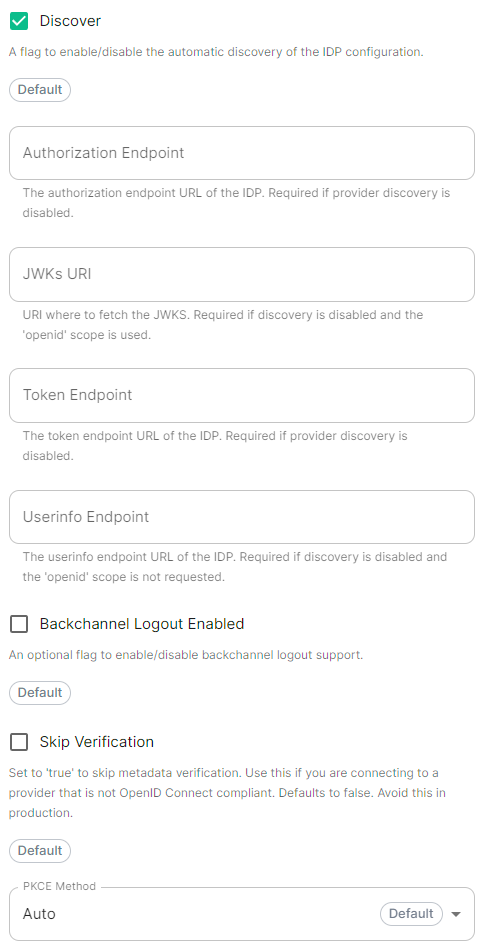
- <font color='0bbd8b'>**Discover**</font>**.**<br />Enable / Disable the use of the OIDC discovery mechanism to discover endpoints.
- <font color='0bbd8b'>**Backchannel Logout Enabled**</font>**.**<br />Synapse supports receiving OpenID Connect Back-Channel Logout notifications. This lets the OpenID Connect Provider notify Synapse when a user logs out, so that Synapse can end that user session. This property has to bet set to `https://matrix.example.com/_synapse/client/oidc/backchannel_logout`in your identity provider, where `matrix` is the subdomain of Synapse and `example.com` is your base domain as configured on the Domains section.

### OpenID on Microsoft AD FS

#### Install Microsoft  AD FS 
  Before starting the installation, make sure:
  - your Windows computer name is correct since you won't be able to change it after having installed AD FS
  - you configured your server with a static IP address
  - your server joined a domain and your domain is defined under Server Manager > Local server
  - you can resolve your server FQDN like computername.my-domain.com<br>

  You can find a checklist [here](https://learn.microsoft.com/en-us/windows-server/identity/ad-fs/deployment/checklist--setting-up-a-federation-server).<br>
  
  Steps to follow:
  - Install AD CS (Certificate Server) to issue valid certificates for AD FS. AD CS provides a platform for issuing and managing public key infrastructure [PKI] certificates.
  - Install AD FS (Federation Server)

  ##### Install AD CS
  
  You need to install the AD CS Server Role.
  - Follow this [guide](https://learn.microsoft.com/en-us/windows-server/networking/core-network-guide/cncg/server-certs/install-the-certification-authority).<br>

  ##### Obtain and Configure an SSL Certificate for AD FS
  Before installing AD FS, you are required to generate a certificate for your federation service. The SSL certificate is used for securing communications between federation servers and clients.
   - Follow this [guide](https://learn.microsoft.com/en-us/previous-versions/windows/it-pro/windows-server-2012-R2-and-2012/dn781428(v=ws.11)).
  - Additionally, this [guide](https://learn.microsoft.com/en-us/windows-server/networking/core-network-guide/cncg/server-certs/configure-the-server-certificate-template) provides more details on how to create a certificate template.
   
  ##### Install AD FS
  You need to install the AD FS Role Service.
  - Follow this [guide](https://learn.microsoft.com/en-us/windows-server/identity/ad-fs/deployment/install-the-ad-fs-role-service).
  
  ##### Configure the federation service
  AD FS is installed but not configured.
  - Click on `Configure the federation service on this server` under `Post-deployment configuration` in the `Server Manager`.
  - Ensure `Create the first federation server in a federation server farm` and is selected
  
  [![Screenshot 2023-06-22 at 15.55.57.png](https://ems-docs.element.io/uploads/images/gallery/2023-06/scaled-1680-/screenshot-2023-06-22-at-15-55-57.png)](https://ems-docs.element.io/uploads/images/gallery/2023-06/screenshot-2023-06-22-at-15-55-57.png)
  
  - Click `Next`
  
  [![Screenshot 2023-06-22 at 15.57.41.png](https://ems-docs.element.io/uploads/images/gallery/2023-06/scaled-1680-/screenshot-2023-06-22-at-15-57-41.png)](https://ems-docs.element.io/uploads/images/gallery/2023-06/screenshot-2023-06-22-at-15-57-41.png)
  
  - Select the SSL Certificate and set a Federation Service Display Name
  
  [![Screenshot 2023-06-22 at 15.59.27.png](https://ems-docs.element.io/uploads/images/gallery/2023-06/scaled-1680-/screenshot-2023-06-22-at-15-59-27.png)](https://ems-docs.element.io/uploads/images/gallery/2023-06/screenshot-2023-06-22-at-15-59-27.png)
  
  - On the Specify Service Account page, you can either Create a Group Managed Service Account (gMSA) or Specify an existing Service or gMSA Account
  
  [![Screenshot 2023-06-22 at 16.04.13.png](https://ems-docs.element.io/uploads/images/gallery/2023-06/scaled-1680-/screenshot-2023-06-22-at-16-04-13.png)](https://ems-docs.element.io/uploads/images/gallery/2023-06/screenshot-2023-06-22-at-16-04-13.png)
  
  - Choose your database
  
  [![Screenshot 2023-06-22 at 16.05.50.png](https://ems-docs.element.io/uploads/images/gallery/2023-06/scaled-1680-/screenshot-2023-06-22-at-16-05-50.png)](https://ems-docs.element.io/uploads/images/gallery/2023-06/screenshot-2023-06-22-at-16-05-50.png)
  
  - Review Options , check prerequisites are completed and click on `Configure`
  - Restart the server
  
  ##### Add AD FS as an OpenID Connect identity provider
  To enable sign-in for users with an AD FS account, create an Application Group in your AD FS.<br>
  To create an Application Group, follow theses steps:
  - In `Server Manager`, select `Tools`, and then select `AD FS Management`
  - In AD FS Management, right-click on `Application Groups` and select `Add Application Group`
  - On the Application Group Wizard `Welcome` screen
    - Enter the Name of your application
    - Under `Standalone applications` section, select `Server application` and click `Next`
  
  [![Screenshot 2023-06-22 at 16.39.52.png](https://ems-docs.element.io/uploads/images/gallery/2023-06/scaled-1680-/screenshot-2023-06-22-at-16-39-52.png)](https://ems-docs.element.io/uploads/images/gallery/2023-06/screenshot-2023-06-22-at-16-39-52.png)
  
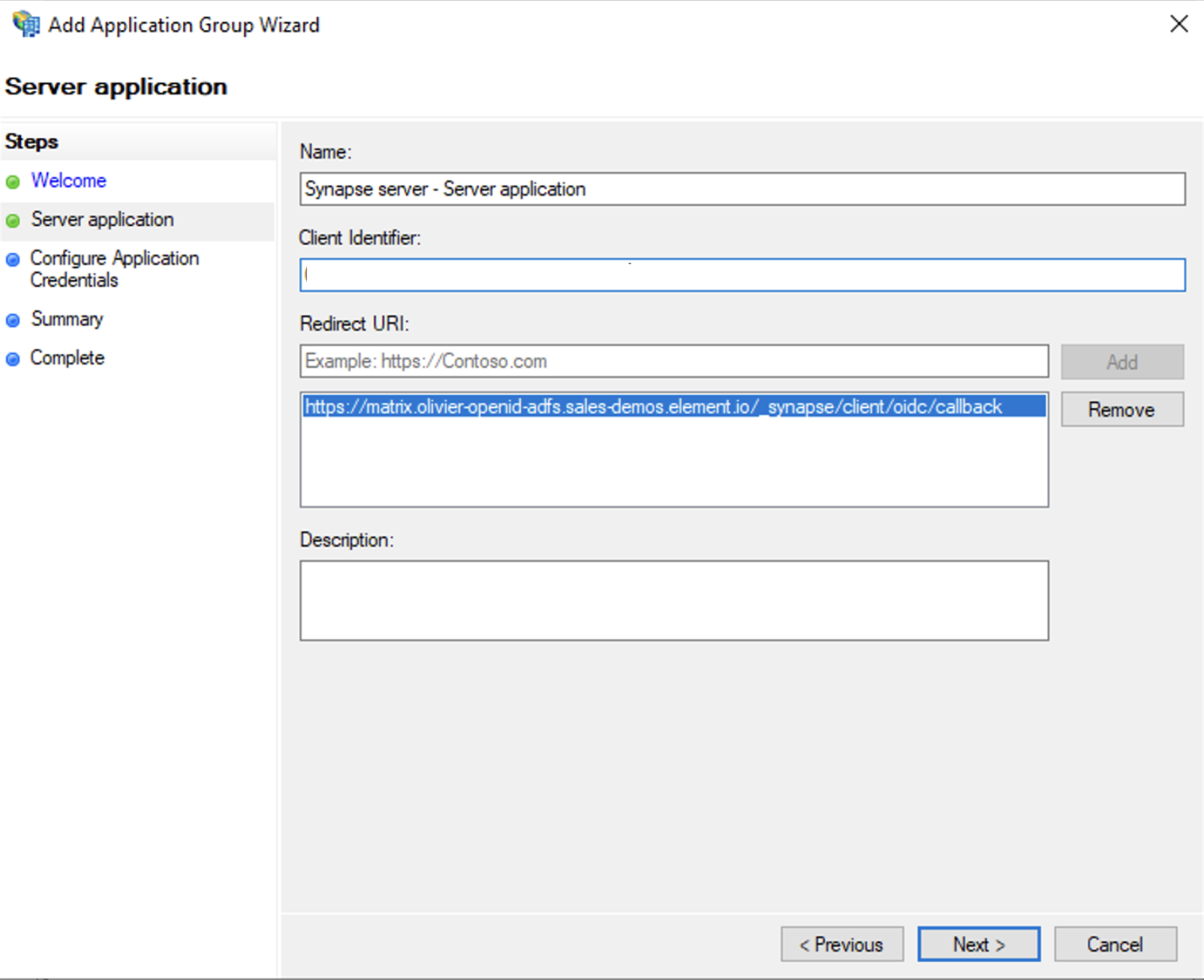
  - Enter `https://<matrix domain>/_synapse/client/oidc/callback` in Redirect URI: field, click `Add`, save the `Client Identifier` somewhere, you will need it when setting up Element and click `Next` (e.g. https://matrix.domain.com/_synapse/client/oidc/callback)
  
  [![Screenshot 2023-06-22 at 16.45.44.png](https://ems-docs.element.io/uploads/images/gallery/2023-06/scaled-1680-/screenshot-2023-06-22-at-16-45-44.png)](https://ems-docs.element.io/uploads/images/gallery/2023-06/screenshot-2023-06-22-at-16-45-44.png)
  
  - Select `Generate a shared secret` checkbox and make a note of the generated Secret and press `Next` (Secret needs to be added in the Element Installer GUI in a later step)
  - Right click on the created Application Group and select `Properties``

  [![Screenshot 2023-06-22 at 16.56.40.png](https://ems-docs.element.io/uploads/images/gallery/2023-06/scaled-1680-/screenshot-2023-06-22-at-16-56-40.png)](https://ems-docs.element.io/uploads/images/gallery/2023-06/screenshot-2023-06-22-at-16-56-40.png)
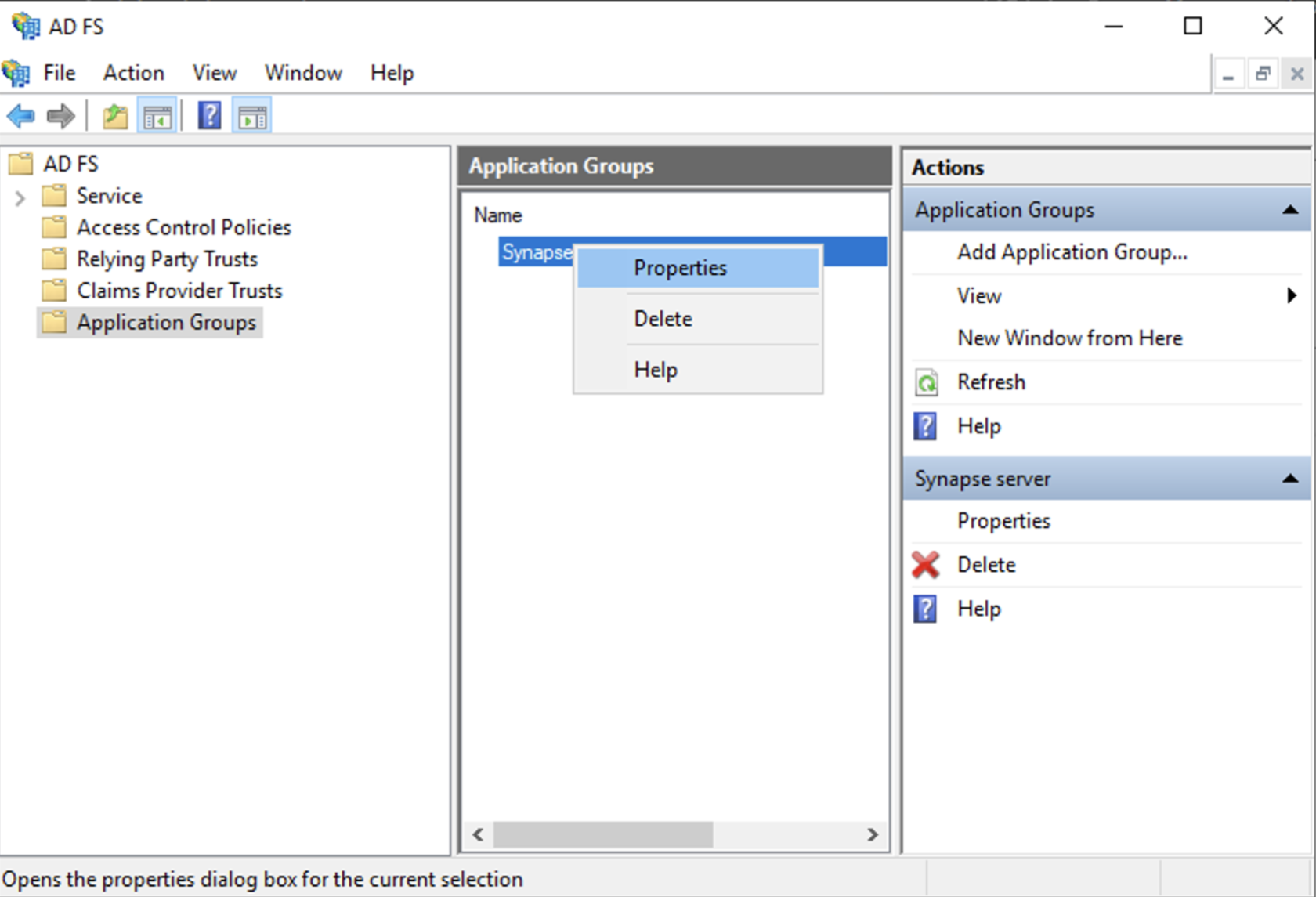
  
  - Select `Add application...` button.
  - Select `Web API`
  - In the `Identifier` field, type in the `client_id` you saved before and click `Next`
  
  [![Screenshot 2023-06-23 at 09.48.07.png](https://ems-docs.element.io/uploads/images/gallery/2023-06/scaled-1680-/screenshot-2023-06-23-at-09-48-07.png)](https://ems-docs.element.io/uploads/images/gallery/2023-06/screenshot-2023-06-23-at-09-48-07.png)
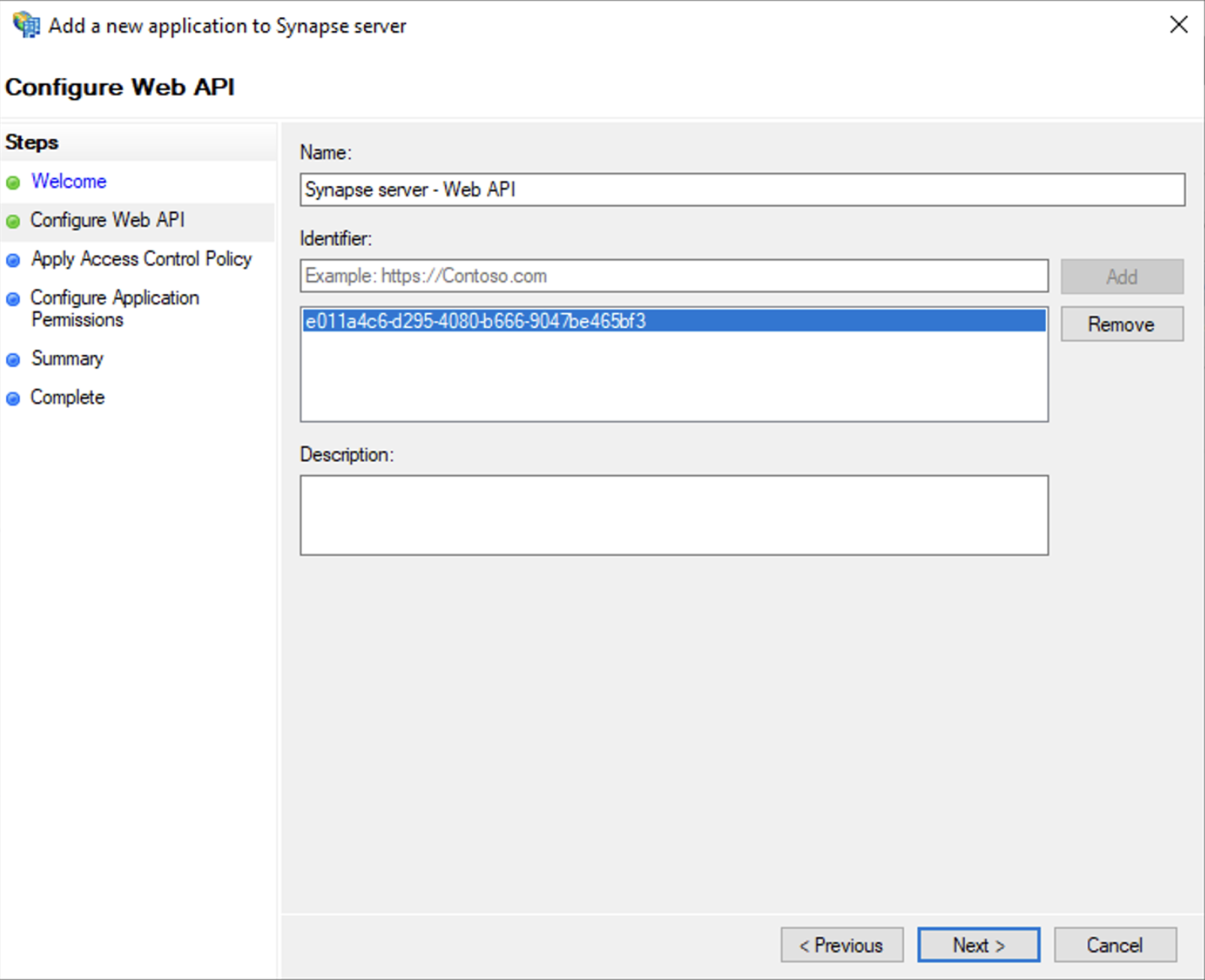
  
  - Select `Permit everyone` and click `Next`
  - Under Permitted scopes: select `openid` and `profile` and click `Next`
  
[![Screenshot 2023-06-23 at 09.51.06.png](https://ems-docs.element.io/uploads/images/gallery/2023-06/scaled-1680-/screenshot-2023-06-23-at-09-51-06.png)](https://ems-docs.element.io/uploads/images/gallery/2023-06/screenshot-2023-06-23-at-09-51-06.png)
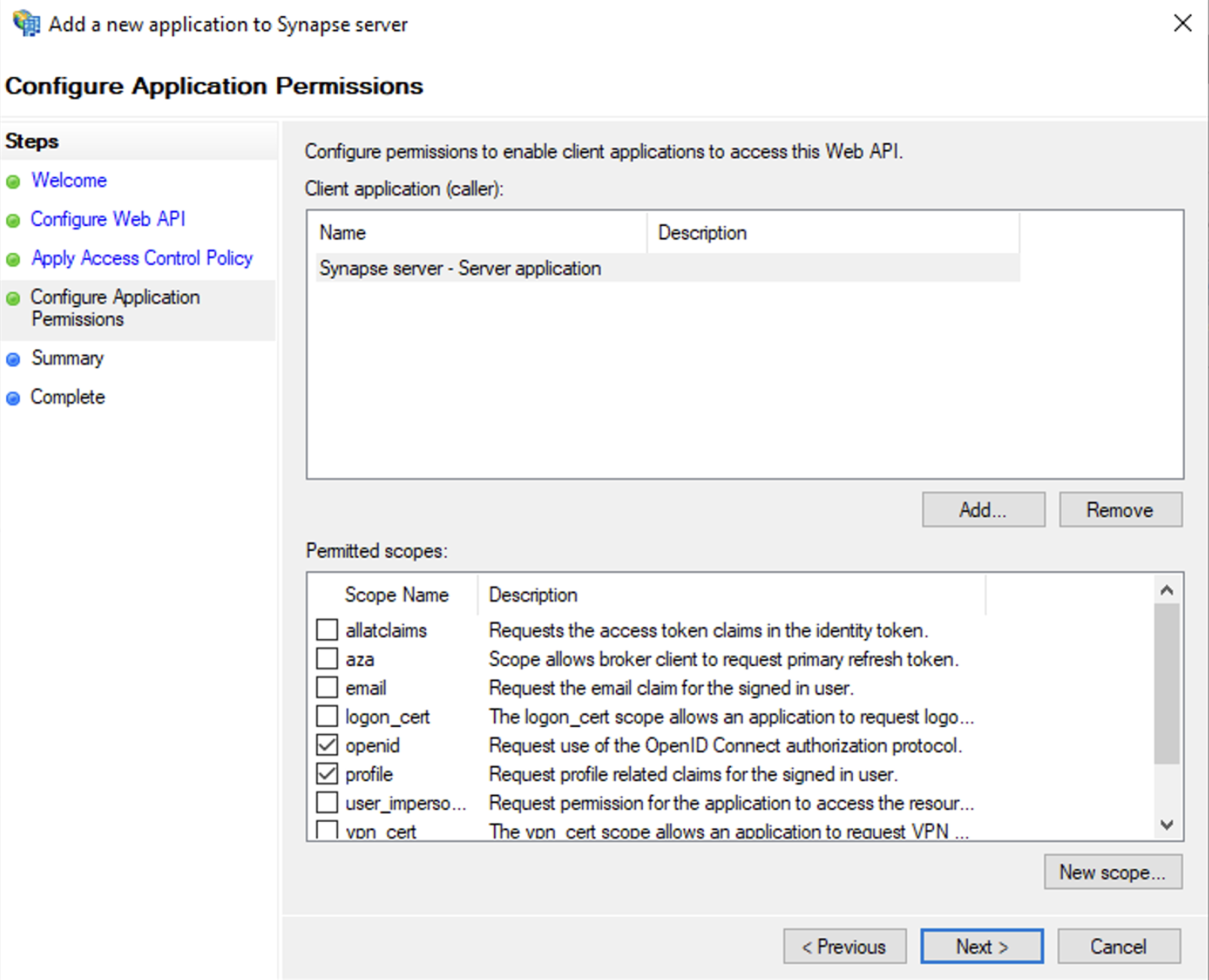

  - On `Summary` page, click `Next``
  - Click `Close` and then `OK`
  
  ##### Export Domain Trusted Root Certificate
  - Run `mmc.exe`
  - Add the `Certificates` snap-in
  	- File/Add snap-in for `Certificates`, `Computer account`
  - Under `Trusted Root Certification Authorities`/`Certificates`, select your DC cert
  - Right click and select `All Tasks`/`Export...` and export as `Base-64 encoded X 509 (.CER)`
  - Copy file to local machine
  
  
#### Configure the installer
 Add an OIDC provider in the 'Synapse' configuration after enabling `Delegated Auth` and set the following fields in the installer:
- `Allow Existing Users`: if checked, it allows a user logging in via OIDC to match a pre-existing account instead of failing. This could be used if switching from password logins to OIDC.
- `Authorization Endpoint`: the oauth2 authorization endpoint. Required if provider discovery is disabled.<p>https://login.microsoftonline.com/<Directory (tenant) ID>/oauth2/v2.0/authorize
- `Backchannel Logout Enabled`: Synapse supports receiving OpenID Connect Back-Channel Logout notifications. This lets the OpenID Connect Provider notify Synapse when a user logs out, so that Synapse can end that user session. 
- `Client Auth Method`: auth method to use when exchanging the token. Set it to `Client Secret Basic` or any method supported by your Idp
- `Client ID`: the `Client ID` you saved before
- `Discover`: enable/disable the use of the OIDC discovery mechanism to discover endpoints 
- `Idp Brand`: an optional brand for this identity provider, allowing clients to style the login flow according to the identity provider in question
- `Idp ID`: a string identifying your identity provider in your configuration
- `Idp Name`: A user-facing name for this identity provider, which is used to offer the user a choice of login mechanisms in the Element UI. In the screenshot bellow, `Idp Name` is set to `Azure AD`

<center>
  
[![Screenshot 2023-05-04 at 10.45.23.png](https://ems-docs.element.io/uploads/images/gallery/2023-05/scaled-1680-/screenshot-2023-05-04-at-10-45-23.png)](https://ems-docs.element.io/uploads/images/gallery/2023-05/screenshot-2023-05-04-at-10-45-23.png)

  </center>
  
- `Issuer`: the OIDC issuer. Used to validate tokens and (if discovery is enabled) to discover the provider's endpoints `https://<your-adfs.domain.com>/adfs/`
- `Token Endpoint`: the oauth2 authorization endpoint. Required if provider discovery is disabled.
- `Client Secret`: your client secret you saved before.
- Scopes: add every scope on a different line
  - The openid scope is required which translates to the Sign you in permission in the consent UI
  - You might also include other scopes in this request for requesting consent.
 
 <center>
  
 [![Screenshot 2023-05-03 at 17.27.00.png](https://ems-docs.element.io/uploads/images/gallery/2023-05/scaled-1680-/screenshot-2023-05-03-at-17-27-00.png)](https://ems-docs.element.io/uploads/images/gallery/2023-05/screenshot-2023-05-03-at-17-27-00.png)
  
  </center>
  
- User Mapping Provider: Configuration for how attributes returned from a OIDC provider are mapped onto a matrix user.
  - `Localpart Template`: Jinja2 template for the localpart of the MXID. For AD FS set it to `{{ user.upn.split('@')[0] }}` if using Legacy Auth, or `{{ (user.preferred_username | split('@'))[0] }}` if using MAS.
 
  
Other configurations are documented [here](https://element-hq.github.io/synapse/v1.41/openid.html).

### SAML on Microsoft Azure

Before setting up the installer, you have to configure Microsoft Entra ID.

#### Set up Microsoft Entra ID

With an account with enough rights, go to : `Enterprise Applications`
  
1. Click on `New Application`
2. Click on `Create your own application` on the top left corner
3. Choose a name for it, and select `Integrate any other application you don't find in the 
gallery`
4. Click on "Create"
5. Select `Set up single sign on`
6. Select `SAML`
7. `Edit` on `Basic SAML Configuration`
8. In `Identifier` , add the following URL : `https://synapse_fqdn/_synapse/client/saml2/metadata.xml`
9. Remove the default URL
10. In `Reply URL` , add the following URL : `https://synapse_fqdn/_synapse/client/saml2/authn_response`
11. Click on `Save`

[![](https://ems-docs.element.io/uploads/images/gallery/2023-11/scaled-1680-/image-1701176026243.png)](https://ems-docs.element.io/uploads/images/gallery/2023-11/image-1701176026243.png)
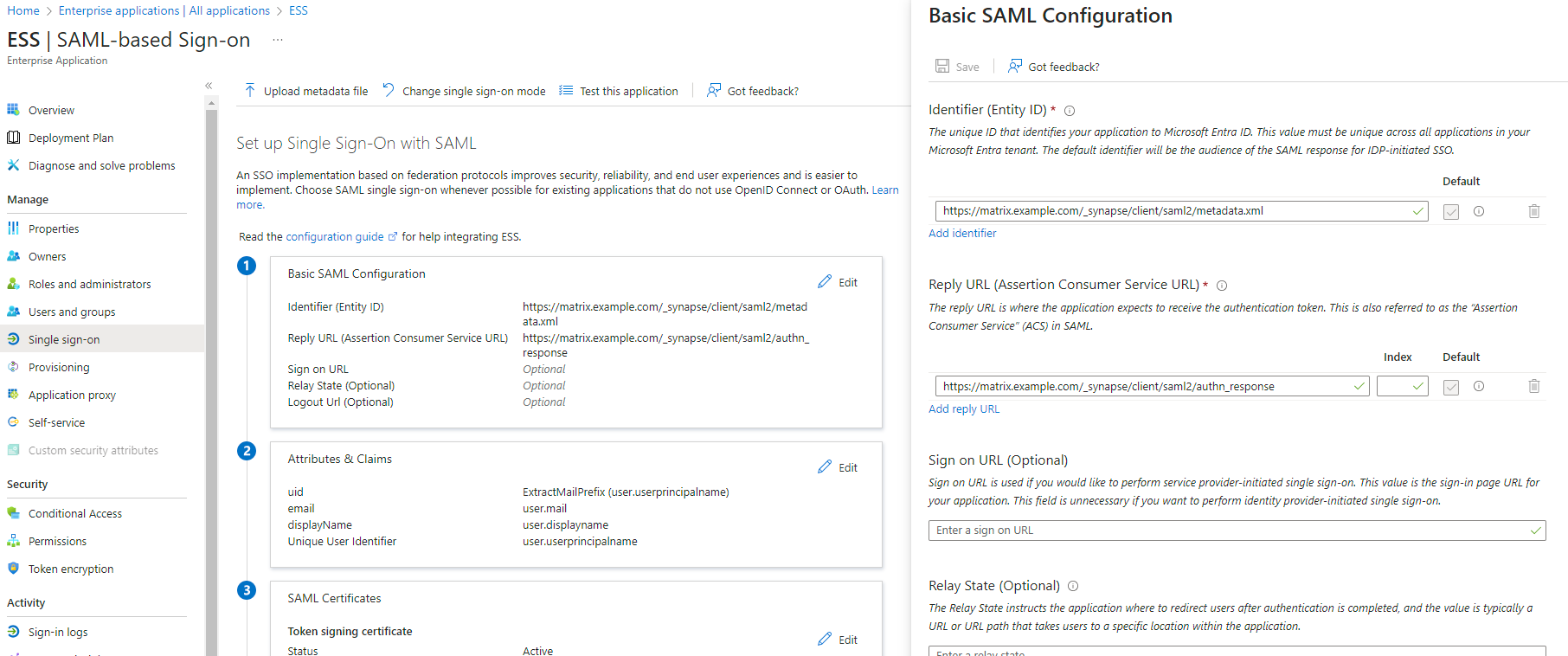

12. Make a note of the `App Federation Metadata Url` under `SAML Certificates` as this will be required in a later step.
13. `Edit` on `Attributes & Claims`
14. Remove all defaults for additional claims
15. Click on `Add new claim` to add the following (suggested) claims (the UID will be used as the MXID):
    - Name: `uid` , Transformation : `ExtractMailPrefix` , Parameter 1 : `user.userprincipalname`
    - Name: `email` , Source attribute : `user.mail`
    - Name: `displayName` , Source attribute : `user.displayname`
16. Click on `Save`

  [![](https://ems-docs.element.io/uploads/images/gallery/2023-11/scaled-1680-/image-1701172980662.png)](https://ems-docs.element.io/uploads/images/gallery/2023-11/image-1701172980662.png)
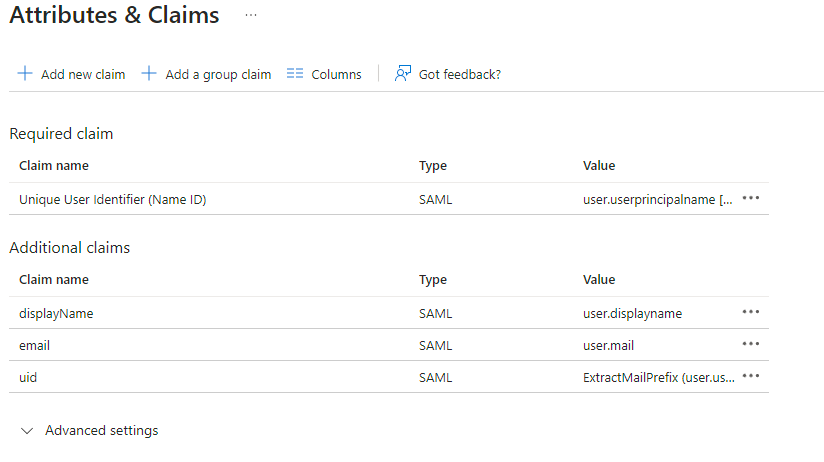
  
17. In the application overview screen select  `Users and Groups` and add groups and users which may have access to element

#### Configure the installer

Add a SAML provider in the 'Synapse' configuration after enabling `Delegated Auth` and set the following (suggested) fields in the installer:

- <font color='0bbd8b'>**Allow Unknown Attributes**</font>**.**<br />Checked
- <font color='0bbd8b'>**Attribute Map**</font>**.**<br />Select `URN:Oasis:Names:TC:SAML:2.0:Attrname Format:Basic` as the `Identifier`
- <font color='0bbd8b'>**Mapping**</font>**.**<br />Set the following mappings:
  - From: `Primary Email` To: `email`
  - From: `First Name` To: `firstname`
  - From: `Last Name` To: `lastname`
- <font color='0bbd8b'>**Entity**</font>**.**<br />
  - <font color='0bbd8b'>**Description**</font>**.**<br />
  - <font color='0bbd8b'>**Entity ID**</font>**.** (From Azure)
  - <font color='0bbd8b'>**Name**</font>**.**<br />
- <font color='0bbd8b'>**User Mapping Provider**</font>**.**<br />Set the following:
    - `MXID Mapping`: `Dotreplace`
    - `MXID Source Attribute`: `uid`
- <font color='0bbd8b'>**Metadata URL**</font>**.**<br />Add the `App Federation Metadata URL` from Azure.

### Troubleshooting

#### Redirection loop on SSO

Synapse needs to have the `X-Forwarded-For` and `X-Forwarded-Proto` headers set by the reverse proxy doing the TLS termination. If you are using a Kubernetes installation with your own reverse proxy terminating TLS, please make sure that the appropriate headers are set.