# Synapse Section: Delegated Auth

<!-- Page description found under page header in Chapter View -->
<p hidden>A detailed look at Delegated Authentication options available and setup examples.</p>
<p hidden>&nbsp;&nbsp;&nbsp;&nbsp;&nbsp;&nbsp;&nbsp;&nbsp;&nbsp;&nbsp;&nbsp;&nbsp;&nbsp;&nbsp;&nbsp;&nbsp;&nbsp;</p>
<!-- `&nbsp;` used to prevent following text appearing in view -->

At present, we support delegating the authentication of users to the following provider interfaces:

* LDAP
* SAML
* OIDC

When enabling Delegated Auth, you can still allow local users managed by Element to connect to the instance

<center>
  
[![Screenshot 2023-05-04 at 09.23.54.png](https://ems-docs.element.io/uploads/images/gallery/2023-05/scaled-1680-/screenshot-2023-05-04-at-09-23-54.png)](https://ems-docs.element.io/uploads/images/gallery/2023-05/screenshot-2023-05-04-at-09-23-54.png)
  
</center>

When `Allow Local Users Login` is `Enabled`, you can both connect to your instance using your IDP and the local database.

<center>
  
[![Screenshot 2023-05-04 at 14.30.04.png](https://ems-docs.element.io/uploads/images/gallery/2023-05/scaled-1680-/screenshot-2023-05-04-at-14-30-04.png)](https://ems-docs.element.io/uploads/images/gallery/2023-05/screenshot-2023-05-04-at-14-30-04.png)

</center>

Different options are offered by the installer and you can combine two or more options on the same instance like enabling SAML and OIDC delegated authentication.

See the below relevant sections to your environment for specifics on getting configured.

### LDAP on Windows AD

  <center>
  <table>
    <tr>
      <td><a href="https://ems-docs.element.io/uploads/images/gallery/2023-05/screenshot-2023-05-04-at-17-31-24.png"><img src="https://ems-docs.element.io/uploads/images/gallery/2023-05/screenshot-2023-05-04-at-17-31-24.png"></a></td>
      <td><a href="https://ems-docs.element.io/uploads/images/gallery/2023-05/screencapture-3-76-146-148-8443-synapse-2023-05-04-17-33-17-copy.png"><img src="https://ems-docs.element.io/uploads/images/gallery/2023-05/screencapture-3-76-146-148-8443-synapse-2023-05-04-17-33-17-copy.png"></a></td>
    </tr>
  </table>
</center>

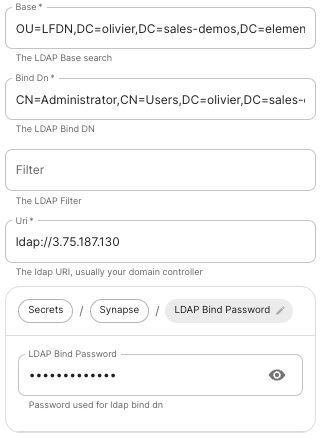
- <font color='0bbd8b'>**Base**</font>**.**<br />The distinguished name of the root level Org Unit in your LDAP directory.
  - The distinguished name can be displayed  by selecting `View` / `Advanced Features` in the Active Directory console and then, right-clicking on the object, selecting `Properties` / `Attributes Editor`.
- <font color='0bbd8b'>**Bind DN**</font>**.**<br />The distinguished name of the LDAP account with read access.
- <font color='0bbd8b'>**Filter**</font>**.**<br />A [LDAP filter](https://ldap.com/ldap-filters/) to filter out objects under the LDAP Base DN.
- <font color='0bbd8b'>**URI**</font>**.**<br />The URI of your LDAP server `ldap://dc.example.com`.
  - This is often your Domain Controller, can also pass in `ldaps://` for SSL connectivity.
  - The following are the typical ports for Windows AD LDAP servers:
    - `ldap://ServerName:389`
    - `ldaps://ServerName:636`
- <font color='0bbd8b'>**LDAP Bind Password**</font>**.**<br />The password of the AD account with read access.
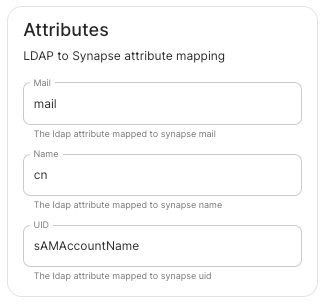
- <font color='0bbd8b'>**LDAP Attributes**</font>**.**<br />
  - <font color='0bbd8b'>**Mail**</font>**.**<br />`mail`
  - <font color='0bbd8b'>**Name**</font>**.**<br />`cn`
  - <font color='0bbd8b'>**UID**</font>**.**<br />`sAMAccountName`

### OpenID on Microsoft Azure

Before configuring within the installer, you have to configure Microsoft Azure Active Directory.

#### Set up Microsoft Azure Active Directory

- You need to create an `App registration`.
- You have to select `Redirect URI (optional)` and set it to the following, where `matrix` is the subdomain of Synapse and `example.com` is your base domain as configured on the Domains section:
  ```
  https://matrix.example.com/_synapse/client/oidc/callback
  ```

[![Screenshot 2023-05-03 at 16.30.06.png](https://ems-docs.element.io/uploads/images/gallery/2023-05/scaled-1680-/screenshot-2023-05-03-at-16-30-06.png)](https://ems-docs.element.io/uploads/images/gallery/2023-05/screenshot-2023-05-03-at-16-30-06.png)

For the bridge to be able to operate correctly, navigate to API permissions, add Microsoft Graph APIs, choose Delegated Permissions and add:
- `openid`
- `profile`
- `email`

Remember to grant the admin consent for those.

To setup the installer, you'll need:
- The `Application (client) ID`
- The `Directory (tenant) ID`
- A secret generated from `Certificates & Secrets` on the app.

#### Configure the installer

<center>
  <table>
    <tr>
      <td style="border: 0px solid #ddd;"><a href="https://ems-docs.element.io/uploads/images/gallery/2024-05/image-1715183635194.png"><img src="https://ems-docs.element.io/uploads/images/gallery/2024-05/image-1715183635194.png"></a></td>
      <td style="border: 0px solid #ddd;"><a href="https://ems-docs.element.io/uploads/images/gallery/2024-05/image-1715183663530.png"><img src="https://ems-docs.element.io/uploads/images/gallery/2024-05/image-1715183663530.png"></a></td>
      <td style="border: 0px solid #ddd;"><a href="https://ems-docs.element.io/uploads/images/gallery/2024-05/image-1715183677555.png"><img src="https://ems-docs.element.io/uploads/images/gallery/2024-05/image-1715183677555.png"></a></td>
    </tr>
  </table>
</center>

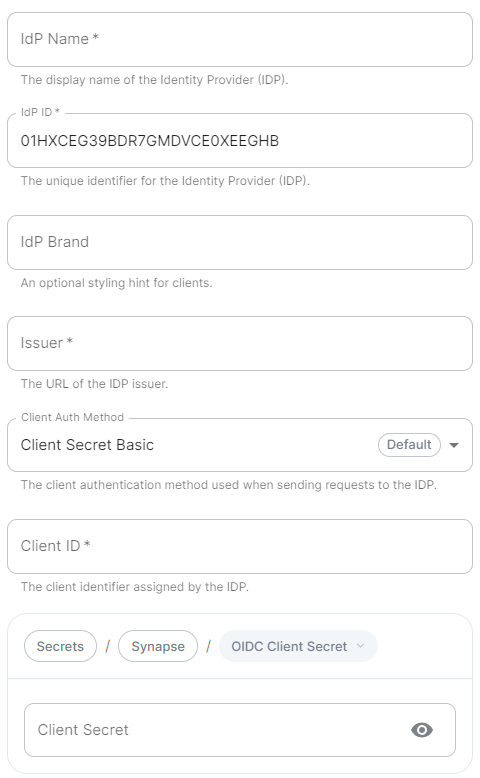
- <font color='0bbd8b'>**IdP Name**</font>**.**<br />A user-facing name for this identity provider, which is used to offer the user a choice of login mechanisms in the Element UI.
- <font color='0bbd8b'>**IdP ID**</font>**.**<br />A string identifying your identity provider in your configuration, this will be auto-generated for you (but can be changed).
- <font color='0bbd8b'>**IdP Brand**</font>**.**<br />An optional brand for this identity provider, allowing clients to style the login flow according to the identity provider in question.
- <font color='0bbd8b'>**Issuer**</font>**.**<br />The OIDC issuer. Used to validate tokens and (if discovery is enabled) to discover the provider's endpoints. Use `https://login.microsoftonline.com/DIRECTORY_TENNANT_ID/v2.0` replacing `DIRECTORY_TENNANT_ID`.
- <font color='0bbd8b'>**Client Auth Method**</font>**.**<br />Auth method to use when exchanging the token. Set it to `Client Secret Post` or any method supported by your IdP.
- <font color='0bbd8b'>**Client ID**</font>**.**<br />Set this to your `Application (client) ID`.
- <font color='0bbd8b'>**Client Secret**</font>**.**<br />Set this to the secret value defined under "Certificates and secrets".
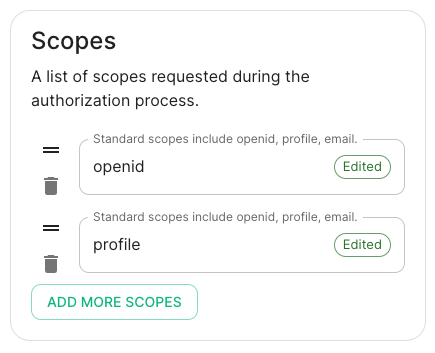
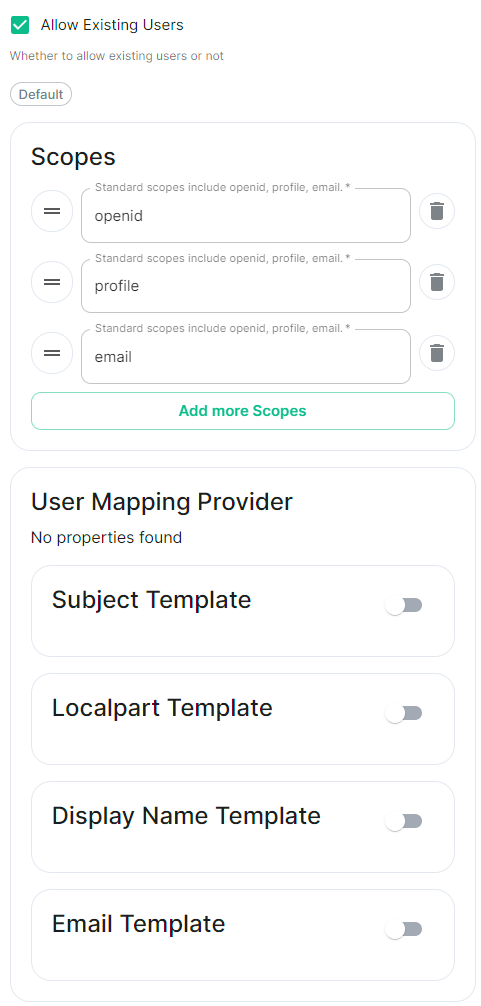
- <font color='0bbd8b'>**Scopes**</font>**.**<br />By default `openid`, `profile` and `email` are added, you shouldn't need to modify these.
- <font color='0bbd8b'>**User Mapping Provider**</font>**.**<br />Configuration for how attributes returned from a OIDC provider are mapped onto a matrix user.
  - <font color='0bbd8b'>**Localpart Template**</font>**.**<br />Jinja2 template for the localpart of the MXID.<br />Set it to `{{ user.preferred_username.split('@')[0] }}`.
  - <font color='0bbd8b'>**Display Name Template**</font>**.**<br />Jinja2 template for the display name to set on first login.<br />If unset, no display name will be set. Set it to `{{ user.name }}`.
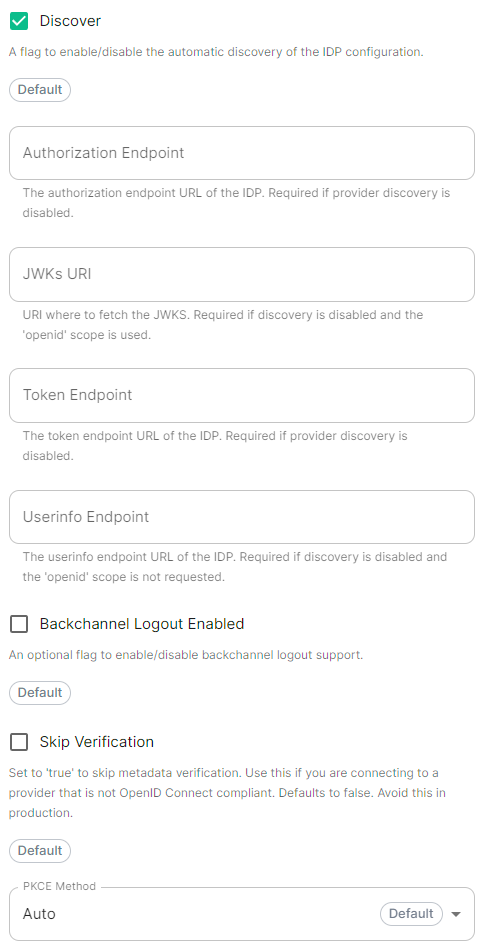
- <font color='0bbd8b'>**Discover**</font>**.**<br />Enable / Disable the use of the OIDC discovery mechanism to discover endpoints.
- <font color='0bbd8b'>**Backchannel Logout Enabled**</font>**.**<br />Synapse supports receiving OpenID Connect Back-Channel Logout notifications. This lets the OpenID Connect Provider notify Synapse when a user logs out, so that Synapse can end that user session. This property has to bet set to `https://matrix.example.com/_synapse/client/oidc/backchannel_logout`in your identity provider, where `matrix` is the subdomain of Synapse and `example.com` is your base domain as configured on the Domains section.

### OpenID on Microsoft AD FS

#### Install Microsoft  AD FS 
  Before starting the installation, make sure:
  - your Windows computer name is correct since you won't be able to change it after having installed AD FS
  - you configured your server with a static IP address
  - your server joined a domain and your domain is defined under Server Manager > Local server
  - you can resolve your server FQDN like computername.my-domain.com<br>

  You can find a checklist [here](https://learn.microsoft.com/en-us/windows-server/identity/ad-fs/deployment/checklist--setting-up-a-federation-server).<br>
  
  Steps to follow:
  - Install AD CS (Certificate Server) to issue valid certificates for AD FS. AD CS provides a platform for issuing and managing public key infrastructure [PKI] certificates.
  - Install AD FS (Federation Server)

  ##### Install AD CS
  
  You need to install the AD CS Server Role.
  - Follow this [guide](https://learn.microsoft.com/en-us/windows-server/networking/core-network-guide/cncg/server-certs/install-the-certification-authority).<br>

  ##### Obtain and Configure an SSL Certificate for AD FS
  Before installing AD FS, you are required to generate a certificate for your federation service. The SSL certificate is used for securing communications between federation servers and clients.
   - Follow this [guide](https://learn.microsoft.com/en-us/previous-versions/windows/it-pro/windows-server-2012-R2-and-2012/dn781428(v=ws.11)).
  - Additionally, this [guide](https://learn.microsoft.com/en-us/windows-server/networking/core-network-guide/cncg/server-certs/configure-the-server-certificate-template) provides more details on how to create a certificate template.
   
  ##### Install AD FS
  You need to install the AD FS Role Service.
  - Follow this [guide](https://learn.microsoft.com/en-us/windows-server/identity/ad-fs/deployment/install-the-ad-fs-role-service).
  
  ##### Configure the federation service
  AD FS is installed but not configured.
  - Click on `Configure the federation service on this server` under `Post-deployment configuration` in the `Server Manager`.
  - Ensure `Create the first federation server in a federation server farm` and is selected
  
  [![Screenshot 2023-06-22 at 15.55.57.png](https://ems-docs.element.io/uploads/images/gallery/2023-06/scaled-1680-/screenshot-2023-06-22-at-15-55-57.png)](https://ems-docs.element.io/uploads/images/gallery/2023-06/screenshot-2023-06-22-at-15-55-57.png)
  
  - Click `Next`
  
  [![Screenshot 2023-06-22 at 15.57.41.png](https://ems-docs.element.io/uploads/images/gallery/2023-06/scaled-1680-/screenshot-2023-06-22-at-15-57-41.png)](https://ems-docs.element.io/uploads/images/gallery/2023-06/screenshot-2023-06-22-at-15-57-41.png)
  
  - Select the SSL Certificate and set a Federation Service Display Name
  
  [![Screenshot 2023-06-22 at 15.59.27.png](https://ems-docs.element.io/uploads/images/gallery/2023-06/scaled-1680-/screenshot-2023-06-22-at-15-59-27.png)](https://ems-docs.element.io/uploads/images/gallery/2023-06/screenshot-2023-06-22-at-15-59-27.png)
  
  - On the Specify Service Account page, you can either Create a Group Managed Service Account (gMSA) or Specify an existing Service or gMSA Account
  
  [![Screenshot 2023-06-22 at 16.04.13.png](https://ems-docs.element.io/uploads/images/gallery/2023-06/scaled-1680-/screenshot-2023-06-22-at-16-04-13.png)](https://ems-docs.element.io/uploads/images/gallery/2023-06/screenshot-2023-06-22-at-16-04-13.png)
  
  - Choose your database
  
  [![Screenshot 2023-06-22 at 16.05.50.png](https://ems-docs.element.io/uploads/images/gallery/2023-06/scaled-1680-/screenshot-2023-06-22-at-16-05-50.png)](https://ems-docs.element.io/uploads/images/gallery/2023-06/screenshot-2023-06-22-at-16-05-50.png)
  
  - Review Options , check prerequisites are completed and click on `Configure`
  - Restart the server
  
  ##### Add AD FS as an OpenID Connect identity provider
  To enable sign-in for users with an AD FS account, create an Application Group in your AD FS.<br>
  To create an Application Group, follow theses steps:
  - In `Server Manager`, select `Tools`, and then select `AD FS Management`
  - In AD FS Management, right-click on `Application Groups` and select `Add Application Group`
  - On the Application Group Wizard `Welcome` screen
    - Enter the Name of your application
    - Under `Standalone applications` section, select `Server application` and click `Next`
  
  [![Screenshot 2023-06-22 at 16.39.52.png](https://ems-docs.element.io/uploads/images/gallery/2023-06/scaled-1680-/screenshot-2023-06-22-at-16-39-52.png)](https://ems-docs.element.io/uploads/images/gallery/2023-06/screenshot-2023-06-22-at-16-39-52.png)
  
  - Enter `https://<matrix domain>/_synapse/client/oidc/callback` in Redirect URI: field, click `Add`, save the `Client Identifier` somewhere, you will need it when setting up Element and click `Next` (e.g. https://matrix.domain.com/_synapse/client/oidc/callback)
  
  [![Screenshot 2023-06-22 at 16.45.44.png](https://ems-docs.element.io/uploads/images/gallery/2023-06/scaled-1680-/screenshot-2023-06-22-at-16-45-44.png)](https://ems-docs.element.io/uploads/images/gallery/2023-06/screenshot-2023-06-22-at-16-45-44.png)
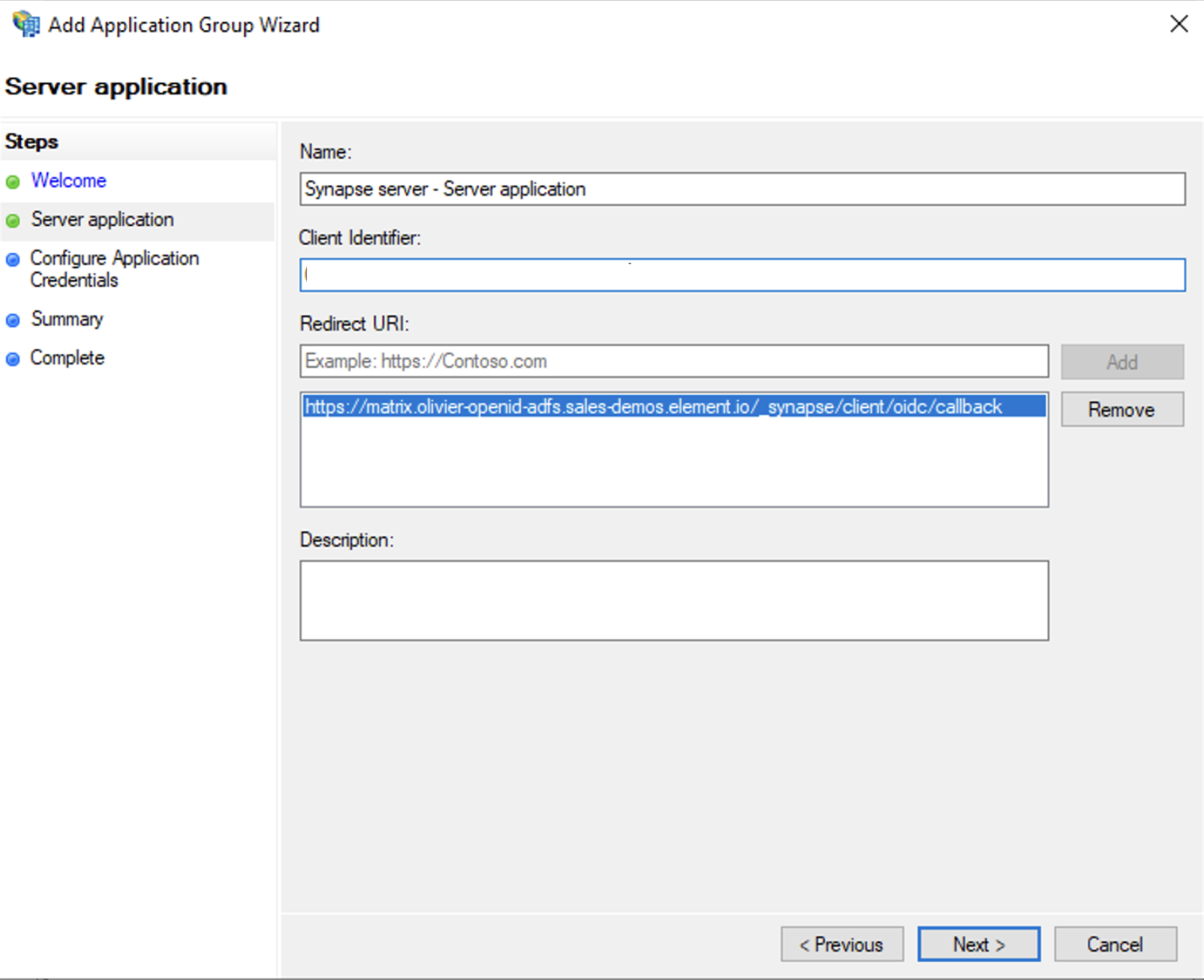
  
  - Select `Generate a shared secret` checkbox and make a note of the generated Secret and press `Next` (Secret needs to be added in the Element Installer GUI in a later step)
  - Right click on the created Application Group and select `Properties``

  [![Screenshot 2023-06-22 at 16.56.40.png](https://ems-docs.element.io/uploads/images/gallery/2023-06/scaled-1680-/screenshot-2023-06-22-at-16-56-40.png)](https://ems-docs.element.io/uploads/images/gallery/2023-06/screenshot-2023-06-22-at-16-56-40.png)
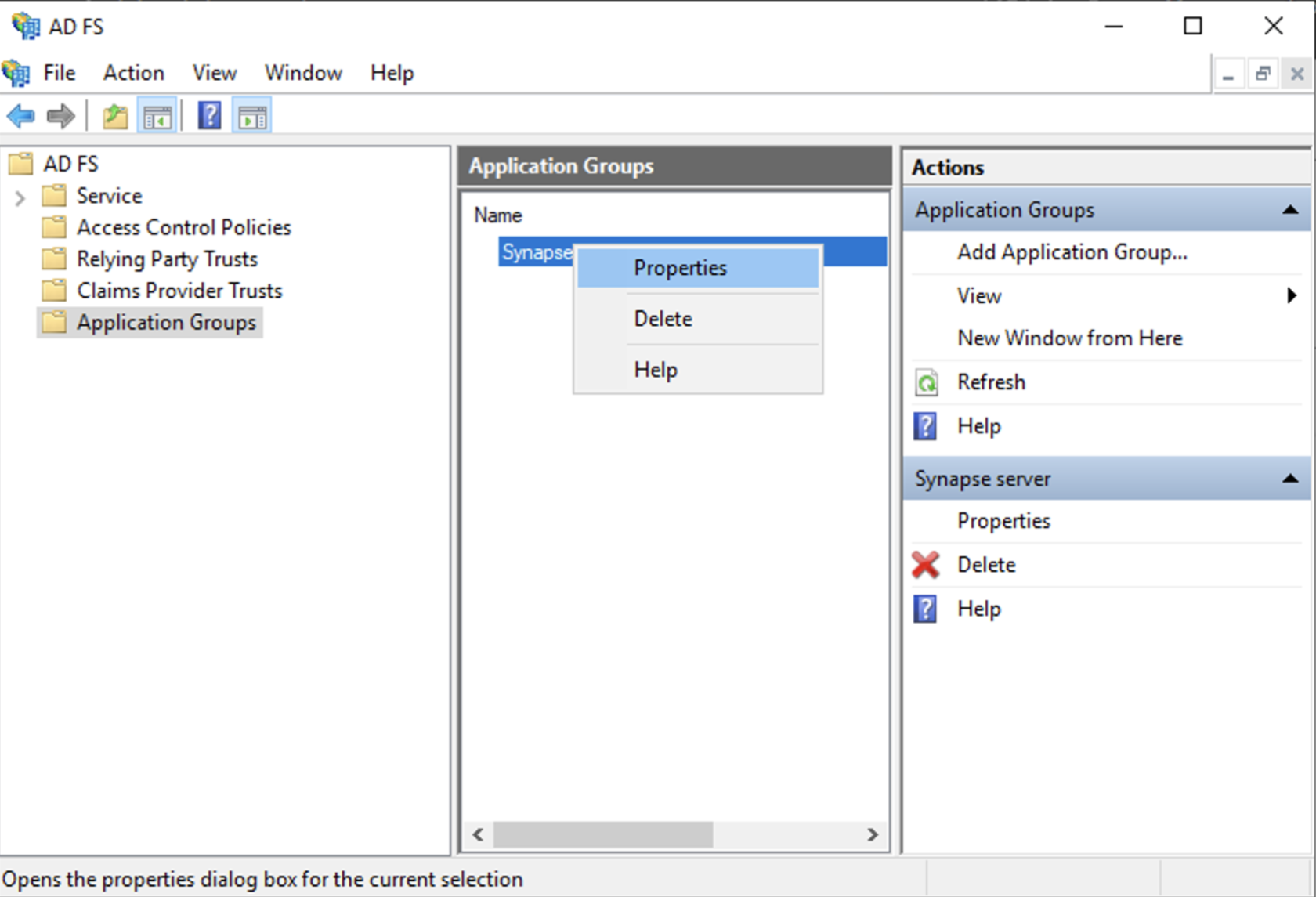
  
  - Select `Add application...` button.
  - Select `Web API`
  - In the `Identifier` field, type in the `client_id` you saved before and click `Next`
  
  [![Screenshot 2023-06-23 at 09.48.07.png](https://ems-docs.element.io/uploads/images/gallery/2023-06/scaled-1680-/screenshot-2023-06-23-at-09-48-07.png)](https://ems-docs.element.io/uploads/images/gallery/2023-06/screenshot-2023-06-23-at-09-48-07.png)
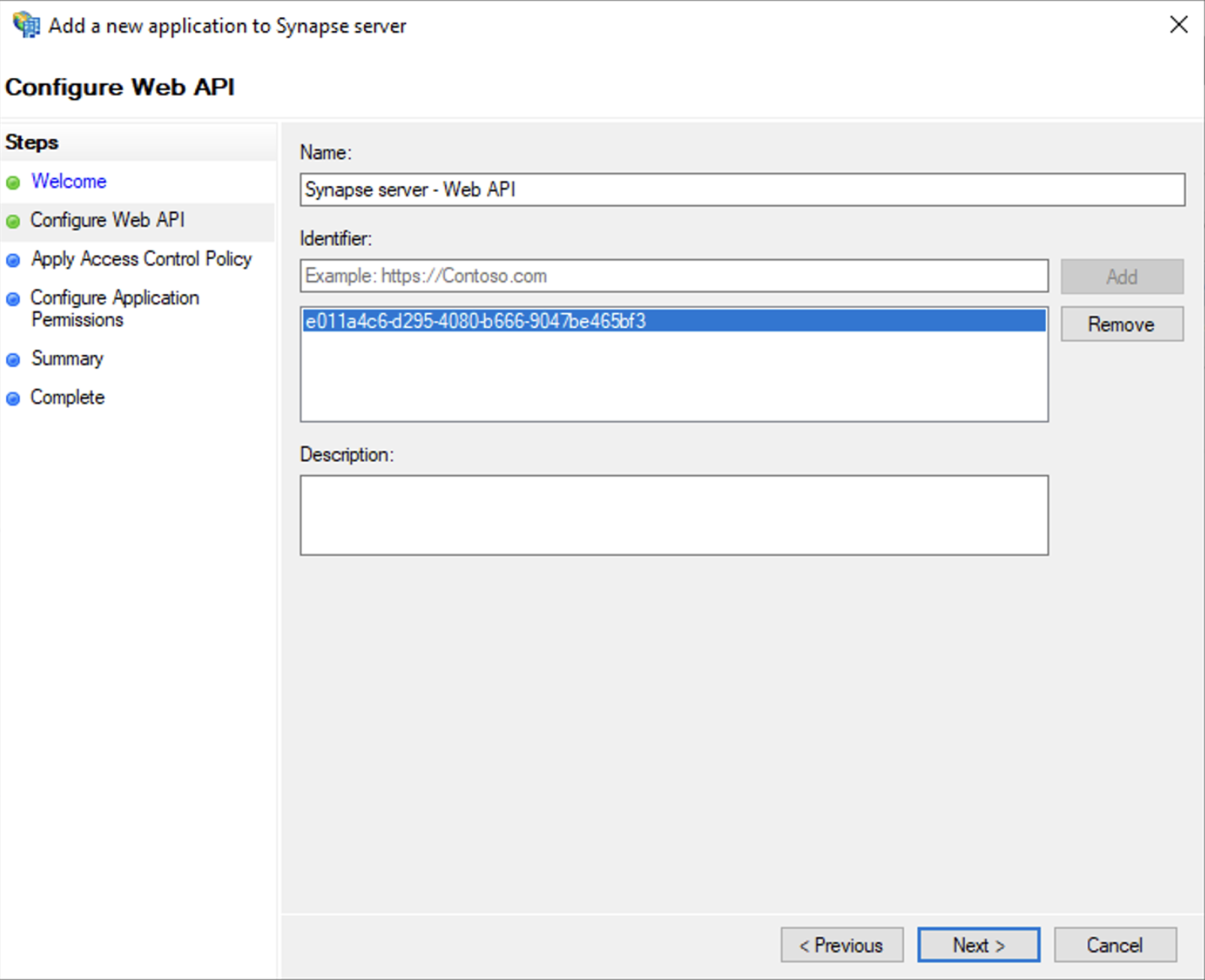
  
  - Select `Permit everyone` and click `Next`
  - Under Permitted scopes: select `openid` and `profile` and click `Next`
  
[![Screenshot 2023-06-23 at 09.51.06.png](https://ems-docs.element.io/uploads/images/gallery/2023-06/scaled-1680-/screenshot-2023-06-23-at-09-51-06.png)](https://ems-docs.element.io/uploads/images/gallery/2023-06/screenshot-2023-06-23-at-09-51-06.png)
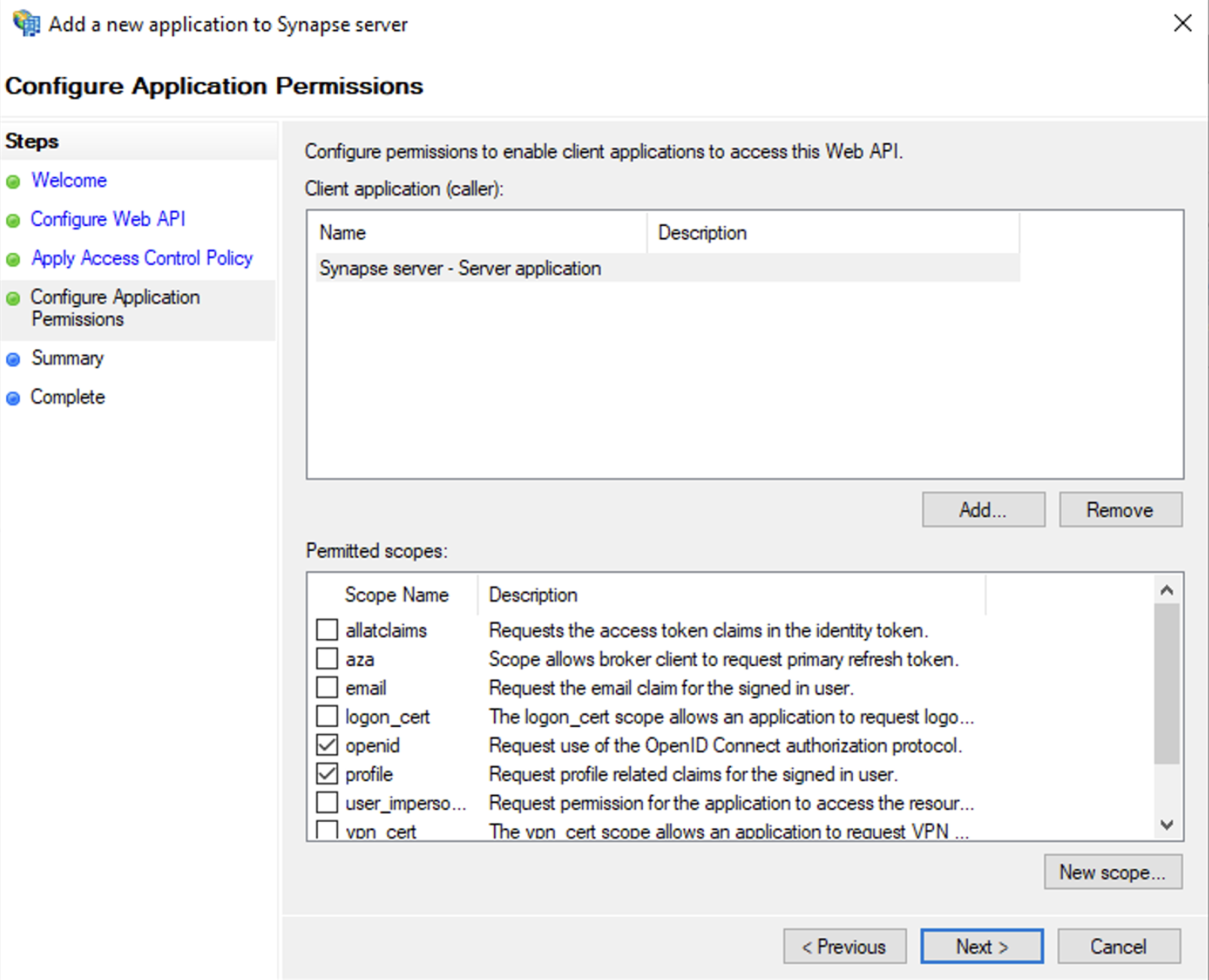

  - On `Summary` page, click `Next``
  - Click `Close` and then `OK`
  
  ##### Export Domain Trusted Root Certificate
  - Run `mmc.exe`
  - Add the `Certificates` snap-in
  	- File/Add snap-in for `Certificates`, `Computer account`
  - Under `Trusted Root Certification Authorities`/`Certificates`, select your DC cert
  - Right click and select `All Tasks`/`Export...` and export as `Base-64 encoded X 509 (.CER)`
  - Copy file to local machine
  
  
#### Configure the installer
 Add an OIDC provider in the 'Synapse' configuration after enabling `Delegated Auth` and set the following fields in the installer:
- `Allow Existing Users`: if checked, it allows a user logging in via OIDC to match a pre-existing account instead of failing. This could be used if switching from password logins to OIDC.
- `Authorization Endpoint`: the oauth2 authorization endpoint. Required if provider discovery is disabled.<p>https://login.microsoftonline.com/<Directory (tenant) ID>/oauth2/v2.0/authorize
- `Backchannel Logout Enabled`: Synapse supports receiving OpenID Connect Back-Channel Logout notifications. This lets the OpenID Connect Provider notify Synapse when a user logs out, so that Synapse can end that user session. 
- `Client Auth Method`: auth method to use when exchanging the token. Set it to `Client Secret Basic` or any method supported by your Idp
- `Client ID`: the `Client ID` you saved before
- `Discover`: enable/disable the use of the OIDC discovery mechanism to discover endpoints 
- `Idp Brand`: an optional brand for this identity provider, allowing clients to style the login flow according to the identity provider in question
- `Idp ID`: a string identifying your identity provider in your configuration
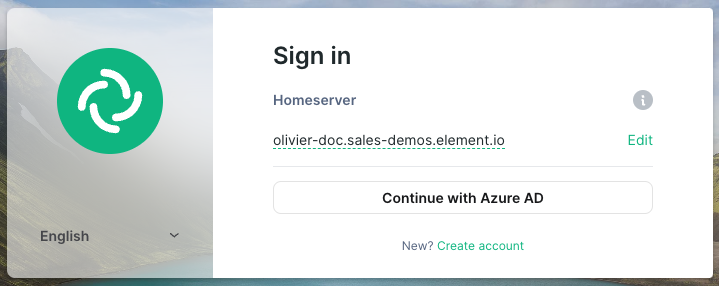
- `Idp Name`: A user-facing name for this identity provider, which is used to offer the user a choice of login mechanisms in the Element UI. In the screenshot bellow, `Idp Name` is set to `Azure AD`

<center>
  
[![Screenshot 2023-05-04 at 10.45.23.png](https://ems-docs.element.io/uploads/images/gallery/2023-05/scaled-1680-/screenshot-2023-05-04-at-10-45-23.png)](https://ems-docs.element.io/uploads/images/gallery/2023-05/screenshot-2023-05-04-at-10-45-23.png)

  </center>
  
- `Issuer`: the OIDC issuer. Used to validate tokens and (if discovery is enabled) to discover the provider's endpoints `https://<your-adfs.domain.com>/adfs/`
- `Token Endpoint`: the oauth2 authorization endpoint. Required if provider discovery is disabled.
- `Client Secret`: your client secret you saved before.
- Scopes: add every scope on a different line
  - The openid scope is required which translates to the Sign you in permission in the consent UI
  - You might also include other scopes in this request for requesting consent.
 
 <center>
  
 [![Screenshot 2023-05-03 at 17.27.00.png](https://ems-docs.element.io/uploads/images/gallery/2023-05/scaled-1680-/screenshot-2023-05-03-at-17-27-00.png)](https://ems-docs.element.io/uploads/images/gallery/2023-05/screenshot-2023-05-03-at-17-27-00.png)
  
  </center>
  
- User Mapping Provider: Configuration for how attributes returned from a OIDC provider are mapped onto a matrix user.
  - `Localpart Template`: Jinja2 template for the localpart of the MXID. Set it to `{{ user.upn.split('@')[0] }}` for AD FS
 
  
Other configurations are documented [here](https://element-hq.github.io/synapse/v1.41/openid.html).

### SAML on Microsoft Azure

Before setting up the installer, you have to configure Microsoft Entra ID.

#### Set up Microsoft Entra ID

With an account with enough rights, go to : `Enterprise Applications`
  
1. Click on `New Application`
2. Click on `Create your own application` on the top left corner
3. Choose a name for it, and select `Integrate any other application you don't find in the 
gallery`
4. Click on "Create"
5. Select `Set up single sign on`
6. Select `SAML`
7. `Edit` on `Basic SAML Configuration`
8. In `Identifier` , add the following URL : `https://synapse_fqdn/_synapse/client/saml2/metadata.xml`
9. Remove the default URL
10. In `Reply URL` , add the following URL : `https://synapse_fqdn/_synapse/client/saml2/authn_response`
11. Click on `Save`

[![](https://ems-docs.element.io/uploads/images/gallery/2023-11/scaled-1680-/image-1701176026243.png)](https://ems-docs.element.io/uploads/images/gallery/2023-11/image-1701176026243.png)
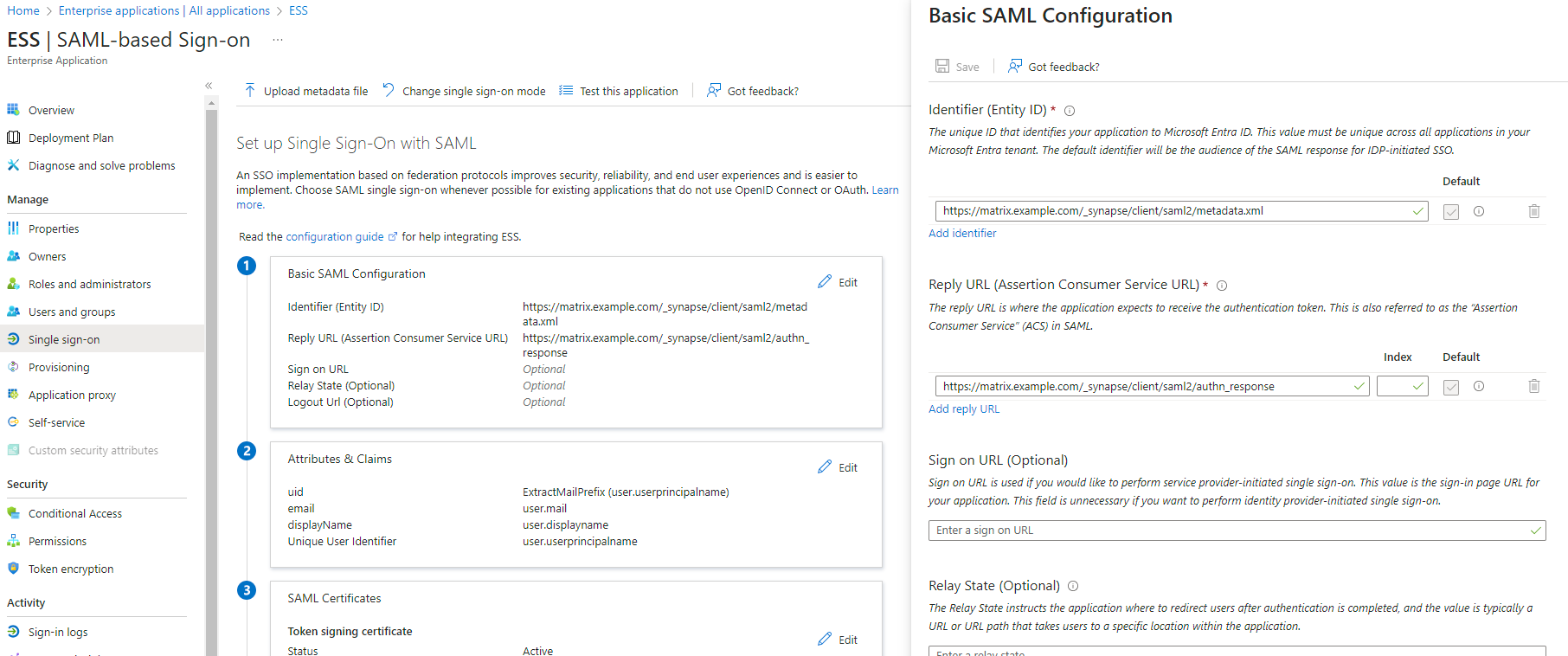

12. Make a note of the `App Federation Metadata Url` under `SAML Certificates` as this will be required in a later step.
13. `Edit` on `Attributes & Claims`
14. Remove all defaults for additional claims
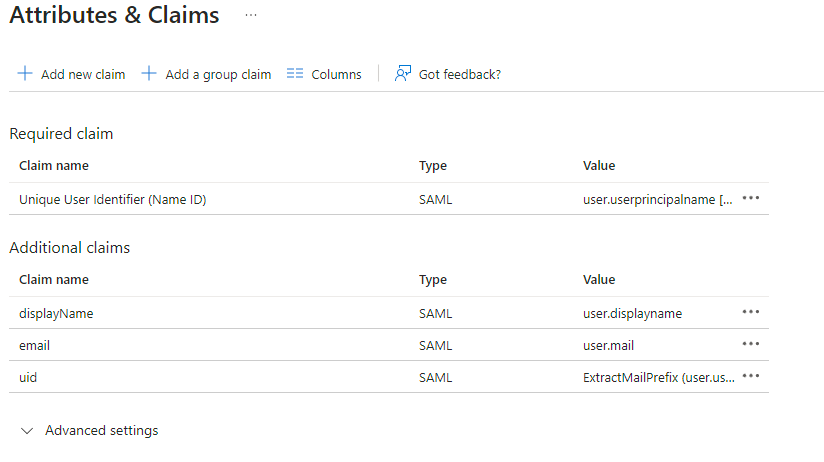
15. Click on `Add new claim` to add the following (suggested) claims (the UID will be used as the MXID):
    - Name: `uid` , Transformation : `ExtractMailPrefix` , Parameter 1 : `user.userprincipalname`
    - Name: `email` , Source attribute : `user.mail`
    - Name: `displayName` , Source attribute : `user.displayname`
16. Click on `Save`

  [![](https://ems-docs.element.io/uploads/images/gallery/2023-11/scaled-1680-/image-1701172980662.png)](https://ems-docs.element.io/uploads/images/gallery/2023-11/image-1701172980662.png)
  
17. In the application overview screen select  `Users and Groups` and add groups and users which may have access to element

#### Configure the installer

Add a SAML provider in the 'Synapse' configuration after enabling `Delegated Auth` and set the following (suggested) fields in the installer:

- <font color='0bbd8b'>**Allow Unknown Attributes**</font>**.**<br />Checked
- <font color='0bbd8b'>**Attribute Map**</font>**.**<br />Select `URN:Oasis:Names:TC:SAML:2.0:Attrname Format:Basic` as the `Identifier`
- <font color='0bbd8b'>**Mapping**</font>**.**<br />Set the following mappings:
  - From: `Primary Email` To: `email`
  - From: `First Name` To: `firstname`
  - From: `Last Name` To: `lastname`
- <font color='0bbd8b'>**Entity**</font>**.**<br />
  - <font color='0bbd8b'>**Description**</font>**.**<br />
  - <font color='0bbd8b'>**Entity ID**</font>**.** (From Azure)
  - <font color='0bbd8b'>**Name**</font>**.**<br />
- <font color='0bbd8b'>**User Mapping Provider**</font>**.**<br />Set the following:
    - `MXID Mapping`: `Dotreplace`
    - `MXID Source Attribute`: `uid`
- <font color='0bbd8b'>**Metadata URL**</font>**.**<br />Add the `App Federation Metadata URL` from Azure.

### Troubleshooting

#### Redirection loop on SSO

Synapse needs to have the `X-Forwarded-For` and `X-Forwarded-Proto` headers set by the reverse proxy doing the TLS termination. If you are using a Kubernetes installation with your own reverse proxy terminating TLS, please make sure that the appropriate headers are set.