Configuration options for how ESS can communicate with your PostgreSQL database.
This section of the ESS installer GUI will only be present if you are using the Kubernetes deployment option or you have opted to use your own PostgreSQL for a Standalone deployment.
If you have not yet set up your PostgreSQL, you should ensure you have done so before proceeding, see the relevant PostgreSQL section from the [Requirements and Recommendations](https://ems-docs.element.io/books/element-server-suite-classic-documentation-lts-2404/page/requirements-and-recommendations) page:
- [Standalone Deployment PostgreSQL Prerequisites](https://ems-docs.element.io/books/element-server-suite-classic-documentation-lts-2404/page/requirements-and-recommendations#bkmrk-postgresql)
- [Kubernetes Deployment PostgreSQL Prerequisites](https://ems-docs.element.io/books/element-server-suite-classic-documentation-lts-2404/page/requirements-and-recommendations#bkmrk-postgresql-1)
All settings configured via the UI in this section will be saved to your deployment.yml, with the contents of secrets being saved to secrets.yml. You will find specific configuration examples in each section.
By default, if you do not change any settings on this page, defaults will be added to your configuration file/s (see example below).
Config Example
```yml
spec:
components:
synapse:
config:
postgresql:
database: synapse
host: db.example.com
passwordSecretKey: postgresPassword
user: test-username
```
### PostgreSQL
#### Database
[](https://ems-docs.element.io/uploads/images/gallery/2024-08/image-1724150284621.png)
Config Example
```yml
spec:
components:
synapse:
config:
postgresql:
database: synapse
```
Enter the name of the PostgreSQL Database you configured per the previously mentioned [Requirements and Recommendations](https://ems-docs.element.io/books/element-server-suite-classic-documentation-lts-2404/page/requirements-and-recommendations) to use for Synapse.
#### Host
[](https://ems-docs.element.io/uploads/images/gallery/2024-08/image-1724150463007.png)
Config Example
```yml
spec:
components:
synapse:
config:
postgresql:
host: db.example.com
```
Enter the fully qualified domain name of the PostgreSQL Database you configured per the previously mentioned [Requirements and Recommendations](https://ems-docs.element.io/books/element-server-suite-classic-documentation-lts-2404/page/requirements-and-recommendations) to use for Synapse.
#### Port
[](https://ems-docs.element.io/uploads/images/gallery/2024-08/image-1724150637542.png)
Config Example
```yml
spec:
components:
synapse:
config:
postgresql:
# port not present when left as default 5432
port: 5432
```
Defaults to `5432`, either keep if correct or provide the required port of the PostgreSQL Database you configured per the previously mentioned [Requirements and Recommendations](https://ems-docs.element.io/books/element-server-suite-classic-documentation-lts-2404/page/requirements-and-recommendations) to use for Synapse.
#### SSL Mode
[](https://ems-docs.element.io/uploads/images/gallery/2024-08/image-1724150860317.png)
Config Example
```yml
spec:
components:
synapse:
config:
postgresql:
# sslMode not present when left as default `require`
sslMode: require
# sslMode: disable
# sslMode: allow
# sslMode: prefer
# sslMode: verify-ca
# sslMode: verify-full
```
Defaults to `Require` - it is not recommended to disable SSL, so for most setups, this setting should be left as default.
You should adjust to accommodate your environment as required, the options available are:
- Disable
- Allow
- Prefer
- Require
- Verify CA
- Verify Full
#### User
[](https://ems-docs.element.io/uploads/images/gallery/2024-08/image-1724151253559.png)
Config Example
```yml
spec:
components:
synapse:
config:
postgresql:
user: test-username
```
Enter the username of a user who can access the PostgreSQL Database you configured per the previously mentioned [Requirements and Recommendations](https://ems-docs.element.io/books/element-server-suite-classic-documentation-lts-2404/page/requirements-and-recommendations) to use for Synapse.
#### PostgreSQL Password
[](https://ems-docs.element.io/uploads/images/gallery/2024-08/image-1724151325375.png)
Config Example
- `secrets.yml`
```yml
apiVersion: v1
kind: Secret
metadata:
name: synapse
namespace: element-onprem
data:
postgresPassword: dGVzdC1wYXNzd29yZA==
```
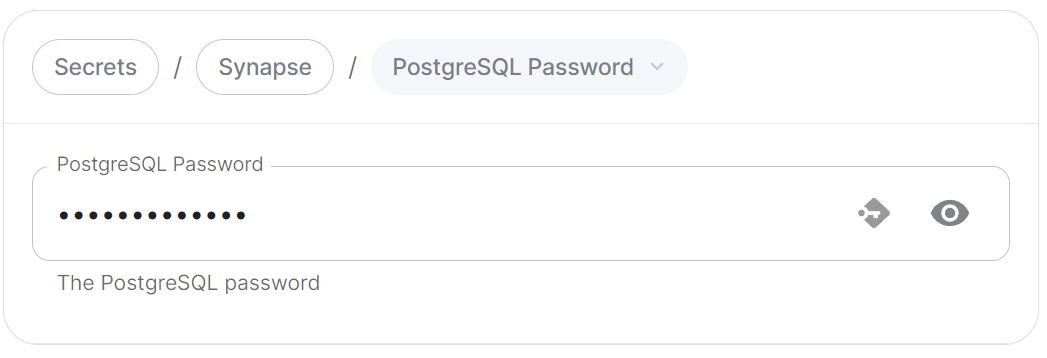
Enter the password for the specified user who can access the PostgreSQL Database you configured per the previously mentioned [Requirements and Recommendations](https://ems-docs.element.io/books/element-server-suite-classic-documentation-lts-2404/page/requirements-and-recommendations) to use for Synapse.
### Advanced
#### Connection Pool
##### Max / Min Connections
[](https://ems-docs.element.io/uploads/images/gallery/2024-08/image-1724151480786.png)
Config Example
```yml
spec:
components:
synapse:
config:
postgresql:
# connectionPool not present when left as default
connectionPool:
maxConnections: 10
minConnections: 5
```
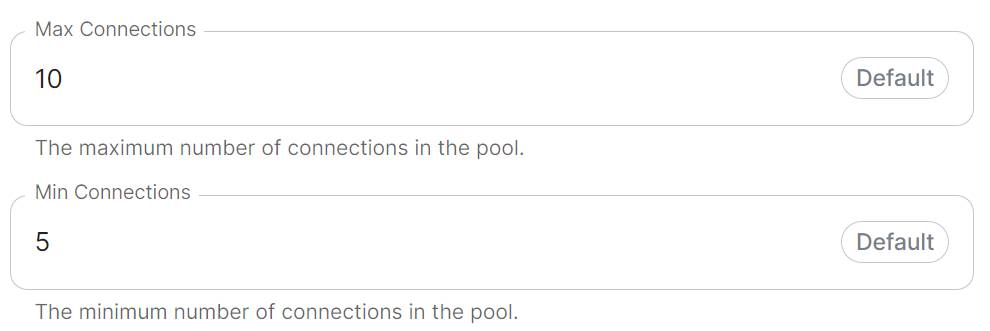
In most deployments you should not need to configure these settings, however if required, you can adjust both the minimum and maximum connections in the Synapse connection pool.