# Securing an EMS Account
### Two-Factor Authentication
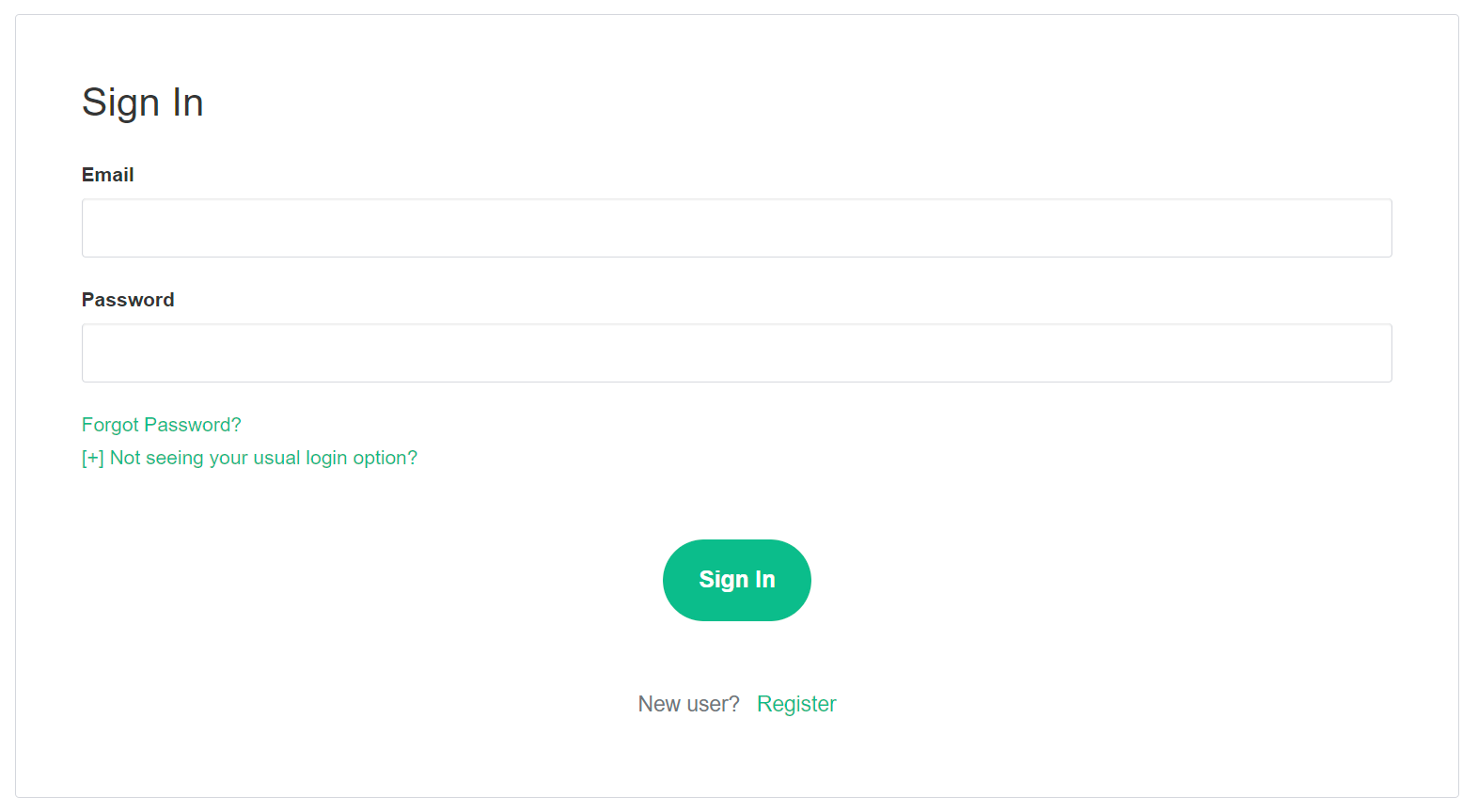
From the Element homepage, click `Sign In` then `Admin Dashboard` to be taken to the EMS Control Panel. If you aren't logged in already, you will be presented with the login screen - sign in using your details to be taken to the EMS Control Panel.
[](https://ems-docs.element.io/uploads/images/gallery/2023-08/image-1691053542763.png)
[](https://ems-docs.element.io/uploads/images/gallery/2023-08/image-1691055581048.png)
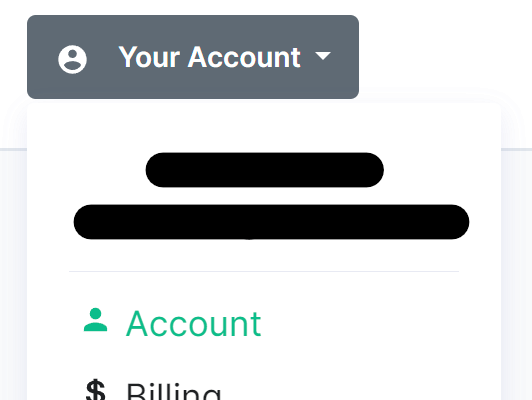
Click `Your Account`, found in the top right, then select `Account`, or goes directly there from this link, Account Page.
[](https://ems-docs.element.io/uploads/images/gallery/2023-08/image-1691055644130.png)
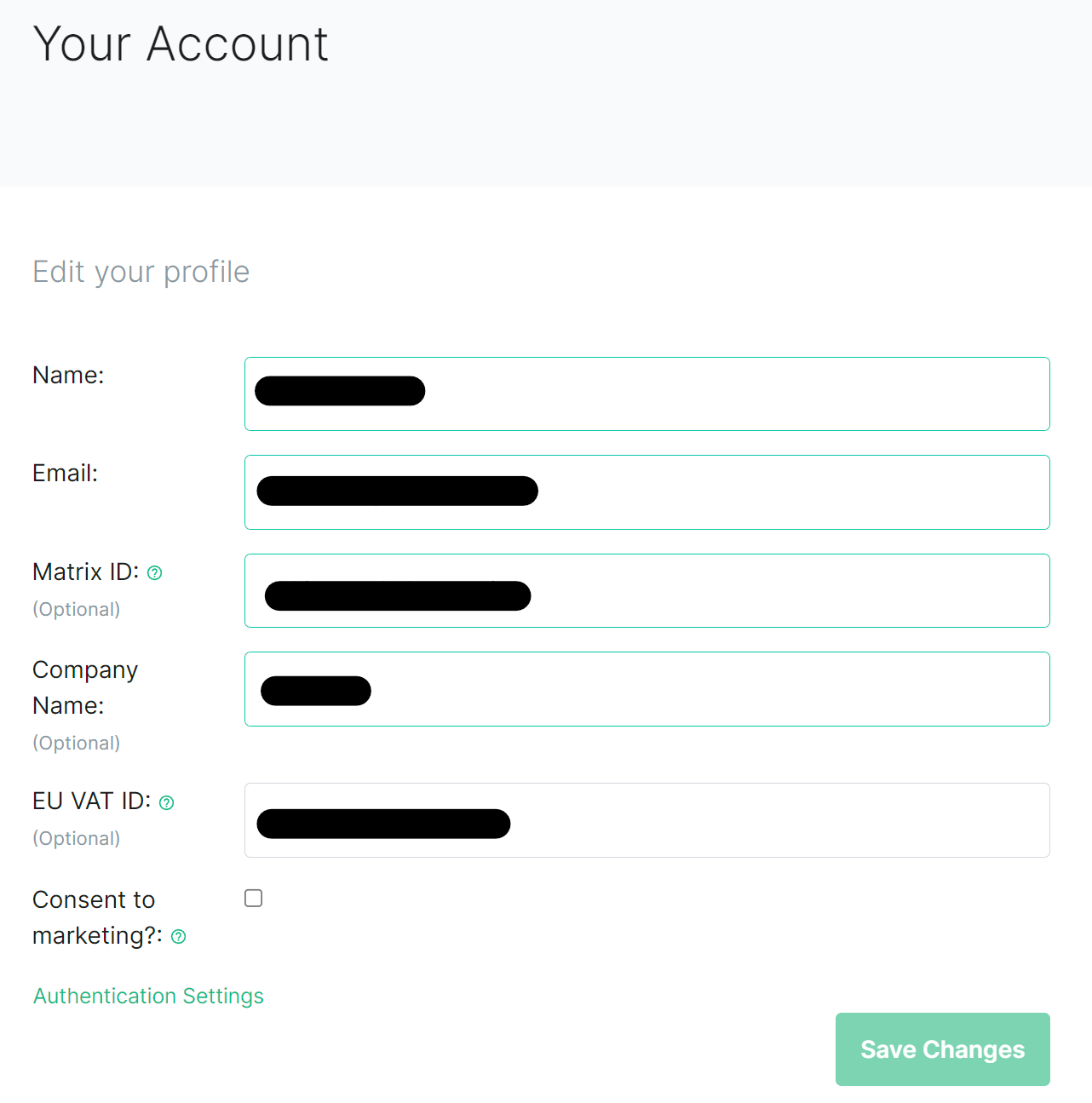
This page contains details about your account, to secure your account, you will need to click `Authentication Settings` found at the bottom of the `Edit your profile` section.
[](https://ems-docs.element.io/uploads/images/gallery/2023-08/image-1691055793853.png)
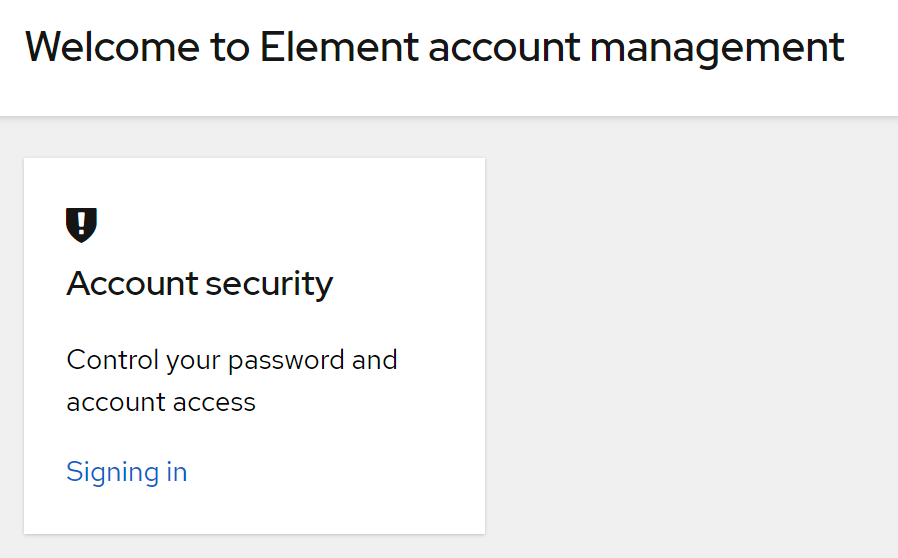
This will take you to your Account Console, where you can manage your account security settings. Click `Signing In` under `Account Security`, then from the `Two-factor authentication` section click `Setup an authenticator application`.
[](https://ems-docs.element.io/uploads/images/gallery/2023-08/image-1691055925565.png)
[](https://ems-docs.element.io/uploads/images/gallery/2023-08/image-1691055946973.png)
You will need to reauthenticate to confirm your identity, then follow the steps provided to setup a mobile authenticator.
[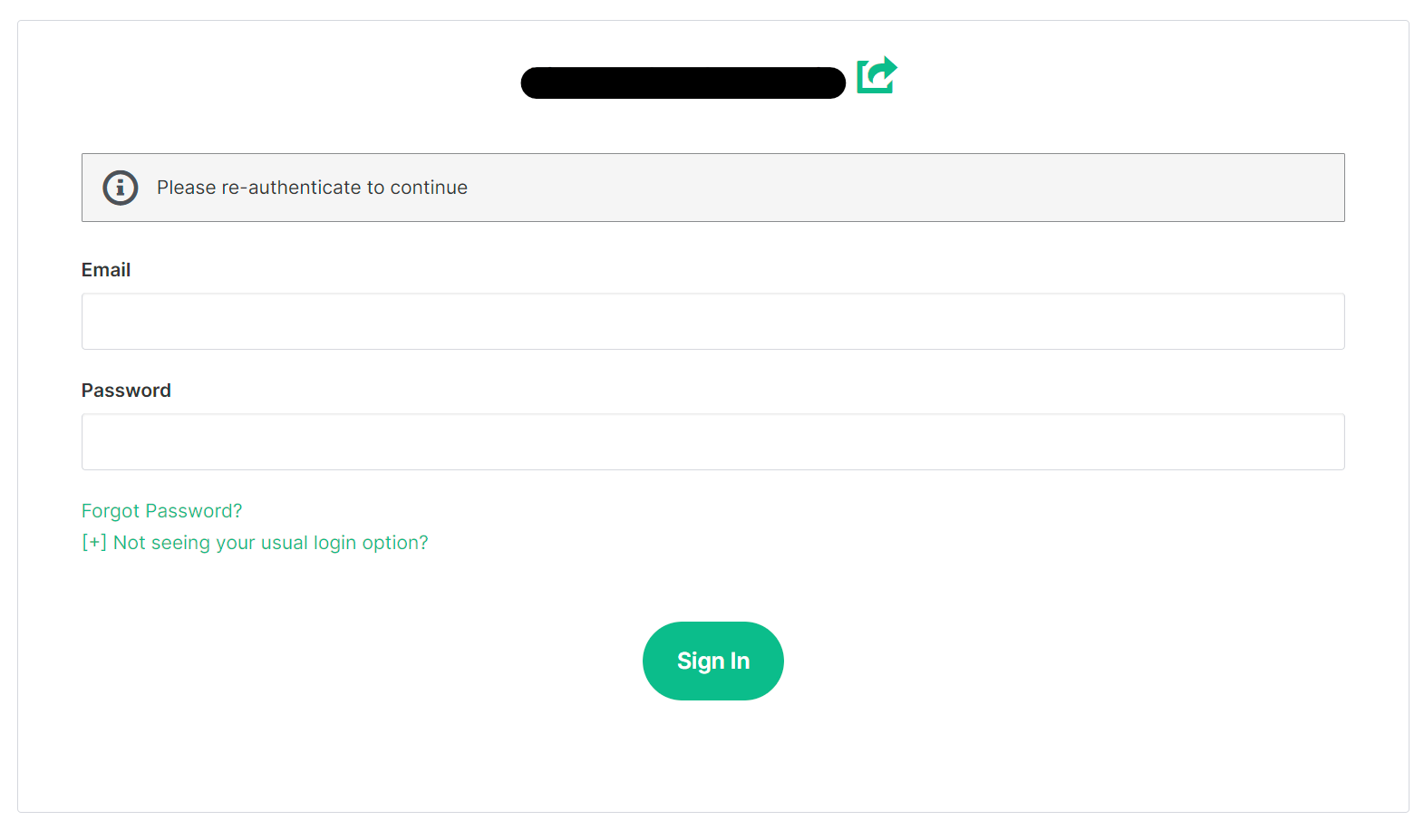](https://ems-docs.element.io/uploads/images/gallery/2023-08/image-1691055997291.png)
[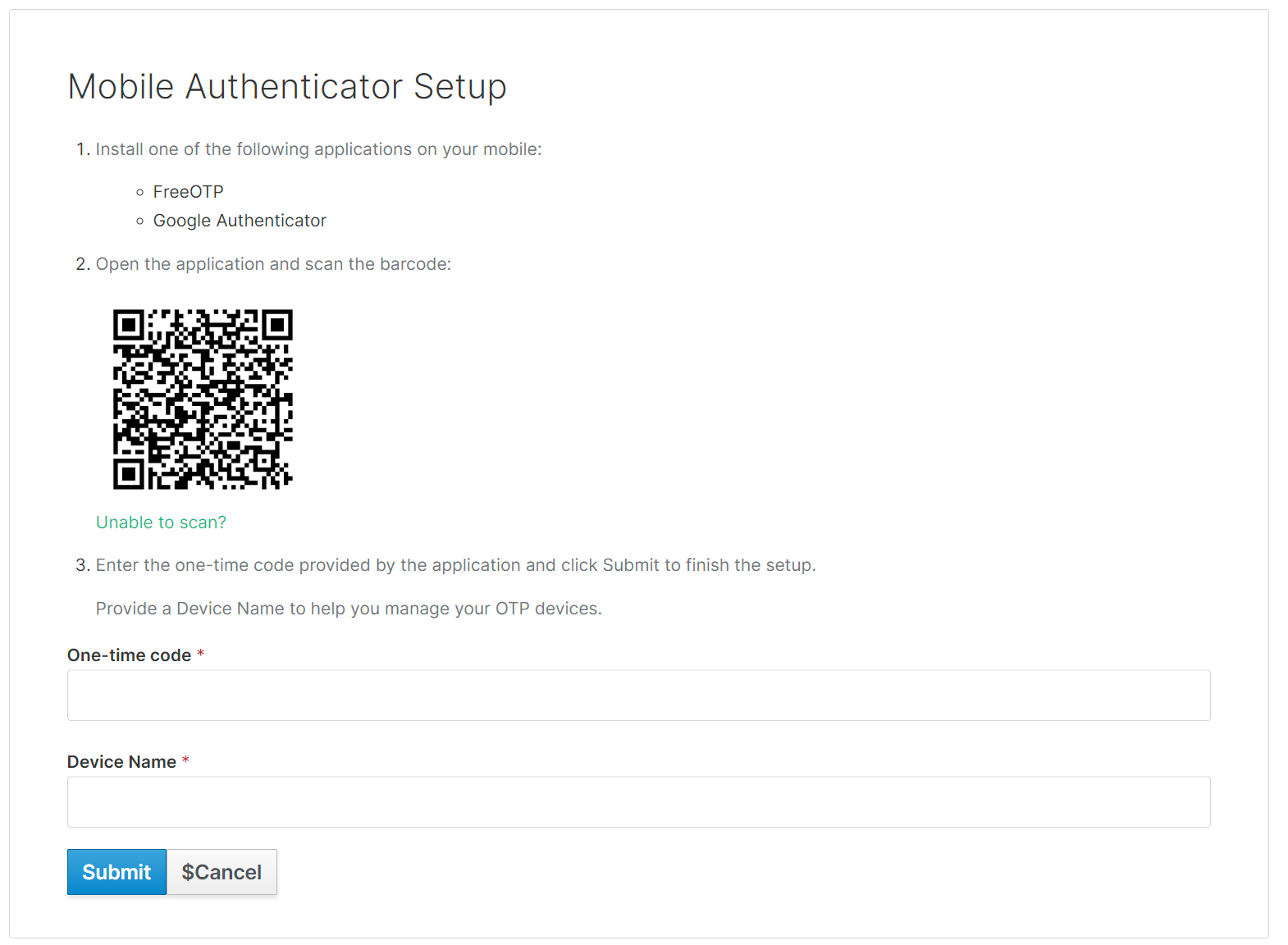](https://ems-docs.element.io/uploads/images/gallery/2023-08/image-1691056046959.png)
If you're planning on using a password manager, you may not be able to scan the QR code. Simply click `Unable to scan`, copy the code and paste it into your password manager. Configuration values are provided below the code, should your application require this information. To complete this process, provide a generated code from your device / password manager, give it a recognisable device name then click `Submit`.
[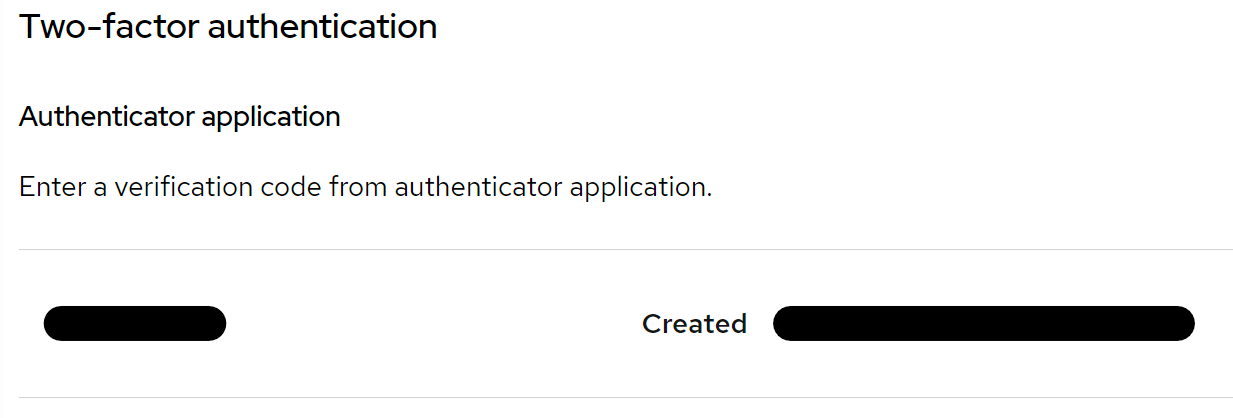](https://ems-docs.element.io/uploads/images/gallery/2023-08/image-1691056199966.png)
You can confirm this was successful, as you will see the device listed under the `Two-factor authentication` section.
### Changing your EMS Account Email
From the Element homepage, click `Sign In` then `Admin Dashboard` to be taken to the EMS Control Panel. If you aren't logged in already, you will be presented with the login screen - sign in using your details to be taken to the EMS Control Panel.
[](https://ems-docs.element.io/uploads/images/gallery/2023-08/image-1691053542763.png)
[](https://ems-docs.element.io/uploads/images/gallery/2023-08/image-1691055581048.png)
Click `Your Account`, found in the top right, then select `Account`, or goes directly there from this link, Account Page.
[](https://ems-docs.element.io/uploads/images/gallery/2023-08/image-1691055644130.png)
This page contains details about your account, to change your email, simply edit the existing email present and then click `Save`, a banner will appear asking you to verify this new email address.
[](https://ems-docs.element.io/uploads/images/gallery/2023-08/image-1691055793853.png)
[](https://ems-docs.element.io/uploads/images/gallery/2023-08/image-1691056404870.png)
You will recieve an email, simply click the `Confirm Email Address` button in the email to verify this new address.
[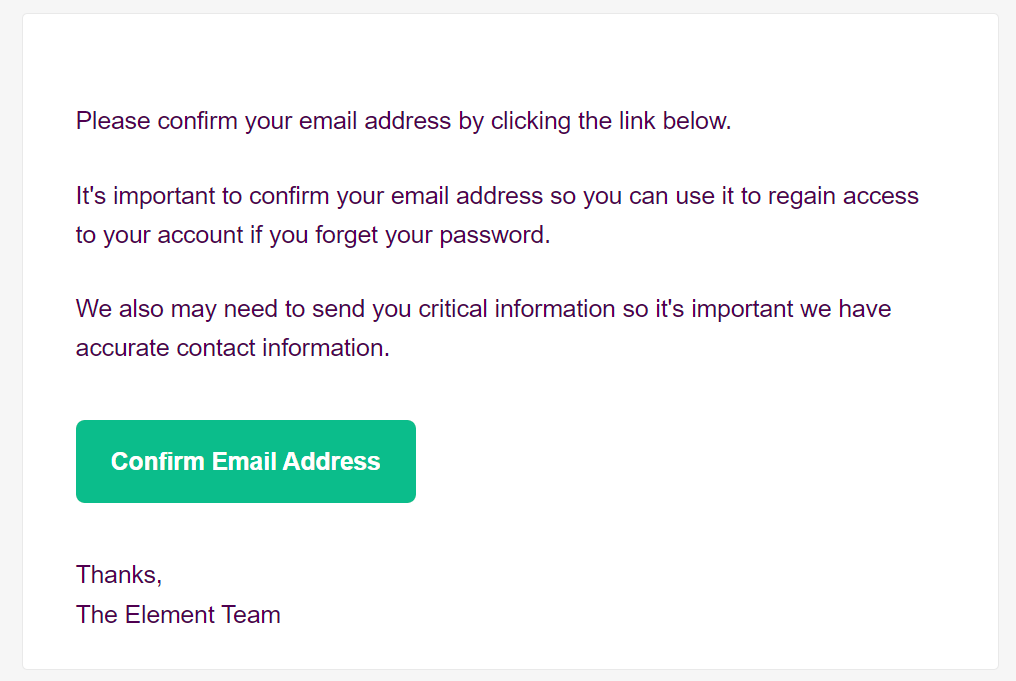](https://ems-docs.element.io/uploads/images/gallery/2023-08/image-1691056498132.png)