# Changing an EMS Account Password
### Changing your EMS Account Password
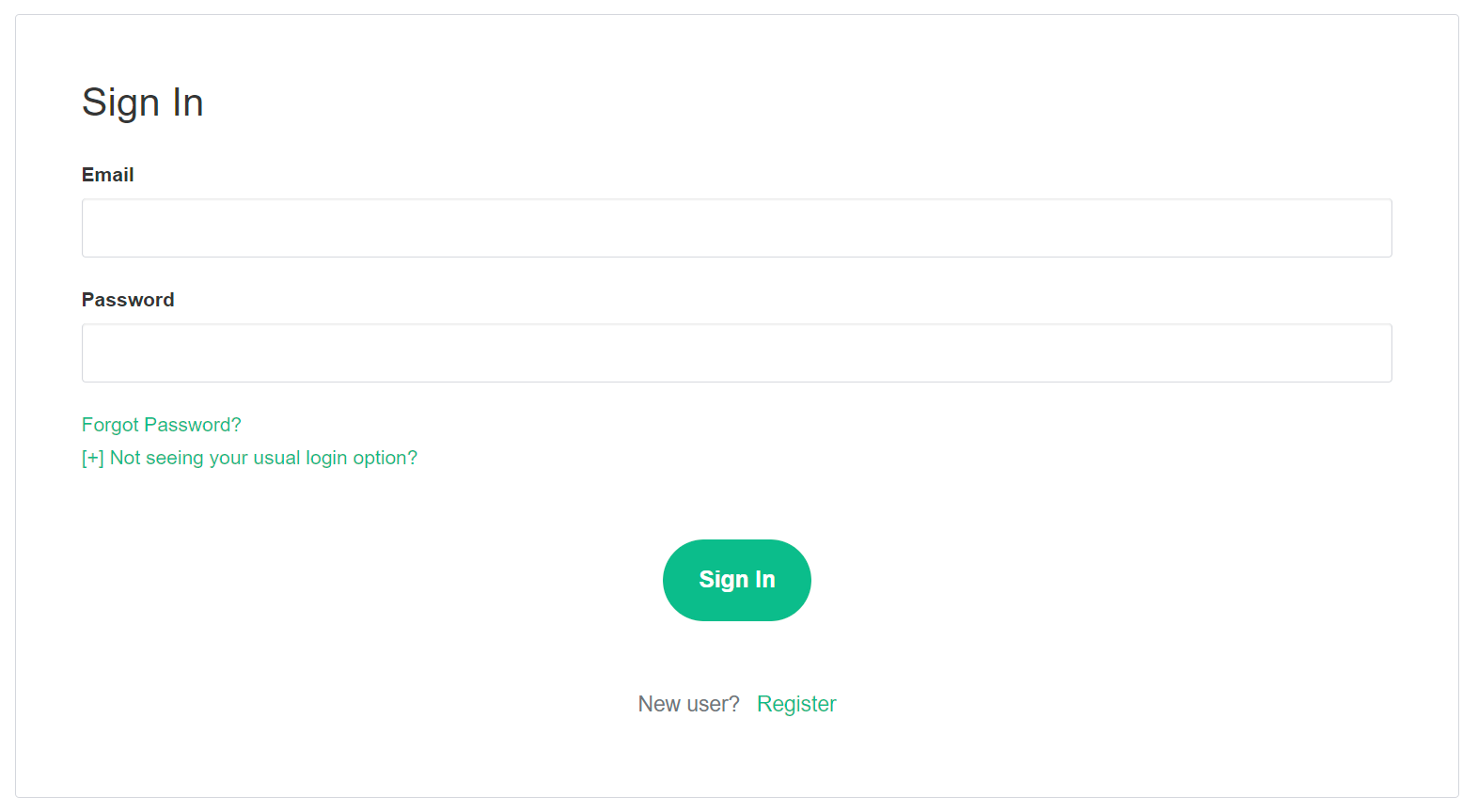
From the Element homepage, click `Sign In` then `Admin Dashboard` to be taken to the EMS Control Panel. If you aren't logged in already, you will be presented with the login screen - sign in using your details to be taken to the EMS Control Panel.
[](https://ems-docs.element.io/uploads/images/gallery/2023-08/image-1691053542763.png)
[](https://ems-docs.element.io/uploads/images/gallery/2023-08/image-1691055581048.png)
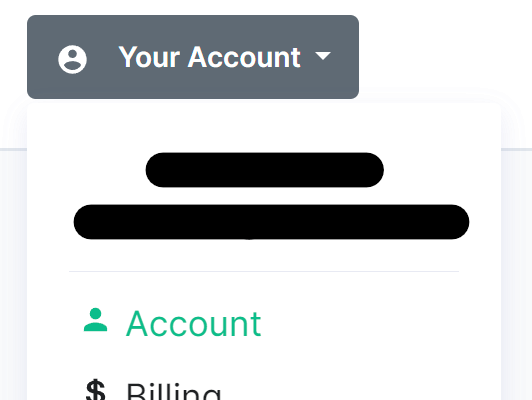
Click `Your Account`, found in the top right, then select `Account`, or goes directly there from this link, Account Page.
[](https://ems-docs.element.io/uploads/images/gallery/2023-08/image-1691055644130.png)
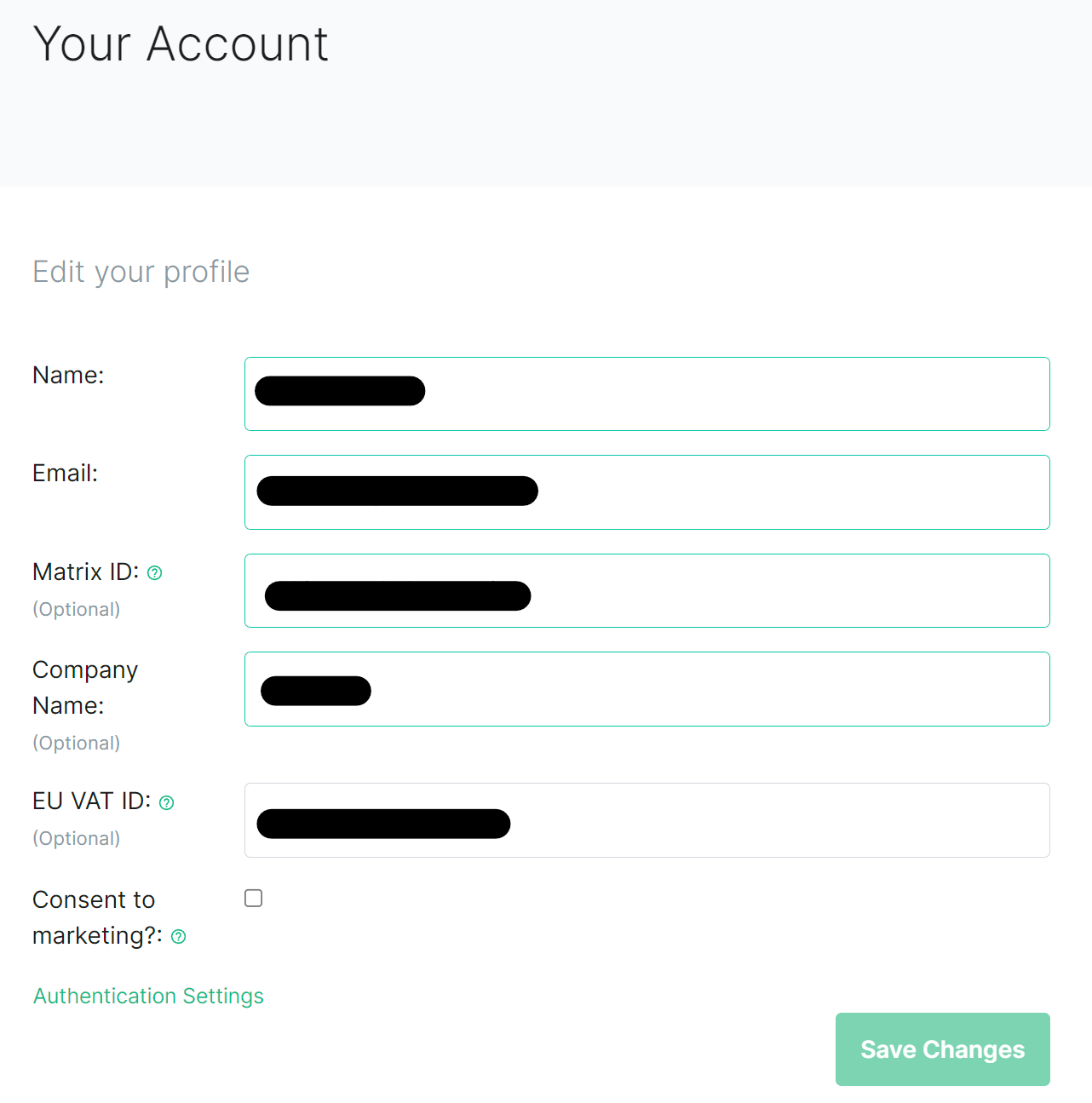
This page contains details about your account, to change your password, you will need to click `Authentication Settings` found at the bottom of the `Edit your profile` section.
[](https://ems-docs.element.io/uploads/images/gallery/2023-08/image-1691055793853.png)
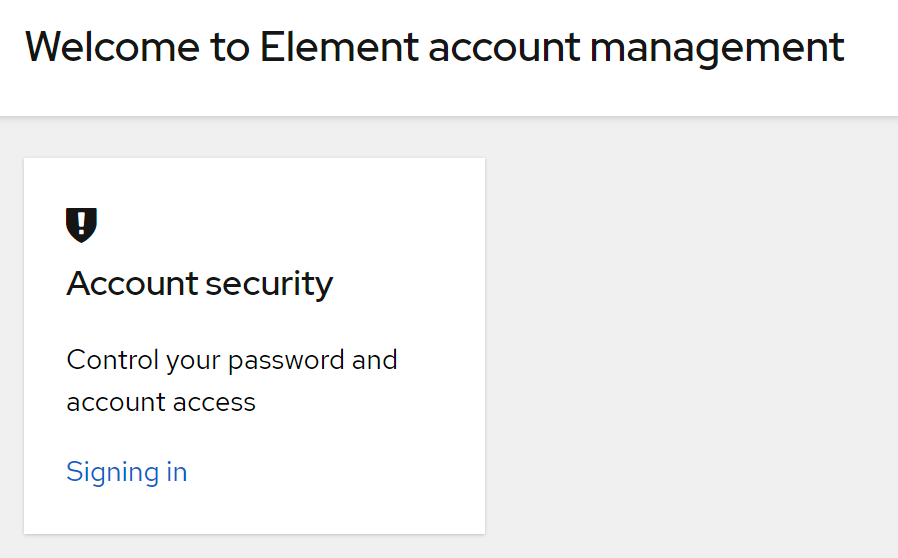
This will take you to your Account Console, where you can manage your account security settings. Click `Signing In` under `Account Security`, then from the `Basic authentication` section click the `Update` button.
[](https://ems-docs.element.io/uploads/images/gallery/2023-08/image-1691055925565.png)
[](https://ems-docs.element.io/uploads/images/gallery/2023-08/image-1691056709130.png)
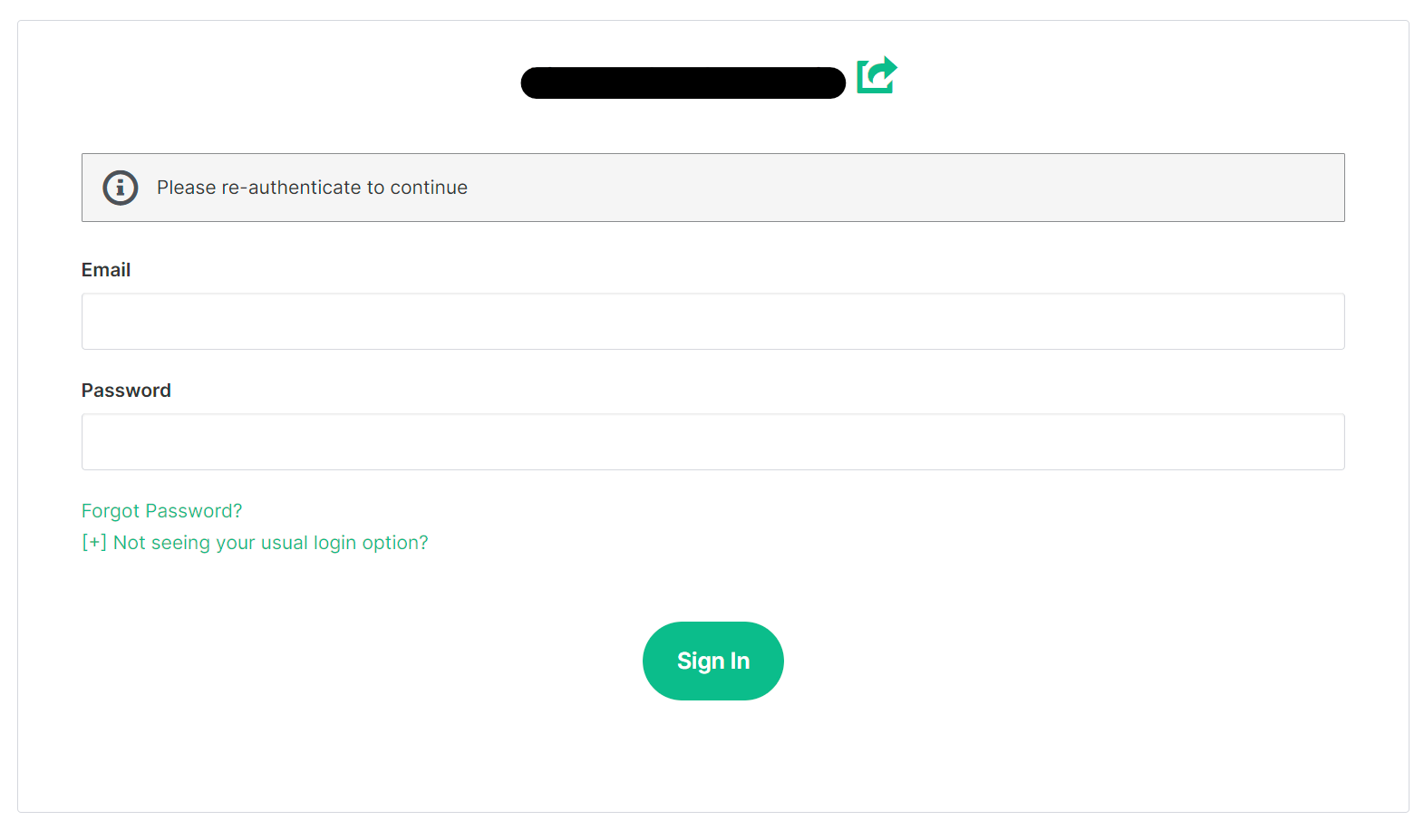
You will need to reauthenticate to confirm your identity, then follow the steps provided to setup a mobile authenticator.
[](https://ems-docs.element.io/uploads/images/gallery/2023-08/image-1691055997291.png)
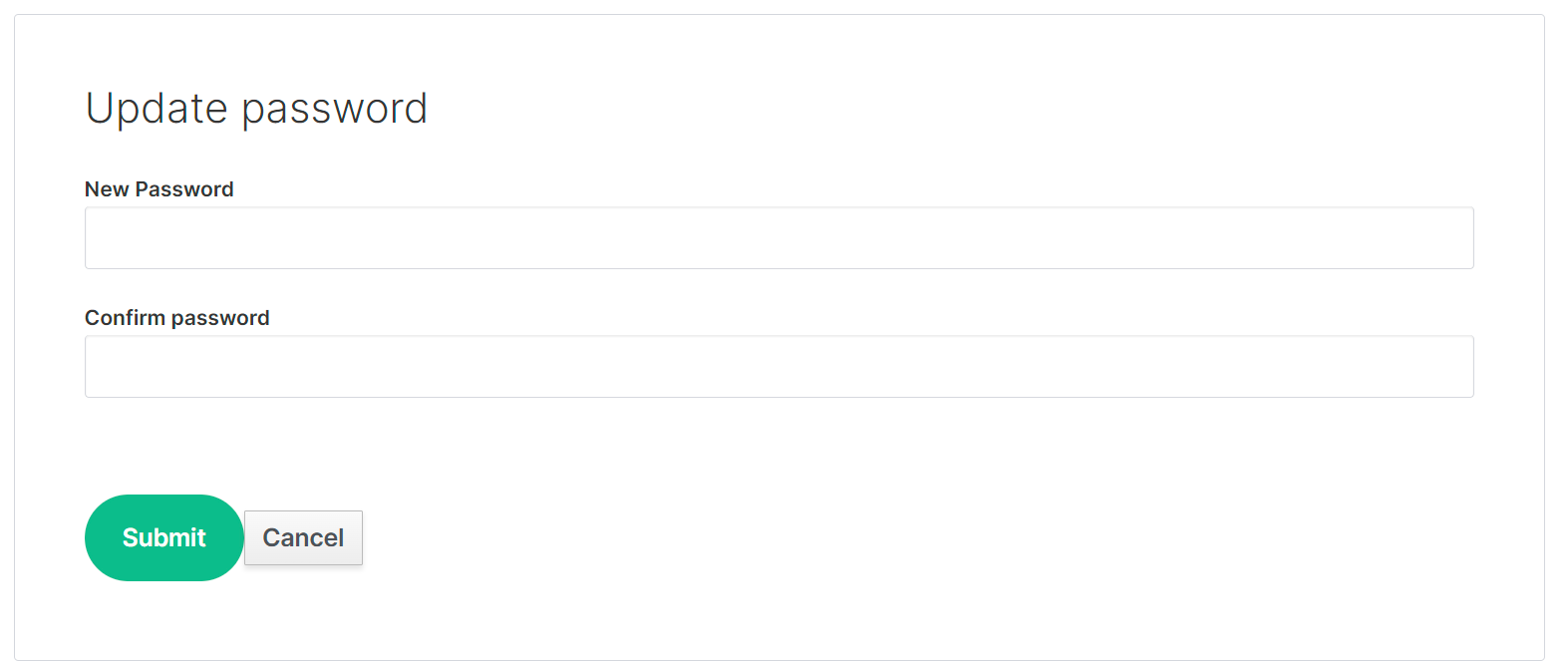
Finally, you will be presented with the screen to update your password. Confirm it and then click `Submit` to change your account password.
[](https://ems-docs.element.io/uploads/images/gallery/2023-08/image-1691056774523.png)